
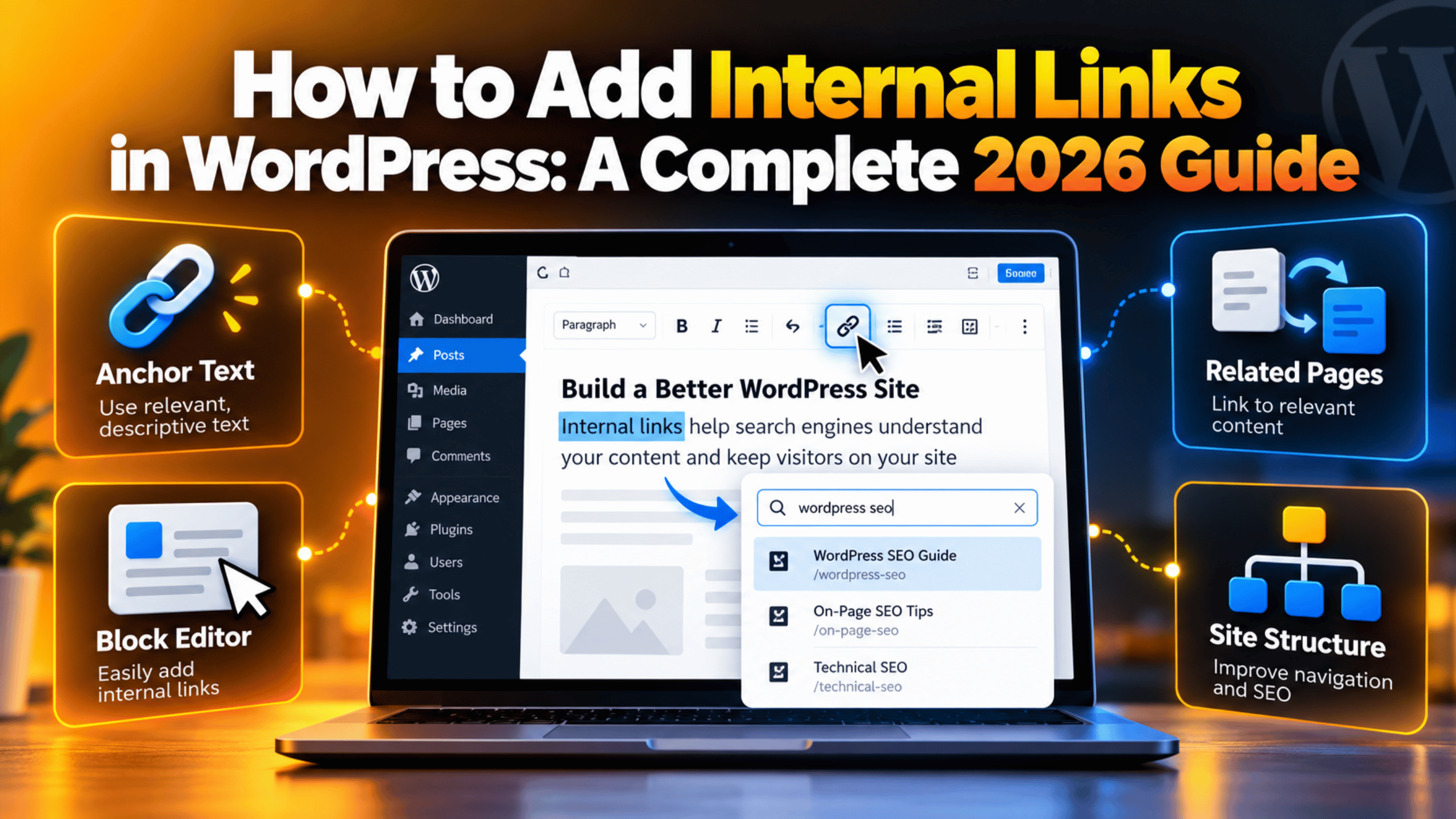
How to Add Internal Links in WordPress: A Complete 2026 Guide
An internal link is a link from one page on your site to another page on the same site. It sounds minor. It is not. Internal links tell readers where to go next, and they tell search engines which of your pages matter most. A site with good internal linking feels joined up. A site without it feels like a pile of loose pages. This guide shows you how to add internal links in WordPress in 2026, where to put them, what to write in them, and how to keep them working over time.
What Internal Links Do for Your Site
Internal links do three jobs at once. They move a reader to the next useful page. They pass authority between your own pages. And they help search engines understand how your content fits together.
Think about how a search engine finds a page. It follows links. A post that nothing links to is an island. It can still be found through your sitemap, but it gets far less attention than a page you point to from five other posts. Linking is a vote, and your own links are the votes you fully control.
Readers benefit even more. Someone reading about one topic often has a second question coming. A link placed at that exact moment answers it. That keeps people on your site longer and makes the next step obvious.
There is a business angle too. Internal links are how you steer readers from a blog post towards a service page or a contact form. If you are still shaping your publishing routine, our guide on how to write and publish a blog post in WordPress pairs well with this one.
How to Add an Internal Link in the Block Editor
The block editor makes this quick once you know the shortcut. You do not need to copy a URL at all.
Step 1. Open the post or page and highlight the words you want to turn into a link.
Step 2. Press Ctrl + K on Windows, or Cmd + K on a Mac. A small search box appears. You can also click the link icon in the block toolbar.
Step 3. Start typing the title of the page you want to link to. WordPress searches your own posts and pages as you type and lists matches underneath.
Step 4. Click the right result. WordPress inserts the correct URL for you, so there are no typos and no wrong domains.
Step 5. Press Enter or click Save, then update the post.
Two details are worth knowing. If you paste a URL while text is highlighted, WordPress turns that text into a link straight away. And if you type a title that does not exist yet, you will see a “Create page” option, which is handy when you are planning content.
Check your work by clicking the link in the preview. If it goes nowhere, the usual cause is a permalink problem rather than a typing mistake. Our explainer on WordPress permalinks and how to fix them covers that.
Adding Links in the Classic Editor, Menus and Widgets
Plenty of sites still run the classic editor, and the method there is almost identical. Highlight your text, click the chain icon in the toolbar, then use the search box that opens. Click the gear icon if you want the full options panel with the list of your existing content.
You can also write the link by hand in the Text tab. The markup looks like this:
<a href="https://example.com/your-page/">your anchor text</a>Navigation menus are a different kind of internal link, and they carry a lot of weight because they appear on every page. Go to Appearance → Menus, pick a page from the left panel and click Add to Menu. Our step-by-step guide to WordPress menus walks through the whole screen, and there is a separate walkthrough for menus and sub-menus if you need a second level.
Widgets and footers work the same way. Add a Navigation block or a list of links in Appearance → Widgets, and they appear site-wide.
Writing Anchor Text That Actually Helps
Anchor text is the visible wording of the link. It is the strongest clue you give about the page at the other end, so vague wording wastes it.
Describe the destination. “Our guide to WordPress permalinks” tells a reader exactly what they will get. “Click here” tells them nothing, and it reads badly on a screen reader.
Keep it short. Three to six words is usually enough. Linking a whole sentence makes the page look cluttered.
Vary the wording. If you link to the same page from ten posts, write the anchor differently each time. Identical anchors repeated across a site look mechanical.
Make it read naturally. The sentence should still make sense if you remove the link. If you had to twist the sentence to fit a keyword, rewrite it.
Never link a bare URL in body text. A long address breaks the line and tells the reader nothing. Put the words in front of it instead.
Where to Place Internal Links on a Page
Placement changes how many people actually click. The same link can do well or do nothing depending on where it sits.
Early in the body. A link in the first few paragraphs catches readers while their attention is highest. Use it for the one page you most want them to see.
At the moment a question appears. If you mention a term you explain elsewhere, link it right there. That is where curiosity peaks.
At the end of a section. A reader who has finished a section is deciding what to do next. That is a natural place to offer more depth.
In the conclusion. One or two closing links work well, usually pointing to a service page or a related guide.


In navigation and breadcrumbs. These are site-wide links that help with structure rather than persuasion. If you want them, see our guide to adding breadcrumbs in WordPress for free.
Avoid stacking five links in one paragraph. Readers skip clusters, and the links compete with each other.
Link Settings: New Tabs, Nofollow and Link Relationships
When you create a link, WordPress offers a few extra settings. Most people never open them, but two are worth understanding.
Open in new tab. Toggle this on and the link gains target="_blank". For internal links, leave it off. Sending readers to a new tab for your own pages clutters their browser and breaks the back button habit.
Nofollow. This tells search engines not to pass authority through the link. It belongs on paid or untrusted outbound links, not on links between your own pages. Adding nofollow internally throws away the benefit you were trying to create.
There is also an older feature for describing your relationship to a linked site, which you can read about in our note on XFN link relationships in WordPress. It is rarely needed today, but it explains the extra fields you may see.
One more setting matters for images. A picture can be a link too, which is useful in galleries and product grids. Our walkthrough on adding custom links to gallery images shows how.
Building a Simple Internal Linking Plan
Adding links post by post works, but a small plan works better. You do not need software for this. A spreadsheet is enough.
Pick your important pages. List the five or ten pages that matter most, usually your services and your strongest guides. These are the pages that should receive the most internal links.
Group content by topic. Put related posts into clusters, then link every post in a cluster to the main guide for that topic, and link the guide back out to each post. This is the pattern search engines read most easily.
Aim for three to five links per post. That is plenty for a 1,500 word article. Quality beats volume every time.
Link old posts to new ones. This is the step most people skip. When you publish something new, search your site for two or three older posts on the same theme and add a link from each. New content gets found far faster that way.
Review every quarter. Open your analytics, find pages with no internal links pointing at them, and fix the worst offenders. Our overview of free SEO options for WordPress in 2026 lists what you can do without paying for tools.
Finding and Fixing Broken Internal Links
Internal links rot quietly. You change a slug, move a page, or delete an old post, and suddenly a dozen links point at nothing. Visitors hit a 404 page and leave.
Search for the old URL. The fastest check is to look for the old address in your own content and replace it. Doing this across many posts usually means a bulk find and replace. Take a full database backup first, or work on a staging copy. A bad replace pattern can damage content across hundreds of posts, and there is no undo button.
Watch your 404 reports. Search Console lists pages that return errors, which often reveals links you forgot about. Our easy guide to Google Search Console covers where to find that report.
Scan the site. A link checker crawls your pages and lists every dead link in one place. See our guide on how to check for broken links in WordPress.
Redirect, do not delete. When you retire a page, send its old address to the closest replacement. The link keeps working and readers never see an error. A good 404 page helps as a backstop, and our roundup of 404 handling options explains the choices.
Common Internal Linking Mistakes, and What to Do Instead
A few habits undo good work. They are easy to spot once you know them.
Linking everything. Twenty links in a short post dilutes every one of them. Keep the handful that genuinely help.
Always linking the same page. If every post points at your home page, nothing else gets support. Spread links across your library.
Forgetting older content. Most sites link new to old and stop there. Going back to add links from old posts is where the real gains sit.
Linking out of habit rather than usefulness. Ask one question before adding a link: would a reader actually want this next? If not, leave it out.
Internal linking is slow, steady work that pays off over months rather than days. Set a simple rule, such as three links added to older posts every time you publish, and the structure builds itself.
If your site has grown faster than its structure, or you have inherited hundreds of posts with no linking at all, the team at 24×7 WP Support can audit your content, map the clusters and put the links in place for you, so you can get back to writing.
Related posts:
What is the Role of Product Description Writers? Why do you need them?
Can You Build a WordPress Website with GoDaddy?
How to Open the Browser Console to Debug WordPress Issues (2026)
How to Create a WordPress Account and Set Up Your Website
How to Maximise Direct Hotel Bookings with WordPress UX Design

Brian is a WordPress support specialist and content contributor at 24×7 WP Support. He writes practical, easy-to-follow guides on WordPress troubleshooting, WooCommerce issues, plugin and theme errors, website security, migrations, performance optimization, and integrations. With a focus on solving real website problems, Brian helps business owners, bloggers, and online store managers keep their WordPress sites running smoothly.
