
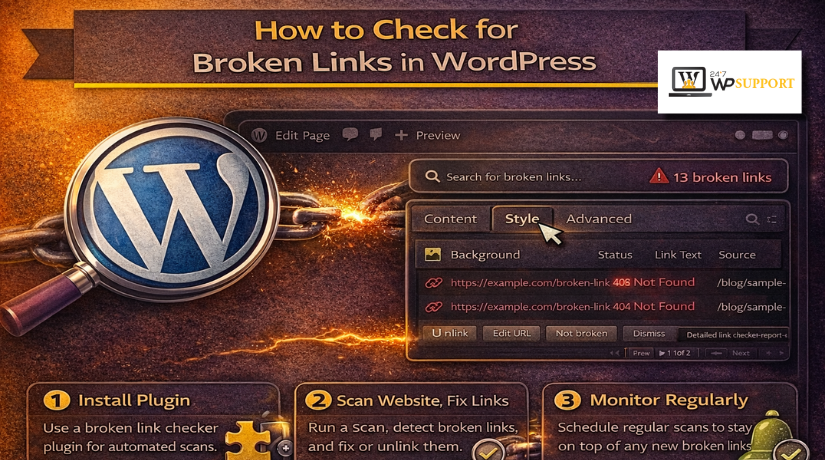
How to Check for Broken Links in WordPress and Fix Them
Introduction: Why Broken Links Need Quick Attention
Broken links create a poor experience for every website visitor. A reader clicks a link expecting help, but lands on an error page instead. That one bad click can reduce trust very fast. It can also make your website look outdated and poorly managed.
If you run a business site, this problem matters even more. Visitors may leave before reading your content or contacting you. They may also stop trusting your services, products, or support pages. That is why learning how to check for broken links in WordPress is important for every site owner.
Broken links can affect many important parts of a website, including:
- blog posts
- service pages
- menus
- buttons
- image links
- internal content paths
When these links stop working, users face confusion and delay. Search engines may also see those pages as poorly maintained. That can weaken the overall quality of your website over time. If you want to find broken links in WordPress, you need a clear process. You also need to know where these broken URLs usually appear.
This guide is built to help with that exact issue. It explains what broken links mean on a WordPress site. It also prepares you for the next step, which is checking and fixing them correctly.
What a Broken Link Means on a WordPress Website
A broken link is a URL that does not open the right page. When someone clicks it, the page may show a 404 error. In some cases, it may load the wrong page instead. It may also lead to deleted content or missing media files.
On WordPress websites, broken links usually fall into two types:
- Internal broken links point to pages on your own website
- External broken links point to pages on another website
Internal broken links often cause bigger navigation problems. They can interrupt the path between related posts, pages, and key sections. That is why many site owners ask how to fix a broken internal link in WordPress before anything else.
A good broken link checker WordPress workflow helps you catch these issues early. Once you understand what broken links mean, the next step becomes much easier.
Common Reasons Broken Links Appear in WordPress
Broken links usually appear after small changes across your website. A page may work today, then fail after one update. That is why site owners should understand the real causes first. When you know the cause, fixing the issue becomes much easier.
Here are the most common reasons broken links appear in WordPress:
- Deleted posts or pages
A link breaks when the target page no longer exists. - Changed permalink settings
A new URL structure can break older internal page links. - Moved content without redirects
Visitors click the old link and reach an error page. - Wrong URL added manually
Even one missing letter can break a link badly. - Plugin or theme changes
Some updates can affect custom links, buttons, or menus. - Imported or migrated content
Old links often stay behind after website migration work. - Removed or renamed media files
Image and file links stop working after file changes.
These issues are common on growing WordPress websites. They often appear after redesign work, content cleanup, or plugin replacement.
Manual Ways to Check Broken Links in WordPress
Before using a tool, start with a manual review. This method takes time, but it works well. It also helps you understand how to check for broken links in WordPress more clearly.
Focus on important website areas first:
- older blog posts with many internal links
- service pages with buttons or call-to-action links
- header, footer, and sidebar navigation links
- recently updated or migrated pages
- downloadable files, images, and linked documents
Open each important page in your browser carefully. Click the links one by one and test them. Make sure each link opens the correct destination page. Watch for 404 pages, missing files, or wrong redirects.
This method helps you find broken links in WordPress without delay. It is also useful after permalink edits or content moves. If you are checking key website pages often, manual testing can catch errors early.
Still, manual checking has limits on larger websites. It becomes harder when your site has many posts. That is where a tool becomes more useful. Many site owners then look for the best broken link checker plugin for WordPress to save time and improve accuracy.
Using Tools to Find Broken Links Faster
Manual checking works well on small websites with fewer pages. Larger websites need a faster and more accurate method. That is where link scanning tools become very helpful. They save time and reduce missed errors across the site.
A good tool can scan many pages in one process. It checks links inside posts, pages, menus, and media areas. This makes it easier to find broken links in WordPress without opening every page manually.
Most link checking tools help you identify:
- broken URLs returning 404 or other error pages
- the exact page where the broken link appears
- internal and external links with problems
- anchor text connected to the broken link
- links pointing to moved or missing content
This type of scan gives a clearer view of the issue. Instead of guessing, you can see what needs attention first. That makes the repair process much faster and more organized.
If you want to learn how to check for broken links in WordPress, tools can make that job much easier. They are especially useful after migrations, redesign work, or permalink updates. A proper broken link checker WordPress setup can help website owners catch hidden errors before users report them.
Best Broken Link Checker Plugin for WordPress
Manual checking works, but it takes more time on larger sites. A plugin or tool can scan many pages faster and show exactly where the bad link appears. That makes it easier to find broken links in WordPress and fix them before visitors report them.
If you want the best broken link checker plugin for WordPress, these are the main names to know:
- Broken Link Checker
This plugin is listed on WordPress.org. It scans posts, pages, custom post types, comments, and even embedded media. It also lets you review and bulk-fix broken links from its dashboard. - Broken Link Checker by AIOSEO
This option focuses on automatic scanning inside WordPress. AIOSEO says it includes real-time scanning, broken link detection, image checking, bulk management, and smart redirects. It is useful if you want an easier workflow inside the admin area. - Check for Broken Links
This WordPress plugin is another option for site owners who want scheduled scans. Its plugin page says it can send alerts when broken links or media files are found, and it supports daily, weekly, or manual scans.
If you want tools outside WordPress, these names are also useful:
- Screaming Frog SEO Spider
This desktop tool crawls your website and finds broken links, 404 pages, and source URLs. It is especially useful for larger audits or after URL changes. The official guide says the free version can crawl up to 500 URLs. - Google Search Console
This is not a plugin, but it helps you see 404 issues Google has found on your site. Google says the Page indexing report shows URLs that have shown 404 errors in the past month.
For a simple WordPress workflow, use Broken Link Checker or Broken Link Checker by AIOSEO. For a deeper website audit, use Screaming Frog SEO Spider. If you also want to see what Google is reporting, check Google Search Console.
What to Look for in a Reliable Link Checking Plugin or Tool
Not every tool gives the same level of value. Some are simple and light. Others offer reports, filters, and editing support. The right option depends on your website size and needs.
When comparing tools, focus on these features:


- easy-to-read reports
- support for internal and external link scanning
- low load on your hosting server
- clear error type details
- link source tracking
- quick edit or update options
- good compatibility with WordPress plugins and themes
You should also look for a tool that makes follow-up work easier. Finding the error is only the first step. The real value comes from fixing the right link quickly.
Step-by-Step Process to Fix Broken Links Properly
Finding a broken link is only the first step. The real task is fixing it the right way. A quick edit may solve one issue today, but a poor fix can create more problems later. That is why you should follow a clear process each time.
- Fix Incorrect URLs First
Many broken links come from small typing mistakes. A wrong letter, missing slash, or old page path can break the link fully. This is often the easiest issue to repair.
Start by opening the page where the broken link appears. Then compare the linked URL with the correct destination. If the address is wrong, replace it with the right one. Save the change and test it again.
This simple step often solves common broken link checker WordPress reports.
- Replace Links Pointing to Removed Content
Sometimes the linked page no longer exists on your website. In that case, sending users there creates a bad experience. You should not leave that broken path active.
Use one of these actions:
- replace the old link with a similar live page
- remove the link if no useful replacement exists
- restore the deleted page if it is still needed
This step matters when you find broken links in WordPress after cleanup work.
- Update Links After Permalink Changes
Permalink updates often break older internal links across the site. This happens after URL edits, category changes, or full structure changes. Posts, buttons, and menus may still use the old path.
Go through the affected pages and update those old URLs. Make sure each link points to the new live address. This is a key part of learning how to fix a broken internal link in WordPress correctly.
- Add Redirects When Content Has Moved
A redirect helps visitors reach the new page automatically. This works best when a page has moved to another URL. It also protects users who still open the old link.
- Recheck Every Updated Link
After each fix, test the link again in your browser. Confirm that it opens the correct page without errors. This final check is important because even a small mistake can remain hidden.
If you want to learn how to check for broken links in WordPress, always finish by retesting every fixed URL.
How to Handle Broken Internal Links More Carefully
Internal links connect your pages, posts, and key website sections. They guide visitors toward useful content and next actions. They also help search engines understand your site structure. When these links break, users can get lost very quickly.
That is why internal links need extra attention during every check. If a blog post links to a deleted service page, the path breaks. If a menu points to an old URL, navigation suffers. This is why many users search how to fix a broken internal link in WordPress before fixing anything else.
Use this simple process for internal link repair:
- check where the broken link appears
- confirm the correct destination page still exists
- replace the old URL with the current one
- add a redirect if the page has moved
- remove the link if no helpful page remains
This careful method improves usability and keeps your site organized.
Best Practices to Prevent Broken Links in the Future
Fixing links once is helpful, but prevention matters more. A good process saves time and avoids repeated cleanup later. It also keeps your website more reliable for visitors.
Follow these best practices regularly:
- check links before publishing new posts or pages
- review older articles every few months
- avoid deleting pages without planning replacements
- use redirects during URL or permalink changes
- test menus, buttons, and footer links after edits
- review links after redesign or migration work
These habits make it easier to find broken links in WordPress early. They also reduce the risk of hidden errors growing over time. If your website publishes content often, regular checks are very important. Many site owners use a broken link checker WordPress tool to support this process.
When It Is Better to Get Expert Help
Some websites have only a few broken links to fix. Others have sitewide problems after major updates or migration work. In those cases, expert help can save time and prevent mistakes.
You may need help when:
- many links break across posts, pages, and menus
- redirects are missing after a URL structure change
- important business pages stop opening correctly
- you are unsure how to check for broken links in WordPress properly
- plugin scans show repeated errors you cannot resolve
This is also the stage where users compare the best broken link checker plugin for WordPress with professional help.
Conclusion
Broken links are common, but they should never stay ignored. A clear review process helps protect user trust and site quality. When you check, update, test, and monitor links often, your WordPress site stays clean and easier to use. If you need expert help to find and fix broken links properly, 24x7WPSupport can help you keep your website running smoothly. Visit https://www.24x7wpsupport.com/ to get professional WordPress support for your site.



Brian is a WordPress support specialist and content contributor at 24×7 WP Support. He writes practical, easy-to-follow guides on WordPress troubleshooting, WooCommerce issues, plugin and theme errors, website security, migrations, performance optimization, and integrations. With a focus on solving real website problems, Brian helps business owners, bloggers, and online store managers keep their WordPress sites running smoothly.
