
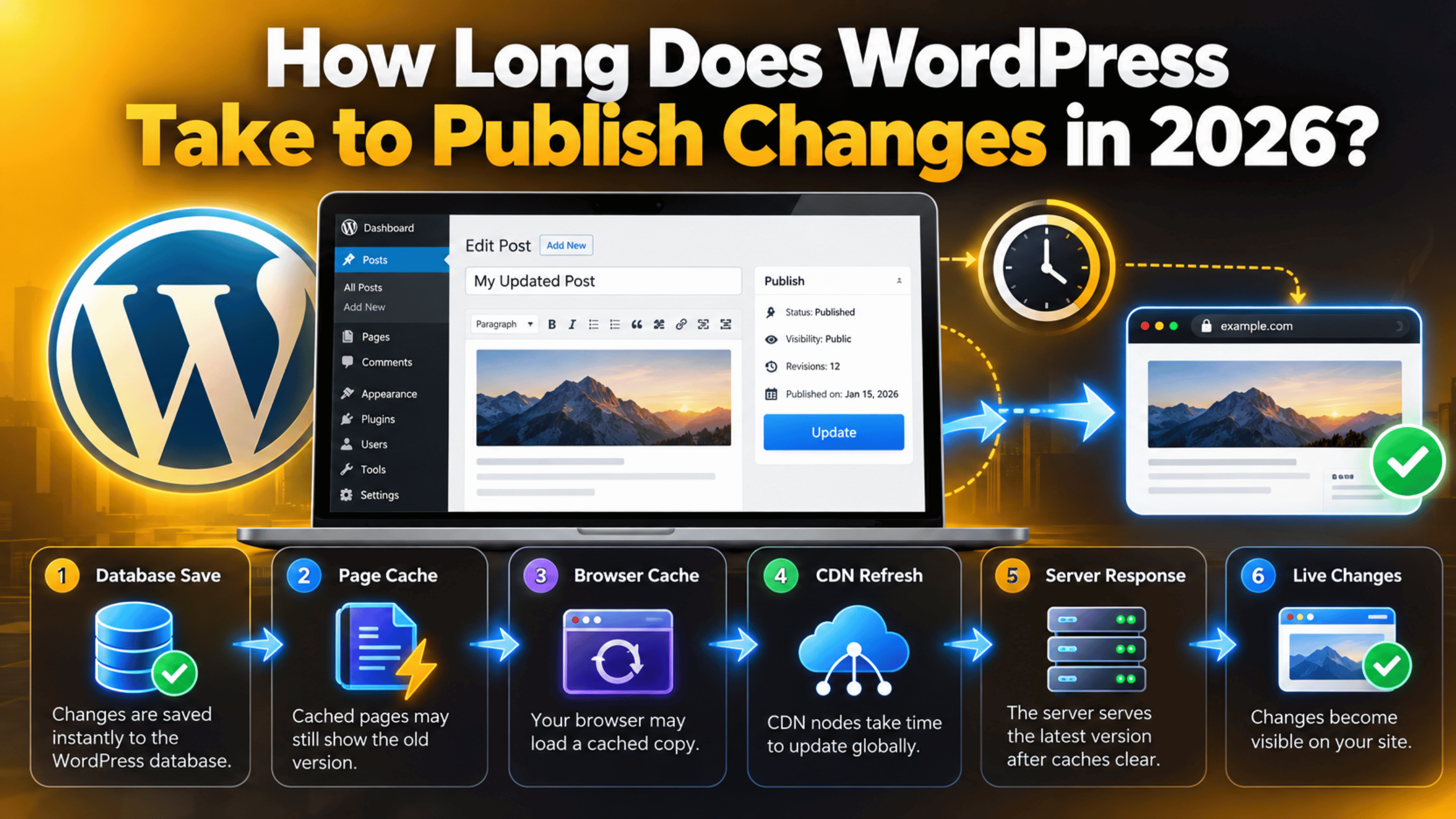
How Long Does WordPress Take to Publish Changes in 2026?
You edit a page, click Update, and open the live site. The old version is still there. It is one of the most common worries in WordPress, and it makes people click Update again and again.
The honest answer is that WordPress itself is fast. The database write happens in well under a second. Everything you wait for after that belongs to something else: a cache, a network, or a browser. This guide explains where the time actually goes, how long each stage normally takes, and what to do when your changes refuse to appear.
The Short Answer: WordPress Publishes Instantly
When you click Publish or Update, WordPress saves your content to the database immediately. The row in the wp_posts table changes in a few hundredths of a second. There is no approval queue and no processing delay inside WordPress.
So if your change is not visible, WordPress has almost certainly already done its job. Something between the database and your screen is serving an older copy. That could be a page cache on your server, a CDN edge node, your browser, or an object cache holding query results.
This distinction matters because it changes what you should do next. Clicking Update five more times will not help. Clearing the right cache almost always will. The rest of this guide works through each layer in the order you should check it.
There is one exception. A scheduled post is not published the moment you set it. It waits for WordPress to notice that its time has arrived, and that check is not always reliable. We cover scheduling separately further down.
What Happens the Moment You Click Publish
It helps to know the actual sequence. WordPress does several small jobs in a fixed order, and each one is quick.
First, the editor sends your content to the server. WordPress validates it, then writes the post row and updates post_status to publish. It saves a revision at the same time, which is why you can roll back later. You can read more about how WordPress revisions work and how to manage them.
Next, WordPress fires internal hooks. Plugins listening for a new post may rebuild a sitemap, clear a cache, or queue an email. Most of this finishes in milliseconds. A slow third-party service can add a second or two, but it does not block the save.
Finally, the permalink becomes live. Anyone requesting that URL now gets the new content, unless a cache answers first. On a site with no caching at all, changes really are instant.
Nothing in this sequence involves a queue or a review stage. That is worth remembering when a page looks unchanged. The content is already in the database, so the fix is never to publish again.
Why Your Changes Do Not Show Up Straight Away
Caching is what makes WordPress sites fast. It is also the reason updates seem slow. A cache stores a finished copy of a page so the server does not have to rebuild it for every visitor. That copy has to be thrown away before your edit becomes visible.
Browser cache. Your own browser keeps images, stylesheets and sometimes whole pages. This is the most common reason an edit looks missing to you but works fine for everyone else.
Page cache. A caching plugin or your host’s server cache stores the full HTML of each page. Most clear the affected page automatically when you update it. Some only clear on a timer.
Object cache. This stores database query results in memory. It is common on larger sites and on managed hosting. It can keep old titles or menu items alive after the page cache has cleared.
CDN cache. A content delivery network keeps copies of your files in data centres around the world. Each location has to be refreshed separately, which is why a change can appear in one country before another.
Server-side caching you cannot see. Many hosts run their own cache layer above WordPress. It is often invisible in the dashboard and needs clearing from the hosting control panel.
Each layer sits in front of the last. A change has to pass through all of them, which is why the answer to “how long” depends entirely on how your site is built.
How Long Each Stage Usually Takes
These are typical ranges on a normal WordPress site. Your own numbers will vary with your host and your setup, but the order of magnitude is reliable.
Database write: under one second. This is WordPress itself, and it is effectively instant. If saving takes several seconds, the problem is server performance rather than publishing.
Page cache clear: instant to 60 minutes. Most caching tools purge the edited page right away. Pages that only list the post, such as your blog index or a category archive, sometimes wait for the next scheduled purge.
Object cache: instant to 24 hours. Well-configured object caching clears with the page cache. Badly configured object caching can hold stale data for a long time.
CDN purge: 30 seconds to 5 minutes. Once triggered, most networks clear worldwide within a few minutes. The trigger is the part that often fails.
Browser cache: until you force a reload. This one only affects you. A hard refresh or a private window solves it in seconds.
Search engines: hours to weeks. Publishing is instant, but indexing is not. A new page usually appears in search results within a few days. An edit to an existing page can take longer to be reflected.
So the practical answer for most sites is this: your visitors see changes within a few seconds to a few minutes. Anything longer points at a cache that is not clearing properly.
Scheduled Posts: A Different Kind of Delay
Scheduled posts work differently, and they cause a lot of confusion. WordPress does not have a real-time timer. It uses WP-Cron, which only runs when someone visits your site.
On a busy site, that is fine. A post scheduled for 9:00 a.m. usually goes live within a minute or two. On a quiet site with very few visitors, nothing triggers WP-Cron, and the post can sit waiting for hours.


When that happens, WordPress marks the post with a Missed schedule error. The post never publishes on its own. Our guide to the WordPress missed schedule error covers why it happens and how to stop it repeating.
Time zones are the other scheduling trap. If Settings → General holds the wrong time zone, every scheduled post fires at the wrong hour. Setting your WordPress time zone correctly takes a minute and removes the problem permanently. If you schedule regularly, our guide to scheduling posts in WordPress is worth a read.
How to Make Your Changes Appear Right Now
Work through these in order. The first two solve most cases in under a minute.
Step 1: Hard refresh your browser. Press Ctrl+F5 on Windows or Cmd+Shift+R on a Mac. Then open the page in a private window as a second check. If the private window shows the new version, the site is fine and only your browser was behind.
Step 2: Clear the WordPress cache. Use the purge or clear option your caching tool adds to the admin bar. Our guide on how to clear the WordPress cache walks through the usual locations. Clear the whole cache rather than one page, because archives and menus cache separately.
Step 3: Purge the CDN. Log in to your CDN or your host’s dashboard and run a full purge. Wait two minutes, then reload. Skip this step if you do not use a CDN.
Step 4: Clear your host’s server cache. Many hosts add a cache button to their own control panel, separate from WordPress. If you cannot find it, ask your host which cache layers they run.
Step 5: Check that you edited the right thing. Confirm the post status reads Published, not Draft or Pending. Also check you were not editing a similar page or a translated version. This sounds obvious, and it is a surprisingly common cause.
Step 6: Look at the browser console. If the page loads but part of it is missing, open the browser console and check the Console and Network tabs. A failed script can stop new content from rendering even though the server sent it.
Step 7: Test with caching switched off. Do this on a staging copy rather than your live site, and take a backup first. Deactivate the caching plugin and reload. If the change appears, your cache settings are the cause and need adjusting rather than removing.
How to Tell Whether It Is Your Site or Your Browser
A quick diagnosis saves you from clearing caches you did not need to touch. Three checks give you the answer.
First, open the page in a private window. This bypasses your browser cache and any logged-in view. If the new content appears, nothing is wrong with the site.
Second, check the page on mobile data rather than your own network. This rules out a local network cache or a company proxy.
Third, ask someone in another city or country to load the page. If they see the new version and you do not, the delay is local to you. If they see the old version too, a shared cache is holding the page and needs purging.
If every test still shows the old content long after a full purge, the problem is usually configuration rather than timing. A very long cache lifetime, a CDN rule that ignores purge requests, or a conflict between two caching tools are the usual suspects.
Keeping Publishing Fast and Predictable
A few settings turn publishing from a guessing game into something you can rely on.
Run only one caching tool. Two page caches fight each other and produce unpredictable delays. Pick one, and let your host tell you whether their server cache already covers it.
Set a sensible cache lifetime. A few hours is plenty for most sites. Very long lifetimes look good in speed tests and make editing painful.
Make sure automatic purging is on. Every serious caching tool can clear a page when it is updated. Check that this option is enabled, and that it also clears the home page and archives.
Keep WP-Cron healthy. If scheduled posts keep missing, ask your host to run a real server cron job instead. Check Tools → Site Health for warnings about missed events. Our Site Health guide explains what those warnings mean.
Watch overall site speed. If saving a post takes several seconds, caching is not your problem. A slow server or a heavy plugin is. Our guide on why a WordPress site is slow helps you find the cause.
Preview before you publish. The Preview button renders the page without touching the cache. It is the fastest way to check a change, and it saves a lot of purging.
Conclusion
WordPress publishes changes instantly. The database write finishes in under a second, and the new content is live at that URL straight away. Every delay you experience after that comes from a cache sitting in front of WordPress.
For most sites, visitors see updates within seconds to a few minutes. A hard refresh and a cache purge clear almost every case. Scheduled posts are the one real exception, because they depend on WP-Cron and on your site getting traffic.
If your changes still take hours to appear after a full purge, treat it as a configuration problem rather than a waiting game. One caching tool, a reasonable cache lifetime, automatic purging on update, and a correct time zone will fix the large majority of publishing delays. If you would rather have someone look at your setup and sort it out, the team at 24×7 WP Support works on this every day. You can also read our guide to writing and publishing a blog post in WordPress for the full workflow.

Brian is a WordPress support specialist and content contributor at 24×7 WP Support. He writes practical, easy-to-follow guides on WordPress troubleshooting, WooCommerce issues, plugin and theme errors, website security, migrations, performance optimization, and integrations. With a focus on solving real website problems, Brian helps business owners, bloggers, and online store managers keep their WordPress sites running smoothly.
