
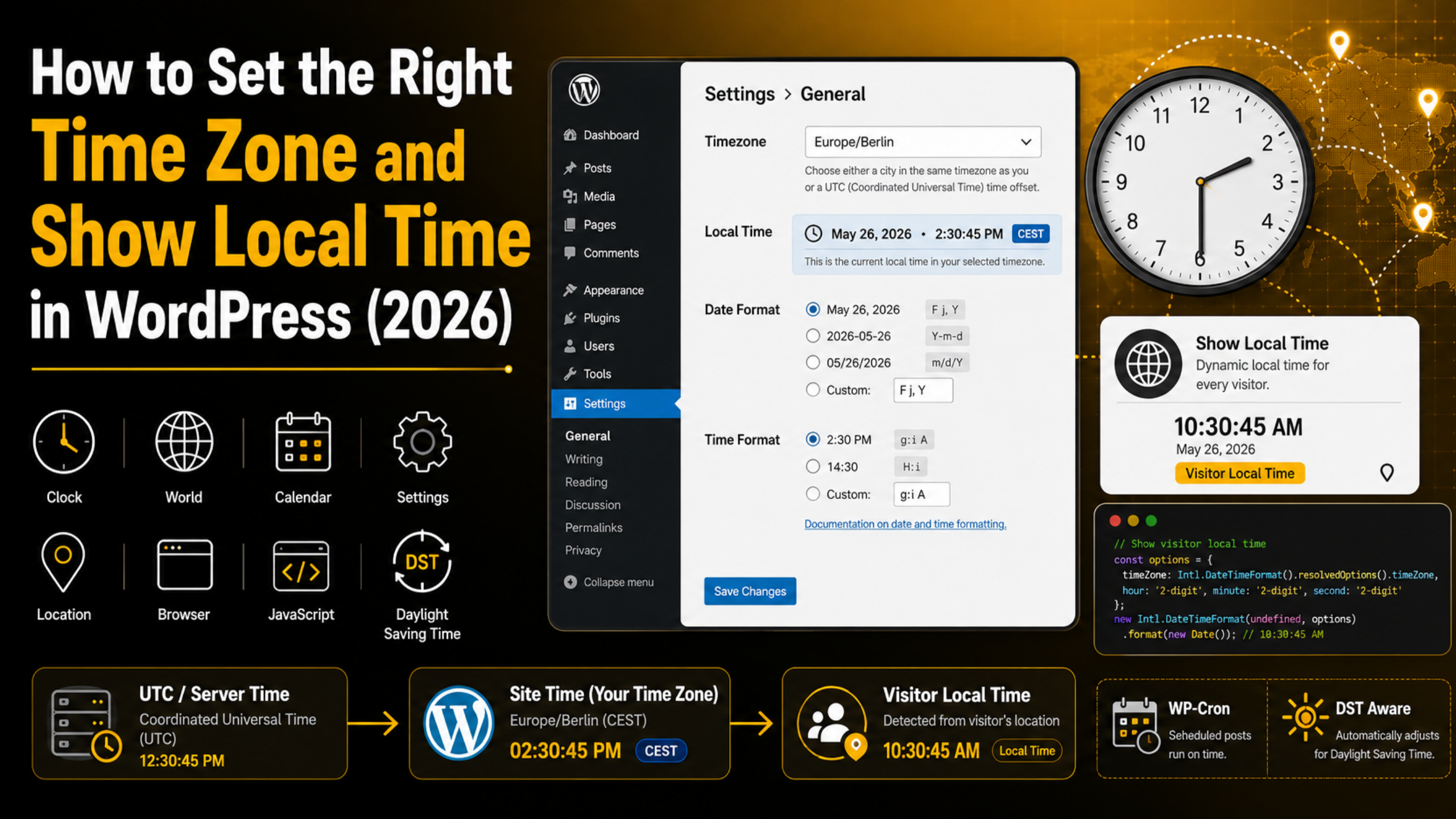
How to Set the Right Time Zone and Show Local Time in WordPress (2026)
A post goes live at 3 a.m. instead of 9 a.m. A comment says it arrived seven hours before it did. An order confirmation carries a timestamp nobody recognises. Every one of these problems traces back to one small field in your settings screen.
WordPress keeps time in two places at once. It stores every date in UTC, then converts that date for display using the time zone you picked. If that pick is wrong, or if it was never made at all, every date on your site drifts. This guide shows how to set it correctly in 2026, display local time to visitors, and fix the timing problems that follow when it is wrong.
Why Your Time Zone Setting Matters More Than It Looks
Most people set up a site, skip the General settings screen, and never think about it again. The default there is UTC+0, which is correct for almost nobody. Everything then works, but quietly reports the wrong hour.
The damage shows up in places you would not connect to a settings field. Scheduled posts fire at odd hours. Sale countdowns end early or late. Comment timestamps confuse readers who think a thread is older than it is. Order records and refund windows shift, which matters if you ever need to prove when something happened.
It also affects trust. A reader in London seeing a post dated tomorrow will assume something is broken. Search engines read your published dates too, and a date that jumps forward looks odd in results. None of this is fatal, but all of it is avoidable in about thirty seconds. One more thing is worth knowing before you start. Correcting the setting later does not rewrite dates already saved, so the sooner you fix it, the less cleanup you face.
Where the Time Zone Setting Lives and How to Set It
The setting sits in one place, and it is easy to reach. No plugin, code or server access is needed, and the whole job takes under a minute.
Log in and go to Settings → General. Scroll down past the site title and tagline. You will find a dropdown labelled Timezone. Below it, WordPress shows the current universal time and your current local time, which is a handy sanity check.
Open the dropdown. You will see two groups. The top group lists cities such as London, New York, Kolkata and Sydney. The bottom group lists raw offsets such as UTC+5 and UTC-8. Pick the city closest to you, then scroll to the bottom and click Save Changes. Refresh the page and confirm that “Local time” now matches the clock on your wall.
Always choose a city, never a raw offset
This is the single most important choice on the screen. A city entry carries daylight saving rules with it. When the clocks change, WordPress follows automatically and your site keeps correct time all year. A raw offset such as UTC-5 is frozen. It will be right for part of the year and one hour wrong for the rest, and nothing will warn you when it slips. If your region does not observe daylight saving, a city entry still works perfectly, so there is no situation where the offset option is the better pick.
Set a Date and Time Format Your Readers Recognise
Just below the time zone dropdown you will find Date Format and Time Format. These control how every date on your site is written out. Getting them right removes a surprising amount of reader friction.
The format matters because numeric dates are ambiguous across regions. To an American reader, 04/07/2026 is the fourth of July. To a British or Indian reader, it is the seventh of April. Neither is wrong, and neither can tell which one you meant. Writing the month as a word removes the guesswork entirely.
For that reason we suggest the F j, Y option, which produces “August 31, 2026”. If your audience is technical, or you export data often, Y-m-d gives “2026-08-31” and sorts correctly in any spreadsheet. Both are unambiguous. Avoid the two slash-separated numeric options unless your entire audience shares one convention.
For time, pick g:i a for a twelve-hour clock or H:i for a twenty-four-hour clock, and match whichever your readers use daily. There is also a Custom radio button on each row if you want a format that is not listed. It accepts standard PHP date characters, so l, F j, Y gives “Monday, August 31, 2026”.
Why Scheduled Posts Publish at the Wrong Time
Scheduling is where a wrong time zone does the most visible damage. You set a post for 9 a.m., and it appears overnight or several hours late. Two separate causes produce that same symptom, and the fix differs for each.
The first cause is simply the setting we just corrected. The scheduler uses your site time zone, so if that field said UTC and you live five hours behind it, every post you scheduled ran five hours early. Fix the time zone, then reopen anything still scheduled and reset its date, because the stored time does not move on its own.
The second cause is WP-Cron, and it surprises people. WordPress does not have a real clock running in the background. Instead it checks for overdue tasks whenever someone visits the site. On a quiet site, nobody visits at 9 a.m., so nothing runs until the first visitor arrives, perhaps hours later. The post is not lost, just late.
The reliable fix is to hand scheduling to your server. Add define('DISABLE_WP_CRON', true); to wp-config.php above the “stop editing” line, then create a server cron job that requests yoursite.com/wp-cron.php?doing_wp_cron every five minutes. Most hosting panels have a Cron Jobs section for this. If editing that file makes you nervous, our guide to editing your WordPress source code safely walks through it.
How to Show Local Time to Each Visitor
Setting your own time zone fixes your dates. It does not fix your reader’s experience. A webinar listed as “2 p.m.” means very little to someone three continents away, and asking them to do the maths costs you signups.


Server time, site time and visitor time are three different things
It helps to separate these clearly. Server time is whatever clock your host runs, and WordPress deliberately ignores it by forcing PHP to work in UTC. Site time is your Settings choice, and it is what the dashboard, comments and post dates display. Visitor time is the clock on the reader’s own device, and your server has no way of knowing it. Because of that gap, any true local-time display has to happen in the browser, after the page has loaded. No PHP setting can do it for you.
The simplest way to display it
Publish the moment once, in a machine-readable form, and let the browser translate it. Add a <time> element with a full ISO date in its datetime attribute, then use a few lines of JavaScript to rewrite the visible text. Modern browsers expose the reader’s zone through Intl.DateTimeFormat().resolvedOptions().timeZone, so the conversion is one function call. Always keep a readable fallback inside the element, with the zone named, so the page still makes sense if scripts are blocked.
Where Site Time Shows Up Beyond Your Posts
Once the setting is right, the correction spreads further than you might expect. Knowing where it lands helps you spot anything still misreporting.
Comment timestamps use site time, so a corrected setting immediately makes discussion threads read sensibly again. The same applies to the “Last edited” note on posts and pages, and to revision history, which becomes far easier to follow when the hours match your working day.
Outgoing emails are next. Notification messages that mention a time draw it from site settings, so registration alerts and form receipts start matching reality. If those emails are not arriving at all, that is a separate delivery problem rather than a timing one, and our fix for WordPress not sending email covers it.
Error and activity logs are the third place. Debug logs written by WordPress use UTC, while most plugin activity logs use site time, so the two can look inconsistent even when both are correct. Keep that in mind before you chase a phantom bug. If you are reading logs because something broke, our walkthrough on fixing the critical error in WordPress is the faster route.
Common Time Zone Problems and How to Fix Them
A handful of issues come up again and again. Each has a clear cause, so work through these before assuming something deeper is wrong.
The clock is exactly one hour out
An error of precisely one hour almost always means daylight saving. Open Settings, General and check whether the Timezone field holds a city or a bare offset such as UTC+1. If it is an offset, switch it to the nearest city and save. The displayed local time should correct itself straight away. If it still lags, your browser may be showing a cached copy of the settings page, so reload it once with a hard refresh.
Old posts still show the wrong date
Changing the setting does not rewrite dates that were already saved. Each post keeps the timestamp it was given, so historical entries stay off by the old difference. For a handful of posts, open each one, click Edit beside the published date, correct it, and update. For a large archive, that is impractical by hand, and a bulk date-shifting tool is the sensible route. Decide first whether it matters. For evergreen articles, a few hours of drift is usually harmless.
A plugin shows a different time from the dashboard
This normally means the plugin is reading the server clock instead of asking WordPress. Correct code calls the built-in helpers, which respect your setting. Older code sometimes calls PHP date functions directly and picks up UTC by accident. Check the plugin for its own time zone field first, since many booking and event tools carry one. If there is none and the developer has not updated in years, replacing the plugin is safer than patching it.
A Quick Order to Work Through
If you are fixing all of this at once, sequence matters. The wrong order means redoing work, so follow these four steps in turn.
Start with Settings, General. Set the Timezone to a city, pick an unambiguous date format, choose your time format, and save. Confirm the “Local time” line matches your own clock before moving on.
Next, reschedule anything still pending. Open the posts list, filter to Scheduled, and reset each date. People skip this step, which is why posts keep arriving late after the setting is fixed.
Then decide about WP-Cron. If timing genuinely matters to you, disable the built-in scheduler and set a real server cron job as described above. If you publish manually and nothing is time-critical, leave it alone.
Finally, look at anything that quotes a time to visitors, such as event pages, countdowns and booking forms. Either name the zone in plain words next to the time, or convert it in the browser. Naming it costs nothing and removes most of the confusion. If you run events regularly, our guide on adding a calendar to WordPress without a plugin pairs well with this.
Time is one of those details nobody praises when it is right and everybody notices when it is wrong. A correct clock makes your archive readable and your scheduling dependable. It takes a minute to set and then works quietly for years.
If your dates still will not behave, or scheduled posts keep slipping, the team at 24×7 WP Support can sort it out for you. We handle WordPress fixes, server-side scheduling, speed work and round-the-clock monitoring. Get in touch any time, because we are online 24 hours a day, every day of the year.






Brian is a WordPress support specialist and content contributor at 24×7 WP Support. He writes practical, easy-to-follow guides on WordPress troubleshooting, WooCommerce issues, plugin and theme errors, website security, migrations, performance optimization, and integrations. With a focus on solving real website problems, Brian helps business owners, bloggers, and online store managers keep their WordPress sites running smoothly.
