
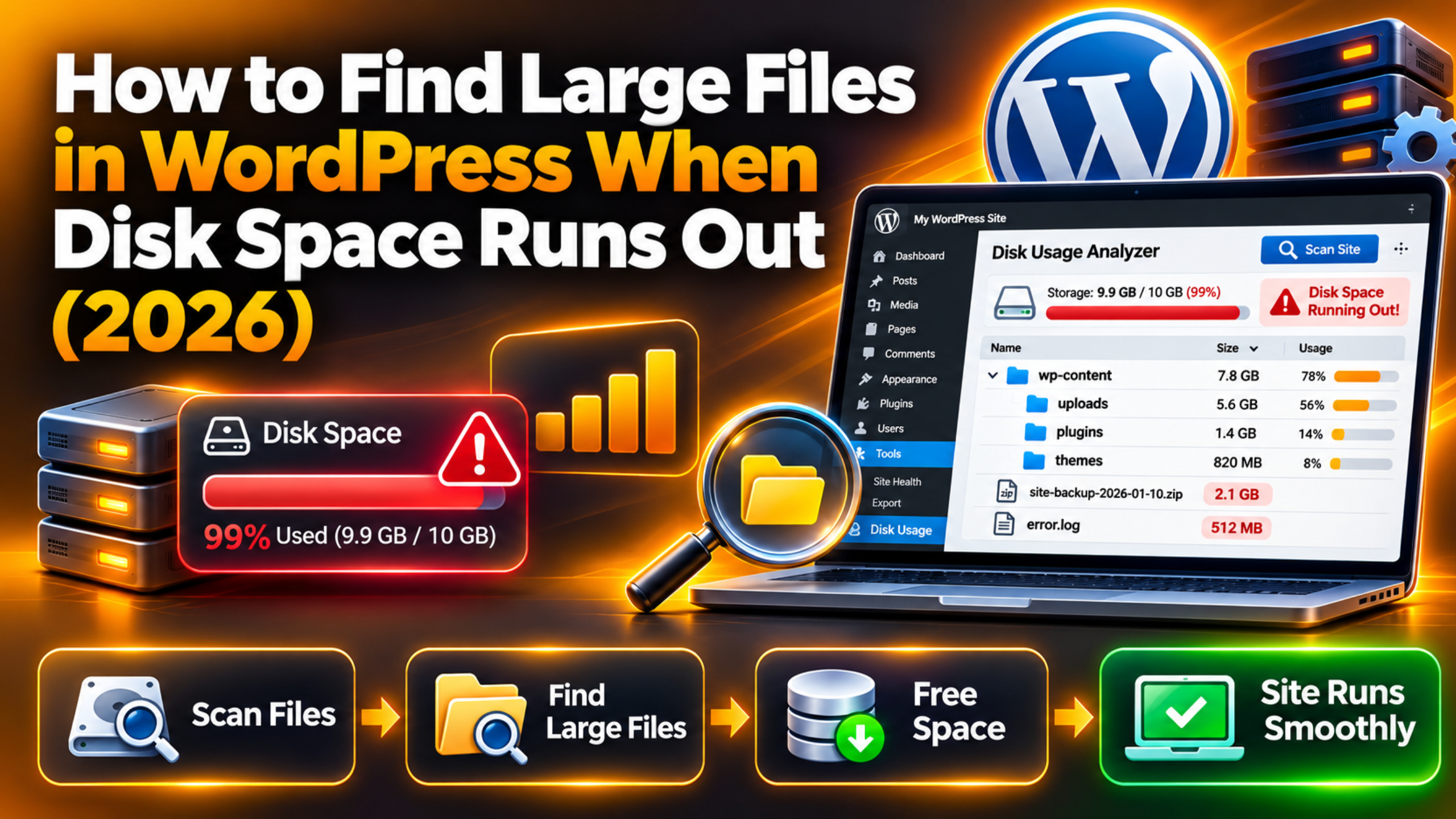
How to Find Large Files in WordPress When Disk Space Runs Out (2026)
Your hosting plan has a fixed amount of disk space. When it fills up, uploads fail, backups stop, and updates can break halfway through. The fix starts with one question: what is using all that space?
This guide shows you how to find the biggest files and folders on a WordPress site. You will see how to check from your hosting panel, from WordPress itself, and from the command line. You will also learn which files are safe to remove and which ones you must leave alone.
Why a WordPress Site Runs Out of Disk Space
Most sites do not fill up all at once. Space disappears slowly, and nobody notices until something fails. Knowing the usual causes helps you look in the right place first.
The biggest user is almost always the wp-content/uploads folder. Every image you upload is saved in several sizes. WordPress creates a thumbnail, a medium copy, a large copy and more. A single 3 MB photo can turn into ten files on disk.
Backup files come next. Many backup tools save full copies inside wp-content, and old copies pile up. After that, look at log files. A file called debug.log or error_log can grow to several gigabytes if a plugin keeps throwing errors. Cache folders, unused plugins, old themes and leftover migration archives also add up.
Your database takes space too, but it usually sits outside your file quota or counts separately. Check it as well, because bloated tables slow the site down. Our guide on how to repair a WordPress database covers the database side in more detail.
Check Your Total Disk Usage First
Before you hunt for large files, confirm how full the account really is. This tells you how urgent the problem is and gives you a number to compare against later.
Log in to your hosting control panel. Look for a panel named Disk Usage, Storage or Resource Usage. Most hosts show a bar with the space used and the space you are allowed. Some also show a breakdown by folder, which saves you a lot of time.
Inside WordPress, open Tools → Site Health → Info and expand the Directories and Sizes section. WordPress lists the size of the uploads folder, the themes folder, the plugins folder and the database. It also shows the total installation size. This gives you a quick split without installing anything.
Write the numbers down. If uploads is far bigger than everything else, start there. If plugins or themes look oversized, check for old copies. If nothing in WordPress explains the total, the space is probably used by something outside your site folder, such as email accounts or other sites on the same plan.
Find Large Files With Your Hosting File Manager
The file manager in your hosting panel is the simplest tool for most owners. You do not need any technical skill, and you can see folder sizes at a glance.
Open the file manager and sort by size
Open the file manager and go to the folder that holds your site. It is often called public_html or has your domain name. Open wp-content and look at the subfolders. Many file managers show a size column or let you right-click a folder and choose Calculate Size.
Work from the top down. Check wp-content first, then uploads, then the year folders inside uploads, such as 2024 and 2025. When one folder is clearly the largest, open it and repeat. This narrows a huge site down to a handful of suspects in a few minutes.
Use the search tool for big file types
Many file managers also have a search box. Search for extensions that tend to be large, such as .zip, .sql, .log, .mp4 and .wpress. Old migration archives and database exports often hide in the site root or in wp-content. They are easy wins because you can usually delete them once you have a safe copy elsewhere.
Also look for files named error_log. PHP writes one into any folder where an error happens, so you may find several. Open the biggest one and read the last few lines to see what keeps failing. The log itself is only a symptom, and the real problem is the error that fills it.
Find Large Files From the WordPress Media Library
If the uploads folder is the biggest user, the Media Library is the next stop. It lets you see which files are large and whether you still use them.
Go to Media → Library and switch to the list view using the icon at the top left of the grid. The list view shows each file name, its author and where it is attached. Click an item to see its file size in the details panel. Large originals, such as phone photos and uncompressed PNG files, are the usual culprits.
WordPress has no built-in way to sort the library by file size. You can still spot trouble by opening the biggest-looking images, or by filtering to Unattached files. Unattached files are not tied to any post or page, so they are good candidates for review. Do not delete them blindly, because a theme or page builder may still use an image that WordPress does not count as attached.
A better long-term fix is to shrink images before they reach the library. Resize photos to the widest size your design needs, and compress them. Our roundup of image optimizer plugins for WordPress explains the options. You can also set a smaller maximum image size in Settings → Media so fewer oversized copies are created.
Find Large Files With SSH and WP-CLI
If your host gives you SSH access, the command line is the fastest way to list the largest files. It shows exact sizes and sorts them for you. This method is for people who are comfortable in a terminal.
Take a full backup before you run anything that changes files. The commands below only read and list, so they are safe, but the cleanup you do afterwards is not. Our guide on how to back up and restore WordPress walks through a safe backup.
List the biggest folders and files
Connect over SSH and move to your WordPress folder. This command lists the ten largest folders directly under wp-content:
du -h --max-depth=1 wp-content | sort -hr | head -10To find the twenty largest files across the whole site, run this one. It lists size and path, biggest first:


find . -type f -size +20M -exec ls -lh {} + | sort -k5 -hr | head -20Change +20M to a smaller or larger number to match your site. Files above 20 MB are rarely normal parts of a WordPress install, so each one deserves a look.
Check what WordPress itself reports
WP-CLI can show the database size and the number of media items. Run wp db size –tables to list each table with its size. Run wp post list –post_type=attachment –format=count to count your media files. If the count is far higher than you expect, plugins or imports may have created thousands of extra attachments.
If WP-CLI is not available on your host, ask your host’s support team whether it can be enabled. Do not install tools on a live server without checking first.
Common Large Files and What You Can Do With Them
Finding a large file is only half the job. You also need to know whether removing it is safe. This section covers the files that show up most often.
Safe to remove after a backup
Old backup archives are the safest target. If you keep backups inside wp-content, download the newest one to your own computer or to cloud storage, then delete the older copies from the server. Migration archives and database exports left in the site root are in the same group. A backup that lives only on the same server is not a real backup, so move at least one copy off the server.
Log files such as debug.log and error_log can be deleted or emptied once you have read them. WordPress and PHP will create a new one when needed. If the file grows back fast, find and fix the error that causes it, or turn off debug logging by setting WP_DEBUG_LOG to false in wp-config.php. Back up wp-config.php before you edit it, because a typo can take the whole site offline.
Review before you remove
Cache folders, such as wp-content/cache, can be cleared safely from your caching tool. Use the tool’s own clear button instead of deleting folders by hand. Our guide on how to clear the WordPress cache shows the usual steps.
Inactive plugins and themes use space and add security risk. Delete the ones you no longer use from Plugins → Installed Plugins and Appearance → Themes. Keep one default theme as a fallback. Never delete files inside wp-admin, wp-includes or the core files in the site root, and never delete an uploads folder by hand unless you are certain nothing uses it.
Free Up Space Safely, Step by Step
Once you know what is large, work in a fixed order. The order below starts with the safest actions and moves toward the riskier ones. Stop as soon as you have enough space.
First, take a full backup and store a copy off the server. Second, delete old backup archives and leftover export files you found earlier. Third, empty large log files. Fourth, clear the cache from your caching tool. Fifth, remove inactive plugins and themes you do not need.
Sixth, deal with images. Compress the largest originals and consider regenerating thumbnails at fewer sizes. Only after that, think about removing unattached media, and do it in small batches. After each batch, open your key pages and check that no image has gone missing.
Last, check the numbers again in your hosting panel and in Tools → Site Health → Info. Space reported by the panel may take a few minutes to update. If usage stays high after all this, you may simply need a larger plan or offloading of big media files to external storage.
How to Stop the Problem Coming Back
A one-time cleanup helps, but the space will fill again unless you change a few habits. A small routine keeps the site healthy and avoids a sudden outage.
Set limits on backups. Keep only the last few copies on the server and send the rest to remote storage. Compress images before upload, and set sensible maximum sizes in Settings → Media. Turn off debug logging on a live site once you finish testing, since logs can grow without limit.
Review your disk usage once a month. Add a calendar reminder to open the Directories and Sizes panel in Site Health and compare it with last month. A sudden jump tells you something changed, such as a new plugin or a failing process writing logs. Catching it early means a short fix instead of an emergency.
If you would like someone to look at your site, the team at 24×7 WP Support works on disk usage, backups and server clean-up for WordPress sites every day.
Frequently Asked Questions About Large Files in WordPress
These are the questions site owners ask most often when they start a disk space clean-up. The short answers below point you to the right step.
Can I delete the thumbnails WordPress creates? You can, but think before you do. Themes and plugins request specific sizes, and removing them can leave broken or blurry images. A safer path is to stop new sizes from being created in your theme settings and to use an image tool that regenerates only the sizes you need.
Why is my uploads folder so large when I have few posts? Each upload becomes several files, and some plugins add their own copies, such as webp versions or protected downloads. Large originals from phones can be several megabytes each. List the biggest files with the file manager or the find command to see which ones take the most space.
Is it safe to delete error_log? Yes, once you have read it. PHP creates a new file when it needs one. If the file returns quickly and keeps growing, an error is repeating, and you should find the cause instead of deleting the file again and again.






Brian is a WordPress support specialist and content contributor at 24×7 WP Support. He writes practical, easy-to-follow guides on WordPress troubleshooting, WooCommerce issues, plugin and theme errors, website security, migrations, performance optimization, and integrations. With a focus on solving real website problems, Brian helps business owners, bloggers, and online store managers keep their WordPress sites running smoothly.