
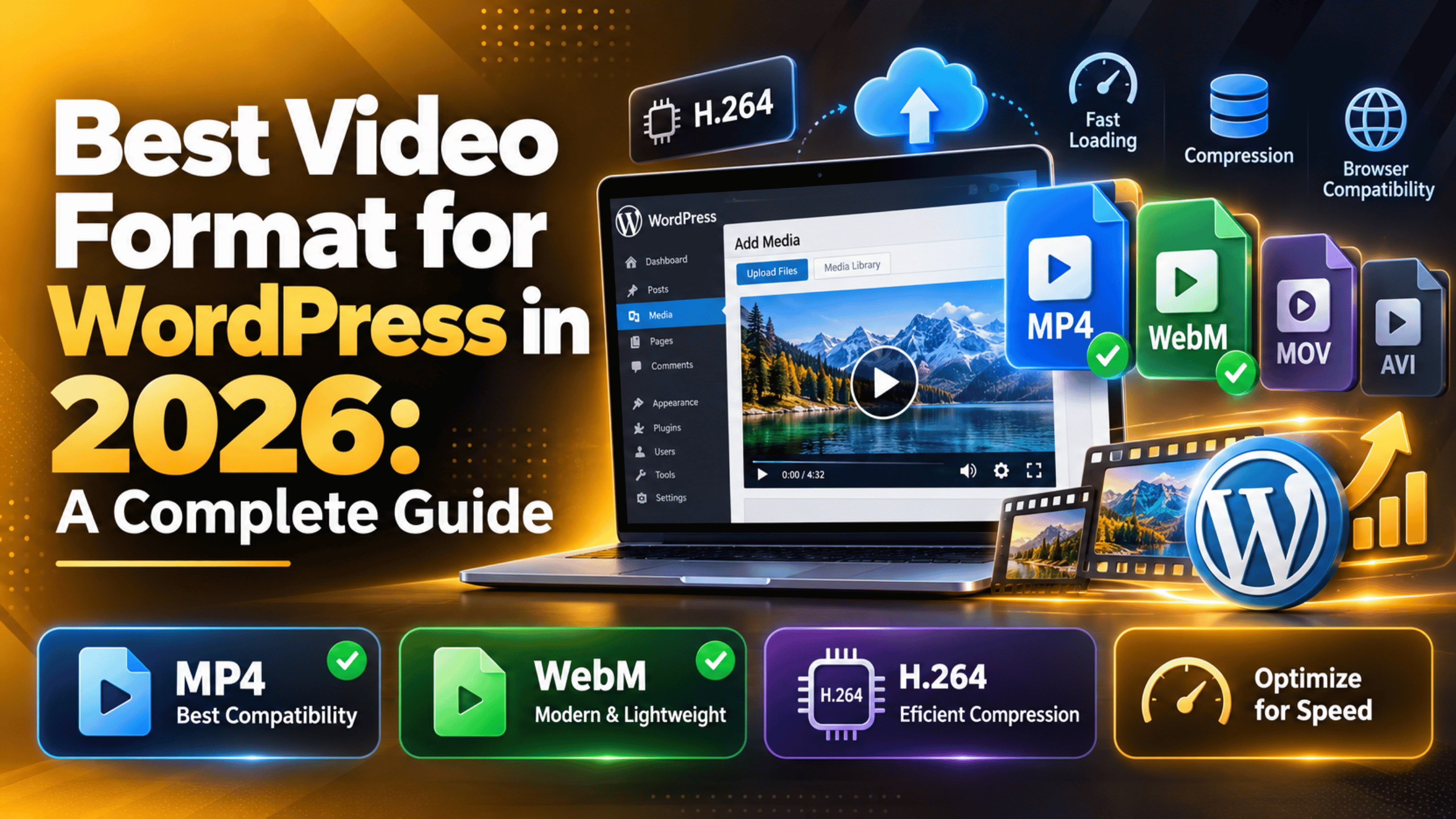
Best Video Format for WordPress in 2026: A Complete Guide
You have a video to put on your site. Before you drag it into the Media Library, it is worth knowing which file type you are uploading, and why it matters.
Pick the wrong one and the video will not play for some visitors. Pick a careless export and a one minute clip can weigh 300 MB and drag your page down with it.
This guide covers the best video format for WordPress in 2026. It also covers the settings that keep files small, and when to keep video off your own site.
The Short Answer: MP4 With H.264 and AAC
If you only read one section, read this one. For almost every WordPress site, the right file is an MP4 that uses H.264 for the picture and AAC for the sound.
That combination plays in every current browser, on every phone, and on every tablet, with no plugin and no extra work. Nothing else comes close on reach.
It is also the only common choice that phones and laptops unpack in hardware. A dedicated chip does the work, not the main processor. Playback stays smooth, laptops stay cool, and phone batteries last longer.
Your editing software will usually call this export preset H.264, MP4, or simply Web. Any of the three gives you the same file. The name on disk ends in .mp4. If your software asks for a profile, High is the safe pick, and Main is safer still for very old phones.
Everything below this point is fine tuning. Export an MP4 with H.264 and AAC at a sensible size and you have made the right call.
Container, Codec and Bitrate: The Three Things That Matter
Most confusion about video formats comes from mixing up three separate things. Once you can tell them apart, the rest of this guide is easy.
The container is the box. MP4, WebM, MOV and AVI are containers. The container holds the picture track, the sound track, subtitles and chapter data. The file extension tells you the container, and nothing else.
The codec is the squeeze. H.264, H.265, VP9 and AV1 are codecs. A codec decides how the picture is compressed and how a player unpacks it again. Two files can both end in .mp4 and still hold different codecs inside.
This is why a file that looks right can still refuse to play. The browser understands the box but not what is inside it.
The bitrate is the budget. Bitrate is how much data each second of video is allowed to use. Raise it and the picture gets cleaner and the file gets bigger. Lower it and the file shrinks, but busy scenes start to look blocky.
Resolution and frame rate feed into that budget. A 4K clip at 60 frames a second needs far more data than the same shot at 1080p and 30 frames a second.
Which Video Formats WordPress Actually Accepts
WordPress will accept a fairly long list of video types in the Media Library. It allows MP4 and M4V, MOV, WMV, AVI, MPG, OGV, 3GP, 3G2 and WebM.
Accepting a file is not the same as playing it. WordPress only checks the extension against its allowed list on upload. It does not test whether a visitor’s browser can open it.
The player built into WordPress handles three of them properly in a browser: MP4, WebM and OGV. Upload an AVI and WordPress will store it happily, then offer your reader a download link instead of a video.
Our rundown of the Media Library and its supported file types covers the full list. Our guide to what the Media Library is for explains how uploads are stored.
So treat the allowed list as a safety net, not as advice. The short list of formats worth uploading is shorter than the list WordPress will take.
When WebM Is Worth Adding
WebM is the one real rival to MP4, and it has a real edge. A WebM file using the VP9 codec is often much smaller than the same clip as H.264. Most viewers cannot see the difference.
Smaller files mean faster starts and less bandwidth, which matters most on a background clip that every visitor loads whether they watch it or not.
Browser support is broad in 2026. It is still not as wide as MP4. The safe pattern is to offer both. Add the WebM as the first source and the MP4 as the fallback, and each browser takes the one it can read.
The cost is your time. You now export twice, store two files, and remember to replace both when the video changes. On a single hero clip that is a fair trade. Across forty product videos it rarely is.
If you only want to maintain one file, stay on MP4. The reach is worth more than the saved megabytes.
Formats to Avoid Uploading
Several formats will upload without complaint and then let you down. Convert these to MP4 before they ever reach your site.
MOV straight off a camera or phone. MOV is a container, so what is inside varies wildly. Editing codecs produce beautiful files that run to gigabytes a minute. They are made for editing, not for serving to readers.
AVI, WMV and MPG. These are legacy desktop formats. No current browser plays them inline. Your visitor gets a download prompt, which almost nobody accepts.
MKV. WordPress will not even accept it by default, and browsers will not play it. It is a format for local media libraries, not for the web.
H.265, also called HEVC, inside an MP4. It squeezes better than H.264. But support is patchy and the licence terms are messy. A file that plays on your own machine may show a black box to half your readers.
AV1. This one is promising rather than finished. It squeezes very well and support is growing. But encoding is slow, and older phones still struggle. Treat it as something to revisit, not as today’s default.
Anything above 1080p for a normal blog post. A 4K file costs you four times the data for a frame most readers watch in a box a few hundred pixels wide.
Export Settings That Keep Files Small
Format is only half the story. The export settings decide whether your MP4 is 8 MB or 180 MB. These numbers suit most site video.


Resolution. Export at 1080p for a video people will actually watch. Drop to 720p for a background loop or a short demo in a narrow column. Match the size to the box it sits in.
Frame rate. Keep 30 frames a second unless the footage has fast motion. Doubling to 60 roughly doubles the data for a difference most readers never notice.
Bitrate. Around 5 to 8 Mbps is comfortable for 1080p, and 2.5 to 4 Mbps for 720p. Screen recordings and talking heads sit happily at the lower end. Fast motion needs the higher end.
Two-pass encoding. If your software offers it, use it. The first pass studies the footage and the second spends the data where it is needed. The same file size looks better.
Fast start. Look for a setting called fast start, web optimised, or move index to the front. It puts the file’s index at the beginning so playback can start before the whole file arrives.
Audio. AAC at 128 kbps is plenty for speech. If the clip is a silent background loop, remove the audio track completely and save the space.
A target to aim at. Try to land under about 20 MB for a short clip. If you are well above that, cut the length before you cut the quality.
Should You Host Video on Your Own Site at All?
Most format guides skip this question. It changes the answer more than any codec does.
Upload limits. Many servers cap uploads well below the size of a video file. Raising that cap means editing server settings, so take a backup or work on a staging copy first. Our guide on increasing the upload size in WordPress walks through it safely.
Bandwidth and storage. Every play pulls the whole file from your server. A popular 20 MB clip watched a thousand times moves 20 GB. On shared hosting that shows up as a slow site, or a bill.
No adaptive quality. A video platform sends a weaker stream to a slow link. It sends a sharper one to a fast link. A self-hosted file cannot do that. Everyone gets the same file, and slow connections buffer.
When self-hosting is the right call. Short background loops, silent product shots, a logo animation, or private content you do not want listed anywhere public. These are small, controlled, and better kept in your own Media Library.
When to use an outside platform. Long videos, a growing library, anything over a few minutes, or anything you expect real traffic on. Embed it instead, and let someone else carry the bandwidth.
Our walkthrough on embedding video and other content in WordPress covers the embed route. Our guide to adding a media player covers the self-hosted one.
How Video Format Affects Speed and SEO
Video is usually the heaviest thing on a page. The format you pick shows up in your speed scores.
Largest Contentful Paint. If a video sits at the top of the page, it may be the element Google measures for loading speed. A smaller file and a poster image both help that score.
Use a poster image. A poster is the still frame shown before playback starts. The browser paints it immediately while the video loads quietly behind it, so the page looks finished sooner.
Do not preload the whole file. Set the video to preload nothing, or only its metadata. Without that, every visitor downloads a video most of them never press play on.
Be careful with autoplay. An autoplaying background clip downloads for everyone, including people on a phone plan. If you keep it, keep it short, silent and small.
Check the result. Measure the page before and after you add video. Our guides on checking WordPress site performance and lazy loading show you how. A content delivery network helps if you do self-host.
Search engines do not rank one container over another. They do notice slow pages. So the format matters through speed, not on its own.
Your Checklist Before You Upload
Run through this list and your video will behave itself on almost any device.
Export as MP4 with H.264 video and AAC audio. This is the default answer and it is right far more often than not.
Cap the resolution at 1080p, or 720p when the video sits in a narrow column or plays in the background.
Keep 30 frames a second unless the footage genuinely needs more, and turn on fast start so playback begins early.
Aim under 20 MB for a short clip, and trim the length before you sacrifice the picture.
Add a poster image and stop the file preloading, so the page feels quick even before anyone presses play.
Add a WebM version only for a single important clip where the saved size earns the extra work.
Move it off your server once the library grows past a handful of files or the clips run past a few minutes.
Not sure whether your videos belong on your own server, or why a clip plays on your machine but not for your readers? Our team works on WordPress media, upload limits and site speed every day. Visit 24×7 WP Support and tell us what you are trying to put on the page.
Related posts:

Brian is a WordPress support specialist and content contributor at 24×7 WP Support. He writes practical, easy-to-follow guides on WordPress troubleshooting, WooCommerce issues, plugin and theme errors, website security, migrations, performance optimization, and integrations. With a focus on solving real website problems, Brian helps business owners, bloggers, and online store managers keep their WordPress sites running smoothly.
