
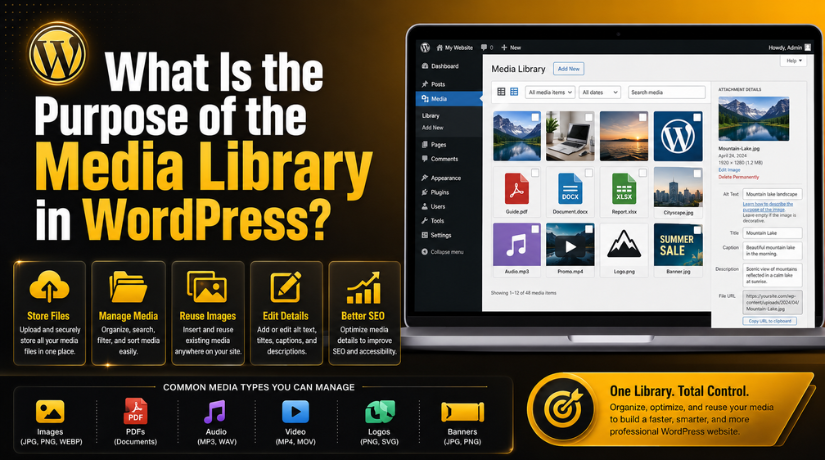
What Is the Purpose of the Media Library in WordPress?
Introduction
Every WordPress website needs clear and useful media files. These files may include images, logos, banners, PDFs, videos, and icons. They help make your website more complete and attractive. They also help users understand your content faster and better.
Many beginners ask, what is media library in WordPress and why it matters. The simple answer is that it works like a central file area. It stores all uploaded media files inside your WordPress dashboard. You can upload, view, edit, and reuse files from one place.
Without the Media Library, managing files can become confusing. You may upload the same image many times by mistake. You may also find it hard to locate older files. This can slow down your content work and affect website quality.
The Media Library helps you:
- Store website images in one place.
- Reuse files on different pages.
- Add image details for better SEO.
- Find uploaded files quickly.
- Keep your website content more organized.
For bloggers, business owners, and website managers, this feature saves time. It makes daily website updates easier and more professional.
What Is the Media Library in WordPress?
Here is the WordPress media library explained in simple words. It is a built-in WordPress feature for managing uploaded files. You can access it from the WordPress dashboard under “Media.”
When you upload an image to a blog post, WordPress stores it there. The same happens with PDFs, logos, product images, and banners. Each file gets its own attachment page and file details.
You can view files in grid view or list view. You can also search media by name or upload date. This makes file management simple for non-technical users.
The Media Library is not just a storage section. It is a useful tool for better content control. It helps you manage website visuals with less effort.
Main Purpose of the WordPress Media Library
The main purpose of media library in WordPress is simple. It helps you store, manage, and reuse website media files. It keeps all uploaded files inside one easy dashboard area. This makes website content work faster and more organized.
When you create a post or page, you need visuals. These visuals may include images, logos, banners, PDFs, and icons. The Media Library stores these files safely after upload. You can then use them again whenever needed.
This feature is very useful for beginners and business owners. You do not need to open hosting files manually. You can manage everything from your WordPress admin panel.
- It Stores All Uploaded Files in One Place
The Media Library works like a central file storage area. Every uploaded image or document appears there. This helps you avoid confusion while managing website content.
You can upload files from different areas, such as:
- Blog posts
- Website pages
- Product pages
- Landing pages
- Media section
After upload, the file stays available in the library. You can select and use it again later.
- It Helps You Find and Reuse Files Easily
A well-managed Media Library saves time during content updates. You can search files by name, date, or file type. This helps you find images without uploading duplicates.
For example, you can reuse the same logo across many pages. You can also use one banner image in different posts. This keeps your website design more consistent.
- It Supports Better Image Details and SEO
The Media Library also stores important file details. These details help users and search engines understand your images. You can add a title, caption, alt text, and description.
These fields are useful because:
- Alt text supports image SEO.
- Captions explain image meaning.
- Titles help identify files.
- Descriptions add extra context.
- It Improves the Content Publishing Workflow
The Media Library makes publishing smoother and faster. You can upload, edit, select, and insert media quickly. This helps website owners manage content with less effort.
A clean Media Library also reduces repeated work. It keeps files easy to find and reuse. This makes WordPress content management more simple and professional.
How the WordPress Media Library Works
Many beginners ask, how does WordPress media library work after uploading files. The process is simple and easy to understand. When you upload a file, WordPress saves it inside your website. It also creates a media record inside the dashboard.
You can upload media from different areas in WordPress. You may upload files while editing a post or page. You can also upload files directly from the Media section.
After upload, WordPress shows the file inside the Media Library. You can then select it and insert it into content. This makes the same file easy to reuse later.
For images, WordPress may create different image sizes automatically. These sizes help images fit different website sections. For example, a thumbnail may appear in blog listings. A larger image may appear inside the full blog post.
The Media Library also stores useful file details. These details may include the file name, title, alt text, caption, and description. These fields help manage files in a better way. They also support better image use across the website.
What Types of Files Can You Store in the Media Library?
The WordPress Media Library supports many common file types. These files help you build rich and useful content. You can store files for blogs, pages, services, and downloads.


Common file types include:
- JPG, PNG, GIF, and WebP images.
- PDF files for guides or forms.
- Audio files for clips or podcasts.
- Video files for visual content.
- Logos, icons, and website banners.
- Downloadable files for users.
Images are the most common files in the Media Library. They help make your content more attractive and clear. PDFs are also useful for brochures, menus, forms, and documents.
Videos can also be uploaded to WordPress. However, large videos may slow down your website. In many cases, hosting videos on a video platform works better.
Overall, the Media Library helps manage many content files easily. It keeps everything accessible from one simple dashboard area.
Why the Media Library Is Important for Website Content
The WordPress Media Library plays an important role in content quality. It helps you manage visuals that support your website message. Images, banners, PDFs, and icons make pages more useful. They also help visitors understand your content more quickly.
A plain page may feel boring or incomplete. Good media files make your content more engaging and clear. They guide users through your blog posts and service pages. This improves the reading experience and keeps users interested.
The Media Library also saves time during regular website updates. You do not need to upload the same image again. You can find old files and use them when needed. This keeps your content process faster and more organized.
It also supports better SEO when used correctly. You can add useful alt text to important images. This helps search engines understand the image content better. It also improves access for users using screen readers.
The Media Library helps with:
- Better visual presentation.
- Faster content publishing.
- Improved image SEO.
- Easier file reuse.
- Cleaner website management.
How to Manage Images in the WordPress Media Library
Learning how to manage images in WordPress media library is important. It helps keep your website clean, fast, and professional. Poor image management can create clutter and slow down pages.
Start by using clear image names before uploading files. A name like blue-running-shoes.jpg is easier to find later. Avoid names like IMG_1234.jpg because they are unclear.
You should also add helpful alt text for important images. Alt text should describe the image in simple words. It should not be stuffed with keywords.
You can manage images by following these simple steps:
- Upload images with clear file names.
- Add useful alt text to each main image.
- Use captions when images need extra context.
- Crop or rotate images when required.
- Resize large images before using them.
- Remove duplicate images when safe.
- Replace blurry images with better versions.
Good image management improves your website’s quality. It also makes future updates easier for website owners.
How to Organize the WordPress Media Library
Learning how to organize WordPress media library files helps your website stay clean. A clean Media Library saves time during content updates. It also helps you find images, PDFs, and banners faster.
Start with clear file names before uploading any media file. Use names that explain the image or document clearly. For example, use wordpress-media-library-guide.jpg instead of IMG_4567.jpg.
You can also use the built-in search option. This helps you find files by name quickly. WordPress also lets you filter files by date and type. These simple filters make media management easier for beginners.
You can organize files by:
- Using clear and simple file names.
- Adding useful alt text and captions.
- Searching files by name when needed.
- Filtering media by month or file type.
- Removing duplicate files after careful checking.
- Using folders only when your library becomes large.
Common Problems Caused by Poor Media Library Management
Poor media management can create many small website problems. Duplicate files can use extra storage space. Large images can slow down important website pages. Missing alt text can also affect image SEO.
Unclear file names make old files hard to find. This can waste time during website updates. Too many unused files can also clutter your dashboard.
Best Practices for Using the Media Library
Use simple habits to keep your Media Library healthy. Compress images before uploading them to WordPress. Choose the correct format for each image type. Use JPG for photos and PNG for clear graphics.
Also, add alt text to important images. Review old files during regular website maintenance. Delete files only after checking their usage.
Conclusion
The WordPress Media Library is more than file storage. It helps you manage images, documents, videos, and banners easily. It supports better content, cleaner organization, and improved SEO.
Need help with WordPress media issues? 24×7 WP Support can help manage, optimize, and fix your website media problems professionally.
FAQs
1. What is the Media Library in WordPress?
The Media Library is a built-in WordPress section. It stores uploaded images, videos, PDFs, audio files, logos, and documents. You can access it from the WordPress dashboard under the “Media” option.
2. What is the purpose of the Media Library in WordPress?
The main purpose is to store and manage website media files. It helps you upload, find, edit, reuse, and organize files from one place. This makes content updates faster and easier.
3. Can I edit images inside the WordPress Media Library?
Yes, WordPress allows basic image editing. You can crop, rotate, scale, and flip images. You can also update the title, caption, alt text, and description for better use.
4. How do I organize the WordPress Media Library?
You can organize it by using clear file names, alt text, captions, and filters. You can also search files by name or filter them by date and file type.
5. Does the Media Library help with SEO?
Yes, it can support SEO when used correctly. Adding useful alt text, clear file names, and proper image details helps search engines understand your media better.

Brian is a WordPress support specialist and content contributor at 24×7 WP Support. He writes practical, easy-to-follow guides on WordPress troubleshooting, WooCommerce issues, plugin and theme errors, website security, migrations, performance optimization, and integrations. With a focus on solving real website problems, Brian helps business owners, bloggers, and online store managers keep their WordPress sites running smoothly.
