
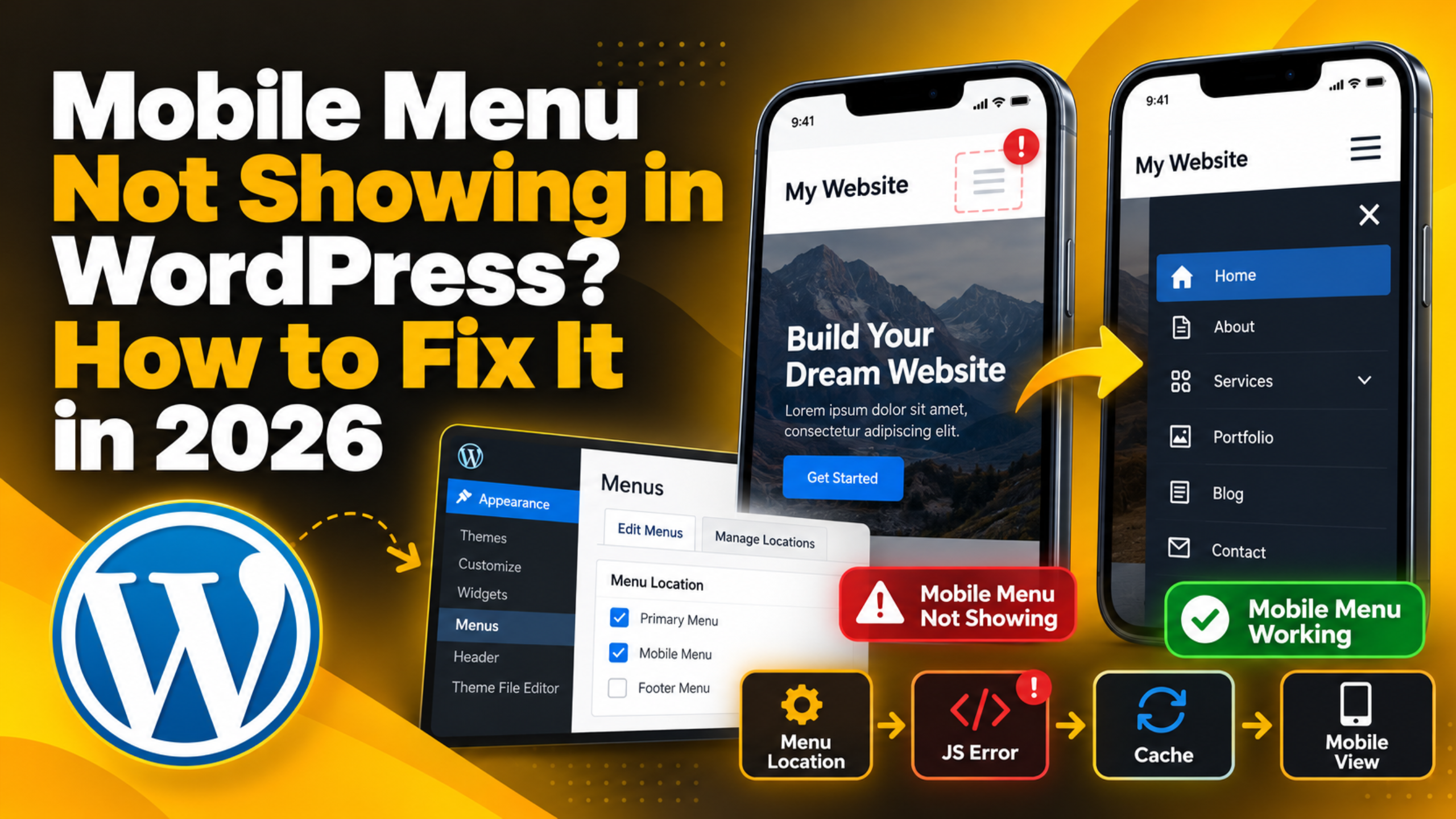
Mobile Menu Not Showing in WordPress? How to Fix It in 2026
Introduction
You open your site on a phone. The logo loads and the page loads. But the menu is gone. Either there is no hamburger icon at all, or the icon is there and tapping it does nothing. Your desktop menu still works, so the fault feels random.
This is a common navigation problem, and it matters because most WordPress traffic now arrives on a phone. When the mobile menu is missing, those visitors cannot move past the page they landed on.
The good news is that the menu itself is almost always intact. Usually something has broken the link between the menu and the place it should appear, or stopped the script that opens it. You rarely need to touch code to put it right.
This guide explains what WordPress is doing when the menu vanishes, the realistic causes, what the problem costs you, how to find the specific fault on your own site, twelve fixes in the order a technician would try them, and how to reduce the chance of it happening again.
What Is the Mobile Menu Problem?
A WordPress menu is a list of links you build under Appearance → Menus. You then assign it to a theme location, a slot your theme reserves for a menu, such as “Primary” or “Header”. The theme prints the menu into that slot on every page.
On a wide screen, the theme prints the list across the header. On a small screen, most themes hide that list and show a button instead. That button is the hamburger icon. Tapping it runs a small piece of JavaScript, which adds a CSS class to the page, and that class reveals the hidden menu panel.
So a working mobile menu needs four things at once. The menu must exist, it must be assigned to a location, the theme must print it, and the toggle script must run. If any one of those fails, the menu can disappear on phones while the desktop version still looks fine.
What the visitor sees. The symptom depends on which link in that chain broke. The header may be empty where the icon should be, the icon may show but do nothing, or the panel may open briefly and snap shut.
What the admin sees. Usually nothing unusual. Inside Appearance → Menus everything tends to look correct, and the dashboard does not flag an error. That is why owners often suspect the theme when the cause is a single setting or one failed script. This is a front-end fault rather than a data fault: your menu items stay in the database throughout, so you are normally reconnecting a menu rather than rebuilding one. For background, see our step by step guide to the WordPress menu.
What Causes a Mobile Menu to Disappear?
There are eight realistic causes, some settings and some code. Most sites have only one. Work through them in order, because the cheap causes are more common than the expensive ones.
The menu has no theme location assigned. Your menu exists, but no location is selected, so the theme has nothing to print. Assignments are stored per theme, so a theme update or switch can clear them, which is why the fault often appears the morning after an update. Check Appearance → Menus → Manage Locations, and see our guide on managing a menu in WordPress.
The theme uses a separate mobile menu location. Many themes offer more than one slot, such as “Primary” and “Mobile”. If your theme has a dedicated mobile slot and only the desktop slot is filled, phones get nothing. The desktop menu looks perfect, so the empty second slot is easy to miss.
A JavaScript error stops the toggle. If any script throws an error before the menu script runs, the browser stops executing that file, so the button renders but does nothing. A broken script from an unrelated feature can take the menu down with it, as with the jQuery is not defined error.
A speed plugin changed how scripts load. Combining, minifying, deferring or delaying JavaScript can change load order, so the menu script runs before the library it depends on. The menu then works on desktop, where the wide list needs no script, and fails on mobile, where the toggle does.
A caching layer is serving an old page. Caching stores a finished copy of your page, so if you have already fixed the menu but the cache holds the old copy, you keep seeing the fault. Some setups keep a separate mobile copy that can go stale on its own. Our guide on clearing the WordPress cache covers the order to clear layers in.
Custom CSS is hiding the menu on small screens. Someone may have added a rule that hides an element below a certain screen width, often to remove a duplicate header, then forgotten it. A display: none rule inside a small-screen media query hides the menu silently. CSS added to a parent theme is also wiped by updates, so the fault can come and go.
A plugin conflict blocked the menu. Plugins that touch navigation, mobile layouts, headers or page speed work on the same markup, and two of them can cancel each other out. The menu then renders on the server but never appears in the browser. Our article on WordPress plugin conflicts explains how these clashes happen.
The navigation block lost its overlay setting. Block themes use a Navigation block in the site editor rather than the Menus screen, and it controls when the menu collapses into a mobile icon. The choices are “Always”, “Never” and “Mobile”. Set to “Never”, the block tries to print the full wide menu on a phone and it can overflow out of view.
What Is the Impact of This Issue on the Website?
A missing mobile menu is not only a cosmetic problem. It removes the main way most visitors move around your site, and the effects spread wider than owners usually expect while the desktop site still looks healthy.
Visitors cannot reach your key pages, so enquiries drop. Services, pricing, contact and shop pages normally live in the menu. Without it, a visitor can only reach what is linked in the body of the page they landed on, which on a thin landing page may be nothing at all. Most will leave rather than hunt for a footer link, and a shopper who cannot open the category list on a phone cannot browse.
Internal linking weakens. Search engines follow menu links to discover pages, and the menu is normally the largest internal link block on the site. If it does not render, crawlers see a page with far fewer links. Because search engines assess sites mainly on the mobile version, a menu that works only on desktop is judged on the broken version.
Accessibility suffers. A menu that opens but cannot be closed, or a toggle with no working script, creates real problems for keyboard and screen reader users. Navigation is a core accessibility requirement, so a broken toggle is a barrier rather than an inconvenience.
Your analytics become harder to read. Pages per session and session duration fall, but only on mobile. Without knowing the menu is broken, you might blame content or ad spend for a drop that is purely technical. The device breakdown is the clue.
How to Identify This Issue on the Website
Before changing anything, work out which part of the chain is broken. The symptom narrows it down considerably, so start by looking closely at what actually happens on the phone, then confirm with tools.
Sign: there is no icon at all. The header shows your logo and empty space, with nothing tappable. This points towards an assignment or rendering problem rather than a script problem, because the menu was probably never printed.
Sign: the icon shows but tapping does nothing. The markup is present and the script is not running. This points towards a JavaScript error or a speed plugin that changed script loading. If instead the panel flashes open and shuts, two scripts are likely fighting over the same toggle, which usually means a conflict between the theme menu and a menu or mobile plugin.
Sign: the menu opens but you cannot read it. The panel is open but blank, or sitting under the page content. This is usually CSS, typically colour or stacking order, rather than a script fault.
Sign: it works on some pages only, or broke after an update. A fault on some pages points at a page template or page-specific setting. One that began after an update points at what changed, so note whether it was the theme or a plugin.
Once the symptom is clear, confirm it with these checks.
Find the width where it disappears. Rather than jumping straight to phone width, drag the browser window slowly from wide to narrow and watch the header. Note the width at which the desktop menu vanishes and the width at which the icon should appear. A gap between those two numbers suggests a CSS problem rather than a script problem.


Compare the page source with the inspector. View the raw page source, which is what the server sent, and search it for your menu items. Then look at the same area in the inspector, which shows what the browser built. Items in the source but missing from the inspector suggest a script removed them; items missing from both suggest WordPress never printed them.
Read the Console and Network tabs. Load the page at phone width and watch the Console as you tap the icon. An error naming a function that is not defined, or something that is null, usually points at load order. In the Network tab, a script with a 404 or 500 status explains a dead button directly. Our guide on opening the browser console walks through both panels.
Check Manage Locations, and rule cache in or out. Appearance → Menus → Manage Locations lists every slot your theme offers and which menu fills it, so an empty slot is quickly visible. On a block theme, open Appearance → Editor and select the Navigation block instead. Then open the site in a private window, which bypasses your browser cache. If the menu works there, the problem is more likely cache than code.
Run Site Health. Tools → Site Health will not name the menu, but it flags an outdated PHP version or a failed REST API, either of which can affect front-end scripts. Our guide to Site Health explains the results.
How to Fix a Mobile Menu That Is Not Showing
Work through these in order, safest first. The setting-level causes are more common than the code-level ones, so do not skip ahead.
Step 1: Back up before you change anything. Back up your files and database, and if you have a staging site, work there first. Our guides on backing up and restoring a WordPress website and setting up a staging site cover both.
Step 2: Hard refresh and test in a private window. Your browser may be holding an old copy. If the menu appears in a private window, you have a cache problem, so go to step 3. If it is still missing, continue to step 4.
Step 3: Clear every cache layer. Clear your caching plugin, then any server cache in your hosting panel, then any content delivery network cache, testing after each so you know which layer held the old copy. Watch for a separate mobile cache setting.
Step 4: Check the menu location assignment. Go to Appearance → Menus and open Manage Locations. Make sure your menu is selected for the header or primary slot, then save. You are looking for your menu name in the dropdown rather than “— Select a Menu —”.
Step 5: Look for a separate mobile menu slot. On the same screen, read every slot name. If you see one called Mobile, Handheld, Offcanvas or similar, assign your menu to that slot too, save, and retest at phone width. Some themes need both slots filled.
Step 6: Check the navigation block on a block theme. Block themes ignore the Menus screen. Go to Appearance → Editor, open your header template, and select the Navigation block. Set the overlay menu option to Mobile so it collapses into an icon on small screens, then save and retest.
Step 7: Confirm the menu contains items. Back on Appearance → Menus, check the menu structure panel. An empty menu assigned to a correct location still shows nothing, and menus can be emptied by accident while dragging items. Add your pages, save and retest.
Step 8: Check the Console for JavaScript errors. Open developer tools at phone width and watch the Console as you tap the icon. If an error appears, note the file name, because the folder in its path usually identifies the plugin or theme responsible. No errors suggests the cause is CSS or assignment instead.
Step 9: Turn off JavaScript optimisation. In your speed or caching plugin, switch off combine, delay, defer and minify for JavaScript, one at a time, clearing the cache and retesting after each. Combining and delaying cause this more often than plain minification. Most speed plugins also offer an exclusion list, which lets you exclude the menu script and keep the feature on.
Step 10: Test for a plugin conflict. Deactivate all plugins and test the menu. If it works, reactivate them one at a time until the fault returns. Do this on staging where possible, because deactivating plugins on a live site briefly removes features visitors use.
Step 11: Switch to a default theme. Activate a WordPress default theme and test. If the menu works there, the fault is in your theme. If it does not, it is more likely a plugin or your server setup. Switch back afterwards and recheck your locations, because switching themes can clear them.
Step 12: Look for CSS that hides the menu. Inspect the menu element and read the computed styles panel, looking for display: none, zero height, zero opacity or a negative z-index inside a small-screen media query. The panel names the stylesheet and line. If the rule came from your own custom CSS, remove it and add any replacement through Appearance → Customize → Additional CSS or a child theme.
If you have worked through all twelve steps and the menu is still missing, restore the backup from step one so the site is in a known state.
How to Prevent This Issue
Most mobile menu failures are introduced by a change rather than by age, so prevention is mainly about how you make changes. None of these habits take long.
Test updates on staging first. Run theme and plugin updates on a copy of the site before the live one, and check the mobile menu as part of that check. This catches lost menu locations and script conflicts before visitors see them.
Keep a tested backup and update in batches. A backup is only useful if it restores, so take one before every update round and occasionally restore one to staging to confirm it works. Update plugins in small groups, then the theme, then core, testing between batches so you know which group caused any problem.
Put custom CSS in a child theme or the Customizer. Avoid editing parent theme files directly. Use Appearance → Customize → Additional CSS or a child theme so your changes survive updates.
Recheck menu locations after any theme change. Location assignments are tied to the active theme, so after switching, updating or reinstalling a theme, open Manage Locations and confirm every slot is still filled.
Change one speed setting at a time. When enabling minification, combining, deferring or delaying, turn on one option, clear the cache, and test on mobile. Enabling everything at once makes it hard to tell which setting caused a problem.
Record a working setup and check on a real phone. Screenshot your Manage Locations screen while the menu works, so you know which menu belonged in which slot if a location clears later. Device mode is a simulation, so a short check on a real phone catches overlay and touch faults it can hide. Our guide on making your WordPress website mobile friendly covers what else to look at.
Conclusion
A missing mobile menu looks alarming, but it is rarely deep damage. Your menu items stay in the database throughout. What usually breaks is the link between the menu and the slot it should appear in, or the small script that opens it.
The causes are a short list: an unassigned theme location, an unfilled mobile slot, a navigation block set not to collapse, a JavaScript error, an aggressive speed setting, a stale cache, hidden CSS, or a plugin conflict. The cost of leaving it is high, because it blocks most of your traffic from moving around the site.
Diagnosis gets easier once you match the symptom. No icon points towards assignment, a dead icon towards scripts, an unreadable panel towards CSS. Then work the fixes cheapest first: back up, clear caches, check locations and the mobile slot, read the Console, switch off JavaScript optimisation, and test for conflicts before touching CSS.
If you have worked through the steps above and the menu is still missing, the cause is usually in theme code or server configuration, which is harder to reach from the dashboard. If you would like someone to take a look, 24×7 WP Support works on WordPress navigation and theme faults like this.
Related posts:

WordPress Image Upload Error: Fix it with Top 5 Ways
How to Add Login with Phone Number via OTP in WordPress
HTTP vs HTTPS in WordPress: What Is the Difference?
Facing Failed To Load Resource Issue in WordPress? Top Ways to Fix it Immediately!

Why and How to Use Facebook Debugger to Fix Image Issues in Shared Posts?

Brian is a WordPress support specialist and content contributor at 24×7 WP Support. He writes practical, easy-to-follow guides on WordPress troubleshooting, WooCommerce issues, plugin and theme errors, website security, migrations, performance optimization, and integrations. With a focus on solving real website problems, Brian helps business owners, bloggers, and online store managers keep their WordPress sites running smoothly.
