
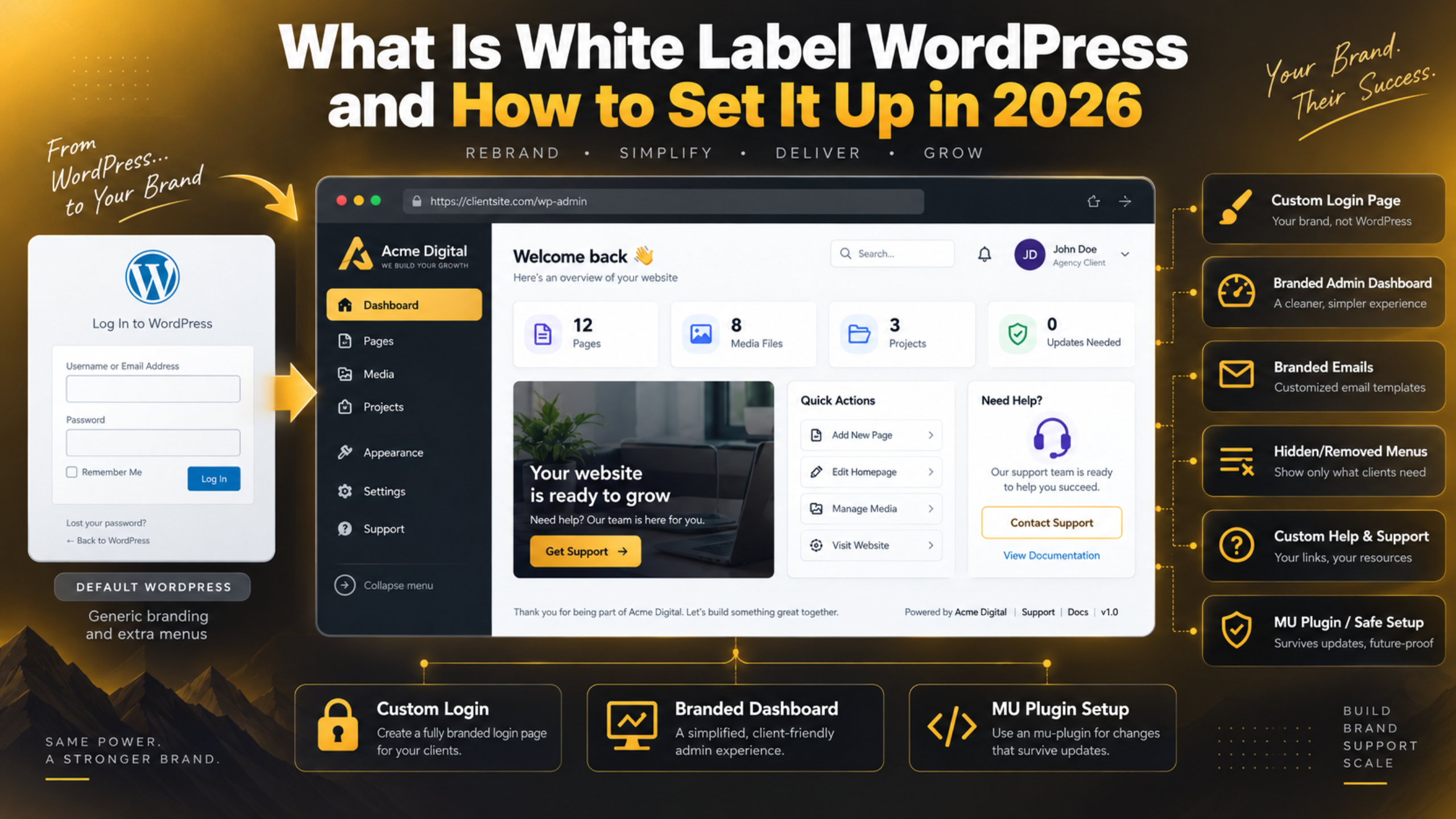
What Is White Label WordPress and How to Set It Up in 2026
Introduction
You finish a site, hand it over, and the client logs in for the first time. What greets them is a WordPress logo, a WordPress footer credit, and a login screen that belongs to somebody else. The site works. It just does not feel like theirs. White label WordPress fixes exactly that.
White labelling means you swap the default WordPress branding for your own or for your client’s. The software underneath does not change at all. Only the face of it does. This guide covers what you can rebrand, how to do each piece, and where to put the code so it survives updates. Every step here reflects how WordPress works in 2026.
What White Label WordPress Really Means
The term comes from products that ship blank so a seller can add their own label. WordPress works the same way. You keep the core software. You change what the person logging in actually sees.
A white label setup usually covers three surfaces. The first is the login page at /wp-login.php. The second is the admin dashboard behind it. The third is the set of emails WordPress sends out, such as password resets and new user notices.
On each of those surfaces you replace the logo, the footer credit, and the help text. You also hide menus a client will never use. The goal is a dashboard that looks like a tool your agency built.
None of this touches how WordPress runs. Posts, pages, and the database are untouched. Core updates still install in the normal way. That last point matters more than people expect. A branding change made in the wrong place vanishes the moment WordPress updates itself. Put it in the right place and it lasts for years.
White labelling also pairs closely with permissions. Branding controls what a client sees. WordPress user roles control what they can touch. You want both.
Why Agencies and Freelancers White Label WordPress
The obvious reason is that it looks better. A branded dashboard tells the client they bought a finished product. A raw one tells them they bought some free software. The work is the same either way, but the second version is much harder to charge well for.
The second reason is support volume. Most client tickets come from confusion, not from bugs. A dashboard with forty menu items invites clicking. One with eight invites work. Hide the parts a client will never need and the questions drop.
It keeps the client on your support path. A default footer credit points a confused client outward to generic help pages. Your own footer credit points them at your support desk instead. For an agency on a care plan, that single line of text pays for itself.
It scales across a portfolio. If you manage several WordPress sites at once, one shared branding package keeps every client dashboard consistent. New site, same look, no extra setup time.
It supports a paid portal offer. Many agencies now sell a branded client area as part of the retainer. White labelling the admin is the cheapest version of that idea, and it runs well alongside a secure client portal when you need something more formal.
What You Can Rebrand, and What You Cannot
Not everything in WordPress is yours to change. It helps to know the boundary before you start, so you do not waste an afternoon fighting something that will not move.
You can change the login screen. The logo, the link behind it, the background, the form colours, and the text under the form are all open to you.
You can change the admin footer. The “Thank you for creating with WordPress” line is filtered. Replace it with your agency name and a support link.
You can change the top admin bar. The WordPress logo menu can be removed. You can add your own item in its place.
You can change the dashboard widgets. Remove the news feed and the activity box. Add your own panel instead. Our guide on adding a custom dashboard widget walks through that part.
You cannot rename WordPress itself. The version string, the readme file, and the generator tag all still say WordPress. You can hide some of it. You cannot honestly claim the software is something else.
You cannot hide the software from a technical user. Anyone can view the page source. White labelling changes presentation, not identity.
How to White Label the WordPress Login Page
The login page is the first thing a client sees, so it earns the most attention. There are three parts to change: the logo, the link behind the logo, and the tooltip text.
Start by preparing the image. A PNG with a transparent background works best, at around 320 by 100 pixels. Upload it through Media → Add New and copy the file URL.
Next, decide where the code will live. Never edit core files. Use a child theme or a small site plugin instead. Our guide to WordPress child themes explains the safer of those two routes. Before you edit any theme file on a live site, take a full backup or work on a staging copy first.
The snippet below handles all three parts at once. Replace the image URL and the domain with your own.
add_action('login_enqueue_scripts', function () {
    echo '<style>#login h1 a {
        background-image: url(https://example.com/wp-content/uploads/brand.png);
        background-size: contain;
        width: 320px; height: 100px;
    }</style>';
});
add_filter('login_headerurl', fn() => 'https://example.com');
add_filter('login_headertext', fn() => 'Example Agency');
Reload /wp-login.php and the logo should appear. If it does not, clear your cache and check the image URL.
While you are on this screen, tighten it. Moving the login address is a common next step, and creating a custom login URL pairs well with branding. So does hardening the login page against brute force attempts.
How to Rebrand the Admin Dashboard
Once the client is inside, three things give the game away. They are the footer credit, the WordPress logo in the top bar, and the dashboard news widget. All three are easy to replace.
Start with the footer. The admin_footer_text filter controls the line at the bottom left of every admin screen. Swap it for your agency name and a link to your support desk. Clients read that line when something goes wrong, so make it useful.


Then remove the logo menu. The WordPress logo at the far left of the admin bar opens a menu of links to documentation and forums. Remove that node and the bar looks instantly cleaner.
Next, clear the dashboard home screen. By default it shows an events and news feed, a quick draft box, and an activity panel. None of it helps a client. Remove those widgets and add one of your own with a support phone number and a link to your ticket form.
Finally, set the site icon. Go to Appearance → Customize → Site Identity and upload a favicon. That icon appears on the browser tab of every admin page. It is a small touch that clients notice. Our guide on adding and changing a logo in WordPress covers the front-end side of the same job.
How to Tidy the Admin Menu for Client Users
Branding gets you halfway. The rest is subtraction. A clean menu is what actually stops the support tickets.
First, look at the site through the client’s role. Log in as an Editor or as a custom role and write down every menu item they can reach. Most of them will be things they should never open.
Hide the tool menus. Items like Tools, Settings, and Plugins rarely belong in a client’s view. Removing them from the menu is a presentation change, so pair it with a role that genuinely lacks those capabilities.
Collapse the editor menus. Theme file editing and plugin file editing should be switched off on any client site. Add the file edit constant to wp-config.php to disable both at once. Back up the file before you change it, since a typo there takes the whole site down.
Trim the plugin clutter. Many plugins add their own top-level menu item and their own notices. Move the ones the client does not use under a single parent item, and hide the marketing notices.
Set a sensible landing screen. Point the client at Posts or at your own dashboard panel rather than the default home screen.
If you want tighter control than menu hiding gives you, limiting dashboard access is the stronger approach.
Where to Put White Label Code So It Survives Updates
This is the part most people get wrong. It is why branding keeps vanishing on older sites.
Never edit core files. Anything inside /wp-admin/ or /wp-includes/ is replaced on every WordPress update. Changes made there are gone within weeks.
Never edit a parent theme directly. A theme update wipes the file. This is the second most common cause of lost branding.
A child theme works for a single site. Put the snippets in the child theme’s functions.php. They survive parent theme updates and core updates. The catch is that they are tied to that theme. Switch the theme and the branding goes with it.
A must-use plugin is the better choice for agencies. Drop a single PHP file into /wp-content/mu-plugins/. WordPress loads it automatically on every request. It cannot be deactivated from the dashboard, it survives theme changes, and you can copy the same file to every client site.
Test on staging first, always. A PHP error in a must-use plugin can lock you out of the admin. Build it on a staging site and take a full backup before you copy it across.
Common White Label Mistakes to Avoid
White labelling goes wrong in fairly predictable ways. Knowing them in advance saves a lot of cleanup.
Hiding updates from the client. Some setups remove the update notices to keep the dashboard tidy. Then nobody updates anything for a year. Hide the noise, not the warnings.
Confusing branding with permissions. Hiding a menu item does not remove the capability behind it. A user who knows the direct URL can still reach the screen. Change the role as well as the menu.
Stacking too many branding plugins. Several plugins filtering the same login hooks will fight each other. This is a classic source of WordPress plugin conflicts. Pick one route and stay with it.
Forgetting the emails. The login page can look perfect while password reset emails still arrive from “WordPress” at a generic address. Set the sender name and address to match the brand.
Leaving no handover note. If a future developer cannot find where the branding lives, they will assume the site is broken. Add a comment block at the top of your must-use plugin explaining what it does.
Pretending WordPress is not there. Telling a client the site runs on your own private platform is a claim that falls apart the first time they search for help. Be proud of the stack instead.
Final Thoughts on White Label WordPress in 2026
White labelling WordPress is a small job with a large return. You are changing a logo, a footer line, a handful of widgets, and a menu. A developer can do the whole set in under an hour.
The value shows up later. Clients treat a branded dashboard as a product they own. They log in with more confidence, they raise fewer confused tickets, and they see your name when something needs attention.
Keep three rules in mind. Put the code in a must-use plugin so it survives every update. Match every hidden menu with a matching role change. And never use branding to hide what the software is. Get those right and the setup will still be working in five years.
If you would rather not build and maintain this across a portfolio of client sites, our team does it every day. 24×7 WP Support handles white label setup, admin clean-up, updates, backups, and round-the-clock WordPress maintenance so your dashboards stay branded and your clients stay happy. Get in touch and we will take it from here.
Related posts:
Elementor vs WordPress: What Is the Difference?
How to Customize Headers in WordPress Using Plugins and Custom Code?
How to Enable GoDaddy Payments on Managed WordPress in 2026
Is the WordPress Logo Trademarked? What You Can and Cannot Use
How to Fix Unwanted Redirects Issue in WordPress (Step-by-Step Guide)

Brian is a WordPress support specialist and content contributor at 24×7 WP Support. He writes practical, easy-to-follow guides on WordPress troubleshooting, WooCommerce issues, plugin and theme errors, website security, migrations, performance optimization, and integrations. With a focus on solving real website problems, Brian helps business owners, bloggers, and online store managers keep their WordPress sites running smoothly.
