
WordPress RSS Feeds Explained: How to Enable and Create a Custom Feed in 2026
Introduction
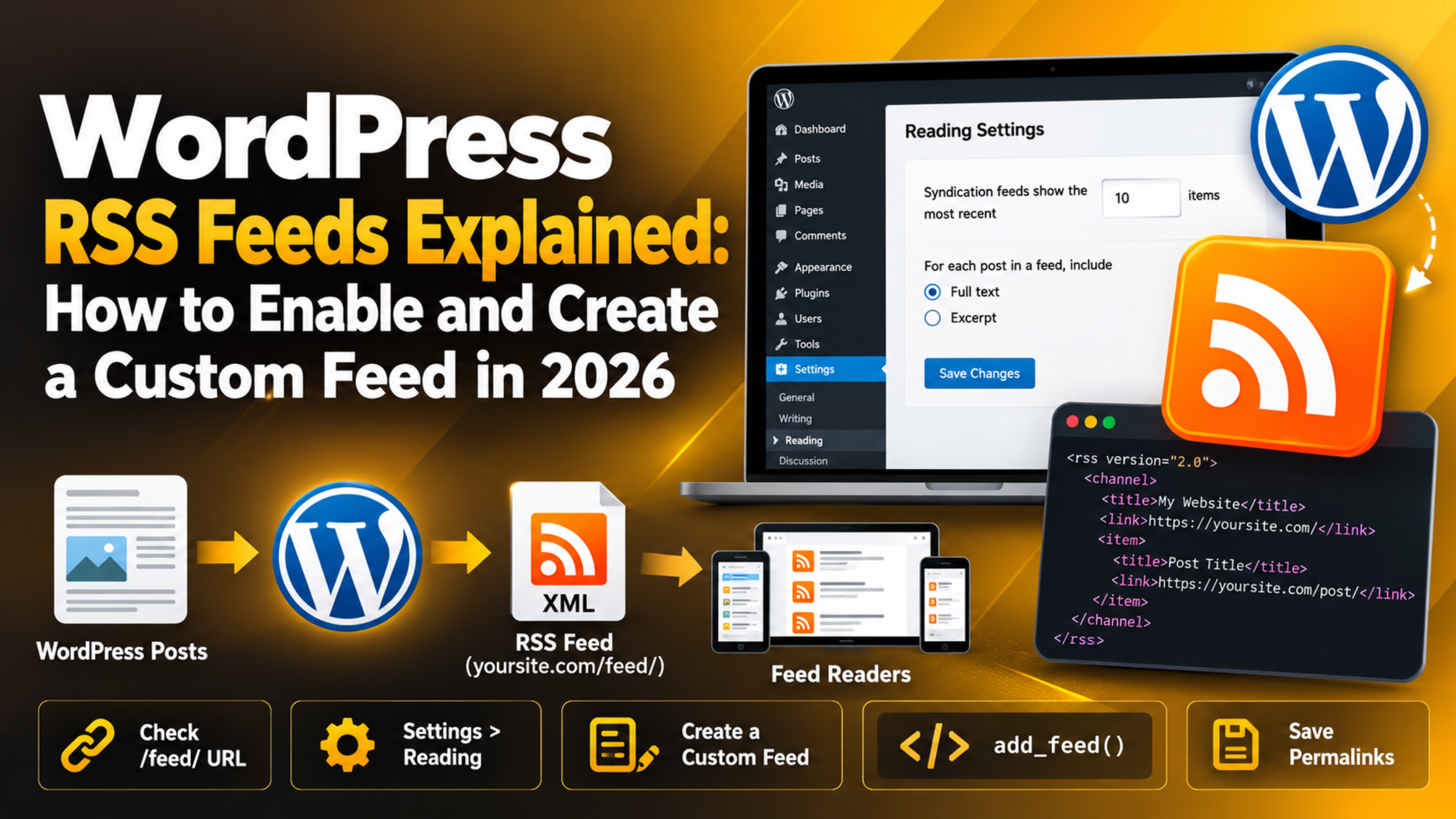
Every WordPress site builds an RSS feed for you. It is switched on from the first day. Most site owners never open it, and never think about it again. That is a shame, because the feed is a free, automatic copy of your content that other tools can read.
This guide explains what a WordPress RSS feed is in plain words. You will learn where your feed URLs are, how to test them, and how to control what goes inside them. You will also see how to build a custom feed, how to switch feeds off, and what to check when one breaks.
What Is an RSS Feed in WordPress?
RSS stands for Really Simple Syndication. An RSS feed is a plain machine-readable file that lists your latest content. It is written in XML, which is a text format built for software rather than for people. A human sees a messy page of tags. A news reader, an email tool, or a mobile app sees a tidy list of posts.
WordPress creates this file on request. There is no stored file sitting on your server. When something asks for the feed URL, WordPress runs a query, grabs your newest posts, and writes the XML on the spot. That is why the feed is always current. Publish a post, and the feed shows it within seconds.
Each item in the feed carries the same core details: the post title, the link, the publish date, the author name, the categories, and either the excerpt or the full text. Readers use those details to show your post without visiting your site.
The feature is built into WordPress core, so you do not install anything to get it. Your feed exists even if you have never set it up, and anyone who knows the URL pattern can find it. That alone makes it worth knowing what yours is sharing.
Where Your WordPress Feed URLs Live
WordPress does not give you one feed. It gives you a set of them. Each one covers a different slice of your site, and each one has a predictable address. Knowing the pattern makes testing far quicker.
Your main posts feed sits at https://yoursite.com/feed/. This is the one most people mean when they say “my RSS feed”. It lists your most recent posts in date order. Your comments feed sits at https://yoursite.com/comments/feed/. It lists recent comments across the whole site.
You also get a feed for every archive. A category feed looks like /category/news/feed/. A tag feed looks like /tag/updates/feed/. An author feed looks like /author/priya/feed/. A search feed looks like /?s=keyword&feed=rss2. Single posts even have their own comment feeds.
These pretty URLs depend on your permalink settings. If your site uses plain permalinks, the feed address becomes /?feed=rss2 instead. If your feed URL returns a 404 page, the permalink rules are usually the reason. Our guide to WordPress permalinks and how to set or fix them walks through that fix in full.
WordPress can also serve the feed in other formats. RSS2 is the default. Atom sits at /feed/atom/. Almost every modern reader handles RSS2, so you rarely need it.
How to Check That Your Feed Works
Testing a feed takes under a minute. Open a new browser tab and type your site address followed by /feed/. Press Enter and look at what comes back.
A healthy feed shows XML. You may see raw tags, a styled list, or a download prompt. All three are fine. Look for a block that starts with <rss version=”2.0″> and a run of <item> entries below it. Each item should carry one of your real post titles.
Check the dates next. The top item should be your newest post. If the newest item is weeks old, something is caching the feed or filtering your posts out. Clearing your cache is the first thing to try, and our walkthrough on how to clear the WordPress cache covers every layer you need to flush.
Watch for stray output too. A blank line before the opening XML tag will break the feed in most readers. The error usually reads “XML parsing error”. That text is a strong hint that a plugin or theme file is printing something it should not.
If you want structured data rather than XML, the REST API is the better route. Our guide to the WordPress REST API explains where each one fits.
How to Control What Your Feed Shows
You have real control over your feed without touching a single file. Most of it sits on one admin screen, and the settings take effect at once.
Go to Settings → Reading in your WordPress dashboard. You will find two fields that shape every feed on the site. The first is “Syndication feeds show the most recent”, which sets how many items appear. Ten is the default. A higher number helps readers who check in rarely, but it makes the file slower to build. Keep it under thirty on a busy site.
The second field is “For each post in a feed, include”. You can pick Full text or Excerpt. Full text gives readers the whole article inside their app, but then they may never click through. Excerpt shows a teaser and sends traffic to your site. Many publishers pick Excerpt for that reason.
Your excerpt wording matters once you pick that option. Without a manual excerpt, WordPress just trims the opening lines of the post. A hand-written excerpt reads far better in a reader app.
Pages are left out of feeds by design. Only posts and other feed-enabled content types appear. If you are unsure which of your content counts as a post, our explainer on the difference between posts and pages in WordPress clears it up.
How to Create a Custom RSS Feed in WordPress
Sometimes the built-in feeds are not enough. You may want a feed of one custom post type, or a feed with extra fields for a partner site. WordPress has a core function for exactly this, so you do not need a plugin.
Back up your site first, or make the change on a staging copy. You are about to add code that runs on every page load. A small typo can take the site down, so never type it straight into a live install.


The function is called add_feed(). It takes a feed name and a callback that prints the XML. Put the code in a small custom plugin, so the feed survives a theme change. Our comparison of functions.php versus a custom plugin explains why. If you prefer the theme route, use a WordPress child theme so an update cannot wipe your work.
Here is a minimal version that registers a feed at /feed/offers/:
add_action( 'init', function () {
    add_feed( 'offers', 'my_offers_feed' );
} );

function my_offers_feed() {
    header( 'Content-Type: application/rss+xml; charset=UTF-8' );
    echo '<?xml version="1.0"?>';
    get_template_part( 'feed', 'offers' );
}
After you add the code, go to Settings → Permalinks and click Save Changes once. That rebuilds the rewrite rules so WordPress recognises the new address. Skipping this step is the most common reason a custom feed returns a 404 page.
Then build the template file that prints your items. Keep the same XML shape as a standard feed: a channel block, then one item block per entry.
How to Turn Off Feeds You Do Not Need
Not every site wants feeds. A brochure site with no blog has nothing to syndicate. A membership site may not want its titles listed in public. In those cases, switching feeds off is reasonable.
There is no checkbox for this in the dashboard. The usual method is a few lines of code that hook into the feed actions and send visitors elsewhere. Take a backup or work on staging before you add it. You are changing how a core feature behaves, and you want a clean way back.
The common approach hooks every feed action and redirects the request to your home page. It covers the main feed, the comments feed, and the archive feeds in one go:
foreach ( array( 'do_feed', 'do_feed_rdf', 'do_feed_rss', 'do_feed_rss2', 'do_feed_atom' ) as $hook ) {
    add_action( $hook, function () {
        wp_redirect( home_url() );
        exit;
    }, 1 );
}
Think carefully before you do this. Some services you already use may read your feed quietly in the background. Email tools, app integrations, and internal dashboards are common examples. Turning feeds off can break them without an obvious error, so check what depends on the feed first.
A softer option is to leave feeds on and switch the Reading setting to Excerpt. Integrations keep working, and full articles stop leaving your site.
Is RSS Still Worth Using in 2026?
RSS is older than most web tools you use daily, and it is still here. It is no longer a traffic channel for most sites. It is still useful plumbing.
Readers who rely on feed apps tend to be a small, loyal group. They are often other people in your industry. A clean feed makes it easy for them to follow you without an algorithm in the way. That is a modest but real benefit.
The bigger value today is automation. Many services accept a feed URL as an input. You can point an email tool at your feed and send a digest of new posts. You can pipe the feed into an internal dashboard so a team sees new content. You can let a partner site show your latest headlines. None of that needs an API key or a custom build.
There is a trade-off to weigh. A full-text feed makes it easy for scrapers to copy your articles. If that worries you, the Excerpt setting is the simplest guard.
Our overview of the kinds of websites you can build with WordPress shows how different site types use these built-in features in very different ways.
Common Feed Problems and What to Check
Feeds break quietly, because nobody is watching them. A quick check every few months catches most issues early.
The feed returns a 404 page. This is almost always a permalink problem. Go to Settings → Permalinks and click Save Changes without altering anything. That flushes the rewrite rules and often restores the address straight away.
The browser reports an XML parsing error. Something is printing text before the XML starts. A blank line after a closing PHP tag in a theme or plugin file is the usual culprit. Switch to a default theme and test again. If the feed recovers, the theme is the source.
The feed shows old posts only. A caching layer is serving a stale copy. Clear your page cache, your plugin cache, and any cache your host runs. Then reload the feed with a hard refresh.
The feed is empty. Check that you have published posts rather than drafts, and that Settings → Reading is not set to zero items. A plugin that filters the main query can also strip posts out of feeds by mistake.
You are not sure the site is even serving a feed. The feed URL is one of the quickest fingerprints of a WordPress install, as our guide on how to check if a website is built with WordPress explains.
Get Help With Your WordPress Feeds
Feeds are small, but they sit close to the core of WordPress. When one breaks, the cause is often a permalink rule, a caching layer, or a stray line of code in a theme file. Those are the same things that cause bigger problems elsewhere on a site, so a broken feed is often a useful early warning.
If your feed is throwing errors, serving stale content, or returning a 404 you cannot shift, you do not have to work through it alone. Our team works on WordPress sites every day and can look at the feed, the rewrite rules, and the caching stack together rather than one at a time.
Visit 24×7 WP Support to talk to us about your site. We will check what is going on, explain it in plain language, and work with you on a fix that holds. Whether you want a custom feed built, a broken one repaired, or feeds switched off safely, we can take that work off your hands.
Related posts:


Brian is a WordPress support specialist and content contributor at 24×7 WP Support. He writes practical, easy-to-follow guides on WordPress troubleshooting, WooCommerce issues, plugin and theme errors, website security, migrations, performance optimization, and integrations. With a focus on solving real website problems, Brian helps business owners, bloggers, and online store managers keep their WordPress sites running smoothly.
