
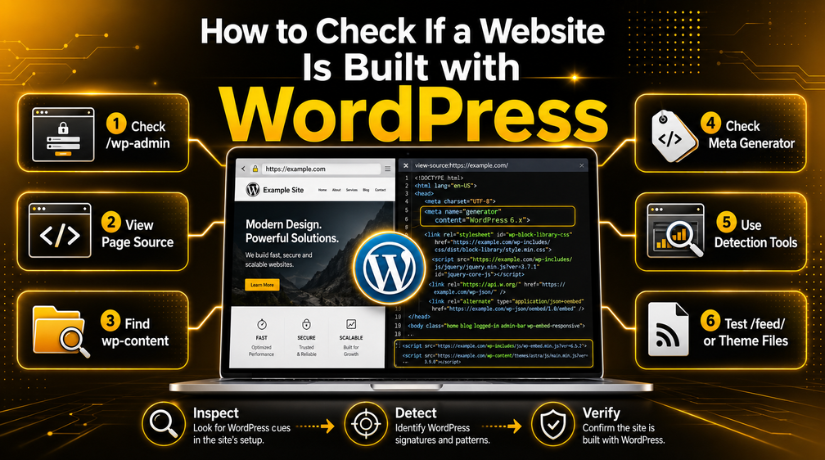
How to Check If a Website Is Built with WordPress
Introduction
You land on a beautifully designed website and wonder — is this running on WordPress? Maybe you’re a developer scouting the competition, a business owner doing market research, or simply curious about the technology stack behind a site you admire. Whatever your reason, figuring out whether a site is built on WordPress is easier than you might think — and you don’t need to be a developer to do it.
In this guide, we’ll walk you through seven reliable methods to detect WordPress in 2026, from quick manual checks to powerful free online tools. By the end, you’ll be able to identify a WordPress site in under a minute, and understand what to do with that information once you have it.
Why It Matters to Know If a Website Uses WordPress
Understanding the technology behind a website has real, practical value. If you’re building your own site, knowing what successful competitors use helps inform your own platform choice. If you’re a developer or designer, spotting WordPress quickly lets you identify themes, plugins, and page builders you might want to study, replicate, or recommend to clients. And if you’re an agency or freelancer pitching services, knowing a prospect runs WordPress tells you exactly what support they might need — and positions you to offer it.
WordPress powers roughly 43% of all websites on the internet as of 2026 — which means nearly half the sites you visit are likely running on it. Recognising WordPress in the wild is a genuinely useful skill, and the good news is it takes almost no effort once you know what to look for. The platform is consistent enough in how it structures files, URLs, and page code that it leaves recognisable traces across every installation.
Method 1: Try the /wp-admin or /wp-login.php URL
This is the fastest and most reliable single check you can do. WordPress ships with a standard admin login URL that stays the same on virtually every installation unless the site owner has deliberately changed it with a security plugin.
Take the domain of the website you’re investigating and add /wp-admin to the end. For example:
https://www.example.com/wp-admin
If the site runs WordPress, you’ll be redirected to a login page that’s immediately recognisable — the distinctive WordPress logo, username and password fields, and a “Log In” button. You can also try /wp-login.php as an alternative, since both paths lead to the same login screen on most installations.
If you land on a 404 error page or a custom error message, it doesn’t necessarily mean WordPress isn’t being used. Security-conscious site owners often use plugins like WPS Hide Login to change the admin URL to something unpredictable. In that case, move on to the other methods below.
Method 2: View the Page Source Code
Every browser lets you peek at the raw HTML source of any page, and WordPress leaves very distinctive fingerprints in that code. This method takes about thirty seconds and works in any browser without installing any additional tools.
Look for wp-content and wp-includes
Right-click anywhere on the page and select “View Page Source” (or press Ctrl+U on Windows / Cmd+Option+U on Mac). Once the source code opens in a new tab, press Ctrl+F to open the search bar and type wp-content. WordPress stores all themes, plugins, and uploaded media in a directory called wp-content, and references to that folder appear in the source code of almost every WordPress page — usually in stylesheet links, script tags, and image paths.
You can also search for wp-includes, which is the folder containing WordPress’s core JavaScript files and stylesheets. Finding either of these strings in the source is a very strong signal that you’re looking at a WordPress-powered site.
Check the Meta Generator Tag
WordPress automatically outputs a meta generator tag inside the <head> section of every page. Search the page source for meta name="generator" and look for something like:
<meta name="generator" content="WordPress 6.x" />
When present, this tag not only confirms WordPress is in use but also reveals the exact version number — useful information if you’re assessing a site’s security posture or planning a migration. Some sites remove this tag for security reasons using a snippet in their theme’s functions.php file, but the majority of WordPress installations leave it in place.
Method 3: Check Image URLs for wp-content/uploads
WordPress saves every uploaded image and media file to a predictable, consistent path: /wp-content/uploads/, organised by year and month. Right-click on any image on the page you’re examining and choose “Open image in new tab.” Then look at the URL that appears in your browser’s address bar.
If it reads something like https://www.example.com/wp-content/uploads/2026/04/some-image.jpg, you’re almost certainly looking at a WordPress site. The wp-content/uploads path is exclusive to WordPress, and the year/month subfolder structure is a WordPress-specific convention that almost never appears on Squarespace, Wix, or other hosted platforms. This check is particularly useful when the page source has been minified or the login URL has been changed.
Method 4: Use Online WordPress Detection Tools
If manual checks feel too technical or time-consuming, a handful of free online tools will scan any URL and report back within seconds whether WordPress is running — and often provide additional details like the active theme name, installed plugins, and the WordPress version.
IsItWP
IsItWP (isitwp.com) is purpose-built for this task. Enter the URL, click the detection button, and it tells you immediately whether the site uses WordPress. If it does, IsItWP also displays the active theme and a selection of detected plugins. It’s the simplest, most beginner-friendly option and requires no account or sign-up.


BuiltWith
BuiltWith (builtwith.com) goes far deeper than WordPress detection. It maps out the entire technology stack behind a site — hosting provider, CDN, analytics platform, advertising tools, email marketing software, and much more. For a quick WordPress check it may feel like overkill, but it’s invaluable when you want a complete picture of how a site is built and operated. Marketers and competitive researchers tend to find BuiltWith especially useful.
WhatCMS.org
WhatCMS.org identifies the content management system in use across hundreds of platforms, not just WordPress. It’s a good tool when you’re not sure whether you’re dealing with WordPress, Joomla, Drupal, Squarespace, or something else entirely and want a neutral answer fast.
ScanWP
ScanWP (scanwp.net) is a WordPress-specific detector that focuses especially on theme identification. It displays the active theme name and its developer, making it particularly useful for designers who want to identify exactly which theme a site is running before recommending something similar to a client.
Method 5: Use the Wappalyzer Browser Extension
Wappalyzer is a free browser extension available for Chrome, Firefox, and Edge that detects the technology stack of any website you visit in real time — with no extra effort once it’s installed. Simply click the Wappalyzer icon while on any page to see a breakdown of the CMS, JavaScript frameworks, analytics tools, payment processors, and more.
When a site runs WordPress, Wappalyzer clearly lists “WordPress” under the CMS category, often alongside the detected version number. It’s one of the most efficient options for developers, marketers, and freelancers who regularly assess multiple sites throughout the day. BuiltWith offers a similar browser extension if you prefer their reporting format. Either way, the extension approach means you never have to leave the page or open a separate tool.
Method 6: Check the RSS Feed URL
WordPress generates an RSS feed automatically at a fixed, predictable path. Try visiting:
https://www.example.com/feed/
If the site is running WordPress, you’ll see an XML feed of recent posts. Scroll through the feed’s source and search for wordpress.org — WordPress includes a generator reference in every feed it produces. A valid feed at that URL, especially one referencing WordPress in its XML header, is a reliable positive signal. If the URL returns a 404 or a non-WordPress-formatted feed, it’s not conclusive proof either way, but it narrows things down.
Method 7: Look at the Footer and Theme Stylesheet
Many WordPress themes include a “Powered by WordPress” credit link in the website footer, often alongside a link to the theme developer’s site. Not every site keeps this visible — theme developers and site owners can remove it — but it’s worth a quick scroll to the bottom of the page before moving on to more technical checks.
For a more technical confirmation, you can attempt to directly access the theme’s stylesheet at a path like:
https://www.example.com/wp-content/themes/theme-name/style.css
Guessing common theme names like twentytwentyfour, astra, generatepress, or hello-elementor will often get you there. The very top of a WordPress theme’s style.css file contains standardised header comments declaring the theme name, author, version, and description. If that file loads and shows those comments, the site is definitively running on WordPress.
What Else Can These Methods Reveal?
Once you confirm a site is built on WordPress, most of the detection tools above provide significantly more than a simple yes/no answer. You can often identify the active theme by name (including premium commercial themes), specific plugins in use, the approximate WordPress version number, and even the page builder — Elementor, Divi, WPBakery, or the native Gutenberg editor.
This information is genuinely valuable across different contexts. A competitor’s plugin stack can reveal how they’re handling SEO, performance caching, security, and e-commerce. Theme identification helps designers find high-quality inspirations to recommend to clients. Version information flags whether a site is running outdated, potentially vulnerable software — useful both for your own site audits and when assessing prospective clients. For a broader look at keeping your own WordPress installation safe, our guide on WordPress security best practices covers all the essential protective measures.
Protecting Your Own WordPress Site from Detection
If you run a WordPress site and want to limit how much information visitors or competitors can gather about your setup, there are several sensible steps to take. Removing the meta generator tag (a simple addition to your theme’s functions.php), hiding the login page at a custom URL with WPS Hide Login, blocking direct access to theme and plugin file paths, and keeping your software up to date all significantly reduce your site’s identifiable footprint. None of these measures make detection impossible, but they raise the bar meaningfully against casual snoopers and automated scanners.
WordPress’s consistency and standardisation — the very qualities that make it so easy to detect — are also what make it so powerful and well-supported. The large community, the vast plugin ecosystem, and the predictable file structure are features. If you’re weighing WordPress for your next project, our 2026 guide to using WordPress for blogging gives you a clear-eyed look at where the platform stands today. And if you’re already on WordPress.com and considering a move to a self-hosted setup, our migration guide from WordPress.com to WordPress.org walks you through the process step by step.
Whether you’re doing competitive research, planning a new website, or simply satisfying your curiosity, these seven methods give you everything you need to identify WordPress — quickly, accurately, and completely free. And if you need expert hands-on support for your own WordPress site, the team at 24×7 WP Support is available around the clock. Contact us today and let us handle the technical complexity so you can focus on growing your business.
Related posts:

Best Drag and Drop WordPress Theme Builders (Paid + Free)
What Is a GPL WordPress Theme? Meaning, Safety, and Legal Use

Top 7 WordPress Plugins for GDPR Compliance Needs of your Site

How to Add and Manage Super Admins in WordPress Multisite (2026)

Can You Create a WordPress Website for Free? Free vs Paid Options

Brian is a WordPress support specialist and content contributor at 24×7 WP Support. He writes practical, easy-to-follow guides on WordPress troubleshooting, WooCommerce issues, plugin and theme errors, website security, migrations, performance optimization, and integrations. With a focus on solving real website problems, Brian helps business owners, bloggers, and online store managers keep their WordPress sites running smoothly.
