
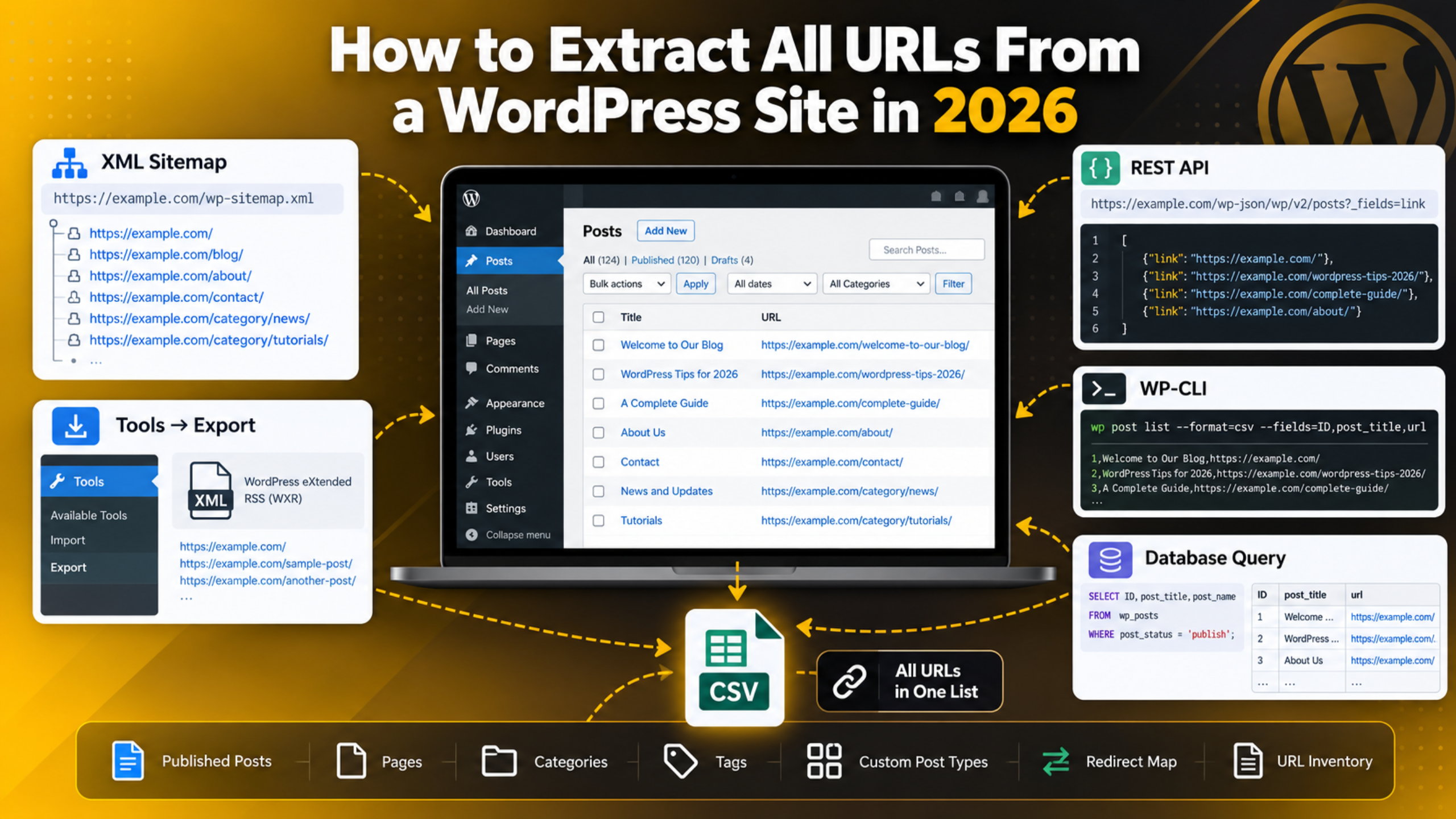
How to Extract All URLs From a WordPress Site in 2026
Sooner or later every site owner needs a full list of their own URLs. Maybe you are planning a redesign, auditing thin content, building a redirect map, or checking what search engines can actually find. Clicking through the admin screens and copying links by hand does not scale past about twenty pages.
WordPress already holds every URL you need. The trick is knowing which door to open. This guide walks through five reliable ways to pull a complete list, from a two-minute browser method to a command-line export you can run on a schedule.
What Counts as a URL on a WordPress Site
Before you export anything, decide what you actually want. A WordPress site generates far more addresses than most owners expect, and a list that mixes them all together is hard to use.
Posts and pages are the obvious ones. On top of those, WordPress creates archive URLs for every category, tag, author and date. Media files each get their own attachment page. Custom post types add their own set, and so do paginated archives such as /page/2/.
For most jobs you only want published posts and pages. For a redesign or a migration you may also want categories and tags, because those often carry links and rankings. For a cleanup you may want attachment pages, since they are frequently indexed by accident.
The shape of those addresses depends on your permalink settings. If you are not sure how yours are built, our guide to WordPress permalinks explains the options. Write down which URL types you need before you start. It saves filtering a messy list later.
Method 1: Read Your XML Sitemap
This is the fastest route and it needs no plugin, no login, and no code. WordPress has produced its own sitemap since version 5.5. Open your site followed by /wp-sitemap.xml in a browser and you will see an index page.
That index is a list of smaller sitemaps. One holds posts, one holds pages, others hold categories, tags and users. Open each child sitemap and you get the live URLs inside it. If an SEO plugin is active on your site, it usually replaces the core sitemap with its own, often at /sitemap_index.xml. Either address works the same way.
To turn that into a usable list, open the child sitemap, select all the text, and paste it into a spreadsheet. The URLs land in one column, and you can delete the date column beside them. For a site under a few hundred pages this takes a couple of minutes.
There is one important limit. A sitemap only lists what you have told search engines to crawl. Pages marked as excluded, draft content, and anything set to no-index will not appear. That makes the sitemap perfect for an SEO audit and wrong for a full inventory. If you have ever used settings to discourage search engines from indexing parts of the site, expect gaps.
Method 2: Use the Built-In Export Tool
WordPress ships with an exporter that produces a single XML file containing your content. Go to Tools → Export, choose what you want, and click Download Export File. You can export everything, or narrow it to posts, pages, or one custom post type.
The file that downloads is a WXR file, which is standard XML with a WordPress flavour. Every item inside it carries a <link> element holding that item’s full URL. Open the file in a text editor and search for <link> to see them.
To get a clean column of addresses, open the XML in a spreadsheet application. Most will offer to parse it into a table, after which you can keep the link column and discard the rest. A text editor that supports regular expressions can do the same job by extracting every line between the link tags.
This method captures drafts, private posts and scheduled items as well as published ones, which the sitemap does not. That makes it the better choice for a content audit. It is also the method to use before a move, alongside our walkthrough on how to export a WordPress site without plugins. The download is read-only, so it changes nothing on your site.
Method 3: Pull URLs From the REST API
The REST API returns your content as structured data, which makes it ideal when you want the list in a script rather than a spreadsheet. Nothing needs installing, because the API is part of core.
Open this address in a browser, replacing the domain with your own:
https://example.com/wp-json/wp/v2/posts?per_page=100&_fields=linkThe _fields=link part tells WordPress to send only the URL of each item, which keeps the response small and easy to read. Swap posts for pages to get pages instead, or for the name of a custom post type.
One hundred items per request is the maximum WordPress allows. For a larger site, add &page=2, then &page=3, and keep going until the response comes back empty. The response headers include a total count, so you know how many pages to expect before you start.
Public published content needs no sign-in. To include drafts and private posts you must authenticate, and the cleanest way is a key created under Users → Profile. Our guide to WordPress application passwords covers that, and our REST API guide explains how routes and parameters fit together.
Method 4: Export With WP-CLI
If you have command-line access to your hosting account, this is the quickest method of all, and the easiest to repeat. WP-CLI is the official command-line tool for WordPress. Our introduction to WP-CLI and SSH covers getting connected.
Take a backup before you begin. Everything below only reads data, but command-line sessions sit very close to commands that do not. Make sure a current backup exists, or work on a staging copy, before you run anything in a terminal.
From your site’s root folder, this command lists the URL of every published post and page:
wp post list --post_type=post,page --post_status=publish --format=csv --fields=ID,post_title,url > urls.csvYou now have a CSV file you can open in any spreadsheet. Change --post_status to draft to see unpublished work, or drop the flag to get everything. Adding a custom post type name to --post_type includes that content too.
The advantage here is repeatability. The same command produces the same report next month, and it can be scheduled so a fresh list lands automatically. It is also the only method that comfortably handles sites with tens of thousands of entries, because nothing has to render in a browser.
Method 5: Query the Database Directly
Sometimes you need something the other methods will not give you, such as every revision, or posts in an unusual status. A direct database query can do it, and it is the most advanced option here.
This one carries real risk, so prepare first. Always take a full backup of the site and database before opening your database tool, and run the query on a staging copy if one is available. A mistyped statement in the wrong panel can damage content permanently.


Your post data lives in the wp_posts table, although the wp_ part may differ if a custom prefix was set at install. The post_name column holds each slug, post_type holds the type, and post_status holds the state. A read-only SELECT statement against those columns returns the slugs, which you then join to your domain and permalink structure to form full URLs.
Because the database stores slugs rather than finished addresses, this method needs the most assembly afterwards. Use it when the other four genuinely cannot answer the question, not as a first choice. If anything looks wrong with the database while you are in there, our guide on repairing a WordPress database is the safer next step.
Choosing a Method and Using the List You Get
The right choice depends on why you need the list, not on which method is most technical. Matching the tool to the task saves a lot of cleanup.
For a quick SEO check, read the sitemap. It shows exactly what you are inviting search engines to crawl, which is the whole point of the exercise.
For a content audit, use the export file. Drafts and private posts matter when you are deciding what to keep, merge or rewrite, and only the export includes them.
For anything feeding a script, use the REST API. The output is already structured, so no parsing of spreadsheets is needed.
For large sites or repeat reports, use WP-CLI. It is fast, scriptable, and unbothered by size.
For unusual requirements, query the database, with a backup in hand.
Many jobs need two. A redirect map, for example, is built from a full export, then checked against the sitemap to see which URLs search engines actually know about.
An exported list of URLs is a starting point, not an end result. A few checks turn it into something useful.
Look for duplicates and near-duplicates. Sort the list alphabetically and similar slugs line up next to each other. Two posts covering the same question are competing with one another in search results.
Spot the orphans. Compare your full list against the sitemap. Anything in one and not the other is either excluded from search on purpose or excluded by accident, and the second case is worth fixing.
Build your redirect map early. If URLs are changing, pair each old address with its new one before the change goes live. Our guide to 301 redirects covers how to put them in place, and doing this properly is what prevents a wave of 404 errors afterwards.
Compare against what Google has indexed. Your export says what exists. Search Console says what was found and kept. The gap between the two is often the most useful thing in the whole exercise, and our Search Console guide shows where to look.
Keep a dated copy. Save each export with the date in the filename. When something disappears six months from now, an older list tells you what the URL used to be.
Common Problems and How to Handle Them
A few things trip people up during an export. None of them are difficult once you know what you are looking at.
The sitemap returns a 404. Core sitemaps can be switched off by a plugin or a theme setting. Try the SEO plugin address at /sitemap_index.xml first. If neither loads, go to Settings → Permalinks and click Save Changes, which rebuilds the rewrite rules without altering your structure.
The REST API returns an error instead of data. Some security configurations block the API for visitors who are not signed in. Try the same address while logged in to the dashboard. If it works there, access is restricted rather than broken.
The export file is enormous or times out. Export one post type at a time instead of everything at once. Smaller files download reliably and are much easier to open afterwards.
The URLs in your list use the wrong domain. This points at a mismatch in your site address settings rather than at the export. Our notes on changing the WordPress URL explain where those values live and how to correct them safely.
Thousands of attachment pages appear. Each uploaded file can generate its own page. That is worth reviewing on its own, because such pages add little for readers.
Wrapping Up
Getting every URL out of a WordPress site is not difficult once you pick the right door, and the five routes above between them cover every situation you are likely to meet. Start with the lightest method that answers your question, and only move to the command line or the database when you genuinely need to. Decide up front which URL types you actually want, because filtering a mixed list afterwards is slower than exporting the right slice in the first place. Whichever route you choose, take a backup before any step that does more than read, and keep a dated copy of every export. Those old files cost nothing to store, and they answer questions months later that nothing else can.
If you would rather have someone handle the export, build the redirect map, or audit what turns up, our team works on this kind of WordPress housekeeping every day. Visit 24×7 WP Support and tell us what you are planning. We will talk you through the safest way to get there.
Related posts:

Can Salesforce Integrate with WordPress or WooCommerce?

A Complete Guide on How to Edit WordPress Pages/Plugin/Files
WordPress DNS Settings: How to Connect, Find, and Reset Them
Can You Learn WordPress in 2 Weeks? A Realistic Learning Plan

Can You Create a WordPress Website for Free? Free vs Paid Options

Brian is a WordPress support specialist and content contributor at 24×7 WP Support. He writes practical, easy-to-follow guides on WordPress troubleshooting, WooCommerce issues, plugin and theme errors, website security, migrations, performance optimization, and integrations. With a focus on solving real website problems, Brian helps business owners, bloggers, and online store managers keep their WordPress sites running smoothly.
