
What Is Imagick in WordPress and How to Enable It in 2026
WordPress resizes every image you upload. It does not keep only the file you sent. It builds several smaller copies, rotates the photo if needed, and compresses the result. None of that work happens inside WordPress itself. PHP hands the job to an image library on your server. Imagick is one of the two libraries WordPress can use. GD is the other. Most site owners never think about this choice until something looks wrong. Thumbnails turn soft. A large photo refuses to upload. A PDF cover never appears. The image library is often the reason. This guide explains what Imagick is, how WordPress picks a library, how to check which one your site uses, and how to switch Imagick on safely in 2026.
What Imagick Actually Does in WordPress
Imagick is a PHP extension. It acts as a bridge between PHP and ImageMagick, a long-established image engine installed at server level. PHP cannot resize or crop a photo on its own. It needs a helper, and Imagick is the stronger of the two helpers WordPress supports.
The work starts the moment you drop a file into the Media Library. WordPress reads the file, checks the type, and then creates extra copies at every registered size. Those sizes include thumbnail, medium, medium large, and large. Your theme may register more. A single photo can turn into six or seven files on disk. You can see all of them listed in the WordPress Media Library once the upload finishes.
Imagick handles more than resizing. It reads the EXIF orientation flag and turns the photo the right way up. It strips some metadata to cut file size. It applies compression. Since WordPress 5.3, it also makes a scaled copy of anything wider or taller than 2,560 pixels, and serves that copy instead of the huge original. Every one of these steps runs through a WordPress class called WP_Image_Editor. Imagick is simply one engine sitting behind that class.
Imagick Versus GD: How WordPress Picks a Library
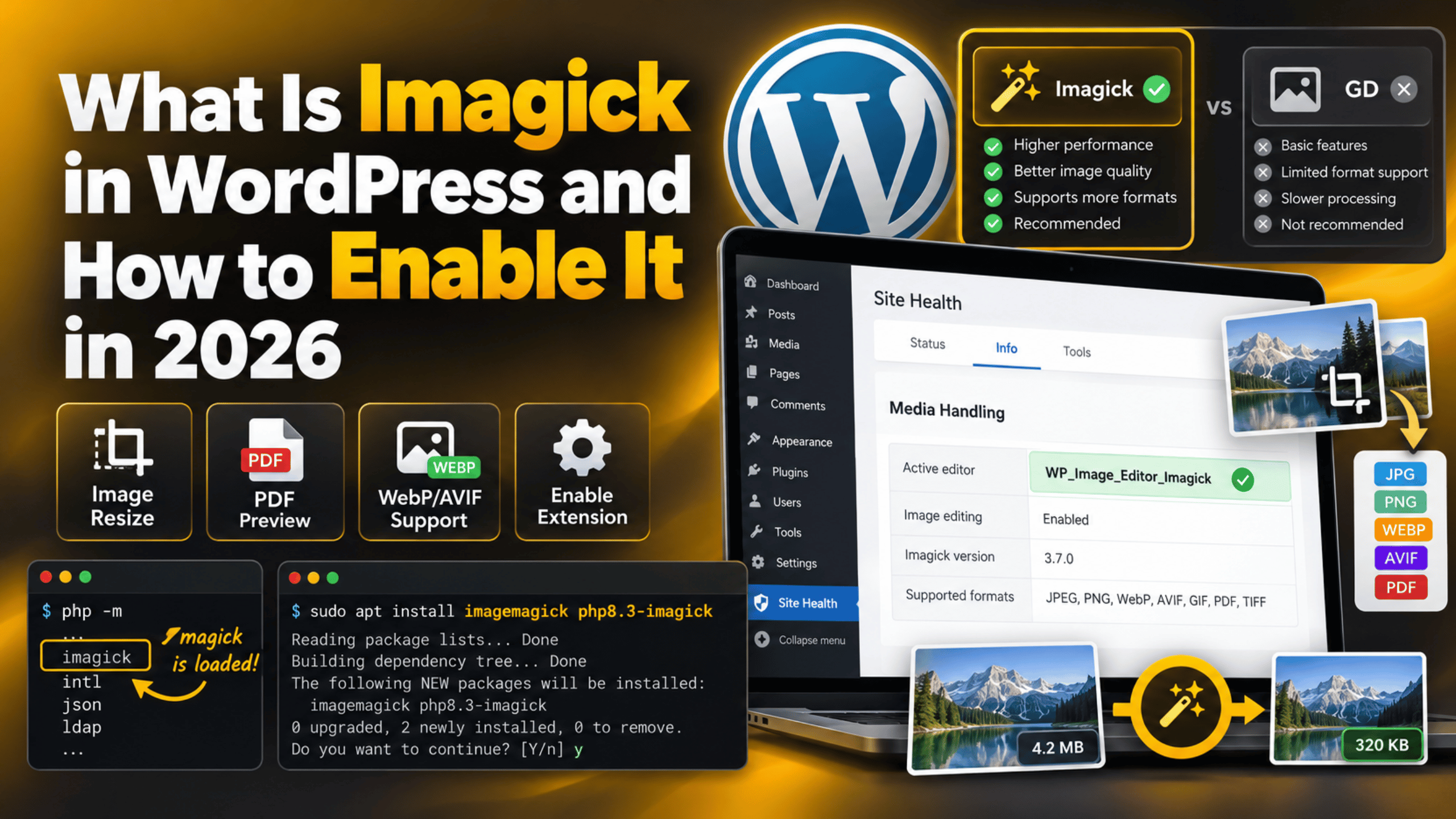
WordPress ships with two image editor classes. One wraps Imagick. The other wraps GD. WordPress tries Imagick first and falls back to GD if Imagick is not usable. The order is set in core and can be changed with the wp_image_editor_default_implementations filter.
Each class runs a short test before WordPress trusts it. Imagick must be loaded as a PHP extension. The version must be new enough, since core expects Imagick 2.2.0 or later. The required methods must exist. The file format must appear in the list of formats ImageMagick was built to handle. If any single check fails, WordPress moves to GD without saying a word.
The two engines are not equal. Imagick usually gives a cleaner downsize on detailed photos. It reads far more formats, including TIFF and PSD. It respects colour profiles more closely, which matters for brand colours and print work. GD is lighter, uses less memory, and is present on almost every host. For a small blog, GD is often enough. For a photo site or a shop with large product shots, the gap shows.
Why the Fallback Is Silent
The fallback is by design. WordPress must keep uploads working on every host, including the cheapest shared plans. A loud error would break sites that are otherwise fine. The side effect is that you can enable Imagick, believe it is active, and still be running GD. Nothing in the admin screens shouts about it. The only way to be sure is to look, and the next section shows you where.
How to Check If Imagick Is Already Enabled
Start inside WordPress. Go to Tools → Site Health → Info and open the Media Handling panel. This panel is read-only, so it is safe to open on a live site. Look for the row named Active editor. It shows either WP_Image_Editor_Imagick or WP_Image_Editor_GD. That single line answers the question.
The same panel lists more useful detail. You get the ImageMagick version string, the Imagick module number, the PHP memory limit, and the list of file types your server can process. If you are new to this screen, our guide to Site Health in WordPress walks through the rest of it.
If you have shell access, two commands confirm the same thing from the server side. Run php -m and look for imagick in the list. Or run wp eval 'var_dump( extension_loaded("imagick") );' through WP-CLI. Both are read-only checks and change nothing.
One trap catches people out. A server can run several PHP versions at once. The extension may be active on the command line and missing for the web server. That is why the Site Health reading matters more than the shell reading. Site Health reports the PHP process that actually serves your site. If the two disagree, check which PHP version WordPress is really using before you change anything.
How to Enable Imagick on Your Server
How you enable Imagick depends on the kind of hosting you have. Take a full backup first, or make the change on a staging copy of your site. Server-level changes can take a site offline if something is missing, and a backup turns a long night into a short one.
On shared or managed hosting. Open your hosting control panel and find the PHP settings area. Most panels have a screen that lists PHP extensions with tick boxes. Find imagick, tick it, and save. PHP usually reloads within a minute. If no such screen exists, open a support ticket and ask the host to add the Imagick extension for your PHP version. Many hosts do this on request.
On a VPS or dedicated server. Two pieces are needed, not one. The ImageMagick system package must be installed, and a PHP extension built for your exact PHP version must sit on top of it. On a Debian or Ubuntu box the pattern looks like this:
sudo apt update
sudo apt install imagemagick php8.3-imagick
sudo systemctl restart php8.3-fpm
Swap 8.3 for the version your site runs. Skipping the restart is the most common mistake. PHP only loads extensions when the process starts, so the change does nothing until the service comes back up.


After the change. Clear any object cache and any opcode cache, then reload Tools → Site Health → Info. Active editor should now read WP_Image_Editor_Imagick. Remember that your old images were already built by GD. Switching the library affects new uploads. Older thumbnails stay as they are until you regenerate them.
The Settings That Change Image Quality
Once Imagick is active, a few settings decide how your images actually look. WordPress compresses JPEG output at a quality value of 82 by default. That value is a balance between file size and sharpness. You can raise it with a short filter, placed in a small site plugin rather than in a theme file:
add_filter( 'wp_editor_set_quality', function( $quality, $mime ) {
    return ( 'image/jpeg' === $mime ) ? 90 : $quality;
}, 10, 2 );
Higher numbers mean bigger files, so test the result on a real page before you keep it. The second setting is the big image threshold of 2,560 pixels. Anything larger gets a scaled copy, and WordPress serves that copy. The third is format support. WebP output has shipped since WordPress 5.8 and AVIF since WordPress 6.5, but both still depend on what your server was built to handle. Our guide to using WebP images in WordPress covers that side in detail.
ImageMagick also carries its own limits file, usually at /etc/ImageMagick-6/policy.xml. It caps memory, disk use, and the largest width and height allowed. Hosts often set these low on purpose. Never edit that file on a live server without a snapshot and a way to roll back.
Common Imagick Problems and What They Point To
Site Health still shows GD. The usual cause is a missing restart, or an extension built for a different PHP version than the one serving your site. Restart PHP-FPM and compare both version numbers.
Large photos fail while small ones work. This points at a limit rather than a broken install. It may be the PHP memory limit, the upload size cap, or the width and height caps in the ImageMagick policy file. Our guide on increasing the upload size in WordPress covers the first two.
You get an HTTP error during upload. This message is vague by nature and has several possible roots, including the image library. The step-by-step checks in our article on fixing the HTTP image upload error are the fastest way to narrow it down.
PDF covers never generate. WordPress can make a thumbnail from the first page of a PDF, but only with Imagick plus Ghostscript on the server. Many hosts also block the PDF coder in the policy file for security reasons. If both are missing, no cover appears.
Colours look flat or washed out. This often comes from a CMYK source file or a stripped colour profile. Convert the source to sRGB before you upload it and compare the two versions side by side.
Bulk uploads slow the site down. Imagick holds more of each image in memory than GD does. Importing hundreds of photos at once can push a small plan to its limit. Upload in batches, and watch the WordPress error logs while it runs. Turning on WP_DEBUG logging first gives you a written record instead of a guess.
Should You Switch to Imagick or Stay on GD?
There is no single right answer, and the honest reply depends on the site. Imagick tends to suit photography portfolios, print-led brands, magazine layouts, and shops with large product shots. The sharper downsizing and the wider format support earn their keep there. It is also the only route to PDF cover images.
GD remains a sensible choice for text-heavy blogs, brochure sites, and anything running on a tight memory allowance. It is lighter, it is nearly always installed, and the difference is hard to see at small display sizes. Switching a site that works fine today brings risk with little visible gain.
If you are unsure, test rather than guess. Upload the same five images on a staging copy under each library. View them at the size your theme actually renders. Compare the file sizes too, then check the effect on page speed with our guide to checking WordPress site performance. If you cannot tell the images apart, GD is doing its job and there is nothing to fix.
Getting Help With Your WordPress Image Setup
Image handling sits across three layers at once. There is WordPress, there is PHP, and there is the server. A problem in any one of them can show up as a soft thumbnail or a failed upload, which makes the cause hard to pin down from the dashboard alone. Settings such as the memory limit and the ImageMagick policy file also live outside WordPress, so a plugin change will not reach them. That is the part most owners get stuck on. You can read every setting in the admin and still miss the one line that matters, because it sits in a file you cannot open from the dashboard. Shared hosting adds another layer, since some of those limits are locked by the host. If you would rather not edit server files yourself, our team at 24×7 WP Support works on exactly this kind of task. We check which editor your site is using, review the limits behind it, and advise on the safest change for your setup. You keep a backup and a staging copy throughout, and nothing goes to the live site until you are happy with the result.
Related posts:
Is WordPress a Platform or a Framework? Key Differences Explained
What Is the wp-config.php File in WordPress? Complete 2026 Guide

A Newcomer’s guide to integrate Salesforce with WordPress

Most Popular WordPress Themes: Top Choices Used by Millions

Is WordPress Easy or Hard to Learn? Honest Guide for Beginners in 2026

Brian is a WordPress support specialist and content contributor at 24×7 WP Support. He writes practical, easy-to-follow guides on WordPress troubleshooting, WooCommerce issues, plugin and theme errors, website security, migrations, performance optimization, and integrations. With a focus on solving real website problems, Brian helps business owners, bloggers, and online store managers keep their WordPress sites running smoothly.
