
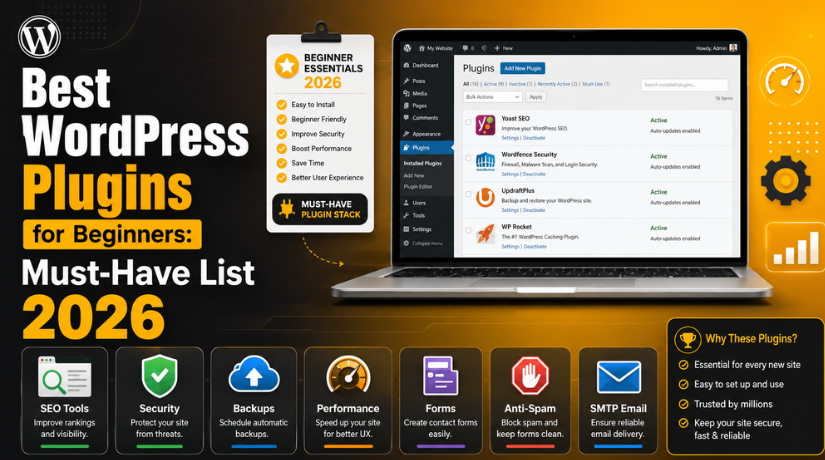
Best WordPress Plugins for Beginners: Must-Have List 2026
Introduction
Starting your first WordPress website is exciting — but it can also feel overwhelming, especially when you open the plugin repository and see over 60,000 options staring back at you. Which ones do you actually need? Which ones will slow your site down? And what should you install on day one versus six months from now?
This guide is built specifically for beginners who want a clear, honest answer. No fluff, no filler. Just the essential WordPress plugins you need in 2026, why they matter, and how to use them without turning your site into a bloated mess.
Why the Right Plugins Matter More Than the Most Plugins
One of the biggest mistakes new WordPress users make is treating plugins like collectibles — installing everything that sounds useful and then wondering why their site takes six seconds to load. The number of plugins you have is not what matters. What matters is the quality and necessity of each one.
Every plugin you install adds code that runs when someone visits your site. Some plugins are lightweight and barely register. Others fire up a dozen database queries on every page load. The goal isn’t to have the most plugins; it’s to have the right plugins doing important jobs efficiently.
A beginner site typically needs plugins that cover six core functions: SEO, security, backups, performance, contact forms, and spam protection. Everything else is optional until you have a specific need for it.
How to Choose a Safe and Reliable WordPress Plugin
Before diving into the list, it helps to know how to evaluate any plugin you’re thinking about installing. The WordPress plugin repository gives you a lot of signals. Look for plugins with at least a 4-star rating, over 10,000 active installs, a recent update within the last three to six months, and good compatibility with the current version of WordPress. Steer clear of anything that hasn’t been updated in over a year — outdated plugins are a security liability.
If you ever want to check what plugins a competitor or inspiration site is using, our guide on WordPress theme detector and plugin checker tools can help you identify them quickly.
SEO Plugins: Help People Find You on Google
Search engine optimization isn’t optional in 2026 — it’s how people find your site. A good SEO plugin does the heavy lifting of communicating with Google, setting up your sitemaps, and guiding you to write better content.
Yoast SEO
Yoast SEO is the most widely used SEO plugin in the WordPress ecosystem, and for good reason. When you’re writing a post or page, Yoast appears in the editor with a real-time analysis of your content. It checks your focus keyword density, readability score, meta description length, and internal link count. For complete beginners, this kind of live feedback is invaluable because it turns SEO from an abstract concept into something you can act on while you write.
The free version of Yoast automatically generates XML sitemaps and handles canonical URLs, which means search engines won’t see duplicate content on your site. It’s one of the first plugins you should install.
All in One SEO (AIOSEO)
AIOSEO is a strong alternative to Yoast and is particularly beginner-friendly because of its setup wizard that walks you through the configuration process step by step. If you find Yoast’s interface a bit cluttered, AIOSEO’s cleaner design might suit you better. You don’t need both — pick one and stick with it.
Security Plugins: Protect Your Site from Day One
WordPress is the most popular CMS in the world, which unfortunately makes it the most targeted. Hackers use automated bots to scan thousands of sites per minute looking for vulnerabilities. A security plugin adds layers of protection that make your site a much harder target.
Wordfence Security
Wordfence is the most downloaded security plugin on WordPress.org and includes a firewall, malware scanner, login security features, and real-time threat intelligence. For beginners, one of its most useful features is the login protection module, which lets you limit login attempts and enable two-factor authentication — two of the most effective ways to block brute-force attacks.
The free version covers the essentials for most small sites. After installation, Wordfence will run a quick scan of your site and alert you to any immediate issues. Want to go deeper? Check out our detailed breakdown of the top WordPress security plugins and how to install them.
All In One WP Security & Firewall
If you want a completely free alternative with no premium upsell pressure, All In One WP Security & Firewall is a solid choice. It uses a visual security grading system that helps beginners understand their current security level and what steps to take to improve it. The plugin covers user account security, file system permissions, login lockdown, and basic firewall rules — all presented in a way that doesn’t require any technical expertise to configure.
Backup Plugins: Your Safety Net Against Everything
No matter how well you set up your site, things can go wrong. Plugins conflict. Updates break things. Servers fail. A backup plugin ensures that when disaster strikes, you can restore your site to a working version in minutes rather than starting over from scratch.
UpdraftPlus
UpdraftPlus is the gold standard for WordPress backups. It lets you schedule automatic backups of your entire site — files and database — and send them to remote storage like Google Drive, Dropbox, or Amazon S3. The free version is genuinely excellent and covers everything a beginner needs. You can set it to back up daily or weekly and store the last ten backups automatically.
Install UpdraftPlus early — ideally before you do anything else — so you always have a clean restore point to fall back on. Restoring is as simple as clicking a button from the UpdraftPlus dashboard inside WordPress.
Performance and Caching Plugins: Make Your Site Fast
Site speed matters for two reasons: user experience and SEO. Google has used page speed as a ranking factor for years, and in 2026 Core Web Vitals play a significant role in how your site performs in search results. A caching plugin dramatically reduces the time it takes for your site to load by serving pre-built HTML files instead of generating fresh ones for every visitor.


WP Super Cache
WP Super Cache is made by Automattic (the company behind WordPress.com) and is one of the most beginner-friendly caching plugins available. After installation, you simply enable caching with one click and the plugin handles the rest. For most beginner sites, the default settings work perfectly fine without any additional configuration.
Smush — Image Compression and Optimization
Images are almost always the biggest contributor to slow page load times, especially for beginners who upload full-resolution photos from a smartphone. Smush automatically compresses your images when you upload them, stripping out unnecessary data without any visible quality loss. It also offers lazy loading, which means images only load when a user scrolls close to them — a technique that can dramatically improve your site’s initial load time.
To understand how your site measures up on speed and what specific improvements will have the biggest impact, read our guide on Google PageSpeed Insights and why it matters for your website.
Contact Form Plugins: Let Visitors Reach You
Every website needs a way for visitors to get in touch. WordPress doesn’t include a contact form by default, so this is one of the first gaps you’ll need to fill.
WPForms Lite
WPForms Lite is the free version of one of the most popular form plugins in the WordPress ecosystem. It uses a drag-and-drop builder that makes creating a contact form a five-minute task even if you’ve never built a website before. The free version includes basic form templates, spam protection via honeypot and captcha, and email notifications. For most beginner sites, WPForms Lite is all you’ll ever need.
The paid version adds features like multi-page forms, payment integrations, and conditional logic — but those are features you can explore later when your site has grown beyond the basics.
Anti-Spam and Email Delivery Plugins
Two smaller but important plugins round out the beginner toolkit: one to stop spam and one to make sure your site’s emails actually arrive.
Akismet Anti-Spam
If your site has comments enabled, spam bots will find it. Akismet is the most effective anti-spam plugin available and comes pre-installed with WordPress — you just need to activate it and connect a free API key. It filters comment and contact form spam automatically, so you don’t have to manually delete hundreds of garbage comments every week.
WP Mail SMTP
By default, WordPress sends emails through PHP mail, which is notoriously unreliable and often ends up in spam folders or fails to deliver at all. WP Mail SMTP routes your site’s emails through a trusted SMTP provider — like Gmail, SendGrid, or Mailgun — so messages from your contact form, user registrations, and WooCommerce orders actually reach the inbox. It’s a small plugin with a big impact, and the free version supports the most popular SMTP providers.
Plugins to Add Later (Not on Day One)
Beginners often install plugins for features they don’t need yet. An e-commerce plugin, a membership system, a live chat tool, an email marketing integration — these are all legitimate additions, but they’re not day-one installs. Add them when you have a specific, immediate need for them.
The same goes for page builders. Tools like Elementor or Divi are powerful, but they add significant overhead and a learning curve. Start with your theme’s built-in editor, understand the basics of how WordPress works, and then upgrade your tools once you know exactly what you need.
How Many Plugins Should a Beginner Actually Install?
There’s no magic number, but the short answer for a brand-new WordPress site is somewhere between eight and twelve plugins covering the categories above. This gives you a complete, well-protected, fast-loading site without unnecessary bloat.
As your site grows, you’ll add more plugins to handle specific needs — an e-commerce solution if you start selling products, an LMS if you want to offer courses, a social sharing plugin if community engagement matters to you. The key is to add plugins intentionally rather than impulsively, and to remove any you’re not actively using.
Quick Plugin Checklist for a New WordPress Site in 2026
To summarize, here’s the core plugin stack a beginner should have in place before launching a new WordPress site. SEO: Yoast SEO or All in One SEO. Security: Wordfence or All In One WP Security. Backups: UpdraftPlus. Caching: WP Super Cache. Image optimization: Smush. Contact forms: WPForms Lite. Anti-spam: Akismet. Email delivery: WP Mail SMTP.
Eight plugins. Each one doing a specific, important job. Each one free or offering a solid free tier. That’s your foundation.
Start Right, Scale Smart
The best WordPress setup isn’t the one with the most plugins — it’s the one that runs fast, stays secure, and helps you grow without getting in your own way. The list above gives you everything you need to build that kind of site in 2026. Install these plugins in the first hour, configure them with their default settings, and then focus on creating great content. As your needs evolve, your plugin stack can evolve with them.
If your WordPress site ever needs expert attention — whether it’s a plugin conflict, a performance issue, or a security scare — the team at 24×7 WP Support is available around the clock to help. We handle WordPress problems so you can focus on growing your site. Reach out to us today and let’s make sure your WordPress site is running at its best.
Related posts:
What Is WordPress? How It Works, Benefits, Pros and Cons
Is WordPress Secure? Complete Security Guide 2026
How Much Does It Cost to Manage a WordPress Website in 2026?
Validation Error- PayPal IPN Response From A Different Email Address In WordPress
How to Convert WordPress Posts to a Custom Post Type in 2026

Brian is a WordPress support specialist and content contributor at 24×7 WP Support. He writes practical, easy-to-follow guides on WordPress troubleshooting, WooCommerce issues, plugin and theme errors, website security, migrations, performance optimization, and integrations. With a focus on solving real website problems, Brian helps business owners, bloggers, and online store managers keep their WordPress sites running smoothly.
