
Can You Edit a WordPress Site From Your Phone? (2026 Guide)
Introduction
You are away from your desk. A typo is sitting on your home page. A customer just emailed about a wrong price. All you have is the phone in your pocket. Can you fix it?
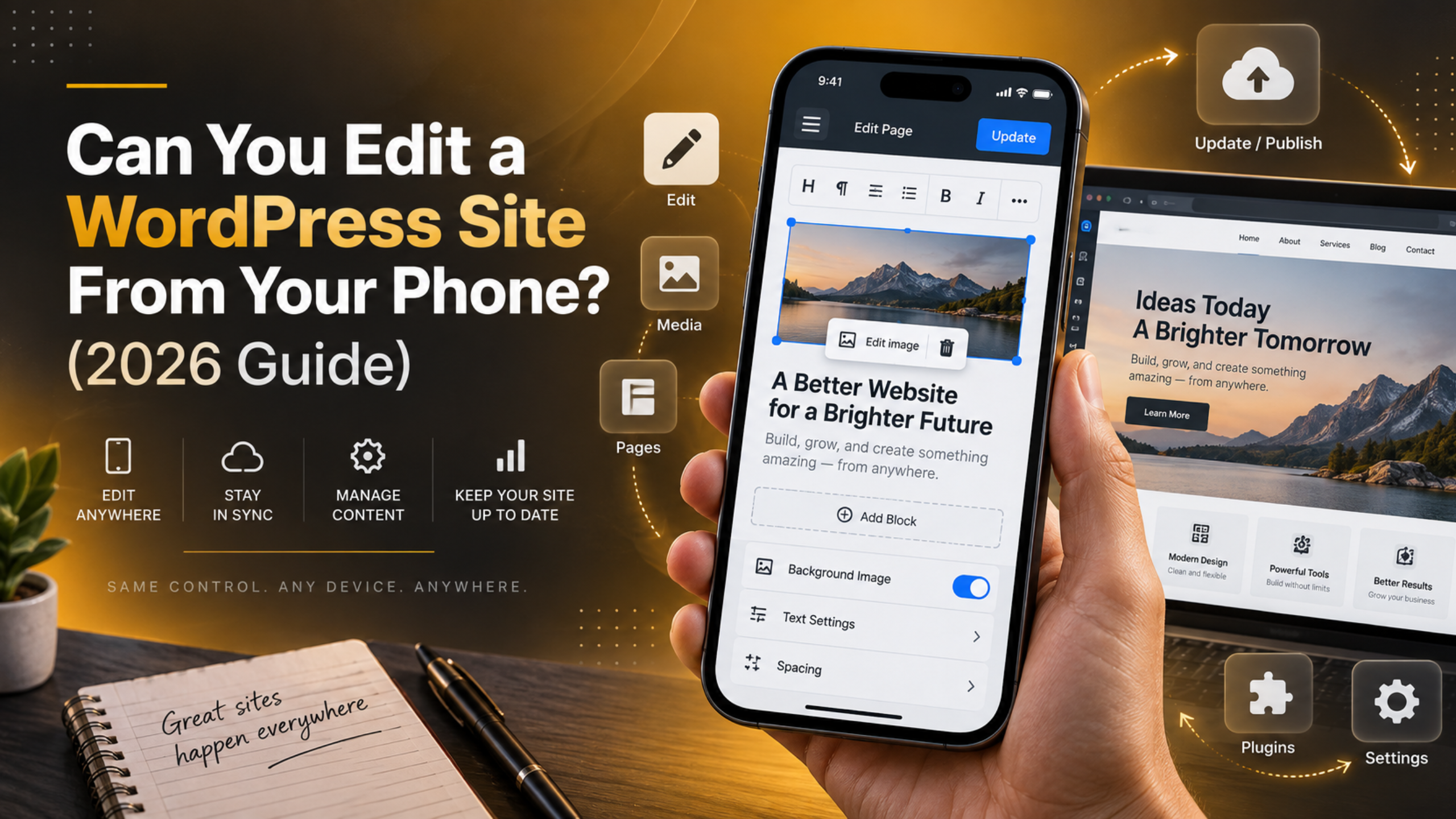
Yes. You can sign in to WordPress from a phone and make real changes. The admin area works in a mobile browser. There is also an official WordPress app. Both let you write posts, edit pages, upload photos, and reply to comments.
But a phone is not a laptop. Some jobs are easy on a small screen. Others are slow, risky, or both. This guide shows you what to do on a phone, what to leave for a computer, and how to set things up so quick fixes stay quick.
The Short Answer: Yes, You Can Edit WordPress From a Phone
WordPress has no desktop-only lock. The admin area at yoursite.com/wp-admin is a web page. Any modern phone browser can load it. You log in with the same username and password you use on a laptop.
The screens shrink to fit. Menus collapse into a button. Buttons get bigger so a thumb can hit them. The core tools all still work. You can create a post, edit a page, change a title, swap a photo, approve a comment, or update a plugin.
The official WordPress mobile app is the second route. It talks to your site over the REST API instead of loading admin pages. It feels faster. It also works better when your signal is weak, because it saves drafts on the phone first.
So the real question is not “can I?” It is “should I?” That answer changes by task. A three-word headline fix is perfect phone work. A theme rebuild is not. The next two sections draw that line clearly.
What Works Well on a Phone
Some jobs feel almost as fast on a phone as on a laptop. These are the ones worth doing while you wait for a train or sit in a car park. Each one is short, low risk, and easy to undo.
Fixing typos and small wording changes. Open the post, tap into the paragraph, fix the word, and update. This is the single best use of phone editing. The change is tiny and the risk is near zero.
Publishing a post you already wrote. If the draft is finished, you only need to check the date and tap Publish. Many owners write on a laptop and publish from a phone later.
Uploading a photo from your camera roll. Your phone camera is right there. You can shoot a product photo and add it to a post in under a minute. The file lands in your Media Library like any other upload.
Moderating comments. Go to Comments in the admin menu. Approve, reply, or mark spam with one tap each. This clears a queue fast.
Checking orders and stock. WooCommerce store screens load fine on a phone. You can see new orders, mark one as shipped, or change a stock number.
Approving a plugin or theme update. Tap Dashboard → Updates, select the item, and run it. Do this only when you have a recent backup, which the safety section covers below.
What You Should Not Try on a Phone
Other jobs go wrong on a small screen. Not because WordPress blocks them, but because you cannot see enough of the page at once. A mistake you would spot on a 27-inch monitor hides on a 6-inch one.
Building a page layout from scratch. Block layouts need drag, drop, and precise spacing. Your thumb is not precise. You will move blocks into the wrong place and not notice.
Editing theme or plugin code. The built-in file editor shows about eight lines at a time on a phone. One stray character can take the whole site down. Never do this from a phone on a live site.
Changing site-wide settings. Permalinks, site URL, and privacy settings all have wide blast radius. A wrong tap here breaks every link on the site at once.
Running a database repair or a bulk action. Bulk delete, bulk edit, and search-and-replace tools work on hundreds of rows. You cannot review that list on a phone.
Deleting a plugin. Deleting removes its settings too. If the site depends on it, the page it powers goes blank straight away.
Judging how a design looks. A phone shows you the mobile view only. Your desktop visitors may see something quite different. Check design work on a real computer, and read our notes on keeping a site mobile friendly before you change layout at all.
How to Edit in Your Phone’s Mobile Browser
The browser route needs no setup. It gives you the full admin area, including every plugin screen. That is its big advantage over the app. Here is how to make it comfortable.
Step 1: Save the login page to your home screen. Open yoursite.com/wp-admin in your phone browser. Use the browser share menu and choose “Add to Home Screen”. Now WordPress opens in one tap, like an app.
Step 2: Tick “Remember Me” when you log in. WordPress then keeps you signed in for 14 days instead of two. On a phone you protect with a passcode, this is a fair trade.
Step 3: Turn the phone sideways for the editor. Landscape mode gives the block editor much more room. Toolbars stop stacking on top of each other. This one change fixes most phone editing complaints.
Step 4: Use the list view to move blocks. In the WordPress block editor, tap the list icon in the top toolbar. You get a simple outline of every block. Reordering there is far easier than dragging.
Step 5: Preview before you update. Tap the three-dot menu, then Preview, then Preview in new tab. Look at the real page, not the editor. Then go back and tap Update.
How to Edit With the Official WordPress Mobile App
The app is the smoother option for writing. It strips the admin area down to posts, pages, media, comments, and stats. Everything is built for touch, so nothing feels squeezed.


How you connect it. Install the app, then choose to add a self-hosted site. Enter your site address, then your admin username and password. If your login uses a security code, the app will ask for that too.
Why application passwords are better. Instead of your main password, you can create a separate one just for the app. Go to Users → Profile and scroll to the application passwords box. Our guide to application passwords walks through it. If your phone is ever lost, you revoke that one password and your main login stays safe.
Offline drafting. The app saves what you type on the device. You can write on a plane and it uploads when you land. The browser cannot do this.
What the app cannot reach. Plugin settings pages do not exist in the app. Neither do theme options or most custom admin screens. For those, the app opens the normal admin area in a web view, which puts you back in the browser anyway.
Which to pick. Use the app for writing, photos, and comments. Use the browser for anything that lives under Settings, Tools, or a plugin menu.
How to Make the Block Editor Easier on a Small Screen
The block editor is the part people struggle with most on a phone. A few setting changes remove most of that pain. All of them live inside the editor itself.
Turn off the top toolbar setting. Open the three-dot menu and find Top toolbar. Leave it off. The block controls then float next to the block you are touching, so your thumb travels less.
Use full screen mode. In the same menu, switch on Fullscreen mode. The admin menu disappears and the editor gets the whole screen. That is roughly 20 percent more writing space.
Type slash commands instead of hunting. Start a new line and type a forward slash, then the block name. Typing /image or /list inserts that block straight away. This beats scrolling through the block picker.
Paste as plain text. Copying from a notes app often drags in odd formatting. Use the paste-and-match-style option on your phone keyboard where it exists, then style the text inside WordPress.
Trust revisions as your undo button. WordPress stores older copies of a post automatically. If a phone edit goes wrong, open the post on a computer later and roll it back. Our guide to post revisions shows where to find them.
How to Keep Phone Editing Safe
A phone is easier to lose than a laptop. It also joins public Wi-Fi more often. So the security around phone editing matters more, not less. These steps take about fifteen minutes once.
Lock the phone itself. A passcode or face unlock is the first wall. Without it, anyone who finds your phone is already logged in to your site.
Switch on two-step login. A code from an authenticator app stops a stolen password on its own from working. Our walkthrough on two-factor login covers the setup.
Give yourself a smaller role where you can. If you only write posts on the move, a second account with the Editor role is safer than your admin account. Our piece on user roles explains the difference.
Avoid open Wi-Fi for admin work. Use mobile data instead. Your own cellular connection is much harder to snoop on than a cafe hotspot.
Back up before any update. Never run a plugin, theme, or core update from a phone unless you can restore the site. Read our guide on how to take a backup first, and keep one copy off the server.
Test bigger changes on a copy. Anything structural belongs on a staging site, not the live one. That rule holds whether you are on a phone or a desktop.
A Simple Phone Workflow for Busy Site Owners
Rules are easier to follow when they fit one routine. Here is a workflow that keeps phone work useful without letting it cause damage. It suits most small business owners and bloggers.
Sort the job into one of three buckets. Bucket one is text fixes and comments. Do those now, on the phone. Bucket two is photos and publishing a finished draft. Also fine on the phone. Bucket three is design, code, settings, and bulk actions. Those wait for a computer.
Keep a notes file for bucket three. When you spot a bigger problem on your phone, write it down instead of fixing it. A two-line note beats a broken page.
Do a weekly desktop pass. Once a week, sit at a computer and clear the notes list. Run updates, check the design at full width, and look at Tools → Site Health. Our Site Health guide explains what the warnings mean. A paragraph that looks balanced on a phone can leave an ugly gap on a wide screen, so check your phone edits at full width during this pass.
Final Thoughts
You can edit a WordPress site from your phone. The mobile browser gives you the full admin area. The app gives you a faster space for writing and photos. Nothing stops you from fixing a headline while standing in a queue.
The skill is knowing where to stop. Text, images, comments, orders, and publishing are safe phone work. Layout, code, settings, and bulk changes are not. Protect the account with a passcode and two-step login, and back up before you update anything.
Set up once, and your phone becomes a genuine second workspace rather than a source of accidents. If a phone edit has already gone wrong, or you would rather hand the risky jobs to someone else, the team at 24×7 WP Support can take a look. We handle WordPress fixes, updates, and maintenance around the clock, so you can keep the quick edits and leave the rest to us.




Brian is a WordPress support specialist and content contributor at 24×7 WP Support. He writes practical, easy-to-follow guides on WordPress troubleshooting, WooCommerce issues, plugin and theme errors, website security, migrations, performance optimization, and integrations. With a focus on solving real website problems, Brian helps business owners, bloggers, and online store managers keep their WordPress sites running smoothly.
