
What Is the WordPress REST API? A Complete 2026 Guide
Every WordPress site quietly runs a second front door. Visitors never see it, most site owners never open it, and yet a large slice of what happens inside the dashboard travels through it. That door is the REST API, and understanding it changes how you think about what a WordPress site really is.
This guide explains the WordPress REST API in plain language. You will learn what it does, how its addresses are structured, how permission is granted, where site owners actually use it, and what to check when something breaks. No prior coding background is assumed, though a little curiosity helps.
The Short Answer
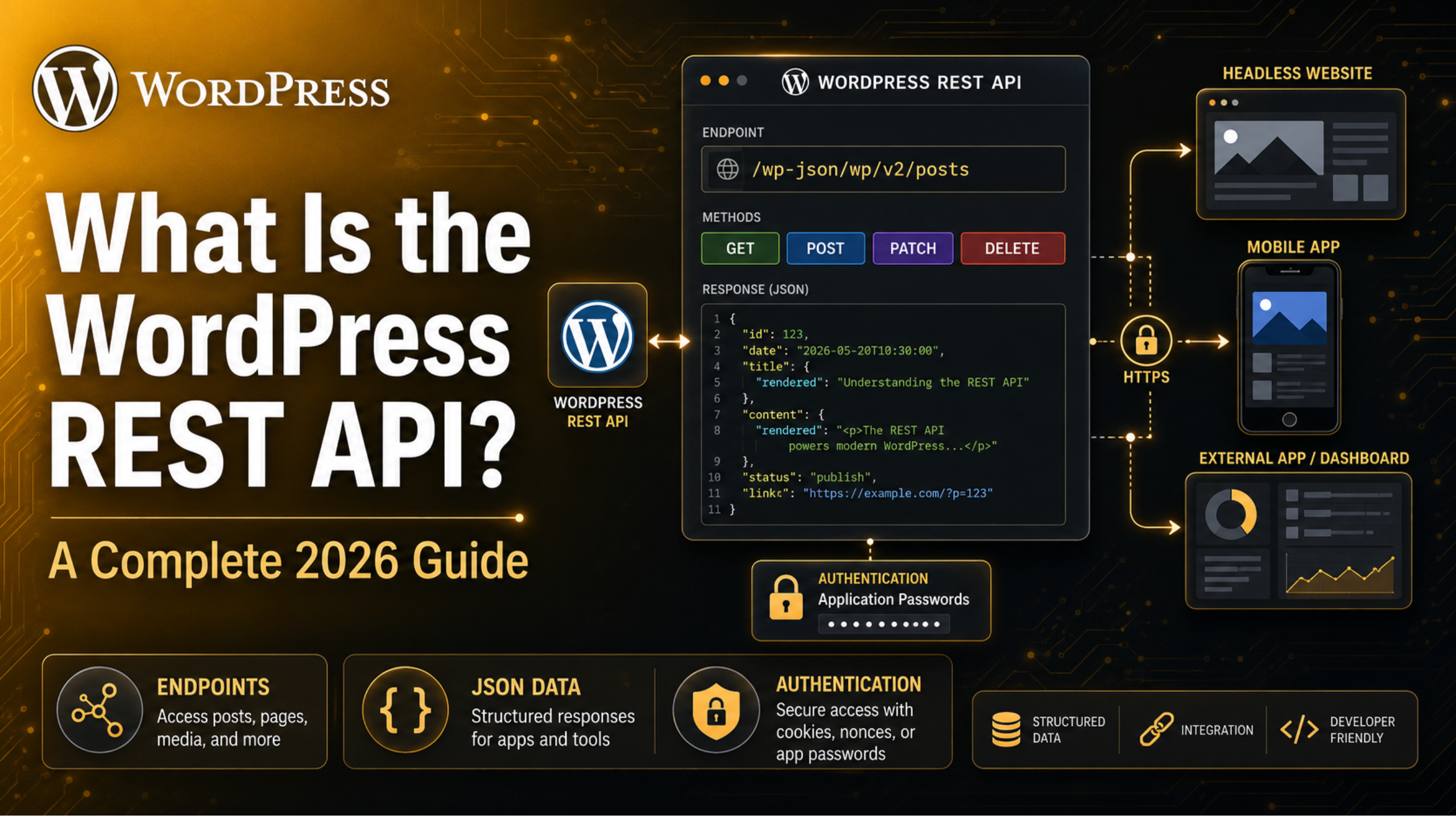
The REST API is a built-in way for software to read and write your WordPress content without loading a single web page. Instead of a browser requesting HTML that a human reads, a program requests structured data that another program reads.
That data arrives as JSON, a lightweight text format that almost every programming language can parse. Ask for a post and you get its title, content, author ID, date, and status as clean fields rather than as a designed page. Ask to create a post and, if you are allowed, one appears.
The API was folded into WordPress core in late 2016 and has shipped with every release since. You do not install it. It is already running on your site right now.
Why It Exists at All
For most of its history, WordPress was tightly bound to one job: render pages for browsers. A theme took content from the database and produced HTML. That model works beautifully for blogs and brochure sites, but it struggles the moment you want content to appear somewhere that is not a browser window.
A mobile app cannot use your theme. A digital signage screen in a lobby cannot use your theme. A separate JavaScript front end, an internal reporting dashboard, or a partner site syndicating your headlines cannot use your theme either. All of them need the content, not the presentation.
The REST API separates those two things. Content lives in WordPress. Presentation can live anywhere. That separation is why the modern block editor works the way it does, and why so much of the dashboard now feels instant rather than page-by-page.
How the Addresses Are Built
Everything in the API is reachable through a URL, and those URLs follow a predictable pattern. Once you see the pattern, the whole system stops feeling mysterious.
The Base Route
Add /wp-json/ to the end of your site address and open it in a browser. You will get a wall of JSON describing what your site offers. That is the index, and it is the starting point for everything else.
If your permalinks are set to plain, the base route may instead appear as a query string on your index file. Sites with pretty permalinks get the cleaner version.
Namespaces Keep Things Separated
Immediately after the base route comes a namespace, which is a label that keeps different sets of endpoints from colliding. Core content uses wp/v2. A plugin might use its own name plus a version number.
The version digit matters too. It lets a developer ship a second version of an endpoint without breaking the tools that still use the first. It is a dull idea that saves a lot of pain later.
Routes and Endpoints Are Not the Same Thing
A route is the path itself, such as the one that represents posts. An endpoint is a specific action available at that path, defined by the HTTP method used. One route can hold several endpoints.
Sending a read request to the posts route returns a list. Sending a write request to the same route creates something new. Same address, different intent, different outcome.
What Core Exposes Out of the Box
The wp/v2 namespace covers the objects you already work with every day. Posts and pages are there, along with any custom post types that have been registered with API support switched on.
Media items, comments, categories, tags, and custom taxonomies all have their own routes. So do users, though the fields returned depend heavily on who is asking. There are routes for menus, for block types, for themes, and for the settings stored on the General options screen.
Because custom post types and taxonomies can opt in, a well-built content model becomes API-accessible almost for free. If you have ever set up custom taxonomies in WordPress, you have already created something the API can serve.
The Four Verbs That Do the Work
REST borrows its vocabulary from the web itself. Four HTTP methods cover nearly everything.
- GET retrieves data and changes nothing.
- POST creates a new item.
- PUT or PATCH updates an existing item.
- DELETE removes one, usually to the trash rather than permanently.
This is why the same route behaves differently depending on the request. The address says what you are talking about. The method says what you want done to it.
Permission: The Part That Actually Matters
A reasonable first reaction is alarm. If anyone can send a request to create a post, what stops the internet from filling your site with junk? The answer is simple. Every write request has to pass a login check and a permission check first.
Cookies and Nonces
When you are logged into the dashboard, your browser already carries a session cookie. WordPress pairs that cookie with a nonce, a short-lived token that proves the request came from a real screen in your admin area rather than from a hostile page elsewhere.
This is the method the block editor uses. It is also the reason a stale editing tab sometimes starts throwing errors: the nonce has expired even though the cookie has not.
Application Passwords
For software running outside the browser, WordPress offers application passwords. Each user can generate a separate credential for each connected tool, name it, and revoke it individually without touching their real password.
This is the cleanest option for a mobile app, a deployment script, or an internal dashboard. Revoking one credential kills one integration and leaves the rest untouched, which is exactly the behaviour you want when something goes wrong.
Token-Based Approaches
Bigger setups often use tokens instead. The client hands over its credentials once and gets back a signed token that expires on a set schedule. This needs extra code or a plugin, but it works well when many services each need limited access for a short time.


Capabilities Still Apply
Authentication only answers who you are. What you may do is still decided by the same capability system that governs the dashboard. A contributor account cannot publish through the API any more than it can through the editor, and understanding WordPress user roles and permissions is the fastest way to reason about API access.
Where Site Owners Actually Use It
The API is not an abstraction reserved for agencies. It shows up in ordinary situations more often than people realise.
Headless and hybrid builds. Content is edited in WordPress and rendered by a separate front end. Editors keep the interface they know while developers get complete control over presentation.
Mobile applications. A native app pulls articles, product notes, or documentation straight from the site, so publishing once updates every surface at the same time.
Content synchronisation. Running several related sites is far simpler when a single script can push an announcement everywhere instead of a person pasting it eight times.
Reporting and automation. Scheduled jobs can pull post counts, comment volumes, or media usage into a spreadsheet without anyone opening the dashboard. Pairing this with the WordPress cron system gives you unattended routines that run on their own schedule.
Bulk editing. Renaming a category across nine hundred posts is a miserable afternoon by hand and a two-minute script through the API.
Adding Your Own Endpoints
Core routes cover core data. When a project needs something specific, developers register custom routes from a plugin or a theme’s functions file.
A registration call defines three things: the namespace and path, the methods allowed, and the function that runs when a request arrives. It also defines a permission callback, which decides whether the caller is entitled to a response at all.
That permission callback is not optional in practice. Leaving it open is one of the most common ways a well-meaning custom endpoint turns into a data leak. Checking the values that arrive matters just as much. Treat anything sent from outside as untrusted until you have proved it is safe.
Security Worth Taking Seriously
The API is safe by default, but default is not the same as hardened. A few habits make a real difference.
Serve everything over HTTPS so credentials never cross the network in the clear. Audit which accounts hold application passwords and remove the ones tied to tools you stopped using. Limit user listing if you would rather not publish author usernames to anyone who asks.
Rate limits at the server or firewall level slow down brute-force attempts on logged-in routes. And every custom endpoint deserves a real permission check, not a placeholder that always says yes. These practices sit comfortably alongside the wider habits covered in our guide to WordPress security.
Should You Turn It Off?
This question comes up constantly, and the honest answer is usually no.
The block editor depends on the API. So do Site Health checks, several dashboard screens, and a long list of plugins that quietly use it for their own settings. Disabling it wholesale tends to break the editing experience in confusing ways that are hard to trace back to the cause.
A narrow limit is the better move. Ask for a login on routes that show user data. Turn off endpoints tied to features you never use. Leave the rest running. Care beats a blunt switch every time.
When Something Goes Wrong
API problems announce themselves in a handful of familiar ways.
401 or 403 responses mean the request was rejected. Either the credentials were wrong or the account lacks the capability for that action. Check both before assuming the API itself is broken.
404 on a route you expect usually points at permalinks. Re-saving permalink settings rebuilds the rewrite rules and resolves it more often than not.
A JSON response error in the editor means something got in the way before WordPress could reply cleanly. A security layer, a caching rule, or a PHP notice printed too early are the usual suspects. Our walkthrough on the Not a Valid JSON Response error covers the usual culprits in order.
500 errors point at server-side failure, so the debug log is the place to look. An outdated PHP version can also cause odd behaviour, which makes it worth confirming which PHP version your site runs before chasing anything more exotic.
A Reasonable Way to Think About It
You do not need to write API code to benefit from understanding it. Knowing that the dashboard talks to your site through structured requests explains why certain errors appear, why some plugins behave the way they do, and why a caching rule in the wrong place can make the editor stop saving.
If you want to explore, open your site’s base route in a browser and read what comes back. Then try a single post route. Ten minutes of poking around teaches more than any diagram.
And if the API is misbehaving on a live site, or you want a custom integration built and secured properly, the team at 24×7 WP Support works on exactly this kind of problem every day. We can audit your endpoints, tighten permissions, and get your editor saving cleanly again, around the clock, without you having to become a developer to do it.




Brian is a WordPress support specialist and content contributor at 24×7 WP Support. He writes practical, easy-to-follow guides on WordPress troubleshooting, WooCommerce issues, plugin and theme errors, website security, migrations, performance optimization, and integrations. With a focus on solving real website problems, Brian helps business owners, bloggers, and online store managers keep their WordPress sites running smoothly.
