
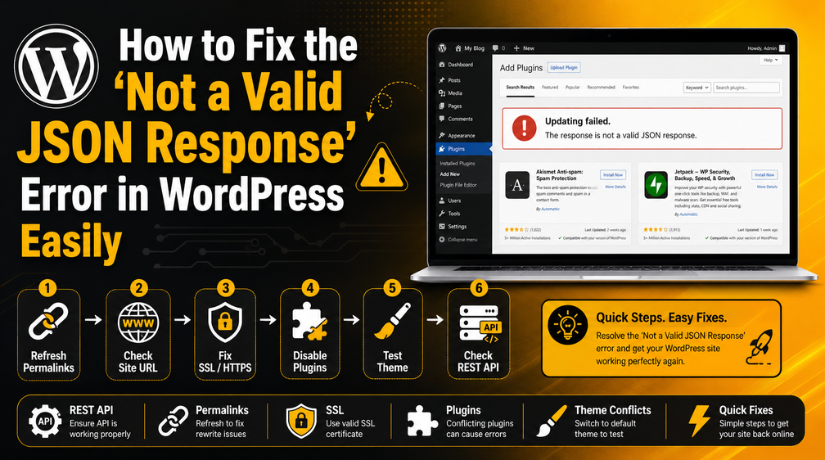
How to Fix the “Not a Valid JSON Response” Error in WordPress Easily
Introduction
A frequent problem with WordPress is the “not a valid json response” error. It usually appears while saving, publishing, or updating content. Many users see this message inside the WordPress block editor. The error can feel confusing because it does not explain the real cause clearly. You may see it after changing plugins, updating WordPress, moving hosting, or installing SSL. Sometimes, it also appears without any clear reason. This issue mainly happens when WordPress cannot receive the correct server response. The block editor sends your content data to the server.
The server must return that data in a proper JSON format. If the response is broken, blocked, or changed, WordPress cannot save the content. Then it shows the WordPress JSON error on your screen. First, this instruction will assist you comprehend the issue. Then you can follow the right steps to fix not a valid json response safely. Before fixing anything, you should know how this issue works. That makes troubleshooting easier and faster for every WordPress user.
What Is the “Not a Valid JSON Response” Error in WordPress?
The error “not a valid json response” indicates that WordPress was expecting clean JSON data. But the server returned something else instead. JSON is a simple data format used by websites. WordPress uses it to send and receive editor information. When you edit a post, WordPress sends data through the REST API. The REST API connects the editor with your website server. It helps WordPress save posts, pages, blocks, and settings. If this connection fails, the editor cannot complete the action.
WordPress may then display errors such as “Updating failed.” The answer is not a legitimate JSON response. It might also display “Publishing failed.” The answer is not a legitimate JSON response. This is sometimes referred to as the WordPress invalid JSON response issue. Because Gutenberg depends on the REST API, it is sometimes referred to as the Gutenberg JSON response error. Gutenberg is unable to save your modifications when the REST API gives an incorrect response. Additionally, when editing material, this may result in a WordPress update failed error. Your content may not always be lost due to the problem. It just indicates that WordPress was unable to correctly finish the save request.
Why the “Not a Valid JSON Response” Error Happens in WordPress
Broken Permalink Settings Can Block WordPress REST API Requests
Broken permalink settings are a common reason behind this error. WordPress uses permalink rules to manage post and page URLs. These rules also help REST API links work correctly. When these rules break, WordPress cannot send proper editor requests. This can cause the not a valid json response error while saving content. This issue often happens after migration, hosting changes, or permalink updates. Refreshing permalinks usually rebuilds the missing URL rules.
Incorrect WordPress Address and Site Address Can Create URL Conflicts
Wrong site URL settings can also trigger this issue. Your WordPress Address and Site Address must match correctly. If one uses HTTP and another uses HTTPS, requests may fail. The same issue happens with www and non-www versions. WordPress may send data to one URL version. But the server may respond from another URL version. This mismatch can create the WordPress JSON error during updates.
Blocked REST API Can Stop the Block Editor From Saving Content
The REST API is necessary for the WordPress block editor. Posts and pages are saved using the REST API. The editor cannot function properly if the REST API is banned. For security, certain security plugins prevent REST API queries. These queries may also inadvertently be blocked by hosting firewalls. Access to REST APIs may be blocked by custom code. Users frequently notice the Gutenberg JSON response error when this occurs.
Plugin Conflicts Can Change or Break the Server Response
Plugin conflicts are another common cause of this issue. Cache, security, firewall, SEO, and builder plugins may affect responses. Some plugins may block the editor request completely. Others may return cached or changed data instead. WordPress expects a clean JSON response from the server. If a plugin changes that response, saving may fail. This can cause the invalid JSON response WordPress issue.
Theme Issues Can Break WordPress Editor Communication
This problem in WordPress can also be caused by a theme. Themes with poor coding could cause the editor to load broken scripts. The most recent version of WordPress might not work with outdated theme files. Custom functions inside functions.php may also break responses. Even a small PHP warning can affect JSON output. When the editor receives broken data, it cannot save changes. This may create a WordPress update failed error.
SSL and Mixed Content Problems Can Block Secure Requests
SSL issues can also cause this WordPress error. A website may load on HTTPS correctly. But some internal requests may still use HTTP links. Browsers often block these mixed content requests for security. This makes it impossible for the editor and server to communicate. Consequently, WordPress might not get correct JSON data. When publishing material, this may result in the not a valid json response problem.
Reason Why the “Not a Valid JSON Response” Error Happens in WordPress
Wrong .htaccess Rules Can Break WordPress URL Handling
The .htaccess file controls important WordPress rewrite rules. These rules help posts, pages, and REST API URLs load correctly. When this file has wrong rules, WordPress requests may fail. This can cause the not a valid json response error while updating content. This issue is common on Apache servers. It may happen after migration, plugin changes, or server updates. A broken .htaccess file can return a 404 page. It may also return HTML instead of a JSON response. WordPress expects clean JSON data from the server. If it receives a wrong page, saving will fail. This can also create a WordPress update failed error in the editor.
Firewall, CDN, or ModSecurity Rules Can Block Editor Requests
A firewall or CDN can also cause this issue. Many websites use Cloudflare, server firewalls, or ModSecurity rules. These tools protect websites from unsafe traffic and attacks. But sometimes, they block safe WordPress editor requests too. The block editor sends requests through the WordPress REST API. If the firewall blocks those requests, WordPress cannot save content. This may show the Gutenberg JSON response error during editing. Some security filters may also block specific words, scripts, or iframe code. In that case, the server may return a blocked message. WordPress then receives the wrong response instead of JSON data.
PHP Errors or Server Errors Can Damage the JSON Response
PHP errors can also break the server response. WordPress needs a clean response to save content properly. If a plugin or theme creates a PHP warning, the response changes. Even a small warning can appear before JSON data. This makes the response invalid for the block editor. A fatal error can also stop the request completely. Low PHP memory may create similar problems on larger websites. The server may return a 500 error or blank response. This can cause the invalid JSON response WordPress issue. Checking error logs helps find these hidden problems quickly.
Custom Code Snippets Can Interrupt REST API Output
Custom code can also cause a WordPress JSON error. Many website owners add snippets inside functions.php. Some also use a code snippets plugin for small changes. If the code has an error, it may break REST API output. It may also print unwanted spaces, warnings, or extra text. WordPress then receives data that is not valid JSON. This can stop publishing, saving, or updating posts. The issue may start after adding new custom code. So, always review recent snippets when this error appears.
How to Identify the “Not a Valid JSON Response” Error in WordPress
Before fixing the issue, first confirm where it appears. Check whether the error appears while publishing a post. Also check if it appears while updating a page. Sometimes, it appears while saving drafts or uploading media. It can also appear while editing reusable blocks. Note the exact message shown inside the editor. “Publishing failed” and “Updating failed” are typical notifications. These indicators support the possibility of an invalid JSON response issue. Finding the true cause is expedited when the precise activity is known.
Test the WordPress REST API from Your Browser
You can test the REST API with a simple check. Open this URL in your browser: https://yourdomain.com/wp-json/. Replace yourdomain.com with your own website domain. A working REST API should show structured data on screen. If you see a 404 page, something is wrong. If you see a 403 message, access may be blocked. A blank page or redirect also shows a possible issue. An HTML page instead of JSON data is also a warning. This test helps confirm a Gutenberg JSON response error quickly.
Check WordPress Site Health for REST API Warnings
WordPress includes a useful Site Health tool. Go to Tools > Site Health inside your dashboard. Check if WordPress shows REST API warnings there. Also review loopback request errors and critical issues. These warnings often explain why the editor cannot save content. Site Health may show plugin, theme, server, or SSL problems. This step helps users understand the issue without advanced tools. It is a safe way to diagnose the WordPress update failed error.
Review Recent Website Changes Before Applying Fixes
The cause of this mistake is frequently revealed by recent revisions. Consider what had changed prior to the problem. Have you changed a theme or plugin recently? Did you modify the hosting settings or install SSL? Have you transferred the website to a different server? Have your firewall, cache, and CDN settings been enabled? Communication with REST APIs may be impacted by these modifications. Troubleshooting can be expedited by reviewing them. Additionally, it assists you in avoiding pointless adjustments.
Precautions Before Fixing the “Not a Valid JSON Response” Error in WordPress
Take a Full Website Backup Before Making Any Changes
A complete backup should always be made before resolving this issue. Make a backup of your WordPress database, files, themes, plugins, and media uploads. A copy of the.htaccess file should also be downloaded. By doing this, you can prevent data loss on your website. You can swiftly restore the website if any fixes result in new problems. It’s crucial to make a backup before making any changes to files, plugins, or server configurations.
Do Not Apply Multiple Fixes at the Same Time
Fix one issue at a time, then test your website. This helps you find the exact cause of the error. If you change many settings together, troubleshooting becomes confusing. You may not know which change fixed or broke the site. A step-by-step method keeps the process clean and safe. It also helps avoid new WordPress errors during repair.


Use a Staging Website for Safe Testing
Use a staging website if your site gets regular traffic. A staging site is a copy of your live website. You can test plugin changes, theme changes, and server fixes there. This keeps your live website safe during troubleshooting. If a fix works on staging, you can apply it live. This is useful for business websites, WooCommerce stores, and client websites.
Note Your Current Website Settings Before Troubleshooting
Write down your current settings before making changes. Note your active theme, plugin list, permalink structure, and site URLs. Also record CDN status, cache settings, and security plugin settings. These details help you reverse changes if needed. They also help hosting support or WordPress experts understand your setup faster. This small step can save a lot of repair time.
Avoid Editing WordPress Core Files Directly
Never edit WordPress core files to fix this issue. Core files control important WordPress features and updates. A wrong edit can break your website badly. WordPress updates may also overwrite those changes later. Most invalid JSON response WordPress fixes do not need core file edits. Use dashboard settings, plugin checks, server logs, or safe configuration changes instead.
Check User Permissions Before Testing Editor Fixes
Make sure you test the issue with the right user role. Sometimes, limited user permissions can affect editing actions. Use an administrator account while testing the editor. This helps confirm whether the issue is technical or permission-based. If the error appears only for one user, check their role and capabilities. This can prevent unnecessary plugin or server changes.
Clear Cache Only After Saving Important Work
Save or copy your current content before clearing cache. Some cache fixes may reload editor screens or remove unsaved changes. Copy the post content into a safe document first. Then clear browser, plugin, server, or CDN cache. This protects your draft from being lost during testing. It also keeps your troubleshooting process smooth and safe.
How to Fix the “Not a Valid JSON Response” Error in WordPress (Step By Step)
Step 1: Refresh WordPress Permalinks to Rebuild URL Rules
- Broken permalink rules can cause the not a valid json response error.
- WordPress uses permalink rules for posts, pages, and REST API URLs.
- Go to Settings > Permalinks from your WordPress dashboard.
- Do not change any permalink option on this page.
- Click the Save Changes button once.
- WordPress will rebuild the rewrite rules automatically.
- Open your post or page again after saving permalinks.
- Try saving, updating, or publishing the content again.
- This simple step can often fix not a valid json response quickly.
Step 2: Check WordPress Address and Site Address Properly
- A website URL mismatch can create a WordPress JSON error.
- Go to Settings > General in your WordPress dashboard.
- Check the WordPress Address URL field carefully.
- Check the Site Address URL field too.
- Both URLs should use the same website version.
- If your site uses HTTPS, both URLs must use HTTPS.
- If your site uses www, both URLs should include www.
- If your site uses non-www, both should match it.
- Save the settings after correcting any URL mismatch.
- Test your editor again by updating a post.
Step 3: Fix SSL and Mixed Content Problems
- SSL issues can create an invalid JSON response WordPress problem.
- Your website should load fully through HTTPS.
- Open your website and check the lock icon.
- Confirm that your SSL certificate is active and valid.
- Check your WordPress Address and Site Address again.
- Both URLs should start with https://.
- Check if old HTTP URLs still exist.
- Old HTTP links can cause mixed content issues.
- Use a safe search-replace tool for old URLs.
- Replace HTTP links with HTTPS links carefully.
- Clear your website and browser cache after changes.
- Test the post editor again after clearing cache.
Step 4: Disable Plugins Temporarily to Find Conflicts
- Plugin conflicts often cause the Gutenberg JSON response error.
- Some plugins block REST API requests or change server responses.
- Take a full website backup before testing plugins.
- Go to Plugins > Installed Plugins in WordPress.
- Select all plugins from the plugin list.
- Choose Deactivate from the bulk actions menu.
- Open the WordPress editor again after deactivation.
- Try saving or updating your post.
- If the error disappears, one plugin caused the issue.
- Activate your plugins again one by one.
- Test the editor after activating each plugin.
- When the error returns, you found the conflicting plugin.
- Update that plugin or change its settings.
- Replace the plugin if the issue continues.
Step 5: Switch to a Default WordPress Theme for Testing
- Your active theme may also cause this error.
- Bad theme code can break the editor response.
- Go to Appearance > Themes in WordPress.
- Activate a default WordPress theme for testing.
- You can use a theme like Twenty Twenty-Four.
- Open the same post or page again.
- Try saving or publishing the content.
- If the error disappears, your old theme has an issue.
- Check whether the theme has pending updates.
- Review custom code inside the theme files.
- Pay special attention to the functions.php file.
- A small PHP warning can break JSON output.
- Contact the theme developer if you need support.
- Switch back only after fixing the theme issue.
Step 6: Clear Browser, Plugin, Server, and CDN Cache
- Old cache can return outdated or broken responses.
- This can trigger the not a valid json response error.
- Start by clearing your browser cache first.
- Clear cache from your WordPress cache plugin.
- Clear server cache from your hosting panel.
- Purge CDN cache if you use Cloudflare or another CDN.
- Clear object cache if your website uses it.
- Reload your WordPress dashboard after clearing cache.
- Open the editor in a fresh browser tab.
- Try updating or publishing the content again.
- This step helps after SSL or URL changes.
- Fresh cache helps WordPress receive clean JSON data.
Step 7: Regenerate the .htaccess File Safely
- A damaged .htaccess file can break REST API routes.
- This can cause a WordPress update failed error.
- Open your hosting file manager or FTP account.
- Go to the main WordPress root folder.
- Find the .htaccess file in that folder.
- Download a backup copy before making changes.
- Rename the file to .htaccess-old for safety.
- Go back to your WordPress dashboard.
- Open Settings > Permalinks again.
- Click the Save Changes button once.
- WordPress will create a fresh .htaccess file.
- Test the editor again by saving a post.
- This step often fixes broken rewrite rule issues.
Step 8: Check WordPress REST API Access Manually
- The WordPress block editor needs REST API access.
- If REST API is blocked, saving content will fail.
- Open a new browser tab.
- Enter this URL: https://yourdomain.com/wp-json/.
- Replace yourdomain.com with your real domain name.
- A working REST API should show structured JSON data.
- If you see a 403 error, access may be blocked.
- If you see a 404 page, permalink rules may be broken.
- If you see a blank page, server errors may exist.
- If you see HTML, the response is not valid JSON.
- Check your security plugin settings first.
- Ask your hosting provider to review blocked requests.
- Restoring REST API access can fix not a valid json response properly.
How to Prevent “Not a Valid JSON Response” Again in the Future
Keep WordPress Core Updated to Avoid Editor Issues
Frequent WordPress updates aid in avoiding editing issues. Security upgrades and bug fixes are frequently included in updates. They also improve REST API and block editor stability. An outdated WordPress version may conflict with newer plugins. This can create a not a valid json response error later. Always update WordPress after taking a full backup. Test important pages after every major update. Also check the editor after each update. Keeping WordPress updated reduces unexpected publishing and saving issues.
Update Plugins and Themes Carefully to Prevent Conflicts
Plugins and themes should also stay updated. Old code can conflict with the latest WordPress version. These conflicts may cause a Gutenberg JSON response error. However, do not update everything without testing. Update one plugin or theme at a time. After each update, check the WordPress editor. This helps you find problems early. Avoid abandoned plugins that no longer receive updates. Use trusted plugins from reliable developers only. Careful updates keep your website stable and secure.
Maintain Correct SSL Setup Across the Whole Website
SSL should work correctly on every page. Your website should use only one main HTTPS version. Avoid mixing HTTP and HTTPS links across content. Mixed content can block editor requests in browsers. This may lead to an invalid JSON response WordPress problem. Renew your SSL certificate before it expires. Check WordPress Address and Site Address after migration. Replace old HTTP links with HTTPS links safely. Also clear cache after SSL changes. A clean SSL setup supports proper WordPress communication.
Review Firewall Rules Without Blocking WordPress Features
Security rules should protect your website without blocking WordPress features. Overly strict rules can block admin and REST API requests. This can cause a WordPress update failed error when editing content. Review firewall logs after changing security settings. Whitelist safe WordPress admin requests when needed. Avoid blocking /wp-json/ without proper testing. Also avoid blocking admin AJAX requests completely. Test the editor after changing firewall rules. Balanced security settings protect your site and support normal editing.
Monitor WordPress Site Health Regularly for Early Warnings
The WordPress Site Health tool helps detect hidden issues. You can find it under Tools > Site Health. Check this area after updates, migrations, and SSL changes. It can show REST API and loopback request warnings. It may also show PHP, database, and SSL problems. These warnings help you fix issues before they grow. Regular checks can prevent the WordPress JSON error from returning. You should also review plugin warnings and server recommendations. Good monitoring keeps your website healthier and easier to manage.
Conclusion
The not a valid json response error can stop important content updates. It usually happens when WordPress receives the wrong server response. Broken permalinks, URL mismatch, SSL issues, and plugin conflicts are common causes. Firewall rules, CDN settings, PHP errors, and hosting limits can also create problems. Start with simple fixes like refreshing permalinks and clearing cache. Then check plugins, themes, REST API access, and server settings. Always take a backup before making major changes. A careful process helps you fix not a valid json response safely. It also helps prevent the same issue in the future.
Still facing the not a valid json response error on your website? The team at 24x7wpsupport can help you fix it quickly. We can check plugins, themes, SSL settings, REST API access, firewall rules, and server errors. Our experts can find the exact cause without guesswork. We also help prevent the issue from returning again. Visit 24x7wpsupport today for professional WordPress support. Get reliable help for errors, updates, security, speed, and maintenance.

Brian is a WordPress support specialist and content contributor at 24×7 WP Support. He writes practical, easy-to-follow guides on WordPress troubleshooting, WooCommerce issues, plugin and theme errors, website security, migrations, performance optimization, and integrations. With a focus on solving real website problems, Brian helps business owners, bloggers, and online store managers keep their WordPress sites running smoothly.
