
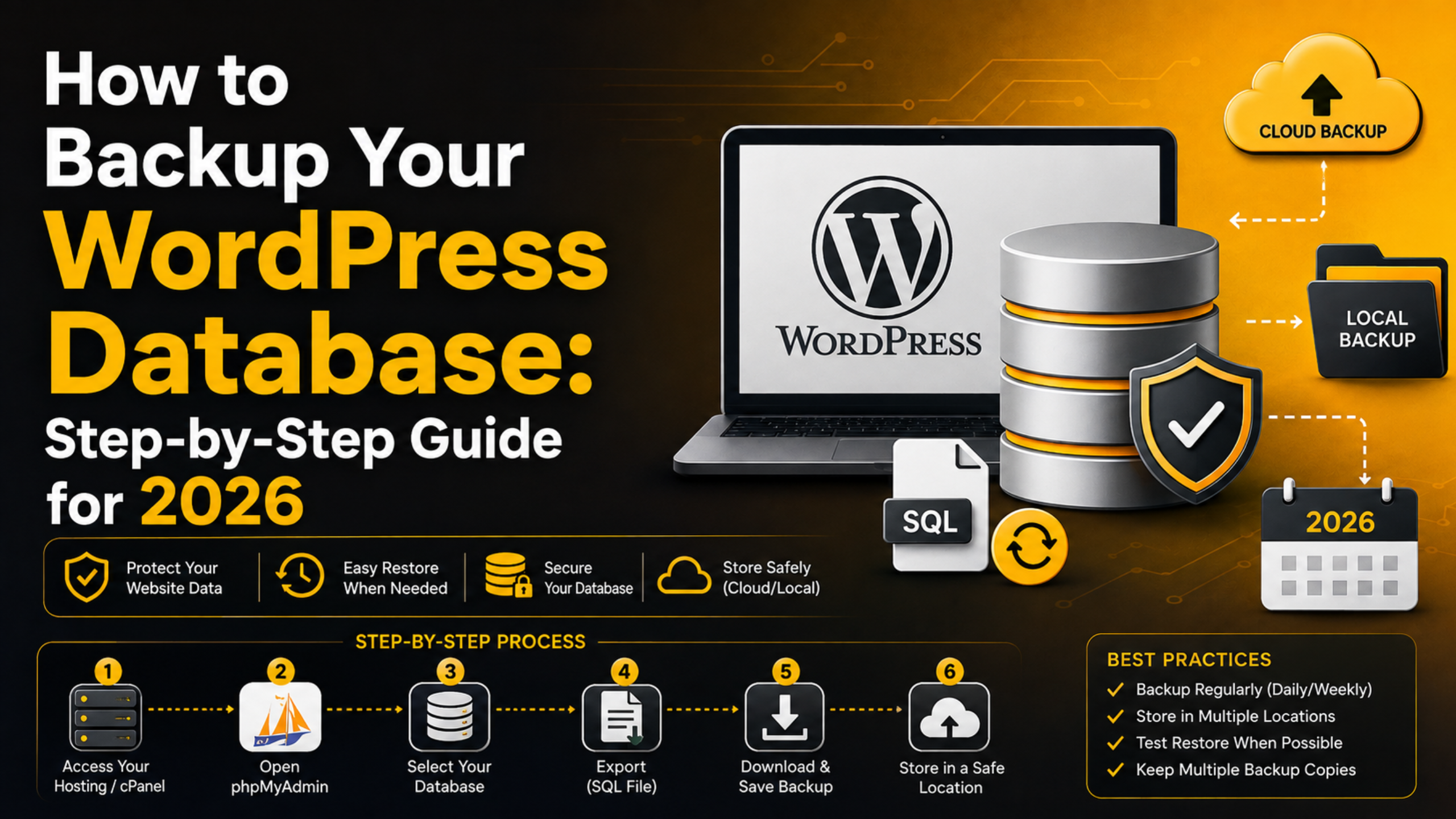
How to Backup Your WordPress Database: Step-by-Step Guide for 2026
Your WordPress database is the quiet workhorse behind everything visitors see. Every post, page, comment, user account, and setting lives inside it, not in your theme files or plugin folders. Lose that single database and you lose the actual substance of your website, even if every other file remains untouched.
That is exactly why a database backup deserves its own routine, separate from a full-site backup. This 2026 guide keeps things simple. You will learn what the database stores, how to copy it by hand or on autopilot, and where to keep those copies. Do this well and a bad update or a hacked login never turns into a permanent loss.
What Lives Inside the WordPress Database
A standard WordPress install keeps roughly a dozen core tables, each with a prefix such as wp_. The table named wp_posts holds your articles and pages, wp_options stores site-wide settings, and wp_users plus wp_usermeta track who can log in. Comments, categories, tags, and custom fields all sit in their own tables too.
Media files behave differently. The images themselves stay on disk inside the uploads folder, while the database only records where each file lives and what caption it carries. This split matters: a database backup protects your words and structure, but you still need the file backup to recover the pictures. Understanding that boundary keeps your recovery plan honest.
Why a Separate Database Backup Is Worth the Effort
Databases break in ways files rarely do. A half-finished plugin migration can leave orphaned rows. A corrupted table can throw the dreaded connection error. Worst of all, a single careless SQL command can wipe thousands of entries in a heartbeat. When any of that happens, a recent database snapshot is the fastest route back to normal.
There is also the speed factor. A database export is small and quick compared to zipping up gigabytes of media, so you can afford to run it far more often. Nightly database copies paired with weekly full-site copies give you tight coverage without hammering your server. If you ever hit a corrupted table, our walkthrough on how to repair a WordPress database pairs neatly with a fresh backup.
Method 1: Manual Export Through phpMyAdmin
The most direct way to grab a database copy is through phpMyAdmin, the visual tool almost every host bundles with its control panel. This method needs no plugin and gives you a clean SQL file you fully control.
Find Your Database Name First
Before exporting, confirm which database belongs to your site. Open the wp-config.php file in your site root and look for the line defining DB_NAME. That value is the exact database you want, which matters on servers that host several sites at once. If you have never worked in phpMyAdmin, our guide on creating a WordPress database using phpMyAdmin introduces the interface clearly.
Run the Export
Log in to your hosting control panel and open phpMyAdmin. Click your database name in the left column so all its tables appear. Choose the Export tab across the top. Pick the Custom method when you want to select individual tables or add a date to the filename; otherwise Quick works fine for a full copy.
Leave the format set to SQL, select every table, and choose whether to compress the output as a gzip file to shrink its size. Click Go, and your browser downloads a single .sql file containing the structure and contents of the entire database. Rename it with today’s date so future you can find the right version instantly.
Method 2: Backup With a Reliable Plugin
If touching server tools feels intimidating, a reputable backup plugin handles the same job from inside your dashboard. Quality plugins let you export the database on demand and schedule automatic runs. Better still, they push the resulting file straight to remote storage without you lifting a finger.
When choosing one, favour plugins that are actively maintained, tested against the current WordPress release, and transparent about where they send your data. Set the schedule to match how often your content changes: a busy store may want hourly database copies, while a personal blog is safe with daily ones. Plugins also make restoring easier, since most can reverse the process with a couple of clicks rather than a manual import.
Method 3: Command Line With mysqldump or WP-CLI
Developers and anyone comfortable with a terminal can create the cleanest, fastest backups of all using the command line. The classic tool is mysqldump, which writes the whole database to a file with a single instruction after you connect over SSH.
A typical command names the database, your user, and the output file, then prompts for the password. WP-CLI is the official command line companion for WordPress. Its wp db export command simplifies things further. It reads your credentials straight from wp-config.php, so you never type them by hand. Both approaches suit automation, letting you schedule exports through a cron job that runs while you sleep. This route is ideal for large sites where a browser export would time out.
Where and How to Store Your Backups
A backup sitting on the same server as your site is barely a backup at all. If that server fails or is compromised, both the original and the copy vanish together. The widely trusted approach is the 3-2-1 rule: keep three copies of your data, on two different types of media, with at least one copy stored off-site.


In practice that means downloading a copy to your own computer, keeping another in cloud storage, and letting your host retain its own snapshot. Rotate old files so you are not drowning in outdated exports, but keep enough history to roll back past a problem you noticed late. For a broader routine that also captures your media and theme, combine this with our post on how to backup and restore a WordPress website.
How Often Should You Back Up the Database?
The honest answer depends on how much content you would hate to lose. Ask yourself how much work vanishing since your last backup would cost. If you publish daily or take orders, that window should be small, which points to automated daily or even hourly database exports.
Sites that change rarely can relax to a weekly rhythm. Whatever cadence you pick, always run a fresh export right before major changes. That includes updating the core software, switching themes, editing the database directly, or installing something unfamiliar. Those moments carry the highest risk, so a snapshot taken minutes earlier is the cheapest insurance you will ever buy.
Testing That Your Backup Actually Works
An untested backup is only a hopeful guess. Files can download incompletely, exports can stop halfway, and a corrupted copy looks identical to a healthy one until you try to use it. The only way to trust a backup is to restore it somewhere safe.
Spin up a staging site or a local environment, import your .sql file through phpMyAdmin or WP-CLI, and confirm the pages load as expected. Doing this once a month turns your backups from a vague promise into a proven safety net. It also teaches you the restore steps calmly, long before a real emergency forces you to learn them in a panic.
How to Restore a Database From Your Backup
A backup only earns its keep at the moment you need to put it back. Restoring through phpMyAdmin starts by dropping or emptying the existing tables so the incoming data does not collide with old rows. Select your database, choose the Import tab, pick your saved .sql file, and click Go. Within seconds the tool rebuilds every table exactly as it stood when you exported it.
On the command line the mirror of an export is just as tidy. WP-CLI restores a copy with wp db import followed by the filename, reading your credentials from the config file so there is nothing extra to remember. After any restore, clear your caching layer and reload the front page, because stale cached pages can make a perfectly recovered site look broken. If you meet an error establishing a connection afterwards, our notes on the WordPress database connection error explain the usual culprits.
Understanding the SQL Dump File
The file your export produces is plain text, and opening it in a code editor demystifies the whole process. Near the top you will see CREATE TABLE statements that rebuild each table’s structure, followed by long INSERT lines that repopulate every row of content. Because it is readable text, you can search it, edit a stray value, or update a site address before importing it into a new home.
That transparency is a quiet advantage of database backups over opaque archive formats. Say a migration changes your domain. You can find and replace the old URL inside a copy of the dump before importing. That prevents broken links from the very first page load. Just work on a duplicate, never the original, so your clean backup stays untouched.
Common Mistakes to Avoid
The biggest error is assuming your host has you covered. Many providers do keep backups, yet retention windows are short and restores can be slow or limited, so owning your own copies keeps you in control. A close second is backing up the database but forgetting the uploads folder, which leaves you with text but no images after a restore.
Watch out for three more traps. Do not store every copy in one place. Do not grab the wrong database on a shared server. And do not let exports pile up without ever checking them. Each of these turns a supposed safety measure into a false sense of security. A little discipline now prevents a lot of heartbreak later.
Final Thoughts
Backing up your WordPress database is one of those small habits that pays off enormously the day something goes wrong. Maybe you prefer the point-and-click ease of phpMyAdmin. Maybe you like the hands-off convenience of a plugin, or the raw speed of the command line. Any of them works. What matters is that copies exist, live somewhere off-site, and have been tested at least once.
Perhaps backups, restores, and database health feel like more than you want to handle alone. If so, the specialists at 24×7 WP Support can set up a dependable backup routine for you. They also stand ready to recover your site fast. Visit 24x7wpsupport.com to keep your database safe around the clock in 2026 and beyond.

Brian is a WordPress support specialist and content contributor at 24×7 WP Support. He writes practical, easy-to-follow guides on WordPress troubleshooting, WooCommerce issues, plugin and theme errors, website security, migrations, performance optimization, and integrations. With a focus on solving real website problems, Brian helps business owners, bloggers, and online store managers keep their WordPress sites running smoothly.
