
What Is the POST Limit for the WordPress REST API in 2026?
Introduction
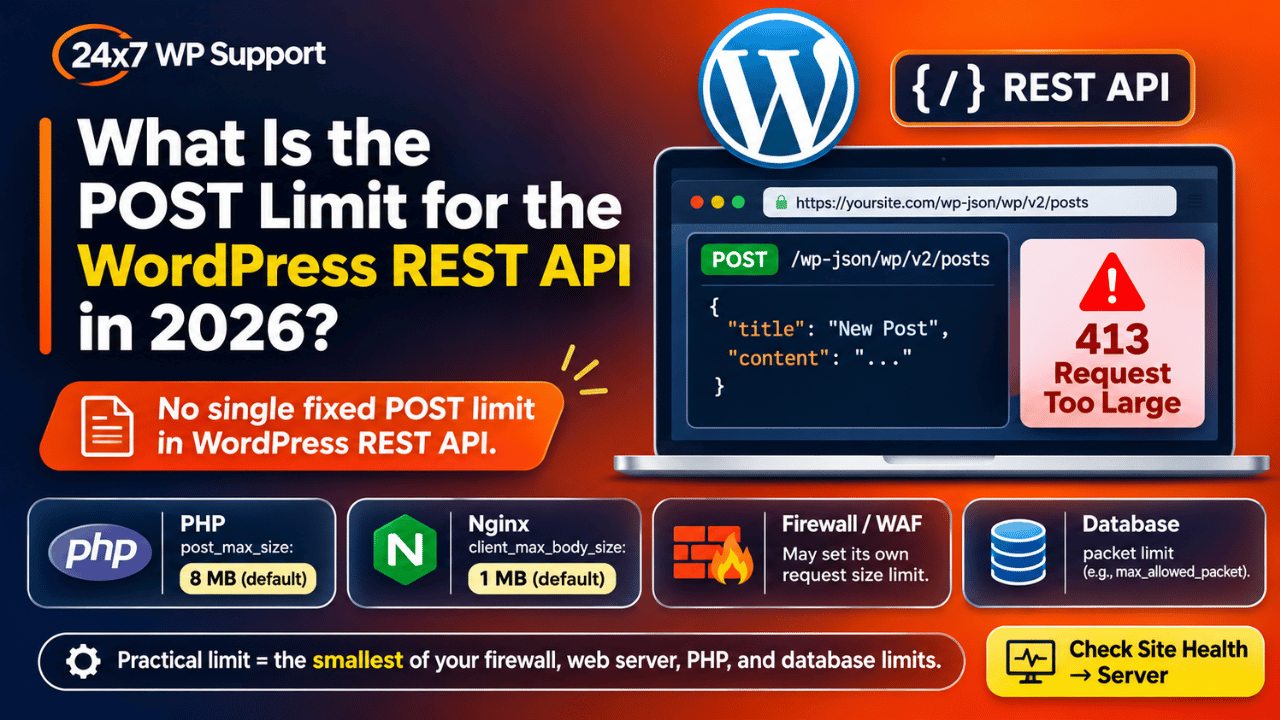
WordPress does not set one fixed POST limit for its REST API. The real limit is the smallest cap set by PHP, your web server, a firewall, WordPress itself, or your database. Whichever of those is lowest wins, and that is why two sites on the same WordPress version can accept very different request sizes.
This guide explains each layer in plain words. You will learn what the default numbers look like, how to check your own limits, and how to raise them without breaking your site. You will also learn what the errors mean when a request is too big, so you can find the right layer fast.
The Short Answer: WordPress Sets No Single POST Limit
The WordPress REST API is the set of web addresses under /wp-json/ that apps and the block editor use to send and fetch data. When you save a post in the editor, the editor sends a POST request to this API. The request carries your title, your content and your settings as JSON, which is a simple text format for data.
WordPress core does not check that body against a size cap of its own. It reads whatever PHP hands it. That means the practical limit comes from the stack around WordPress. On many shared hosts, a request above roughly 8 MB fails because PHP stops it first. On a server that runs Nginx with default settings, the cap can be as low as 1 MB, because the web server rejects the body before PHP ever sees it.
So a better question is this: which layer is the smallest on my site? Think of the request as a parcel travelling through five doors. Each door has its own size rule. The parcel must fit through all of them. The firewall sees it first, then the web server, then PHP, then WordPress, and last the database. The next sections walk through those doors in order, so you can test each one.
PHP Limits That Cap Every REST API Request
PHP is the language WordPress runs on, and its settings sit closest to your request. Four settings matter most. They live in a file called php.ini, or in a per-folder file called .user.ini on many hosts.
post_max_size is the biggest request body PHP will accept. The built-in default is 8 MB. If a POST body is larger, PHP drops it, and WordPress sees an empty request. This is the most common hard ceiling for REST API calls.
upload_max_filesize is the biggest single file in an upload. The built-in default is 2 MB, although many hosts raise it. It only matters when you send a file, such as an image sent to the media endpoint. Keep it at or below post_max_size, because the whole request has to fit inside the post limit.
memory_limit caps the memory one PHP process can use. The built-in default is 128 MB. A large JSON body must be read, decoded and processed, so it can use several times its own size in memory. A 5 MB body can need far more than 5 MB to handle. If you want more background, see our guide on the WordPress allowed memory size exhausted error.
max_execution_time caps how long a script may run. The default is 30 seconds. A big request that takes too long to save will stop at this limit, even when the size is fine. A related setting, max_input_vars, limits form fields and defaults to 1,000. It does not count the contents of a JSON body, so it rarely affects the REST API.
Web Server and Firewall Limits Before PHP Runs
Your web server sees the request before PHP does. If the server refuses it, WordPress never runs and no WordPress log shows the failure. That makes server limits hard to spot, so check them early.
On Nginx, the setting is client_max_body_size. Its default value is 1 MB. A request larger than that gets a 413 error, which means the request entity is too large. Many hosts raise this value, but you cannot count on it. On Apache, the matching setting is LimitRequestBody. Its default is zero, which means no limit, so Apache is usually friendlier here.
Firewalls come next. A web application firewall is a filter that blocks suspicious requests. Some rule sets cap the size of non-file request bodies at a small number, and a long JSON body can trip that rule. The block then looks like a 403 error, or a plain error page that has nothing to do with WordPress. A content delivery network placed in front of your site can also cap the body size, depending on your plan.
If you saw a 413 on your site, read our walkthrough on fixing the 413 request entity too large error. If you cannot change server files on your plan, your host can raise these values for you.
Limits Inside WordPress Itself
Once a request reaches WordPress, a few built-in rules apply. They are small compared with the layers above, but they explain some puzzling results.
The upload limit WordPress reports. Go to Media → Add New Media File and look for the line that says “Maximum upload file size”. WordPress works this number out as the smaller of upload_max_filesize and post_max_size. Developers can also change it with a filter. Our article on how to increase the upload size in WordPress shows the common methods.
Multisite upload cap. On a multisite network, a separate setting applies. Go to Network Admin → Settings → Network Settings and find the upload settings. It can block a file that PHP would have accepted.
Items per page. A collection request such as /wp-json/wp/v2/posts returns at most 100 items per page. Ask for 500 and you still get 100. Page through the results instead.
Batch size. The batch endpoint lets one request carry several sub-requests. By default it accepts up to 25 per call. Developers can change that number with a filter named rest_get_max_batch_size. For a closer look at the API itself, read what the WordPress REST API is.
Database Limits for Large Post Content
Your request also has to fit through the last door, the database. WordPress stores post content in a column that can hold huge text, so the column is rarely the problem. The limit that matters is max_allowed_packet, a MySQL and MariaDB setting. It caps the size of one query sent to the database.
The default depends on the version. MySQL 8.0 uses 64 MB. Recent MariaDB releases use 16 MB. Older setups can be as low as 4 MB. When WordPress saves a very large post, the whole post is inside one query. If that query is bigger than the packet limit, the save fails.
The failure rarely says “packet too large”. You are more likely to see a generic database error from WordPress, a message that the server has gone away, or a REST response that says the post could not be inserted. Large pasted tables, inline images stored as text and page builder data are the usual causes.


You rarely need to raise this value. If your posts are big enough to hit it, a better fix is to make the content smaller. Move inline images into the media library and trim bloated markup. If you must change it, your host or database administrator should do it, since it is a server-level setting.
How to Check Your Current Limits
Do not guess. WordPress shows most of the numbers you need inside the dashboard, and the checks take only a few minutes.
Step 1: Open Site Health. Go to Tools → Site Health → Info. Open the Server section. It lists the PHP memory limit, the PHP time limit, the PHP maximum input variables, the PHP post maximum size and the upload maximum filesize. Write these down.
Step 2: Open Media Handling. In the same Info tab, open the Media Handling section. It shows the maximum size of an uploaded file as WordPress calculates it. Compare it with the number on the Media upload screen.
Step 3: Ask your host about the web server. Site Health cannot see the Nginx or Apache body limit. Ask your host for the value of client_max_body_size or LimitRequestBody, and ask whether a firewall caps request bodies.
Step 4: Test with a real request. Make a post with a large amount of text, or send a sample JSON body from a tool you trust. Raise the size in small steps until it fails. The size where it fails, and the error you get, point to the layer that stopped it.
How to Raise the Limit Safely
Take a full backup before you change any server or configuration file. Our guide to backing up and restoring a WordPress website explains how. If you can, try the change on a staging copy first. A wrong value in a server file can take a live site offline.
Change PHP values. Many hosts have a PHP settings screen in the control panel. If yours does, set post_max_size and upload_max_filesize there, for example to 64M. Keep post_max_size equal to or larger than upload_max_filesize. If there is no screen, add the lines to php.ini or .user.ini in the site root, then wait a few minutes for PHP to reload.
Raise memory only if needed. You can set WP_MEMORY_LIMIT in wp-config.php, but only after a backup. WordPress uses that value when it is higher than the PHP limit. Read about this file in our guide to the wp-config.php file. Check your WordPress PHP version too, since defaults change between versions.
Change the web server value. For Nginx, a server administrator sets client_max_body_size and reloads the service. On shared hosting, you will need to ask support. After each change, return to Site Health and repeat your test.
Errors You See When a Request Is Too Big
Each layer fails in its own way. The message tells you where to look, so learn the common ones.
413 Request Entity Too Large. The web server or a proxy refused the body. Look at client_max_body_size or a similar setting first.
“Invalid JSON body passed.” This is a WordPress error named rest_invalid_json, sent with a 400 status. It often appears when PHP dropped an oversized body, so WordPress received nothing it could read. Check post_max_size.
“Updating failed. The response is not a valid JSON response.” The block editor shows this when the REST call returned something that was not JSON, such as an error page. A server limit, a firewall block or a PHP fatal error can all cause it. Check your server error log for the exact reason.
403 Forbidden or a blank page. A firewall rule may have blocked the body. Ask your host to check the firewall log at the time of the request.
500 or 504 errors. The request may have run out of memory or time. Review memory_limit and max_execution_time.
The fastest habit is to read the response body in your browser’s Network tab. It often names the layer that said no.
Conclusion: Find the Smallest Door
The WordPress REST API has no single POST limit. Your real limit is the smallest of the firewall, web server, PHP, WordPress and database caps. In many setups that is PHP’s post_max_size at 8 MB, or a web server cap of 1 MB. Check Site Health first, then ask your host about the web server and firewall. Raise one value at a time, take a backup before each change, and test again after every step so you know which change worked.
Often the better answer is to send smaller requests. Upload large files through the media library, split huge content into parts, and keep inline data out of post content. If you would like someone to look at a stubborn REST API error on your site, the team at 24×7 WP Support works on problems like this every day.
Related posts:
Can Salesforce Integrate with WordPress or WooCommerce?

Parallax Effect – What is it and How to Add it to Your WordPress Site?
How Much Does WordPress Cost? Complete Pricing Guide 2026

How Much Does It Cost to Hire Someone to Build a WordPress Website?
Does WordPress Have Developer Mode? How to Enable It

Brian is a WordPress support specialist and content contributor at 24×7 WP Support. He writes practical, easy-to-follow guides on WordPress troubleshooting, WooCommerce issues, plugin and theme errors, website security, migrations, performance optimization, and integrations. With a focus on solving real website problems, Brian helps business owners, bloggers, and online store managers keep their WordPress sites running smoothly.