
How to Edit a Page or Block as HTML in WordPress (2026 Guide)
Sometimes the WordPress editor will not do exactly what you want. A paragraph refuses to hold a line break. A button points to the wrong place. A tracking snippet needs to sit inside the page. In all of these cases, the fastest fix is to open the HTML and change it yourself.
WordPress has always allowed this. The catch is that it now offers four different ways to do it, and each one behaves a little differently. This guide walks through all four. You will learn where each option lives, when to use it, and what WordPress does to your code after you save.
Why You Would Edit HTML Instead of Using the Visual Editor
The visual editor is built for speed. It hides the markup and shows you the result. That works well for ordinary writing. It starts to get in the way the moment you need something the toolbar does not offer.
There are five common reasons people drop into the code. The first is precision. You may want a specific class on a link so your stylesheet can target it. The second is embedding. Payment widgets, booking forms and analytics snippets all arrive as raw HTML. The third is cleanup. Content pasted in from a word processor often carries hidden inline styles that make the page look wrong.
The fourth reason is troubleshooting. When a layout breaks, the markup usually tells you why in a few seconds. An unclosed tag or a stray div is obvious in code and invisible in the preview. The fifth is speed, since editing one attribute beats clicking through four panels.
You do not need to be a developer to do any of this. It helps to understand the difference between front-end and back-end editing, because the two routes expose different amounts of code.
The Four Places WordPress Lets You Edit HTML
Before you start clicking, it helps to know what the four options actually are. They are not interchangeable. Picking the wrong one is the usual reason people say HTML editing in WordPress is confusing.
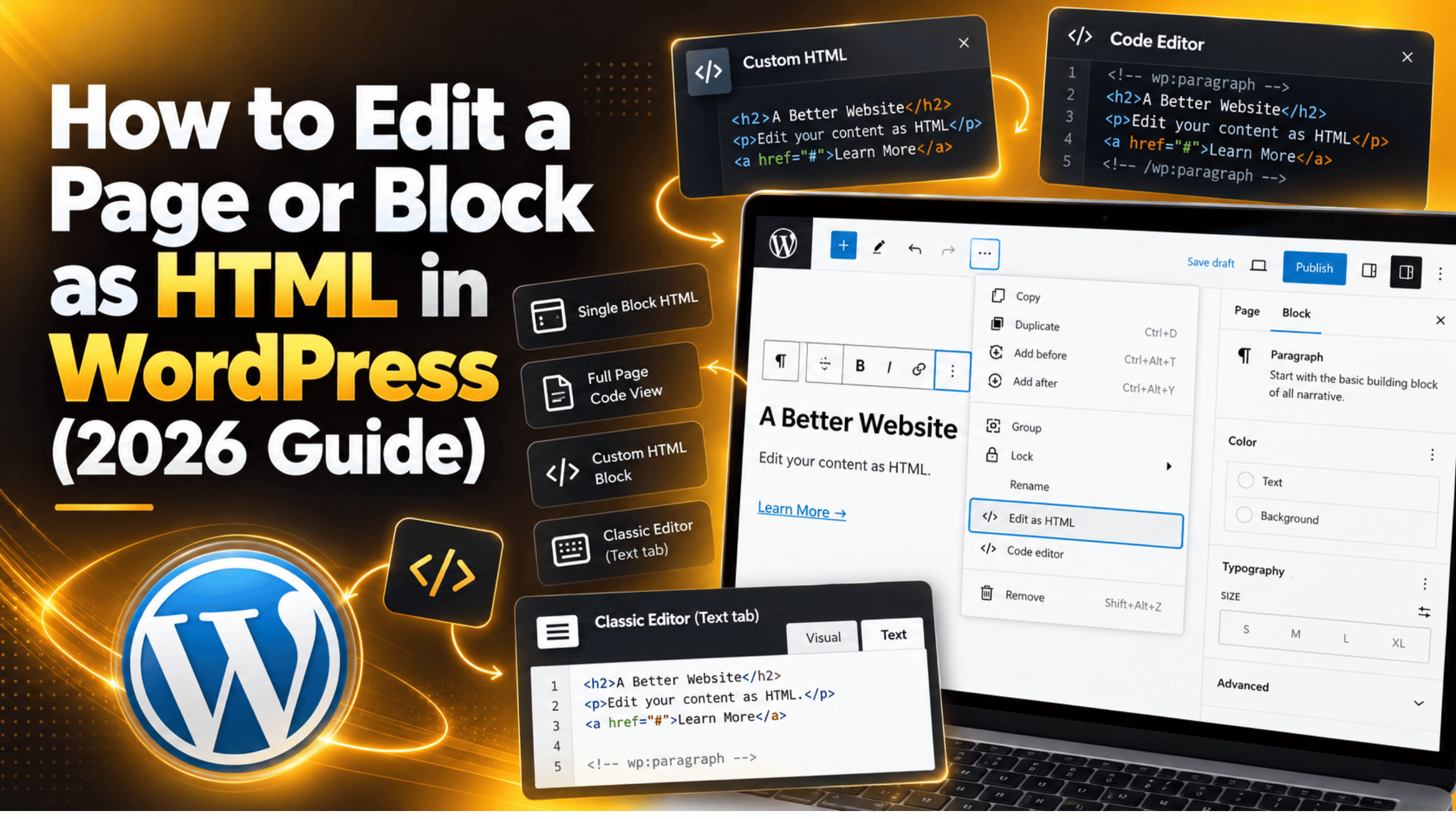
Edit as HTML on a single block. This opens the markup of one block only. The rest of the page stays visual. Use it for a quick change to one paragraph, heading, list or image.
The Code editor for the whole page. This swaps the entire editing canvas for a plain text view. You see every block, including the comment markers WordPress uses to keep track of them. Use it when you need to see the whole document at once.
The Custom HTML block. This is a container for code that WordPress should not touch. Use it for embeds, iframes and third-party snippets. It is the safest place for markup that is not standard page content.
The Text tab in the classic editor. If your site still runs the older editing screen, this is your only route. It behaves differently from the block editor, so it gets its own section below.
If you are new to the modern editing screen, it is worth reading how to use the WordPress block editor first. The HTML options all sit inside that interface.
How to Edit a Single Block as HTML
This is the option most people want. It is quick, it is reversible, and it only affects the block you are working on. Nothing else on the page can break.
Open the post from Posts → All Posts, or the page from Pages → All Pages. Click once on the block you want to change. A small toolbar appears above it. At the right end of that toolbar is a three-dot icon labelled Options. Click it.
In the menu that drops down, choose Edit as HTML. The block changes from styled text to plain markup. You can now type directly into it. Add a class, fix a link, close a tag, or insert a line break with <br>.
When you are finished, open the same three-dot menu and choose Edit visually. The block returns to its normal appearance with your change applied. There is also a keyboard shortcut. Press Ctrl + Shift + Alt + M on Windows, or Cmd + Shift + Alt + M on a Mac, to toggle the view.
One warning. If your markup is invalid, WordPress will flag the block with a message saying the content does not match the expected format. You will be offered a choice to resolve it, convert it to HTML, or convert it to a classic block. Pick Resolve first so you can see the difference before anything is overwritten.
This method is how many formatting tweaks get done. Adding spacing is a good example, as covered in our guide on how to indent text in WordPress.
How to Open the Code Editor for a Whole Page
Sometimes one block is not enough. You may need to move a section, delete a block of leftover markup, or copy the whole page into another post. The Code editor handles all of that.
Open the post or page. Look at the top right of the screen for the three-dot Options icon that belongs to the editor itself, not to a block. Click it. Under the Editor heading you will see two choices: Visual editor and Code editor. Choose Code editor.
The canvas now shows plain text. You will notice lines that look like this: <!-- wp:paragraph -->. These are block delimiters. They are HTML comments, so they never appear on the live page. WordPress uses them to know where one block ends and the next begins.
Do not delete those comment lines unless you also delete the content between them. If the markers and the content stop matching, every affected block will show a validation warning. That is the single most common mistake in the Code editor.
To return, open the same Options menu and pick Visual editor. Check the page before you save. If something looks wrong, press Ctrl + Z to undo.
If the editor itself is misbehaving rather than your code, our round-up of common block editor problems and their fixes is a better starting point.
How to Add Raw HTML With the Custom HTML Block
The Custom HTML block exists for code that WordPress should leave alone. Everything inside it is passed through to the page untouched. That makes it the right home for embeds and third-party snippets.
To add one, click the black plus icon at the top left of the editor. Type Custom HTML in the search box and select the block. A plain box appears. Paste your code into it.


Above the box are two small tabs: HTML and Preview. Click Preview to see how the code renders. A failed embed shows as an empty box straight away.
There is one limit worth knowing. WordPress filters what each user role is allowed to save. Administrators on a single site can save most markup. Editors, authors and all users on a multisite network have script and iframe tags stripped out on save. If your snippet vanishes after you click Update, this permission rule is almost always the reason.
Shortcodes are a different mechanism and should not go in a Custom HTML block. They belong in a Shortcode block or a paragraph. Our guide to using shortcodes in WordPress explains the difference in full.
Editing HTML in the Classic Editor Text Tab
Plenty of sites still run the classic editing screen. It works differently, and the differences catch people out. If your edit screen shows one large box with Visual and Text tabs in the top right corner, this is the one you have.
Click the Text tab. You now see the raw markup for the entire post. There are no block comments, because the classic editor does not use blocks. What you see is close to what gets saved.
The important quirk is automatic paragraph handling. The classic editor adds <p> and <br> tags for you when the page is displayed. You usually do not type them. If you add them manually and then switch back to the Visual tab, WordPress may reformat your code and remove the extras.
That switching behaviour is the thing to watch. Moving between Visual and Text can strip empty tags, remove some inline styles, and reorder attributes. The safe habit is simple. Once you start editing in the Text tab, finish there and save without switching back.
If you want to keep this editor long term, read how to keep the classic editor in WordPress. It covers the settings that control which screen loads.
Why WordPress Sometimes Changes the HTML You Saved
You save a page, reload it, and the code is not quite what you typed. This is normal, and there are four reasons behind it. Knowing them saves a lot of guessing.
Content filtering by role. As noted above, WordPress removes script, iframe, style and similar tags for users without the unfiltered HTML capability. The page saves successfully, but the tag is gone.
Automatic formatting. A function called wpautop converts line breaks into paragraph tags when content is displayed. It can also close tags you left open. This runs on output, so your stored code and your rendered code may differ.
Block validation. In the block editor, each block has an expected shape. If your hand-written markup does not match it, WordPress rewrites the block to something valid. The warning banner appears first, so read it rather than clicking through it.
The theme or an active plugin. Some plugins filter content before it reaches the browser. If your markup survives in the editor but disappears on the live page, test by switching to a default theme such as Twenty Twenty-Five and deactivating plugins one at a time.
When the problem sits in theme files rather than page content, that is a different job. Our guide to editing WordPress source code covers that side of things.
Safe Habits Before You Edit HTML on a Live Site
Editing page content is low risk. Editing theme or plugin files is not. The habits below keep a small change from becoming a long afternoon.
Take a backup first. Before any edit that touches more than one page, make a full backup of your files and database. Our walkthrough on how to back up and restore a WordPress website shows the process end to end.
Use a staging copy for anything structural. If you are editing template files, adding scripts, or changing markup across a whole section, do it on a copy of the site first. Here is how to set up a staging site in WordPress.
Never edit a parent theme directly. Theme updates overwrite those files and your work disappears. Use a child theme instead.
Save a revision before big changes. Click Update once before you start. WordPress stores a revision, and you can restore it from the Revisions panel in the post sidebar if the edit goes wrong.
Check the page on a phone. Hand-written markup often looks fine on a desktop and breaks on a narrow screen. Open the live page on a mobile before you consider the job done.
Getting the HTML Right Without the Guesswork
Editing HTML in WordPress is not hard once you know which of the four routes to take. Use Edit as HTML for a single block. Use the Code editor when you need the whole page. Use a Custom HTML block for embeds and snippets. Use the Text tab if your site runs the classic editor.
Most problems come from the same two places: block validation warnings, and markup being filtered out on save. Both are explained above, and both are usually quick to resolve once you know what you are looking at.
If an edit has broken a layout, or a snippet keeps disappearing no matter what you try, you do not have to work through it alone. The team at 24×7 WP Support works on WordPress editing, template and markup issues every day. Get in touch and we will take a look at what is happening on your site.
Related posts:




Brian is a WordPress support specialist and content contributor at 24×7 WP Support. He writes practical, easy-to-follow guides on WordPress troubleshooting, WooCommerce issues, plugin and theme errors, website security, migrations, performance optimization, and integrations. With a focus on solving real website problems, Brian helps business owners, bloggers, and online store managers keep their WordPress sites running smoothly.
