
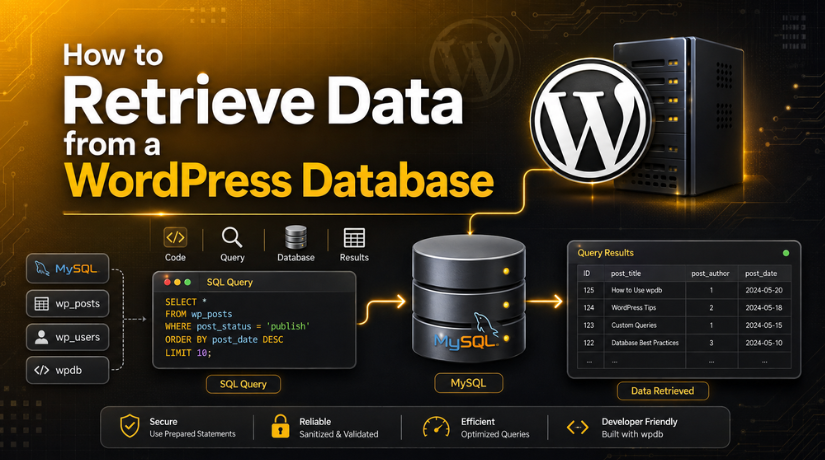
How to Retrieve Data from a WordPress Database
Your WordPress site stores almost everything in a database. Posts, users, settings, comments — it is all in there. So at some point, you will need to get it back out.
This guide shows you how to retrieve data from a WordPress database. We cover the simple no-code ways and the developer methods, so you can pick what fits.
What Lives in the WordPress Database?
WordPress keeps your content in a MySQL database. It is split into tables, each holding one type of data.
The main tables include:
- wp_posts — your posts, pages, and media entries.
- wp_users — account details for every user.
- wp_options — your site settings.
- wp_comments — all reader comments.
- wp_postmeta — extra data attached to posts.
Knowing which table holds your data makes retrieval much faster.
Understanding the Table Prefix
Most WordPress tables start with wp_. But this prefix can be different on your site. Many hosts change it for security.
So your posts table might be wp_posts, or something like xyz_posts. Check the real prefix before you retrieve data from a WordPress database, or your queries will fail.
You can find the prefix in your wp-config.php file, next to the $table_prefix line. Match it exactly.
Before You Start: Back Up First
Reading data is safe. But mistakes happen. One wrong click in the database can cause real damage.
So always take a full backup before you touch the database. That way, you can undo any error in minutes. Never skip this step.
Method 1: Use phpMyAdmin (No Code)
phpMyAdmin is the easiest way to retrieve data from a WordPress database. Most hosts include it in the control panel.
How to View Your Data
- Open phpMyAdmin from your hosting panel.
- Click your WordPress database on the left.
- Click the table you need, like wp_posts.
- Use the Browse tab to see the rows.
That is it. You can now read any record in that table. If you host with GoDaddy, our guide on how to access your WordPress database on GoDaddy shows where to find it.
How to Search for Specific Data
Use the Search tab inside a table. Type what you are looking for, and phpMyAdmin finds matching rows. This is handy for large tables.
phpMyAdmin handles other admin jobs too, such as resetting a WordPress password from phpMyAdmin when you are locked out.
New to phpMyAdmin? Our guide to creating a WordPress database with phpMyAdmin covers the basics of the tool.
Method 2: Export Data to a File
Sometimes you need the data outside WordPress. Exporting saves it as a file you can open elsewhere.
In phpMyAdmin, click a table, then the Export tab. Choose a format like CSV for spreadsheets or SQL for a full backup. Then download the file.
CSV is best for viewing data in Excel or Google Sheets. SQL is best for moving the data to another site.
Method 3: Use a Plugin
Prefer to stay inside WordPress? A plugin can pull data for you. No database tool needed.
Database and table plugins let you run searches, filter records, and display results. Some can even show live data on a page.
Plugins are great for non-technical users. Just install only what you need, since extra plugins can slow your site down.
Method 4: Retrieve Data with Code
Developers can retrieve data from a WordPress database directly with code. This is the most flexible way.
WP_Query for Posts
WP_Query is the standard tool for fetching posts and pages. It is safe, built in, and easy to use.
You set the rules — post type, category, date — and it returns matching posts. Most themes and plugins rely on it.


The $wpdb Class for Anything
For custom tables or complex needs, use the $wpdb class. It lets you run direct queries safely.
Always use its prepare method to guard against security holes. If you are editing code, our guide to editing your WordPress source code is a useful companion.
Which Method Should You Use?
Match the method to your skill and goal:
- Just want to look? Use phpMyAdmin Browse.
- Need the data in a spreadsheet? Export as CSV.
- Non-technical and staying in WordPress? Use a plugin.
- Building a feature? Use WP_Query or $wpdb.
There is no single “best” way. The right one depends on what you need the data for.
Common Mistakes to Avoid
- Editing instead of reading. To retrieve, use Browse or Export, not edit mode.
- Skipping the backup. Always back up before opening the database.
- Running raw SQL without prepare. This opens security risks.
- Guessing the table. Confirm which table holds your data first.
- Deleting rows by accident. Read-only tasks should never delete.
Keeping Your Database Healthy
A clean database is easier to work with. Over time, it fills with clutter like old revisions and spam.
Regular cleanups keep queries fast and retrieval simple. Keep WordPress and PHP updated too. You can check your PHP version in a few clicks.
A healthy database also means faster page loads, which helps your SEO.
Can You Retrieve Deleted Data?
Sometimes. If you deleted a post recently, check Trash first. WordPress keeps deleted posts there for 30 days.
If it is gone from Trash, your backup is the answer. Restore the database backup you took, and the data comes back. This is exactly why backups matter.
Without a backup, deleted rows are usually gone for good. So safe retrieval always starts with a recent backup.
A Quick phpMyAdmin Example
Say you want to find one post’s content. Open phpMyAdmin and click the wp_posts table. Use the Search tab, and type the post title in the post_title field. phpMyAdmin returns the matching row.
Click that row to see the full text in the post_content column. You can copy it straight out. The same trick works for users, comments, and options. Pick the table, search the field, and read the row. It is far faster than scrolling through hundreds of records by hand.
Retrieving Data for a Site Move
Moving to a new host? Then you need the whole database, not one row. In phpMyAdmin, select the database, click Export, and choose SQL. That single file holds every table at once.
On the new site, you import that file the same way. Keep a copy of the export until the move is fully confirmed. If anything looks off during the transfer, our team can handle the migration for you safely.
One more tip for big sites: export large tables one at a time. This keeps each file small and avoids timeouts during the download. It also makes it easier to spot which table holds the data you actually need.
When to Get Help
Databases can feel intimidating. One wrong query can break a site or expose data.
You do not have to solve it alone. Our team at 24×7 WP Support can safely retrieve, export, and manage your WordPress database around the clock. We handle the technical parts so your data stays safe.
Whether it is a quick lookup or a full migration, help is one message away.
Final Thoughts
You now know how to retrieve data from a WordPress database in four ways. Use phpMyAdmin to view, export to a file, use a plugin, or query with code.
Always back up first, confirm the right table, and pick the method that fits your skill. Do that, and getting your data is simple and safe.
And if a database task ever feels risky, our team is here to help you retrieve your data the right way.
Related posts:
Why Is WordPress Emailing You? How to Control Notifications in 2026
Is WordPress Good for Blogging? Everything You Need to Know
Validation Error- PayPal IPN Response From A Different Email Address In WordPress
How to do LearnWorlds WooCommerce integration?
WordPress vs Squarespace: Which Is Better for SEO?

Brian is a WordPress support specialist and content contributor at 24×7 WP Support. He writes practical, easy-to-follow guides on WordPress troubleshooting, WooCommerce issues, plugin and theme errors, website security, migrations, performance optimization, and integrations. With a focus on solving real website problems, Brian helps business owners, bloggers, and online store managers keep their WordPress sites running smoothly.
