
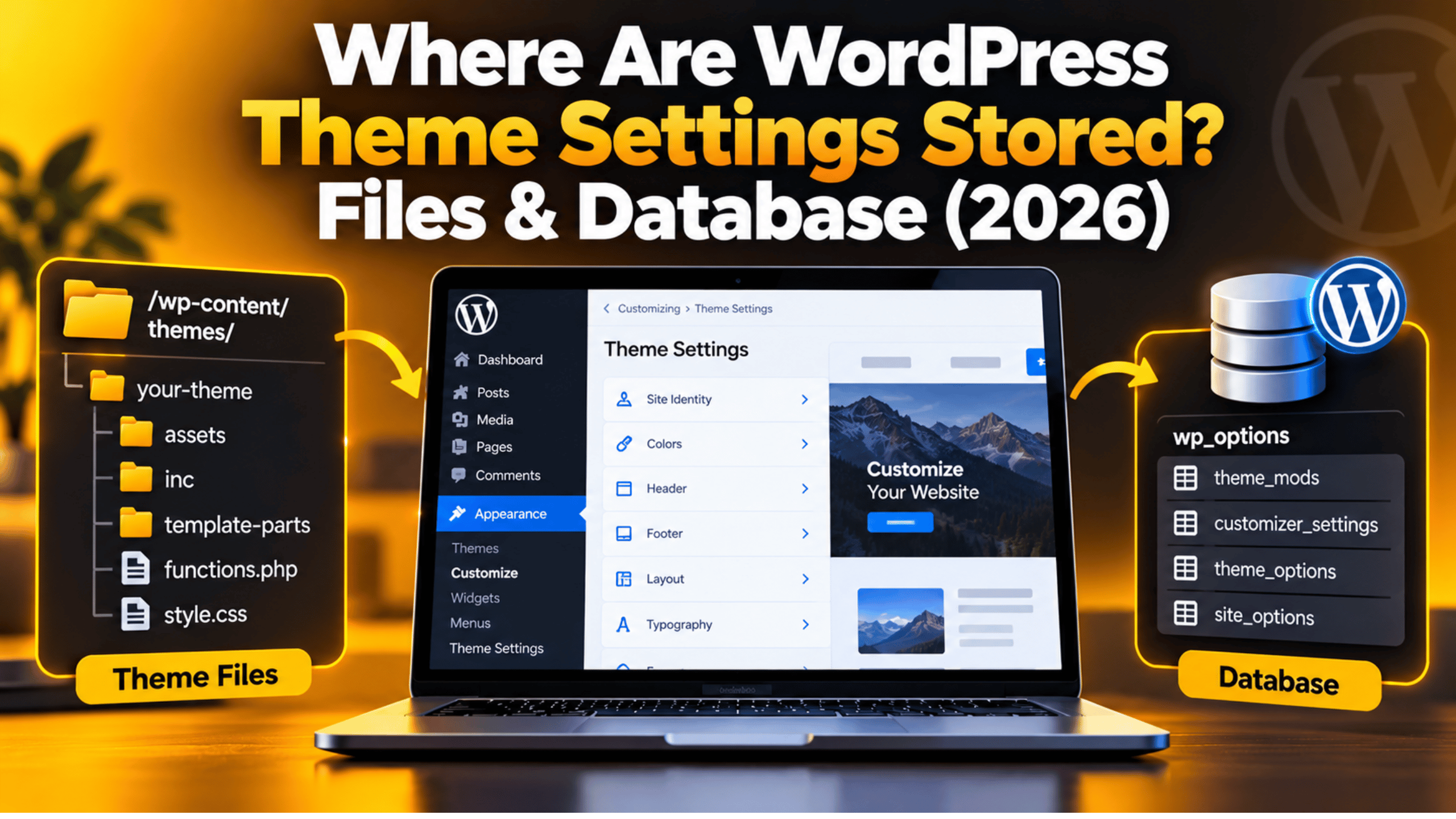
Where Are WordPress Theme Settings Stored? Files & Database (2026)
Introduction
You pick a colour in the Customizer. You upload a logo. You set a header layout. Then one day you need to find those settings again. Maybe you are moving the site. Maybe a setting vanished. Maybe you just want to know where it all lives.
The short answer is that WordPress keeps theme settings in two separate places. Some of it sits in files on your server. The rest sits in your database. Knowing which is which saves hours of guesswork. It also explains why your design resets when you switch themes.
This guide walks through both places in plain language. It covers classic themes and block themes, because WordPress 7.1 handles the two in different ways. You will learn the exact folder paths, the exact database tables, and the admin screens that show you the same data without any code.
Your Theme Settings Live in Two Places
Think of a theme as two halves. One half is the theme itself. That is the code the developer shipped: templates, stylesheets, images and fonts. It is a folder of files on your server. Nothing you click in the dashboard changes those files.
The other half is your choices. Your logo, your colours, your menu positions, your widget layout. WordPress never writes those back into the theme folder. It stores them in the database instead. That separation is deliberate and it matters.
Here is why. Theme updates replace the whole theme folder. If your logo lived inside that folder, every update would wipe it. By keeping your choices in the database, WordPress lets you update a theme without losing your design.
So whenever you ask “where is this setting?”, ask a simpler question first. Did a developer write it, or did I click it? Developer code is in files. Your clicks are in the database. Almost every case follows that rule.
Where the Theme Folder Lives on Your Server
Every theme sits in the same place: /wp-content/themes/. Inside that folder you get one sub-folder per installed theme, named after the theme slug. A theme called Twenty Twenty-Five lives at /wp-content/themes/twentytwentyfive/.
Open one of those folders and you will see a familiar set of files. style.css holds the theme header and often the main styles. functions.php loads the theme’s own code, and you can read more about what belongs in functions.php before you edit it. screenshot.png is the preview image you see in the dashboard.
Block themes add a few more. theme.json sets the default colours, fonts and spacing for the whole site. templates/ holds full page templates as HTML files. parts/ holds headers and footers. patterns/ holds reusable block layouts. Our guide to theme.json in WordPress explains that file in detail.
If you built a child theme, it gets its own folder beside the parent. A common path is /wp-content/themes/twentytwentyfive-child/. The child folder usually holds only the files you changed. WordPress loads the parent first, then lets the child override it.
To reach these folders you need file access. Your host’s file manager works. So does SFTP. Both land you in the site root, where you will also find wp-config.php. If you are not sure what that file does, read our wp-config.php guide before you touch it.
How to Find the Theme Path Without Opening a File
You do not need SFTP to learn where your theme lives. WordPress will tell you. Go to Tools → Site Health → Info and open the Themes panel. It lists the active theme, its version, its author and its parent if one exists.
The same screen has a Directories and Sizes panel. Expand it and you get the full server path to your themes folder, plus how much space it uses. That is the quickest way to confirm a path before you log in to your host.
There is a second route that shows the files themselves. Go to Appearance → Theme File Editor. The right-hand column lists every file in the active theme. Click one and it opens in a code box.
Treat that screen with care. A typo there can take the whole site down, because the editor saves straight to the live theme. Never edit a live theme that way. Take a backup of your theme first, or better, make the change on a staging site and copy it over once it works.
Where Classic Theme Settings Sit in the Database
Classic themes use the Customizer, at Appearance → Customize. Everything you set there is called a theme mod. WordPress saves the whole set as one row in the wp_options table.
The option name follows a fixed pattern: theme_mods_ plus the theme slug. For Twenty Twenty-One the row is theme_mods_twentytwentyone. The value is a serialised array holding your logo ID, your colour choices, your header image and anything else the theme registered.
Two more rows in the same table tell WordPress which theme is running. template holds the parent theme slug. stylesheet holds the active theme slug. On a site with no child theme the two match. On a child theme site they differ, and that difference is how WordPress knows to load both.
Widgets live apart from theme mods. The layout sits in the sidebars_widgets option, and each widget’s own content sits in a row named widget_ plus the widget type. That is why widget data survives a theme switch while placement does not, and why exporting widget settings is a separate job.
Extra CSS is the odd one out. Anything you type into Customize → Additional CSS is saved as a post, not an option. It becomes a custom_css post inside the wp_posts table, with the theme slug as its post name. One saved stylesheet per theme.
Where Block Theme Settings Sit in the Database
Block themes work differently. There is no Customizer. You design the site at Appearance → Editor, and your changes follow a layered model.
Layer one is WordPress core defaults. Layer two is the theme’s theme.json file. Layer three is you. Each layer overrides the one below it, which is why a theme can ship a palette and still let you change it.
Your layer is stored as a post. WordPress creates one wp_global_styles entry per theme in the wp_posts table. Its content is JSON: colours, fonts, spacing and element styles. Open Editor → Styles and you are editing that single record.
Edited templates work the same way. Change a page template in the Site Editor and WordPress saves a wp_template post. Change a header or footer and it saves a wp_template_part post. The theme’s original HTML file is never touched, so you can always reset back to it.
Navigation follows the pattern too. A Navigation block stores its menu as a wp_navigation post, which is why one menu can appear in several places. Classic menus are different: they are taxonomy terms, stored in wp_terms with each link as a nav_menu_item post.


One handy side effect of this design is revisions. Because global styles are a post, they keep a history. Open Styles → Revisions in the Site Editor and you can roll back to an earlier design with one click.
Why Your Design Resets When You Switch Themes
This trips up almost everyone. You switch themes to try a new look, switch back, and your settings are gone. Nothing is broken. The settings were never shared in the first place.
Look again at the storage names. Theme mods are saved as theme_mods_twentytwentyone, not theme_mods. Global styles are saved as one post per theme. Each theme gets its own private box, and no theme can read another theme’s box.
So the old values are still sitting in your database. WordPress simply stops reading them while a different theme is active. Switch back to the original theme and, in most cases, the old settings reappear exactly as you left them.
Your content is never at risk here. Posts, pages, products, media files, users and comments all sit in shared tables. A theme switch does not touch them. What you lose is presentation: colours, logo placement, widget positions and template edits.
There is one common exception worth knowing. Some themes register their own custom post types or shortcodes. Those are theme features, not WordPress features, so the output can break when the theme goes away. That is one more reason to test a new theme on staging first.
How to Back Up, Move or Reset Theme Settings Safely
Because the settings live in two places, a full copy needs both. Copy the /wp-content/themes/ folder for the files. Export the database for the settings. Miss either half and the site will not look the same on the other end.
For the database half, follow our walkthrough on backing up a WordPress database. The export includes wp_options and wp_posts, so your theme mods, global styles and template edits all travel together.
Block themes offer a neat shortcut. In the Site Editor, open the three-dot menu and choose Tools → Export. WordPress builds a ZIP of the theme with your template and style changes baked in. You can then install that ZIP elsewhere, the same way you would upload your own theme.
To reset instead of move, start with the gentle options. In a block theme, open Styles → Revisions and restore an earlier version. For a single template, use Reset to default in the template’s menu. Both are reversible and neither touches the database by hand.
Only go near the database when nothing else works. Deleting a theme_mods_ row clears a classic theme back to its defaults, and a developer can do it with a single WP-CLI command. Before you run anything like that, take a full backup and work on a staging copy. A bad query on a live site is very hard to undo.
Quick Reference: What Is Stored Where
Keep this list handy. It answers most “where is it?” questions in a few seconds, and it works for both theme types.
Theme code and templates: files, in /wp-content/themes/theme-slug/. This covers style.css, functions.php, theme.json, template HTML, patterns and bundled images.
Customizer settings on a classic theme: database, in wp_options, as theme_mods_theme-slug. One row holds the lot.
Additional CSS: database, in wp_posts, as a custom_css post named after the theme.
Block theme style changes: database, in wp_posts, as a wp_global_styles post. One per theme, with revision history.
Edited templates and template parts: database, in wp_posts, as wp_template and wp_template_part posts.
Widgets: database, in wp_options, split between sidebars_widgets and the individual widget_ rows.
Menus: database. Classic menus are terms in wp_terms with items in wp_posts. Block navigation menus are wp_navigation posts.
Active theme: database, in wp_options, as the template and stylesheet rows.
Final Thoughts
WordPress splits theme storage for a good reason. Files hold the code a developer wrote. The database holds the choices you made. That split is what lets you update a theme on Monday and still have your logo on Tuesday.
Once the split makes sense, the rest follows. You know why a theme switch resets your design. You know why a file copy alone is not a real backup. You know which screen to open when a setting goes missing, and you know the exact row to look for if you ever need to dig deeper.
It also changes how you plan work. Before a redesign, you can check what will carry over. Before a move, you can confirm both halves are in the export. Before any database edit, you can back up and test on staging.
If something still does not add up on your own site, or a design change refuses to stick, our team works on problems like this every day. Visit 24×7 WP Support and tell us what you are seeing, and we will take a look.
Related posts:
How to Schedule Posts in WordPress in 2026
Does WordPress Offer Live Chat Support? What to Expect
The Intermediate Guide to 301 Redirect WordPress via .htaccess and Plugin
Where Is the Style Tab in WordPress & What Does It Do? (Complete Guide)
What is the Role of Product Description Writers? Why do you need them?

Brian is a WordPress support specialist and content contributor at 24×7 WP Support. He writes practical, easy-to-follow guides on WordPress troubleshooting, WooCommerce issues, plugin and theme errors, website security, migrations, performance optimization, and integrations. With a focus on solving real website problems, Brian helps business owners, bloggers, and online store managers keep their WordPress sites running smoothly.
