
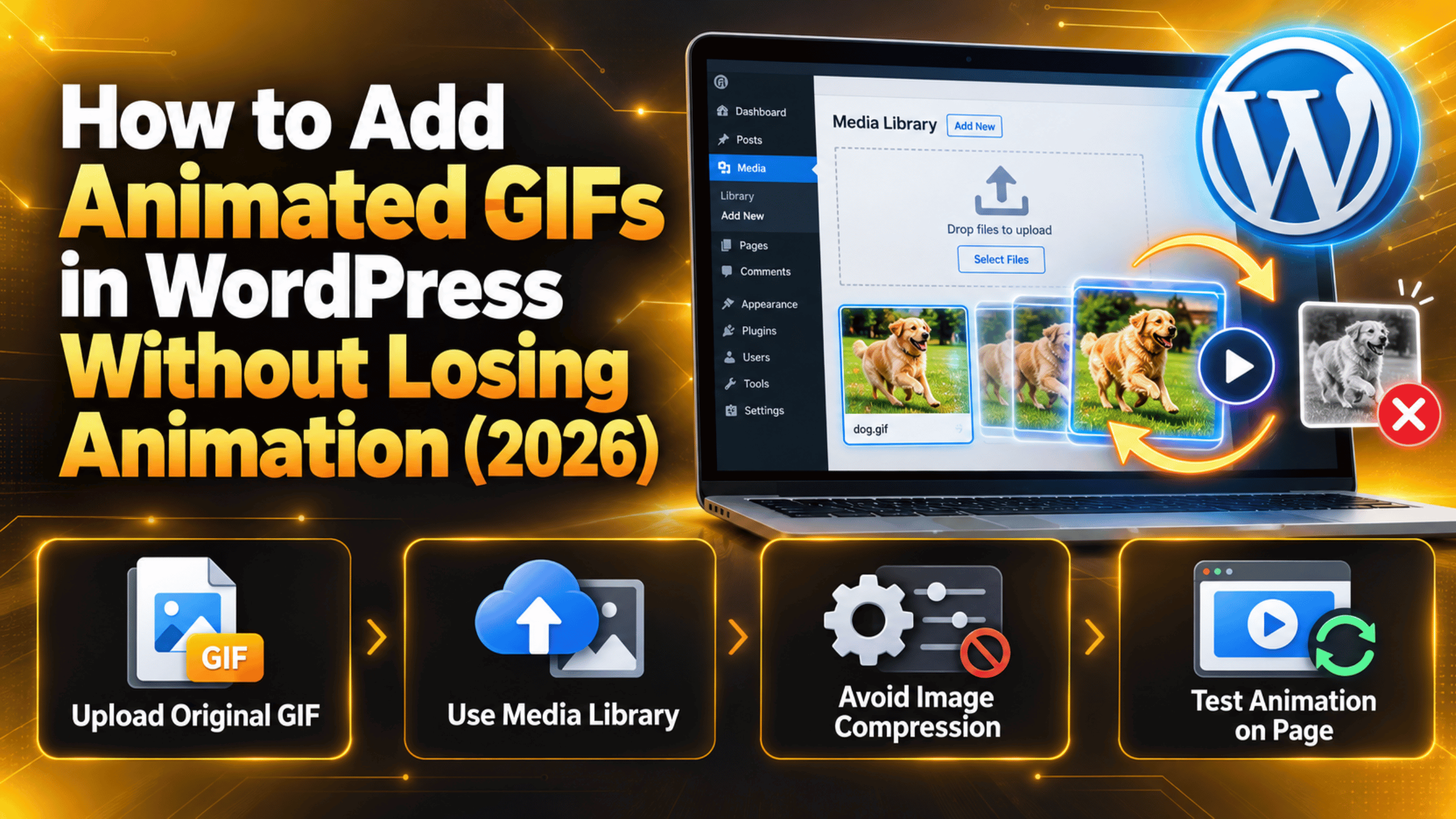
How to Add Animated GIFs in WordPress Without Losing Animation (2026)
Introduction
You upload a GIF, drop it into a post, hit preview, and it just sits there. No movement. The file plays fine on your desktop, so the problem must be WordPress. It is, and the reason is simpler than most people expect.
This guide explains why animation disappears, how to add a GIF so it keeps moving, whether a featured image can be a GIF, and what GIFs cost you in page speed. It also covers the accessibility rules that apply to anything that moves on its own.
Why Your GIF Stops Moving the Moment You Add It
WordPress does not block animated GIFs. The GIF format is allowed by default, and the original file you upload keeps every frame. Nothing is lost at upload.
The trouble starts straight afterwards. Every time you add an image, WordPress creates several smaller copies at different sizes. Thumbnail, medium, large, plus any extra sizes your theme has registered. This is normally useful, because it lets the browser load a small file on a phone instead of a huge one.
Those copies are made by flattening the image. The resizing step reads the first frame, writes it out at the new size, and discards everything after it. So each resized copy of an animated GIF is a single still picture. This is long-standing behaviour in WordPress, not a bug in your site.
Now look at what actually goes on the page. If the editor inserts the medium or large copy, your visitor gets the still frame. The animation is sitting safely in your media library the whole time. It is simply not the file being shown.
That single fact explains nearly every “my GIF is not working” report. The fix is not to re-export the file or install anything. It is to make sure the page shows the original.
Upload the GIF the Right Way First
Go to Media → Add New Media File and upload the GIF there before you touch the post. Doing it this way lets you check the file landed properly and gives you a clean URL to work with.
Check the upload limit on that screen. WordPress prints “Maximum upload file size” underneath the drop area. GIFs are heavy, and a few seconds of footage can easily pass 5 MB, so this limit is a common wall. If your file is larger, the upload fails with a size error rather than an animation problem.
That limit is set by your server, not by WordPress, so you cannot change it from the dashboard. Ask your host to raise it, or shorten the GIF, cut its frame rate, or reduce its pixel dimensions until it fits.
Once it is in, open the file in the media library and add alt text. Describe what happens in the animation, not just what is in the first frame. Someone using a screen reader gets your description instead of the movement, so “a cursor dragging a block into place” is far more useful than “screenshot”.
Our overview of the WordPress media library and its supported file types covers the rest of what the library can and cannot do.
Insert It at Full Size, Every Time
This is the step that actually fixes the animation. In the block editor, add an Image block and pick your GIF. Then open the Settings sidebar on the right, find the Image size dropdown, and choose Full Size.
Full Size means the original upload, frames and all. Any other option in that list is one of the flattened copies. If you are still on the classic editor, the same choice appears in the media window as Attachment Display Settings → Size.
You can confirm it worked without guessing. Save the post, open the live page, right-click the image and open it in a new tab. Look at the end of the URL. A file ending in something like -300x200.gif is a resized still copy. A file ending in plain .gif with no dimensions in the name is your original, and it will animate.
Full Size will often be wider than your content column. Do not fix that by inserting a smaller size, or you are back where you started. Set the block width in the editor instead, or add CSS such as max-width: 100%; height: auto; to the image. That scales what the browser draws while still loading the animated file.
If the block itself is misbehaving rather than the image, our guide to common block editor problems and fixes is a good next stop.
Can a WordPress Featured Image Be a GIF?
You can set a GIF as a featured image, and WordPress will accept it without complaint. Whether it moves is a separate question, and the answer usually comes down to your theme.
Themes display the featured image by calling a template function, and almost all of them ask for a named size such as medium, large, or a custom size the theme registered. Every one of those is a flattened copy. So the featured image shows up, looks right, and stays perfectly still.
Making it animate means changing the theme so it requests the full-size file instead. In practice that is a one-word change, from a named size to full, in whichever template renders the featured image. Because full size is often much larger than the slot it sits in, you will usually need a little CSS to constrain it afterwards.
Never make that edit directly in your active theme. The next theme update overwrites it. Work in a child theme, and take a backup or try it on a staging site before it touches your live pages. If you are not sure which file to open, our breakdown of WordPress theme files shows where these calls usually live.


It is worth asking whether you want this at all. Featured images appear in archive listings, related-post rows and search results, so an animated one can mean several looping files on a single screen.
What Else Quietly Strips the Animation
Image optimisation plugins. These compress every upload to save bandwidth. Many flatten animated GIFs in the process, or convert them to a format that your visitors’ browsers show as a still. Look for an exclusion setting for GIFs, or exclude that file.
Automatic format conversion. Some setups rewrite images to newer formats on the fly. Animated versions of those formats exist, but support is uneven, and a conversion that drops the animation produces exactly the symptom in this article.
Image handling at the delivery layer. If images are resized or re-encoded before they reach the browser, that step can flatten the file even though your media library copy is fine. Fetch the image URL directly in a private window to see what is really being served.
Thumbnail regeneration. Rebuilding image sizes does not restore animation to the smaller copies. They are regenerated as stills, because that is how resizing works. Nothing is broken, and the original is untouched.
A cached copy of the old page. If you fixed the size setting and the page still shows a still image, clear your caching layers and reload before investigating anything else.
What GIFs Actually Cost You in Page Speed
GIF is an old format and it compresses badly. A short clip that would be a few hundred kilobytes as a video can run to several megabytes as a GIF. That weight lands on every visitor who opens the page.
If the GIF is the largest thing visible when the page opens, it becomes the element Google measures for loading speed. A multi-megabyte file in that position drags the score down, and on a phone over mobile data the delay is far worse than on your office connection.
Animation also keeps the processor busy. A looping GIF redraws continuously for as long as the page is open, which costs battery on mobile. Put three or four on one page and a mid-range phone will feel it.
There is also the data itself. A visitor on a metered plan pays for every megabyte, and a decorative loop is a poor use of that. None of this means never use a GIF. It means use one where the movement earns its place, such as showing a short interface step, rather than as page decoration.
Use Video Instead Wherever You Can
For most clips, a short video file does the same job at a fraction of the size. The same few seconds encoded as MP4 or WebM is routinely a small fraction of the GIF, because those formats were built for moving pictures and GIF was not.
WordPress handles this without any extra tools. Upload the MP4 through Media → Add New Media File, add a Video block to your post, and select the file. Then open the block settings and turn on Autoplay, Loop and Muted, and leave Play inline on.
Those four settings together are what makes a video behave like a GIF. Muted matters most: browsers block autoplay for anything with sound, so an unmuted video simply will not start. Play inline stops phones from taking the video full screen the moment it begins.
The result looks like a GIF to your reader, loads far faster, and can be paused, which matters for the accessibility rules below. Our guides to embedding video and content in WordPress and to the best video format for WordPress go further into the trade-offs.
The Accessibility Rules That Apply to Anything Moving
Moving content is covered by published accessibility standards, and animated GIFs sit right in scope. Two rules matter here, and neither is difficult to meet once you know about them.
The first concerns anything that starts by itself and runs for more than five seconds alongside other content. The reader must be able to pause, stop or hide it. A GIF has no controls at all, so a looping one cannot satisfy this. The usual answers are to let the animation run once and finish inside five seconds, or to use a video the reader can pause.
The second concerns flashing. Content that flashes more than three times per second can trigger seizures in people with photosensitive epilepsy. This rules out strobing effects and hard, rapid cuts, however striking they look.
Continuous motion is also a problem for readers with vestibular conditions, who can feel genuinely unwell looking at it, and it pulls attention away from your text for everyone else. Keep animations short, keep them calm, and let them stop.
Need a Hand With Images on Your WordPress Site?
Most GIF problems come down to one setting, and now you know which one. Upload the file, insert it at Full Size, check the URL has no dimensions in it, and the animation comes back. For a featured image, your theme has to ask for the full-size file, which is a child theme job rather than a dashboard one.
The harder questions are the ones after that. Whether a clip should be a GIF or a video. Why an optimisation setting is flattening files you wanted left alone. How much a few looping files are costing your page speed on mobile.
If you would rather hand that over, our team works on WordPress media, performance and theme issues every day. Visit 24×7 WP Support and tell us what you are trying to show your readers. We will look at how your theme and your image settings are handling it, and set it up so it works on desktop and on mobile.

Brian is a WordPress support specialist and content contributor at 24×7 WP Support. He writes practical, easy-to-follow guides on WordPress troubleshooting, WooCommerce issues, plugin and theme errors, website security, migrations, performance optimization, and integrations. With a focus on solving real website problems, Brian helps business owners, bloggers, and online store managers keep their WordPress sites running smoothly.
