
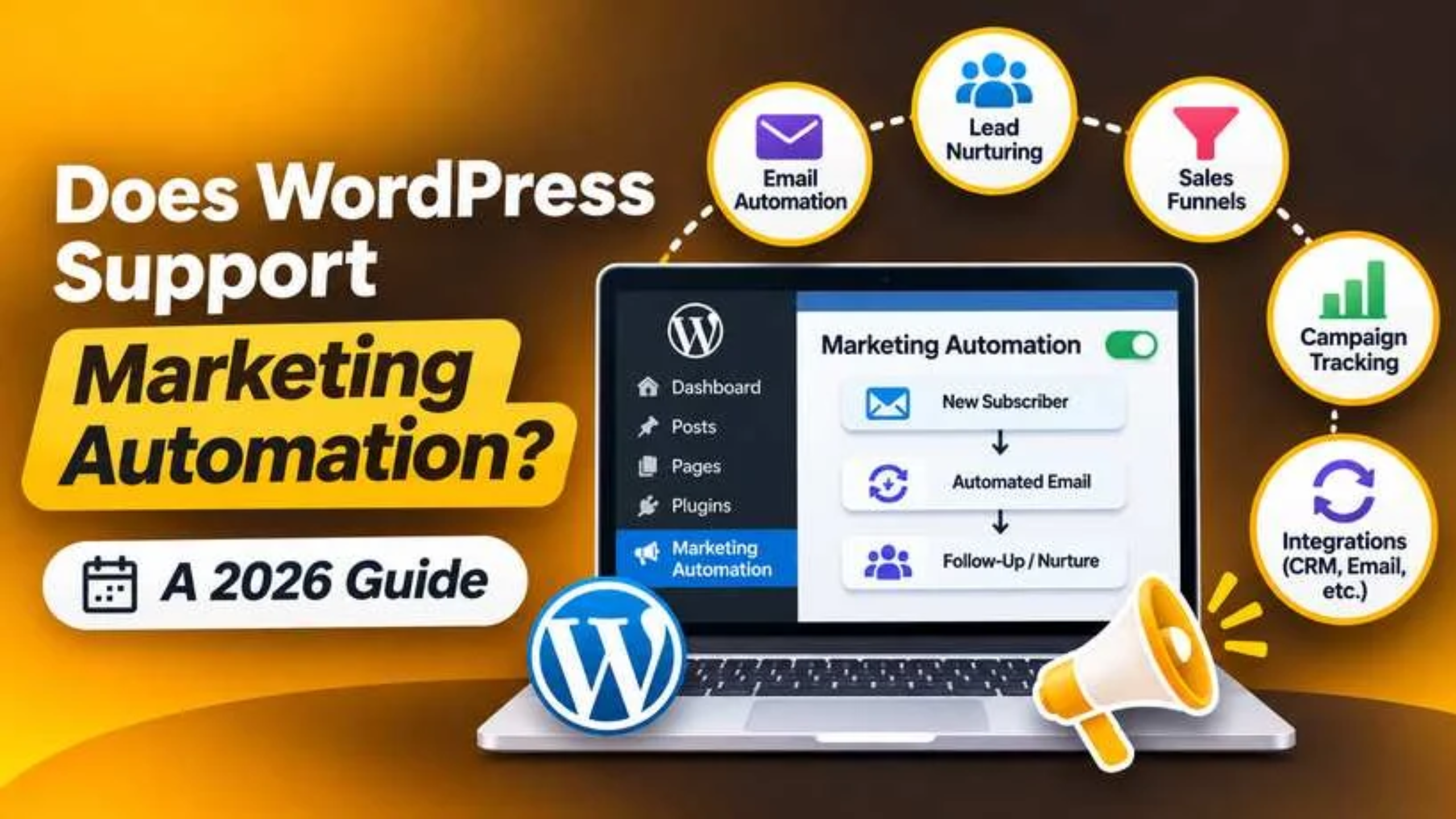
Does WordPress Support Marketing Automation? A 2026 Guide
Yes, WordPress can run marketing automation, but not on its own. A fresh install has no screen for it. What it does have is a set of core parts that other tools plug into. Add the right plugin or link an outside service, and your site can send emails, tag leads and follow up while you sleep.
This guide shows what WordPress gives you out of the box in 2026. It then covers the kinds of tools that fill the gaps, how to pick one, and how to build your first workflow in a safe way.
What Marketing Automation Means on a WordPress Site
Marketing automation is software that does a task for you when a set event takes place. The event is called a trigger. The task is called an action. A simple case is this: a visitor fills in a form, and the site sends a welcome email one minute later. No one on your team has to click a thing.
On a WordPress site, the common triggers are easy to spot. A new user signs up. A reader joins your list. A shopper adds an item to the cart and then leaves. A customer buys for the first time. Each of these can start a chain of steps.
The actions are just as plain. Send an email. Add a tag to a contact. Move a lead to a new list. Change a user role. Post a note to your team chat. Wait three days, then send a second email. When you link a few of these steps in a row, you have a workflow.
What WordPress Core Can Do Without Any Add-On
WordPress core does not ship with a contact list, an email builder or a workflow editor. Still, it holds the parts that every automation tool is built on.
Hooks. WordPress fires a hook each time something happens, such as a user sign-up or a post going live. A plugin can listen for that hook and act on it. This is how a tool knows that a trigger took place.
WP-Cron. This is the built-in task timer. It runs jobs that are due, such as a post set to go live at 9 am or an email set to send in three days. It only runs when someone visits the site, so a quiet site can send late. Our guide on what WordPress cron is and how it works explains the fix.
The mail function. Core can send email through your web server. It is fine for a password reset. It is weak for bulk mail, as many inboxes treat it as spam. Read how WordPress handles email and SMTP before you send at scale.
The REST API. This lets outside apps read and write site data in a safe way. A mail service can use it to pull new users or orders. See what the WordPress REST API is for the basics.
What WooCommerce Adds for Online Stores
If you run a store, WooCommerce gives you a real head start. It sends a set of emails by itself, and each one is tied to an order event. You can see the full list at WooCommerce → Settings → Emails. Click Manage next to any row to change the subject, the heading and the text.
These are known as transactional emails. They include the new order notice, the processing order email, the completed order email, the refund email and the new account email. They are not sales emails, yet a short line in the completed order email that asks for a review is a fair use of that space.
WooCommerce also has webhooks. A webhook is a small message that your store sends to a web address when an event takes place. Go to WooCommerce → Settings → Advanced → Webhooks and click Add webhook. Pick a topic such as Order created or Customer created, paste the delivery URL from your mail tool, and set the status to Active. From then on, each new order is passed to that tool in seconds. Our post on how webhooks work in WordPress goes deeper.
The Types of Tools That Automate Marketing in WordPress
There are hundreds of products, yet they fall into a few clear groups. Each group solves a set job. Most sites need two of them at most, so start by matching the group to your goal.
In-Dashboard Email and CRM Plugins
These plugins store your contacts in the WordPress database and run the workflows from your own admin area. A CRM is a contact manager that keeps notes, tags and past actions for each person. You build a flow on a visual canvas: pick a trigger, add a wait, add an email. All of your data stays on your site, and there is no fee per contact in most cases. The trade-off is load. Each send and each log row uses your own server and database. You will also need an SMTP sending service, or your mail may land in spam.
Connector Plugins for Outside Email Platforms
Here the heavy work is done by a hosted email service. The plugin is just a bridge. It syncs new users, form entries and orders to that service, which then sends the mail from its own servers. Your site stays light, and delivery rates tend to be more stable. The costs are a monthly fee that grows with your list, and the fact that your contact data now sits with a third party. This route suits sites with large lists or shared hosting plans with tight limits.
Form and Lead Capture Plugins
No workflow can start with no entry point. Form plugins give you sign-up boxes, pop-ups and multi-step forms that pass each entry to your list. Look for one that can add a tag based on the answers. A person who ticks “I run a store” should get store tips, not blog tips. Keep the form short. Name and email is enough for a first step. If you are new to this, read what a lead form is in WordPress first.
Workflow or “If This, Then That” Plugins
These tools link plugins to each other and to outside apps. They use recipes: when this takes place in plugin A, do that in plugin B. For example, when a user ends a course, add them to a new group and send a coupon. They shine when your site has many parts, such as a store, a course area and a forum. Most have a free tier with a cap on the number of runs, so check the limits before you build ten recipes on it.
Cart Recovery and Store Follow-Up Plugins
These are made for WooCommerce. They save the email as soon as it is typed at checkout. If the order is not placed, they send a reminder after a set gap, such as one hour and then one day. Many can also send a thank-you series, a review request and a win-back offer. Results vary by store and by price point, so test your timing. Do not promise a coupon in the first email, or shoppers may learn to wait for it.
How to Choose the Right Setup for Your Site
The right pick depends on your list size, your hosting plan and your skill level. There is no single best tool. Use the points below to narrow the field before you install a thing.


List size. Under 2,000 contacts, an in-dashboard plugin with an SMTP service is often the cheapest route. Past 10,000, a hosted platform tends to be less work, since it takes care of sending speed and bounce handling for you.
Hosting limits. Many shared plans cap outgoing mail at a few hundred per hour. Ask your host for the exact figure. If your plan is tight, do not send bulk mail from the server at all.
Data and consent. If you have visitors from the EU or the UK, you need clear consent before you send sales email. Use a tick box that is not pre-ticked. Add an unsubscribe link to every message. Check where each tool stores its data.
Exit plan. Make sure you can export your contacts as a CSV file. If you can not get your list out, do not put it in.
How to Set Up Your First Automated Workflow
Start with one small flow and get it right. A welcome email for new subscribers is the best first build. Before you begin, take a full backup or work on a staging copy of your site. New plugins add database tables, and you want a clean way back.
Step 1: Install one tool. Go to Plugins → Add New Plugin, search by type, and check that the plugin was updated in the last few months and is tested with your WordPress version. Click Install Now, then Activate.
Step 2: Fix your sending. Connect an SMTP service in the plugin’s email settings. Send a test to your own inbox. If it lands in spam, stop here and sort that out first.
Step 3: Add a form. Build a two-field form and place it on a page with a block or a shortcode. Add a consent tick box.
Step 4: Build the flow. Set the trigger to “form sent”. Add the action “send email”. Write a short welcome note with one clear link.
Step 5: Test it. Fill in the form with a spare address. Check that the contact shows in your list and that the email comes in. If no mail comes, look at the plugin’s log and at Tools → Site Health for a cron notice.
Common Mistakes to Avoid With Automated Marketing
Most problems come from doing too much, too fast. A site owner adds five tools in a week, and then no one knows which one sent what. The fixes below are simple.
Sending from the web server. This is the top cause of mail that lands in spam. Use an SMTP service and set up SPF and DKIM records. These are DNS entries that prove your domain is allowed to send the mail.
Stacking plugins that overlap. Two tools that both send a welcome email will send two welcome emails. List each active flow in a shared sheet so the whole team can see it.
Skipping tests after updates. A plugin update can change a trigger name and break a flow with no error on screen. Run a test entry after each major update. A staging site makes this safe, and our guide on how to set up a staging site in WordPress shows the steps.
Letting logs grow. Email logs and event logs can add tens of thousands of rows to your database. Set the tool to delete logs after 30 or 60 days.
Get Help With Your WordPress Marketing Setup
So, does WordPress support marketing automation? It does, as long as you add the right layer on top. Core gives you hooks, a task timer, a mail function and the REST API. WooCommerce adds order emails and webhooks. The rest comes from a plugin or a linked service that fits your list size, your hosting plan and your goals.
Start small. Build one welcome flow, test it, and grow from there. Keep your tool count low and your sending clean, and review each flow a few times a year so that old offers and dead links do not go out.
If you would like a second pair of eyes on your setup, the team at 24×7 WP Support works on plugin setup, email delivery issues, WP-Cron problems and WooCommerce email settings each day. Get in touch and tell us what you are trying to automate. We will take a look and talk you through your options.





Brian is a WordPress support specialist and content contributor at 24×7 WP Support. He writes practical, easy-to-follow guides on WordPress troubleshooting, WooCommerce issues, plugin and theme errors, website security, migrations, performance optimization, and integrations. With a focus on solving real website problems, Brian helps business owners, bloggers, and online store managers keep their WordPress sites running smoothly.