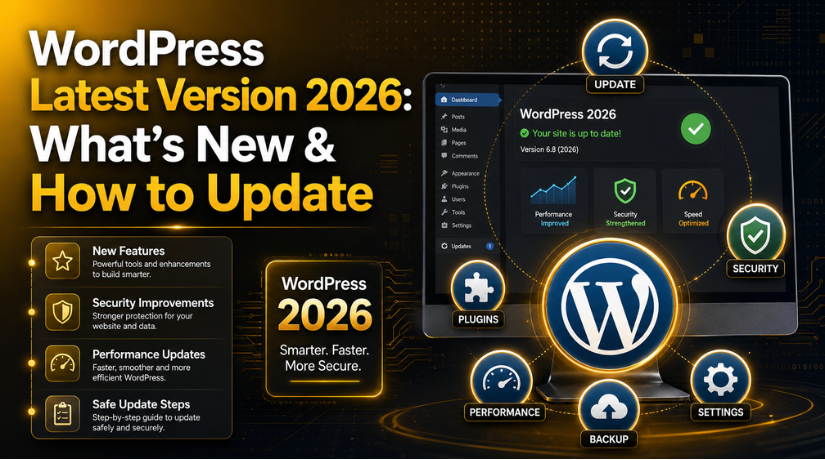
WordPress Latest Version 2026: What’s New & How to Update
WordPress changes fast. A new version can add features, fix bugs, and close security holes. So it helps to know what is current.
This guide covers the WordPress latest version in 2026, what is new, and how to update safely. You will also learn what to check before you click that update button.
What Is the WordPress Latest Version in 2026?
The current major release is WordPress 7.0. It launched on May 20, 2026.
Since then, the team has shipped small maintenance updates. The most recent is WordPress 7.0.2, released on July 17, 2026.
These point releases fix bugs and patch security issues. They do not add big new features. That is the job of a major release.
What Came Before 7.0?
The last major version was WordPress 6.9. It arrived on December 2, 2025.
When 7.0 launched, official support for 6.9 ended. That is why running the latest version matters so much for security.
What Is Coming Next?
WordPress 7.1 is expected around August 19, 2026. It is timed to land near WordCamp US.
Until then, WordPress 7.0 remains the version you should be on. Always aim to run the newest stable release.
What’s New in WordPress 7.0?
Major releases bring the biggest changes. WordPress 7.0 continues that pattern with a focus on speed, design, and stability.
In broad terms, recent versions have improved:
- The editor. A smoother, faster writing and building experience.
- Site design tools. More control over layouts, styles, and templates.
- Performance. Quicker page loads and leaner code.
- Security. Stronger default protections against threats.
For the full, exact feature list, always read the official release notes on WordPress.org. They are the single source of truth for each version.
If a new editor feature ever confuses you, our guide on fixing common block editor problems can help you settle in.
How Often Does WordPress Release?
WordPress ships major versions on a set schedule each year. Between them, smaller maintenance and security releases arrive as needed.
So there is always a safe, current version to run. Checking for updates once a week is a healthy habit for any site owner. It keeps small fixes from piling up into big ones.
Why Updating to the Latest Version Matters
Some site owners skip updates out of fear. That is a risky habit.
Here is why staying current is worth it:
- Security. Old versions stop getting patches. Hackers target them.
- Speed. New versions often run faster.
- Compatibility. Themes and plugins are built for current WordPress.
- Features. You get new tools that save time.
In short, the WordPress latest version keeps your site safe, fast, and modern. Falling behind does the opposite.
Check Your PHP Version First
WordPress runs on PHP. Each version needs a supported PHP range to work well.
WordPress 7.0 supports PHP 7.4 through 8.5. If your PHP is too old, the update may fail or break features.
So check your PHP before you upgrade. Our guide on how to check your WordPress PHP version shows you where to look in a few clicks.
How to Update to the WordPress Latest Version
Updating is simple when you follow a safe order. Never rush it on a live site.
Step 1: Back Up Your Site
Always back up first. This is the golden rule of any update.
Save both your files and your database. If an update goes wrong, a backup lets you restore in minutes. Our guide on accessing your WordPress database is useful when you handle backups.
Step 2: Update on a Staging Site
A staging site is a private copy of your live site. Test the update there first.


If nothing breaks, you can safely push the update live. If something breaks, your real site stays untouched.
Step 3: Run the Update
- Log in to your WordPress dashboard.
- Go to Dashboard → Updates.
- Click the button to update WordPress core.
- Wait for it to finish. Do not close the tab.
WordPress can also update itself automatically for minor releases. Major updates usually need one click from you.
Step 4: Update Themes and Plugins
After the core update, update your themes and plugins too. This keeps everything in sync.
Outdated plugins are a common cause of conflicts. Update them one at a time if you want to spot issues fast.
Step 5: Test Everything
Once updated, visit your site. Check key pages, forms, and the checkout if you run a shop.
Look at both desktop and mobile. A quick test now saves headaches later.
Common Update Problems (and How to Avoid Them)
- White screen after update. Often a plugin or theme conflict. Restore your backup, then update one item at a time.
- Slow site. Clear your cache after any update.
- Broken layout. A theme may need its own update too.
- Old PHP. Upgrade PHP with your host before updating core.
Most problems trace back to a skipped backup or an old plugin. Careful prep prevents both.
Should You Update Right Away?
For security releases, yes. Patch fast to stay protected.
For a brand-new major release, some owners wait a week or two. This lets plugin makers catch up. But do not wait too long, since older versions lose support.
A good rule: test on staging, then update within a few days. That balances safety and caution.
Keeping Your Site Fast After Updating
A new version can boost speed. But your setup still matters.
Clean code, good hosting, and caching all help. Our guide on improving Core Web Vitals in WordPress shows how to keep pages quick.
SEO tools should stay updated too. Our complete tutorial on the Yoast SEO plugin covers settings to review after an update.
How to Roll Back a Bad Update
Sometimes an update causes trouble. A plugin may clash, or a page may break. Do not panic.
If you took a backup, you can restore the old version fast. Simply roll back to the backup you saved before the update. Your site returns to how it was in minutes.
You can also reactivate plugins one by one to find the culprit. This helps you spot the exact cause without guesswork. Keep at least three recent backups, so you always have a safe point to return to.
Set Up Smart Automatic Updates
WordPress can handle small updates for you. Minor and security releases can install on their own.
This keeps your site patched without daily effort. But leave major updates manual, so you can test them first. That way you still control the big jump to the WordPress latest version.
Review your update settings from the Dashboard. A smart mix of automatic and manual keeps you both safe and current.
When to Get Help
Updates are usually smooth. But not always.
A failed update, a plugin clash, or a white screen can stop your site cold. If you rely on your website for business, downtime costs money.
You do not have to fix it alone. Our team at 24×7 WP Support can update, test, and maintain your WordPress site around the clock. We handle backups, staging, and core updates so nothing breaks. If a deeper fix is needed, our guide to editing your WordPress source code shows the kind of work we do.
Final Thoughts
So, the WordPress latest version in 2026 is 7.0, with 7.1 on the way. Staying current keeps your site secure, fast, and ready for new tools.Always back up first, test on staging, check your PHP, and update themes and plugins too. Follow that routine and updates stay simple and safe.And if an update ever gives you trouble, our team is here to help you get back on track fast.
Related posts: