
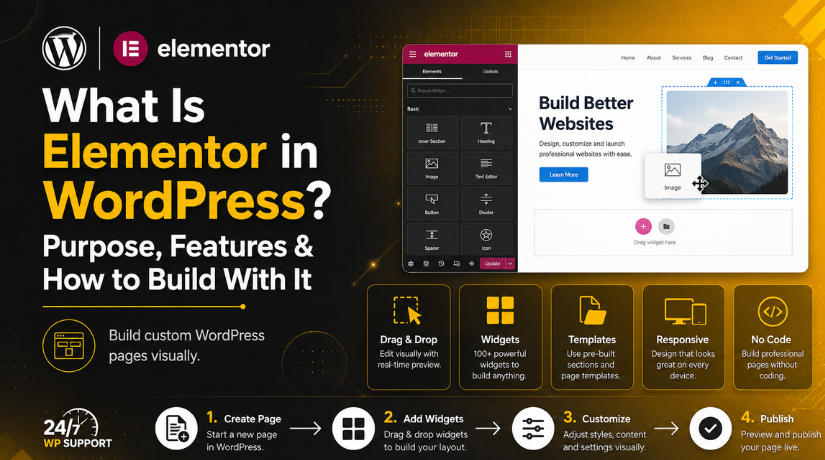
What Is Elementor in WordPress? Purpose, Features & How to Build With It
Last updated on June 30th, 2026 at 08:03 am
Introduction
If you’ve spent any time in the WordPress world in 2026, you’ve probably heard the name Elementor thrown around constantly. It powers over 22 million websites — roughly 13% of every site on the internet. But what exactly is Elementor, why do so many people use it, and how do you actually build a website with it? This guide answers all of those questions in plain English.
What Is Elementor?
Elementor is a drag-and-drop page builder plugin for WordPress. In simple terms, it replaces WordPress’s default editor with a fully visual interface where you can see exactly what your page looks like as you build it — no code required, no guessing what the final result will look like.
WordPress itself is a content management system (CMS). It handles publishing, user accounts, plugins, and security. But its native editing experience wasn’t designed for pixel-perfect visual layouts. That’s the gap Elementor fills. You install it as a plugin, and suddenly you have a professional design studio built right into your browser.
Elementor was launched in 2016 by Israeli startup Elementor Ltd. and quickly became the most popular page builder on the market. By 2026, it’s not just a page builder anymore — it’s evolved into a full website creation platform with AI tools, image optimization, email delivery, and accessibility features built in.
What Is Elementor Actually Used For?
Most people think of Elementor as a tool for designing landing pages, and while that’s certainly one use case, it goes much further:
Business websites: Service-based businesses use Elementor to build multi-page sites with custom headers, footers, about pages, contact forms, and service listings — all without hiring a developer.
Portfolio and personal sites: Designers, photographers, and freelancers use Elementor’s templates and layout controls to showcase work in custom grid arrangements and galleries.
WooCommerce stores: With Elementor Pro, you can design custom product pages, shop archives, and cart pages that go far beyond the default WooCommerce appearance.
Blog and content sites: Elementor’s Theme Builder lets you design custom post templates so every article has a consistent, branded layout — not just a generic WordPress theme default.
Agency and client work: Web agencies rely heavily on Elementor because it’s fast to prototype, easy for clients to understand, and produces clean, responsive results across all screen sizes.
The Core Features of Elementor in 2026
Elementor has grown considerably since its early days. Here’s what you actually get:
Drag-and-Drop Visual Editor
The editor works in real time. You drag a widget from the left panel onto the canvas, and it appears exactly where you placed it. Click any element to see its settings appear in the left panel. Change font size, color, padding, or animation and watch it update instantly on the canvas. There’s no “preview” button required — what you see is what your visitors get.
Widgets
Widgets are the building blocks of every Elementor page. The free version comes with 40+ widgets covering all the essentials: heading, text editor, image, button, video, image gallery, icon box, testimonial, counter, progress bar, tabs, accordion, and more. Elementor Pro adds 100+ additional widgets including forms, slides, price tables, nav menu, flip boxes, posts grids, and WooCommerce-specific elements.
Template Library
Elementor ships with over 300 pre-designed templates organized by industry and page type. You can import a complete website kit in minutes — full sets of homepage, about, services, contact, and blog templates that all share a consistent design system. This is a genuine time-saver compared to building layouts from scratch.
Responsive Design Controls
Every layout you create in Elementor is responsive by default. The editor has separate breakpoint views for desktop, tablet, and mobile, and you can apply different spacing, font sizes, or even hide elements entirely on specific device sizes. This gives you fine-grained control that generic themes simply can’t match.
Theme Builder (Pro)
This is the feature that separates Elementor Pro from the free version most dramatically. Theme Builder lets you design every structural part of your site — the header, footer, single post layout, archive page, 404 page, and search results page — using the same drag-and-drop interface. Combined with dynamic content tags, you can build completely custom WordPress themes without touching a single line of PHP.
AI-Powered Tools in 2026
The 2026 version of Elementor includes a significantly expanded AI suite. You can describe a page in natural language and have Elementor generate a wireframe in minutes. The AI text generator creates copy for sections, the image generator creates original visuals, and the new Elementor One product combines all of this into an all-in-one AI-assisted website creation workflow. For beginners, this dramatically lowers the barrier to getting a professional-looking site live.
Elementor Free vs. Elementor Pro: Which Do You Need?
This is the question every new user asks. Here’s the honest breakdown:
Elementor Free is a fully functional, genuinely useful tool. You get the drag-and-drop editor, 40+ widgets, basic templates, responsive controls, and global styling for colors and fonts. For a simple blog, personal site, or basic business page, the free version is completely sufficient.


Elementor Pro starts at $59/year for a single site (approximately $5/month). It adds 100+ additional widgets, the full Theme Builder, the Form Builder with CRM integrations, the Popup Builder, WooCommerce design tools, dynamic content, and custom CSS controls. If you’re building client sites, running an online store, or need advanced form handling, Pro pays for itself quickly.
The most common mistake new users make is upgrading to Pro before they’ve exhausted what the free version offers. Start with free, learn the editor, and upgrade when you hit a specific wall — not before.
How to Install Elementor on Your WordPress Site
Installing Elementor takes about two minutes:
From your WordPress dashboard, go to Plugins → Add New. Search for “Elementor”. Click Install Now next to the Elementor Website Builder by Elementor.com, then click Activate. Once activated, Elementor adds a new item to your WordPress admin sidebar. You’re ready to start building.
For Elementor Pro, you’ll purchase a license from elementor.com, download the Pro plugin zip file, and install it via Plugins → Add New → Upload Plugin. Then connect your license key in the Elementor settings.
How to Build Your First Page with Elementor
Here’s how to go from a blank WordPress page to a finished layout:
Step 1: Create a New Page
Go to Pages → Add New in WordPress. Give it a title, then click the blue Edit with Elementor button. The Elementor editor opens in a full-screen view with your canvas on the right and the widget panel on the left.
Step 2: Choose a Starting Point
Elementor will offer you a choice: start from scratch with a blank canvas, or import a template from the library. For beginners, using a template is strongly recommended. Click the folder icon to open the template library, browse by category, and click Insert on any layout you like. It imports in seconds.
Step 3: Edit the Content
Click any element on the canvas to select it and see its settings in the left panel. Click a heading to change the text. Click an image to swap it for your own. Adjust colors, fonts, padding, and alignment using the left panel controls. The Structure panel (bottom left icon) shows a hierarchical view of all sections, columns, and widgets on the page — useful for selecting nested elements.
Step 4: Set Global Styles
Before you finalize your design, go to the Site Settings (the hamburger menu at the top left of the Elementor editor). Here you can set your global fonts and colors so every page on your site shares a consistent brand identity automatically. Change a global color once and it updates everywhere.
Step 5: Check Responsive and Publish
Click the mobile and tablet icons at the bottom of the editor to preview your page on each device size. Make any adjustments needed. When you’re satisfied, click Publish (or Update if the page already exists).
Common Elementor Issues You Should Know About
Elementor is stable and reliable, but like any WordPress plugin, you’ll occasionally run into hiccups. The two most common are the editor failing to load (usually caused by a PHP version mismatch, server memory limits, or plugin conflicts) and the publish/update button not responding. Both have clear fixes. We’ve covered the Elementor editor not loading issue in detail and also have a dedicated guide to fixing the Elementor publish and update button not working problem. If you’re comparing Elementor to other builders, our Beaver Builder vs Elementor comparison breaks down exactly how they differ in features, performance, and price.
Is Elementor the Right Choice for Your WordPress Site in 2026?
For most users, yes — especially if you’re not a developer and you want control over how your site looks without writing code. Elementor has the largest community of any WordPress page builder, which means more tutorials, more third-party add-ons, more compatible themes, and more developers who know how to work with it.
That said, Elementor does add weight to your pages. Compared to hand-coded HTML or a block-based approach, Elementor pages include extra JavaScript and CSS. This matters less than it used to — Elementor has improved its performance profile significantly in recent versions — but it’s worth knowing if page speed is your top priority. Running Elementor with a lightweight theme like Hello Elementor or GeneratePress keeps load times well within acceptable range.
If you’re building a content-heavy blog with no custom layouts needed, the WordPress block editor (Gutenberg) may actually suit you better. But for anything that requires visual design control — landing pages, custom homepages, service pages, portfolio layouts — Elementor remains the most capable, most accessible tool available.
Get Expert Help with Your Elementor Website
Elementor puts extraordinary design power in the hands of non-developers, but there’s still a learning curve — and sometimes a project is just too important to figure out through trial and error. At 24×7 WP Support, our team works with Elementor daily. Whether you need help building your site from scratch, troubleshooting a stubborn layout problem, or optimizing your Elementor pages for speed, we’re available around the clock. Contact us today and let’s build something great together.

Brian is a WordPress support specialist and content contributor at 24×7 WP Support. He writes practical, easy-to-follow guides on WordPress troubleshooting, WooCommerce issues, plugin and theme errors, website security, migrations, performance optimization, and integrations. With a focus on solving real website problems, Brian helps business owners, bloggers, and online store managers keep their WordPress sites running smoothly.
