
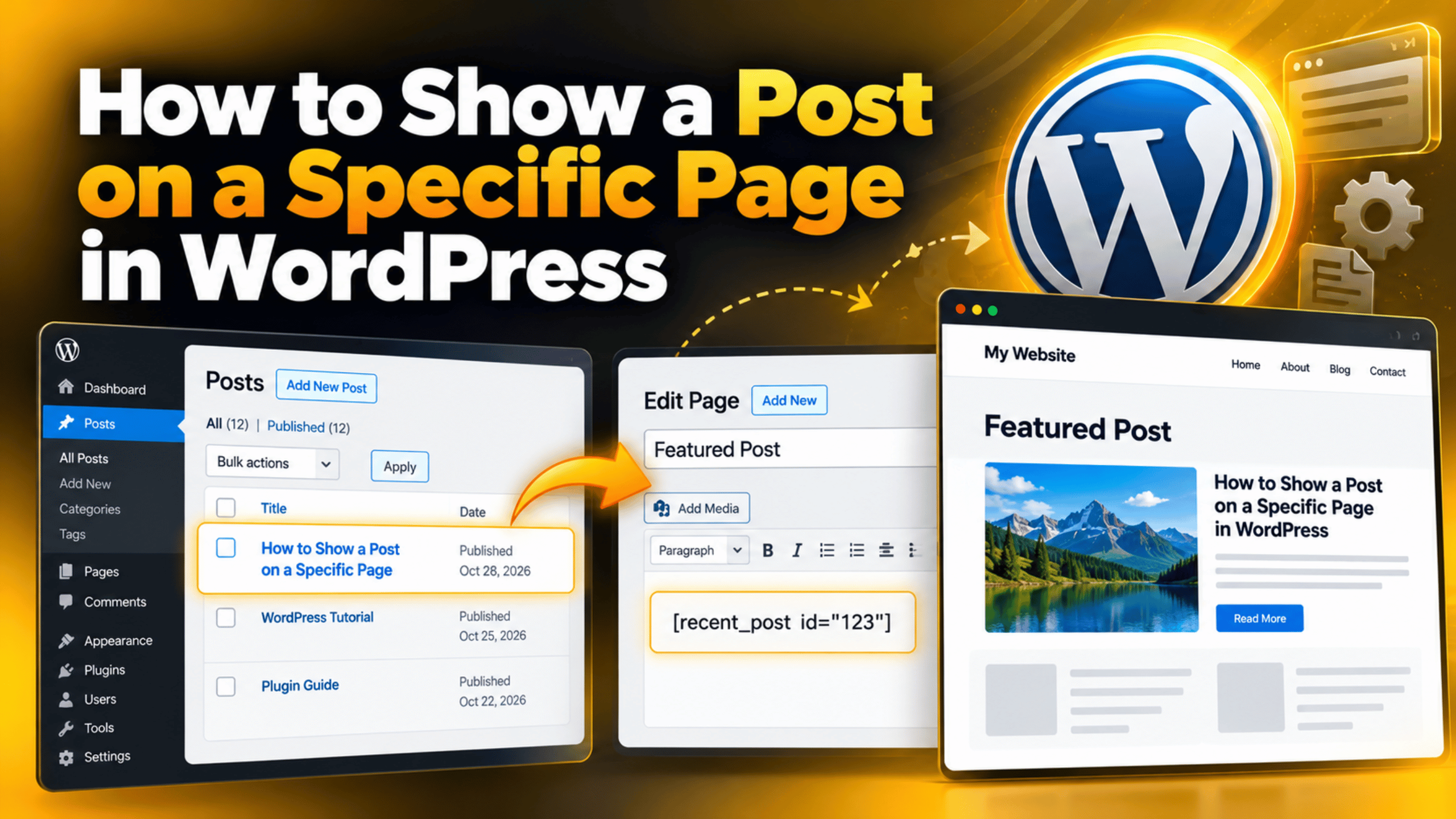
How to Show a Post on a Specific Page in WordPress (2026 Guide)
You wrote a great post, and now you want it to appear on a certain page. Maybe you want a news feed on your home page. Maybe you want one guide shown inside a services page. WordPress can do this in several ways, and the right one depends on what you want to show.
This guide explains each method in plain steps. You will learn how to show the latest posts, a list of posts from one category, and one single post on any page. You will also learn how to set up a dedicated blog page, how to fix common problems, and which method suits which job.
Posts and Pages: What Is the Difference?
WordPress has two main content types, and knowing the difference makes the rest of this guide easier. A post is a dated entry, such as a news item or a blog article. Posts are sorted by date, and you can group them with categories and tags. A page is a standalone piece of content, such as an About page or a Contact page. Pages are not part of the blog feed.
When people ask how to show a post on a page, they usually mean one of three things. They want a list of recent posts on a page. They want only the posts from one topic on a page. Or they want one chosen post, shown in full or as a short card, inside a page. Each need has its own method below.
If you want a deeper look at how the two types differ, read our guide on the difference between posts and pages in WordPress. Most themes also let you decide which page holds your blog feed, and we cover that setting later in this article.
Before You Start: Check Your Editor and Back Up
The steps below use the block editor, which is the default editor in current WordPress versions. If your site still uses the Classic Editor, some blocks are missing. In that case you can switch a single page to the block editor, or read our guide on how to use the new WordPress block editor first.
Check how your page was built, too. Some pages are made with a page builder, which is a plugin that lays out a page with drag-and-drop tools. Those tools have their own post list elements, so the steps can differ. Open the page in the editor and look at the screen. If you see the usual block inserter with a plus button at the top left, you can follow this guide.
These changes only edit page content, so they carry low risk. Even so, take a full backup before you edit an important page on a live site. A backup lets you return to the old version if something looks wrong. Our guide on how to back up and restore a WordPress website shows you how.
Method 1: Show Your Latest Posts With the Latest Posts Block
The Latest Posts block is the fastest way to put recent articles on any page. It needs no code and works in every theme that supports the block editor. Use it when you want a simple list or grid of your newest posts.
Add the Block to a Page
Go to Pages → All Pages and open the page you want to edit. Click the plus button to open the block inserter, then type Latest Posts in the search box. Click the block to add it where your cursor sits. WordPress instantly fills it with a list of your newest posts.
Drag the block up or down to place it. You can put it under an intro paragraph or beside other content. Click Update at the top right when you finish, then view the page to check the result.
Choose What the Block Shows
Click the block, then open the settings panel on the right. Here you can set how many posts to show, pick a category, change the order, and switch between a list view and a grid view. You can also turn on the featured image, the excerpt, the author name and the date.
Pick a category in the filter to show only posts from that topic. Set the number of posts to match your layout. Five or six posts suit a sidebar, while nine fit a three-column grid. If you do not see a setting you expect, make sure the block itself is selected and not the page.
Method 2: Show Posts From One Topic With the Query Loop Block
The Query Loop block gives you much more control. It lets you filter posts by category, tag, author or keyword. It also lets you design how each post card looks. Use it when you want a custom layout, such as a news section made of cards with images and short text.
Open the page in the editor, click the plus button and search for Query Loop. WordPress asks you to choose a starting layout. Pick one that looks close to what you want, because you can change it later. The block then fills with sample posts.
Next, open the block settings on the right. Under Filters, choose the post type and add a category or tag. Under Settings, set how many items to show per page. Leave the option that inherits the query from the template turned off. That option is meant for archive templates, and it will hide your filters on a normal page.
Query Loop also supports pagination, which means page number links under the list. Turn it on if you have many posts. If you want to change the order of posts, you can sort by date, title or other fields, and our guide on how to reorder posts in WordPress explains more ways to control the sequence. To add categories you can filter by, see how to add categories in WordPress.
Method 3: Show One Specific Post on a Page
Sometimes you want one chosen post, not a list. There are three clean ways to do this, and each fits a different goal.


Embed the post as a card. Copy the web address of the post from your browser. Open the page in the editor, click on an empty line and paste the address. WordPress turns it into an embed, which is a small preview card with the title, an excerpt and a link. Readers click the card to open the full post. This works well for a featured article.
Use a Query Loop with a private tag. If you want more design control, create a tag that you use only for this purpose, such as featured-on-services. Add that tag to the one post. Then add a Query Loop block to your page, filter it by that tag and set the number of items to one. The block now shows that single post as a styled card. To swap the post later, move the tag to a different post. You do not need to touch the page again.
Link to the post. If a simple link is enough, highlight text in the page, click the link button and search for the post title. WordPress finds it and links to it. This keeps the page light and fast.
Keep in mind that none of these methods copies the post text into the page. That is good for search engines. Copying the full text of a post onto a second page creates duplicate content, which can confuse search engines about which page to rank.
Method 4: Set Up a Dedicated Blog Page
If your goal is a page that holds your whole blog, you do not need a block at all. WordPress has a setting for this. Go to Settings → Reading. Under Your homepage displays, choose A static page. Then pick a page for the homepage and another page for Posts page.
Create the pages first under Pages → Add New. A common choice is a page called Home for the front page and a page called Blog for the posts. After you save the setting, WordPress fills the Blog page with your posts automatically. Do not add any content to the Posts page in the editor, because the theme controls what it shows.
You can also show only one category on a page by linking to its archive. Each category has its own web address, and you can add it to your menu. Go to Appearance → Menus, open the Categories box, tick your category and add it to the menu. Our guide on how to manage menus in WordPress covers the full menu screen.
Fixing Common Problems
Most problems come from a small setting. These are the ones we see most often.
The block shows no posts. The filter may be too narrow. Check that the category or tag you picked has published posts. Drafts and private posts do not appear to visitors. Also check that you did not set the number of items to zero.
The page looks the same after you update it. A cache is likely holding the old version. A cache is a stored copy of your page that makes it load faster. Clear your cache plugin or your host’s cache, then refresh your browser with a hard reload.
The Posts page shows my page text instead. This happens when the page you chose as the Posts page is also set as the front page. Pick two different pages under Settings → Reading.
The layout looks broken on phones. Switch the block to a single column or reduce the number of grid columns. Then use the preview button in the editor and test the phone view.
If a block is missing from the inserter, your theme or a plugin may have switched it off. Update WordPress, then test with a default theme on a staging copy of your site. A staging copy is a private duplicate where you can test changes safely.
Which Method Should You Choose?
Use the Latest Posts block when you want a quick list of new articles and no design work. Use the Query Loop block when you want cards, filters by topic or a custom look. Use an embed or a private tag when you need one chosen post. Use the Posts page setting when the whole page should be your blog.
Whichever method you pick, test the page on a phone and a laptop before you share it. Check the links, the images and the loading speed. A clear page helps readers find your best content and helps search engines understand your site structure.
If your blocks do not load, your layout breaks or your theme behaves strangely, the cause may sit deeper in your setup. The team at 24×7 WP Support works on WordPress issues every day. If you would like someone to take a look at your site, get in touch and describe what you see.
Related posts:

How to Fix Chinese Characters Appearing on My Website in Google Search Results
How to Get WordPress Certified: Courses & Credentials
How to Contact WordPress Support: Phone, Email & All Options Explained
Why Use NGINX with PHP? Benefits and Setup Guide
How to Stop Using a Theme in WordPress Safely in 2026

Brian is a WordPress support specialist and content contributor at 24×7 WP Support. He writes practical, easy-to-follow guides on WordPress troubleshooting, WooCommerce issues, plugin and theme errors, website security, migrations, performance optimization, and integrations. With a focus on solving real website problems, Brian helps business owners, bloggers, and online store managers keep their WordPress sites running smoothly.
