
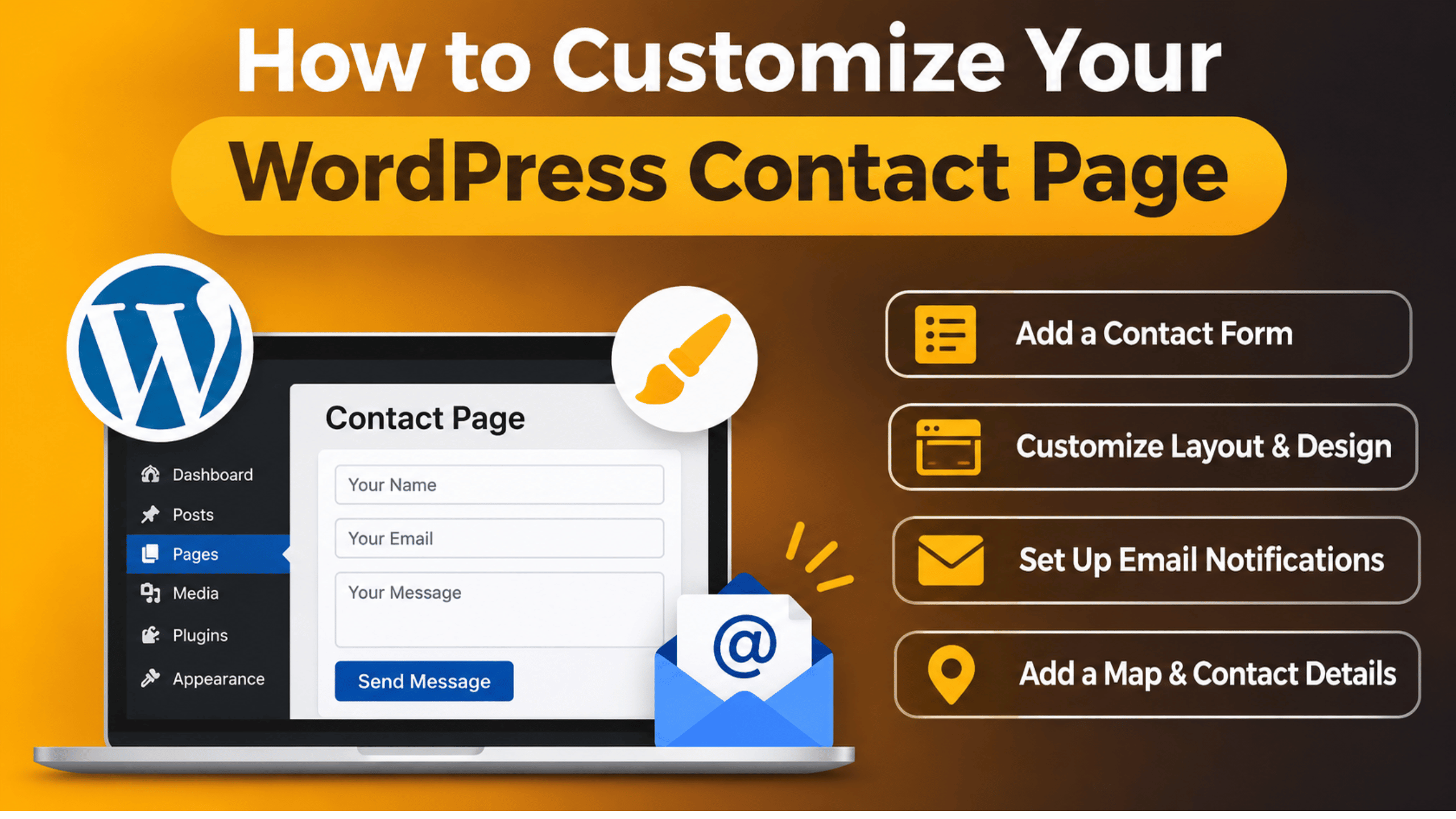
How to Customize Your WordPress Contact Page in 2026 (Step-by-Step)
Your contact page is often the last stop before a visitor becomes a customer. A cluttered or broken page sends people away. A clear, friendly page makes it easy to reach you. This guide shows you how to customize a WordPress contact page from start to finish. You will plan the content, build the form, add your details, style the layout, block spam, and test it all. Each step uses tools built into WordPress, so you can follow along even if you are not technical.
What a Good Contact Page Needs Before You Start Editing
Before you touch the editor, decide what the page must do. A contact page has one job: help a visitor reach the right person with the least effort. Write down the reasons people contact you. Common reasons include sales questions, support requests, quotes, and general feedback. Each reason may need its own field or its own route.
Next, list the details you want to show. Most sites need a short form, an email address, a phone number if you take calls, a business address if you have a shop or office, and your opening hours. Add an expected reply time as well, such as “We reply within one working day”. This small line builds trust and cuts down on repeat messages.
Finally, think about what you should leave out. Long forms scare people off. Every extra field lowers the number of messages you receive. Ask only for what you need to reply: a name, an email address, and a message. Add a subject menu or a phone field only when you will really use that data. Keep this plan beside you as you work, and the rest of the steps will go faster.
Open the Contact Page in the WordPress Editor
If your site already has a contact page, go to Pages → All Pages in your dashboard. Find the page titled “Contact” or “Contact Us” and click Edit. The block editor will open with the current content. If you do not have a page yet, go to Pages → Add New Page, type “Contact Us” as the title, and click Save draft to keep your work safe.
Take a moment to check the page settings in the right-hand panel. Under Summary, confirm the page URL ends in “contact” or “contact-us”. Short, clear URLs help both visitors and search engines. Under Template, you may see choices such as a full-width layout. A full-width or no-sidebar template keeps attention on the form, so choose it if your theme offers it.
If you use a block theme, you can go further. Open Appearance → Editor → Templates and look for a page template you can reuse. Changing a template affects every page that uses it, so make changes to the single page first. If you plan to edit theme files or template code, take a full backup first or work on a staging copy. Our guide on how to back up and restore WordPress walks through the safe way to do that.
Add and Customize the Contact Form
WordPress does not include a contact form block in a plain install, so you need a form tool. Most sites add a form plugin that works with the block editor. Choose one that is actively updated, has good reviews, and works with your theme. After you activate it, you will usually find a new menu item in the dashboard. Create a new form there and give it a clear name, like “Main Contact Form”.
Choose the Right Fields
Start with three fields: name, email, and message. Mark the email and message as required. If you offer more than one service, add a dropdown menu with a short list of topics. This lets you send each message to the right person. Add a phone field only if you plan to call people back. Use clear labels above each field, because placeholder text inside a field disappears when someone starts typing and can confuse them.
Set Up Notifications and Confirmation
In your form settings, set the email address that receives each message. Use a shared inbox, like a support address, rather than a personal one. Then write a short confirmation message, such as “Thanks, we have your message and will reply within one working day”. You can also send an automatic reply to the visitor. This proves their message arrived and lowers the chance they will send it twice.
Place the Form on the Page
Back in the page editor, click the plus icon and search for the form block, or use a shortcode block if the tool gives you one. Paste the code, choose your form, and preview the page. Place a short heading and an intro sentence above the form. Keep the form near the top of the page so no one has to scroll to find it.
Show Your Business Details Clearly
A form is not enough for every visitor. Some people want to call. Others want to see where you are. Add your details in a simple block layout beside or below the form. In the block editor, insert a Columns block with two columns. Put the form in the first column and your details in the second. On small screens WordPress stacks the columns, so mobile visitors see the form first and the details after.
Use a Heading block for each group, such as “Call us”, “Email us”, and “Visit us”. Under each one, add a short Paragraph block. Turn the phone number into a tap-to-call link by selecting the text, clicking the link icon, and typing “tel:” followed by the number with no spaces. Do the same for email using “mailto:” followed by the address. These links let mobile visitors act with a single tap.
If you have a physical location, add a map. You can use the built-in embed options or a map block. Our guide on how to add Google Maps in WordPress explains the steps. Add your opening hours as a short list, and say which time zone they use if you serve people in other regions. Keep the address and hours the same everywhere they appear on your site, including the footer.
Style the Page So It Matches Your Brand
A contact page should look like the rest of your site. Use the same fonts, colors, and button styles. In the block editor, select any block and open the Styles tab in the right panel. There you can change text color, background color, spacing, and borders. Pick high-contrast colors so the text is easy to read. Dark text on a light background is the safest choice.


Spacing makes a big difference. Give the form room to breathe by adding padding to the Columns or Group block. Use the Spacer block to add vertical space between sections. Make your submit button large and clear, with a short label like “Send message” instead of the bare word “Submit”. Buttons that say what they do get more clicks.
If your theme supports global styles, open Appearance → Editor → Styles to adjust site-wide colors and typography. Changes there apply to every page, which keeps the contact page consistent. For finer control, you can add custom CSS under Appearance → Customize → Additional CSS. Always copy your existing CSS to a safe place before you change it, and test any edit on a staging copy first. If you prefer drag-and-drop design, read our overview of how to use a page builder in WordPress.
Protect the Form From Spam and Make Sure Emails Arrive
An open contact form attracts bots. Left alone, you may get dozens of junk messages a day, and real messages get lost among them. Turn on the spam tools inside your form plugin first. Most offer a hidden honeypot field that traps simple bots without bothering real people. Many also support a challenge check that appears only when a visit looks suspicious. Our full guide on how to block contact form spam in WordPress covers each method in detail.
Spam is only half of the risk. Sometimes real messages never reach your inbox. WordPress sends mail through your web host by default, and many mail providers treat that mail as suspicious. The fix is to send form emails through a proper mail service, using an SMTP plugin that connects to your own mailbox. If your messages disappear, follow our steps in how to fix WordPress not sending email. You can also learn how to use a Gmail SMTP server for free.
Finally, respect privacy. If you collect names and email addresses, add a short note under the form that links to your privacy policy. Add a checkbox for consent if the law in your region requires one. Store as little data as you can, and delete old messages you no longer need.
Make the Page Fast, Accessible and Mobile-Friendly
More than half of web visits come from phones, so test your contact page on a small screen. Check that the fields are big enough to tap, the text is readable without zooming, and the button is easy to reach with a thumb. Use the preview tool in the editor, then open the page on a real phone to be sure.
Accessibility helps everyone. Give every field a visible label. Make sure error messages say what went wrong, such as “Please enter a valid email address”. Check that you can move through the form using only the Tab key. Add alt text to any image on the page. These small habits help people who use screen readers, and they also reduce form errors for all visitors.
Speed matters too. A contact page that loads slowly loses visitors. Keep images small, avoid heavy embeds above the form, and load a map only when it is needed. If your site uses a caching tool, clear the cache after each change so you and your visitors see the latest version. Remember that some tools load scripts on every page, so check that your form tool only loads its files where it must.
Test, Track and Improve Your Contact Page
Never trust a form you have not tested. Fill it out yourself and confirm three things: you see the confirmation message, you receive the email in your inbox rather than your spam folder, and the auto-reply reaches the sender. Do this from a different device and a different email address. Test again after every plugin or theme update, since updates can break forms without warning.
Next, measure what happens. Check how many people visit the page and how many send a message. A low send rate on a busy page tells you something is wrong. The form may be too long, the button may be hard to see, or the page may load slowly. Change one thing at a time so you know which edit helped.
Set a reminder to review the page every few months. Confirm that your phone number, address, and hours are still correct. Remove old announcements. Read a few recent messages to see which questions people ask most often, and answer those on the page. A small FAQ block under the form can cut your inbox volume and help visitors find answers faster.
Get Help With Your WordPress Contact Page
A clean, fast, secure contact page takes some care, but the steps are simple: plan the content, build a short form, show your details, match your brand, block spam, and test everything. If you would like someone to look at your forms, email delivery, or page design, the team at 24×7 WP Support works on WordPress sites every day. You can also see our guide to creating a custom form in WordPress for a deeper look at form building.
Related posts:


Brian is a WordPress support specialist and content contributor at 24×7 WP Support. He writes practical, easy-to-follow guides on WordPress troubleshooting, WooCommerce issues, plugin and theme errors, website security, migrations, performance optimization, and integrations. With a focus on solving real website problems, Brian helps business owners, bloggers, and online store managers keep their WordPress sites running smoothly.