
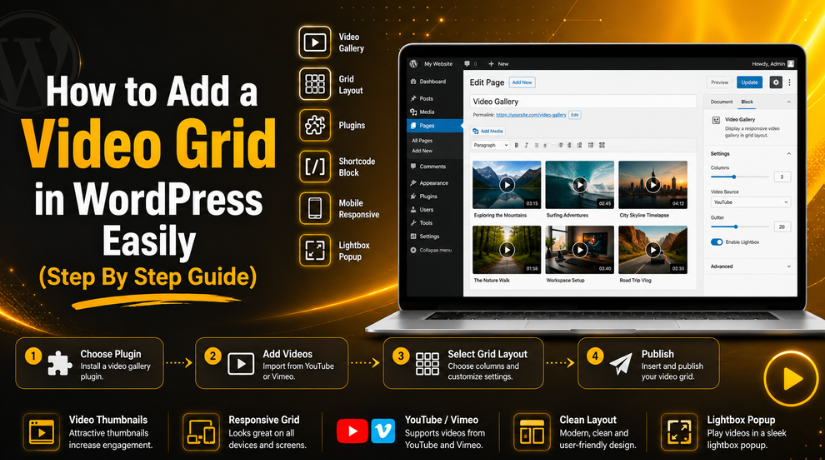
How to Add a Video Grid in WordPress Easily (Step By Step Guide)
Introduction
Video content is now important for every modern website. People like watching videos before reading long details. A short video can explain products, services, tutorials, and reviews clearly. It can also help visitors understand your message faster. Many website owners use videos for training, customer stories, product demos, and service guides. However, adding many videos one by one can make pages look messy. It can also create poor spacing and a weak user experience.
A video grid in WordPress solves this layout problem. It displays many videos in a clean row-and-column format. This makes the page easy to scan and simple to use. Visitors can see different videos in one place. They can choose the video they want without extra scrolling.
You can add video grid WordPress layouts using different methods. Some users create basic grids with blocks. Others use a WordPress video gallery plugin for better control. A plugin can help with thumbnails, popups, columns, and mobile views. It can also make your WordPress video layout look more professional. In this guide, you will learn the basic meaning of a video grid. You will also understand how it helps WordPress websites.
What Is a Video Grid in WordPress and How Does It Work?
A video grid in WordPress is a layout style. It shows multiple videos in rows and columns. Each video usually appears inside a box or card. That card may include a thumbnail, play button, title, and short text. This layout helps visitors view many videos quickly. It also keeps your page neat and balanced.
A single video embed shows only one video. A video grid shows several videos together. This makes it better for websites with many video resources. For example, a business may show product videos. A coach may show training videos. A blogger may show YouTube guides. A service website may show customer review videos.
A WordPress video gallery works in a similar way. It may offer more features than a simple grid. These features can include filters, categories, lightbox popups, and pagination. A WordPress video gallery plugin can help you build these layouts without coding. It is useful when you want a clean and flexible video section.
What Does a WordPress Video Grid Look Like on a Page?
A video grid usually shows two, three, or four videos per row. On mobile screens, it often changes to one column. This keeps videos easy to view on smaller devices. A good WordPress video layout keeps the same spacing, size, and style. It also makes every video look part of one clean section.
Where Can You Use a Video Grid in WordPress?
You can embed video grids in WordPress pages for many purposes. It works well for tutorials, courses, webinars, testimonials, events, and portfolios. You can also use it for product demos and service explainers. A clean video grid helps visitors watch content easily. It also makes your website look more useful and professional.
Why Add a Video Grid to Your WordPress Website for Better User Experience?
A video grid in WordPress helps you show videos clearly. It gives your page a clean and organized structure. Visitors can view many videos without feeling confused. This layout works well for tutorials, product demos, reviews, and service videos. It also helps your website look more modern and useful.
It Makes Video Content Easy to Browse
A video grid helps visitors find videos quickly. They can scan many videos from one section. This saves time and improves the browsing experience. Without a grid, videos may appear in a long list. That can make the page hard to use. A clean WordPress video layout keeps everything simple. It helps visitors choose the right video faster.
It Improves the Overall Website Design
A proper video grid makes your page look professional. It keeps thumbnails, titles, and spacing in one style. This creates a balanced design across the page. A messy video section can reduce user trust. A clean grid can make your content look planned. It also helps your website feel more polished. This is useful for business and service websites.
It Helps Promote Products, Services, and Tutorials
You can use a WordPress video gallery to promote many things. It can show product demos, service guides, client reviews, and training videos. A business can explain services through short videos. An online store can show product use cases. A course website can show lesson previews. This makes your content more helpful for visitors.
It Can Increase User Engagement on Your Website
Videos can keep visitors on your website longer. A clear grid encourages users to watch more content. When videos are easy to find, users stay engaged. They may watch tutorials, reviews, or related videos. This can improve their trust in your website. A better video section can also support more conversions.
It Works Well With YouTube and Vimeo Videos
Many users prefer to embed videos from YouTube or Vimeo. This is easier than uploading large video files directly. You can embed video grids in WordPress using video links. Many plugins support YouTube and Vimeo video sources. This keeps your hosting space safe. It also makes video management easier for beginners.
It Helps Organize Large Video Libraries
A video grid is useful when your site has many videos. You can arrange videos by topic, service, product, or category. This helps visitors find the right content quickly. A WordPress video gallery plugin can make this easier. Some plugins offer filters, categories, and pagination. These features are helpful for large video collections.
Things to Prepare Before Creating a Video Grid in WordPress
Before you add video grid WordPress layouts, prepare your content first. Good preparation saves time and avoids layout issues. It also helps you create a better video section. You should collect video links, titles, thumbnails, and descriptions. You should also decide how the grid should appear.
Prepare Final Video URLs
Collect all final video links before creating the grid. These links may come from YouTube, Vimeo, or other platforms. Make sure every video link works properly. Broken links can damage the user experience. If you use self-hosted videos, check the file size. Large files can slow down your website.
Write Short and Clear Video Titles
Each video needs a clear title. The title should explain the video topic quickly. Avoid long titles because they may break the layout. Short titles also look better inside a grid. They help users understand each video faster. A clear title also makes your video section more useful.
Add Helpful Video Descriptions
Short descriptions can improve the video grid experience. They tell users what each video covers. Keep descriptions simple, direct, and helpful. Do not write long paragraphs under every video. A few clear lines are enough. This also helps your WordPress video layout stay clean.
Use Clean and Equal-Size Thumbnails
Thumbnails are very important for a video grid. They help users notice each video quickly. Use clear, high-quality, and equal-size thumbnails. Mixed thumbnail sizes can make the grid look uneven. A professional thumbnail style improves the full section. It also makes the page more attractive.
Decide the Number of Columns
Choose how many videos should appear in one row. Most websites use two or three columns on the desktop. Too many columns can make videos look small. A simple layout is easier to view. Make sure the grid has enough spacing. This keeps every video card clean and readable.
Plan the Mobile Layout Properly
Your video grid must work well on mobile devices. Many users visit websites from their phones. A one-column mobile layout is usually best. It keeps videos large and easy to tap. Check spacing, title size, and thumbnail width. A responsive layout improves the user experience.
Choose the Right Plugin Before Starting
A good WordPress video gallery plugin can save time. Choose a plugin with responsive layouts and shortcode support. It should support YouTube, Vimeo, thumbnails, and lightbox popups. Also check reviews, updates, and support options. The right plugin helps you create a clean video grid faster. It also reduces design and display problems later.
How to Add a Video Grid in WordPress (Complete Guide)
A plugin is the easiest way to create a video grid in WordPress. You do not need coding skills. A plugin gives you ready-made layout options. It helps you add videos, thumbnails, titles, and descriptions. It also helps you control the full WordPress video layout. This method is best for beginners, bloggers, business owners, and service websites.


Step 1: Choose the Right WordPress Video Gallery Plugin
- First, choose a good WordPress video gallery plugin.
- The plugin should support YouTube and Vimeo videos.
- It should also support other external video links.
- Check if the plugin offers a responsive grid layout.
- A responsive layout works well on desktop and mobile.
- Check plugin reviews before installing it.
- Also check when the plugin was last updated.
- A regularly updated plugin is safer to use.
- Choose a plugin with shortcode or block support.
- Also check for thumbnails, columns, and lightbox options.
Things to Check Before Installing the Plugin
- It should support YouTube and Vimeo videos.
- It should offer a responsive grid layout.
- It should work well with your WordPress theme.
- It should support shortcode or block editor use.
- It should allow video titles and thumbnails.
- It should have good reviews and regular updates.
Step 2: Install and Activate the Plugin
- Go to your WordPress dashboard.
- Click on Plugins > Add New.
- Search for your selected video gallery plugin.
- Click the Install Now button.
- Wait until the installation process finishes.
- Click the Activate button after installation.
- The plugin will now be active on your website.
- Take a website backup before adding any plugin.
- A backup keeps your website safe from plugin issues.
Step 3: Create a New Video Gallery
- Open the plugin settings from your dashboard.
- Most plugins add a new menu after activation.
- Click the plugin menu to create a new gallery.
- Give your gallery a simple and clear name.
- You can use names like “Tutorial Videos.”
- You can also use names like “Product Videos.”
- A clear name helps you manage galleries later.
- Now paste your first video URL.
- Add a short and clear video title.
- Add a small video description if needed.
- Upload a clean thumbnail if the plugin allows it.
- Use the same thumbnail size for all videos.
Step 4: Add Videos to the Gallery
- Add your videos one by one.
- Paste each video URL into the plugin field.
- You can add YouTube videos to the gallery.
- You can also add Vimeo videos if supported.
- Some plugins support other external video links.
- Make sure every video link works properly.
- A broken video link creates a poor user experience.
- Keep every video title short and clear.
- Long titles may disturb the video grid layout.
- Add only important videos first.
- This keeps the page clean and fast.
Step 5: Choose the Video Grid Layout
- Open the layout settings inside the plugin.
- Choose how many columns you want.
- Most plugins allow two, three, or four columns.
- Two or three columns work well for most websites.
- Avoid too many columns on one row.
- Too many columns can make videos look small.
- Set proper spacing between each video.
- Good spacing keeps the grid clean and readable.
- Choose the thumbnail size for your videos.
- Keep all thumbnails equal in size.
- Enable lightbox popup if the plugin offers it.
- Lightbox helps users watch videos without leaving the page.
Step 6: Add the Video Grid to a Page or Post
- After creating the gallery, copy its shortcode.
- Open the page or post where you want it.
- Add a Shortcode block in the WordPress editor.
- Paste the copied shortcode into that block.
- Click Update or Publish.
- Now preview the page on your website.
- Your video grid in WordPress should appear there.
- Some plugins also provide a block option.
- You can use that block instead of shortcode.
- Select your gallery from the plugin block settings.
Step 7: Check the Video Grid on All Devices
- Open the video grid page on the desktop first.
- Check if all videos appear properly.
- Make sure the grid spacing looks clean.
- Now open the same page on a mobile phone.
- The video grid should adjust to screen size.
- On mobile, one column usually works best.
- Check if each video plays correctly.
- Make sure all thumbnails load properly.
- Check if titles are easy to read.
- Test the popup or lightbox option.
- Fix any spacing or display issue before sharing.
Step 8: Improve the Video Grid Speed
- Videos can slow down your WordPress website.
- So, optimize the grid before publishing it.
- Use thumbnails before loading full video players.
- Enable lazy loading if your plugin offers it.
- Lazy loading loads videos only when needed.
- Compress thumbnails before uploading them.
- Avoid using very large thumbnail images.
- Do not add too many videos on one page.
- Use pagination if you have many videos.
- Avoid uploading heavy videos directly to hosting.
- Use YouTube or Vimeo embeds when possible.
- This helps you embed video grid in WordPress faster.
Common Problems When Adding a Video Grid in WordPress
Even a simple video grid in WordPress can sometimes show issues. These problems usually happen because of plugin settings, theme styles, cache, or video links. The good thing is that most issues are easy to fix. You only need to check the setup step by step. A clean WordPress video layout should load properly, look neat, and work on all devices.
Video Grid Is Not Showing on the Website Page
Sometimes the video grid does not appear after setup. This can happen because of a wrong shortcode. It can also happen when the plugin is not active. First, check if the WordPress video gallery plugin is activated. Then check if the shortcode is copied correctly. Also clear your website cache after making changes. If the grid still does not show, check the plugin settings again. Some plugins need you to publish the gallery first.
Videos Are Not Playing After Adding Them
Videos may not play if the link is incorrect. A YouTube or Vimeo video may also block embedding. First, open the video link in a browser. Check if the video is public and working. Then confirm that embedding is allowed for that video. If you use self-hosted videos, check the file format. Some browsers may not support every video format. Using YouTube or Vimeo links is often easier.
Video Grid Looks Broken on Mobile Devices
A good WordPress video layout must work on mobile. Sometimes the grid looks fine on desktop. But it may look broken on phones. This usually happens because of fixed column settings. It can also happen due to theme CSS issues. Open the plugin layout settings first. Choose a responsive grid option if available. Set one column for mobile devices. Then preview the page on different screen sizes.
Thumbnails Are Not Loading Properly in the Grid
Thumbnails help users understand each video quickly. If thumbnails do not load, the grid may look empty. This issue can happen because of missing thumbnails. It may also happen because of video source problems. First, check if the thumbnail image is added. Then check if the image file is loading properly. If you use YouTube videos, refresh the video data. Also avoid very large thumbnail images. Large images may load slowly.
Video Grid Is Loading Very Slowly
Videos can make pages heavy if not managed well. A large WordPress video gallery may slow down loading. This usually happens when many videos load together. Use lazy loading if your plugin supports it. Lazy loading helps videos load only when needed. Also use compressed thumbnail images. Do not add too many videos on one page. If you have many videos, use pagination. This keeps the page faster and cleaner.
Lightbox Popup Is Not Working Correctly
Many plugins offer a lightbox popup feature. It lets users watch videos without leaving the page. Sometimes this popup may not open. This can happen because of a JavaScript conflict. It can also happen because of cache settings. First, clear your website and browser cache. Then test the page again. If the issue stays, disable other plugins one by one. This can help you find the conflict.
Video Titles Look Uneven Inside the Grid
Long video titles can break the grid design. They may create uneven boxes or extra spacing. Keep titles short, clear, and direct. Use the same title style for every video. Avoid adding full sentences as titles. Short titles make the video grid in WordPress look cleaner. They also help visitors scan videos faster.
Plugin Shortcode Appears as Plain Text
Sometimes the shortcode appears as text on the page. This usually means WordPress is not processing it. First, check if the plugin is active. Then place the shortcode inside a Shortcode block. Do not paste it into a normal paragraph block. Also confirm that the shortcode is complete. If one bracket is missing, it may not work.
Conclusion
Adding a video grid in WordPress is a simple way to show videos neatly. It helps you organize tutorials, product demos, reviews, lessons, and service videos. A clean video grid also improves your page design. It makes videos easier to browse and watch.
You can use a WordPress video gallery plugin to create the grid faster. A plugin helps you manage columns, thumbnails, titles, descriptions, and popups. It also makes the WordPress video layout more responsive on desktop and mobile.
Before publishing the grid, always check everything carefully. Test all video links, thumbnails, spacing, and mobile views. Also check page speed, because too many videos can slow your website. Use lazy loading, compressed thumbnails, and pagination when needed.
A well-planned video grid can improve user experience. It can also make your content more useful and professional.
If you want to add video grid WordPress layouts without confusion, 24x7wpsupport can help. Our team can install the right plugin, configure your video gallery, fix layout issues, and make your video grid responsive on all devices. Visit 24x7wpsupport today for expert WordPress support.






Brian is a WordPress support specialist and content contributor at 24×7 WP Support. He writes practical, easy-to-follow guides on WordPress troubleshooting, WooCommerce issues, plugin and theme errors, website security, migrations, performance optimization, and integrations. With a focus on solving real website problems, Brian helps business owners, bloggers, and online store managers keep their WordPress sites running smoothly.
