
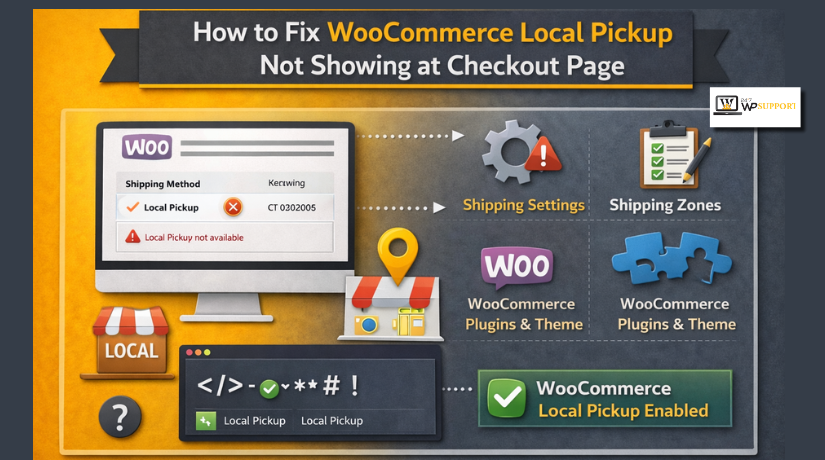
How to Fix WooCommerce Local Pickup Not Showing at Checkout Page
Last updated on April 15th, 2026 at 07:44 am
Introduction
Many store owners face WooCommerce local pickup not showing at checkout. This issue creates confusion during the final buying step. Customers expect to choose delivery or pickup with ease. When pickup disappears, some buyers leave without placing orders.
This problem can hurt conversions and increase support requests. It can also make your checkout look broken or incomplete. For stores serving local buyers, pickup is often very important. If it is missing, the customer experience suffers right away.
If you notice WooCommerce local pickup not showing, do not guess. WooCommerce only shows shipping methods when store settings match checkout conditions. Even one wrong setting can hide the pickup option. That is why the issue often feels sudden and confusing.
Why WooCommerce hides the pickup option
WooCommerce does not show every shipping method to every shopper. It checks the customer address, shipping zone, and method settings first. It also reviews cart details and other active store rules. If something does not match, pickup stays hidden at checkout.
In many cases, local pickup not showing in WooCommerce checkout happens because of a setup mismatch. The problem usually comes from one of these areas:
- The shipping zone does not match the customer address.
- The pickup method is not enabled in that zone.
- The customer location falls outside the allowed pickup area.
- The cart has restrictions affecting available shipping methods.
- A plugin or theme changes checkout shipping behavior.
If you are wondering how to fix WooCommerce local pickup not showing, start by checking these basics first. This makes troubleshooting faster and more accurate.
Check Shipping Zone and Local Pickup Method Setup
Make Sure Local Pickup Is Added to the Correct Shipping Zone
A wrong shipping zone is a common cause of checkout issues. If the zone does not match the shopper’s address, pickup will not appear. This is often why WooCommerce pickup option missing at checkout becomes a real problem.
Go to WooCommerce > Settings > Shipping first. You will see all shipping zones listed there. Open each zone and check its location rules carefully. WooCommerce matches zones using country, state, city, or ZIP code. If the customer address does not match the zone, the method stays hidden.
This is where many stores make small but costly mistakes. The pickup method may be added, but inside the wrong zone. In other cases, the zone may miss important ZIP codes. That can make WooCommerce local pickup not available for nearby buyers.
Check these points one by one:
- The correct USA state is included in the zone.
- The required city or region is added correctly.
- ZIP code rules match your real pickup service area.
- The pickup method is not placed in another zone.
- The active customer address triggers the expected zone.
If your store uses multiple shipping zones, review their order too. WooCommerce applies the first matching zone it finds. A broad zone placed higher may block the right one. That is why local pickup not showing in WooCommerce checkout can happen even when settings look correct at first glance.
Confirm the Local Pickup Method Is Enabled Inside That Zone
After checking the zone, open it and review its methods. Some store owners create the right zone but forget the next step. Local pickup must be added and active inside that zone. If it is missing there, checkout cannot display it.
Click Add shipping method and choose Local Pickup if needed. If the method already exists, open its settings and confirm it is active. Also check the method title and cost fields. A clear title helps users understand the option quickly.
Pay close attention to these setup details:
- Local Pickup is added to the correct zone.
- The method is enabled and not removed.
- The label is clear for checkout users.
- Any fee is intentional and not confusing.
- No duplicate pickup methods create display issues.
Many cases of WooCommerce local pickup not showing at checkout start here. The zone exists, but the pickup method is not active inside it. Test checkout with a real customer address after every change. That will show whether the correct zone and method now work together.
Verify Customer Location and Cart Conditions
Check Customer Location and Address Settings
Customer location plays a direct role in checkout shipping options. WooCommerce reads the shopper’s address before showing available methods. If that address falls outside your pickup zone, the option stays hidden.
Start by reviewing your store location settings carefully. Go to WooCommerce > Settings > General first. Then check your selling and shipping locations. Make sure those settings match your real service area.
Next, review the customer address used during testing. A wrong state, city, or ZIP code can block pickup. This often makes store owners think the setup is broken. In reality, the address does not match the pickup zone.
This issue is common in USA-based local stores. A shop may offer pickup in one city only. Another store may allow pickup in selected ZIP codes. If the buyer enters an address outside that area, WooCommerce local pickup not available becomes the expected result.
Check these settings during testing:
- Selling location allows orders from the target area.
- Shipping location supports the same service area.
- Default customer location does not cause wrong zone matching.
- Test addresses use valid state and ZIP code details.
If you are checking how to fix WooCommerce local pickup not showing, always test with a real in-zone address first. Then test with an out-of-zone address. This helps confirm whether location rules cause the issue.
Review Product and Cart Restrictions
Cart contents can also affect the pickup option at checkout. WooCommerce does not show every shipping method for every cart. Some product settings or shipping rules may block local pickup.
Start with the products in the cart. Virtual items do not need shipping in most cases. Mixed carts can also create method conflicts. Some shipping plugins apply rules based on weight, category, or order value.


That is why WooCommerce local pickup not showing may happen only on certain orders. One product may allow pickup, while another may block it. A custom shipping class can also change which methods appear.
Review these common cart-related causes:
- The cart contains virtual-only products.
- A mixed cart triggers a shipping rule conflict.
- Shipping classes limit which methods can appear.
- Plugin rules restrict pickup by product or category.
For a clean test, add one simple physical product only. Then go to checkout and check the result again. This is one of the fastest ways to isolate the real cause.
Check for Conflicts and Cached Checkout Data
Test for Plugin and Theme Conflicts
Sometimes the setup looks correct, but checkout still fails. In that case, a conflict may be blocking the pickup method. This is a common reason behind WooCommerce pickup option missing at checkout.
Start by reviewing recent plugin activity on your store. Shipping plugins often change how checkout methods appear. Checkout field editors can also affect method display. Delivery date tools, multi-vendor plugins, and custom code may do the same.
Your theme can also create checkout problems. Some custom themes change WooCommerce templates or checkout logic. That can hide methods even when settings are correct. If WooCommerce local pickup not showing at checkout continues, test for conflicts step by step.
Use this simple process:
- Switch to a default WordPress theme temporarily.
- Disable non-essential plugins one at a time.
- Test checkout after each change.
- Keep one physical product in the cart.
- Use the same test address each time.
This process helps you find the exact source. If pickup returns after one change, you have likely found the conflict. Also review any custom code added through snippets or functions.php. Small code changes can affect shipping methods without clear warnings.
Clear Cache and Refresh Checkout Data
Cached data can keep old checkout settings active. That means your fixes may not appear right away. This can make troubleshooting much harder than needed.
If WooCommerce local pickup not showing even after correct setup, clear all cache layers. Start with your browser cache first. Then clear your site cache and server cache. If you use a CDN, clear that cache too.
Also test checkout in a private browser window. This removes saved session data during testing. In some cases, old WooCommerce session data can keep wrong shipping results.
Clear these areas before testing again:
- browser cache
- website cache
- server cache
- CDN cache
- WooCommerce session data
After clearing cache, open checkout on another device if possible. This helps confirm whether the issue still exists. Many store owners miss this step and assume nothing changed. In reality, the old checkout version is still loading. A fresh test often shows whether WooCommerce local pickup not showing is caused by conflict, cache, or both.
Look Back at Recent Store Changes
If the pickup option disappeared without warning, review your recent changes first. This issue often starts after a plugin update, theme change, shipping rule edit, or checkout customization. In many stores, the setup was working before one small change affected how shipping methods appear.
Start by checking what was changed just before the problem began. Review WooCommerce updates, shipping plugin settings, and any edits made to the checkout page. Also look at custom code added through snippets or theme files. A small code change can affect shipping methods without showing an obvious error. This is one reason WooCommerce local pickup not available can appear suddenly, even when the store worked earlier.
If you recently changed shipping zones or pickup rules, test those settings again. Also confirm that your checkout page still uses the correct WooCommerce checkout setup. Broken templates or custom layouts can sometimes interfere with shipping display.
Use a Final Troubleshooting Checklist
Before testing checkout again, go through one final review. This helps you catch missed settings and keeps your troubleshooting process clear. It also helps confirm whether WooCommerce local pickup not showing at checkout is caused by setup, location, or a recent store change.
Use this checklist before your next test:
- the correct shipping zone matches the customer address
- Local Pickup is added and enabled in that zone
- the customer address falls inside the pickup area
- the cart contains eligible physical products
- no plugin or theme conflict is blocking the method
- cache and session data are fully cleared
Conclusion
If you still notice WooCommerce local pickup not showing, stay methodical. This issue is usually caused by one clear mismatch in settings or behavior. Once you test each area one by one, the real cause becomes much easier to find and fix.
If you have checked every setting and the issue still remains, expert help can save time. The team at 24x7WP Support can troubleshoot shipping zones, checkout conflicts, plugin issues, and pickup settings with care. If your WooCommerce local pickup not showing at checkout problem is affecting sales, professional support can help restore a smooth checkout experience faster.
Related posts:
Does SurveyMonkey Work With WordPress? Embed Guide
WordPress 403 Forbidden-What It Is and Viable Ways to Resolve It
Best GDPR Compliance Plugin for WordPress to Protect User Privacy (Complete Guide)
A Complete Guide on How to Edit WordPress Pages/Plugin/Files
How to Import Export Widget Setting in WordPress?

Brian is a WordPress support specialist and content contributor at 24×7 WP Support. He writes practical, easy-to-follow guides on WordPress troubleshooting, WooCommerce issues, plugin and theme errors, website security, migrations, performance optimization, and integrations. With a focus on solving real website problems, Brian helps business owners, bloggers, and online store managers keep their WordPress sites running smoothly.
