
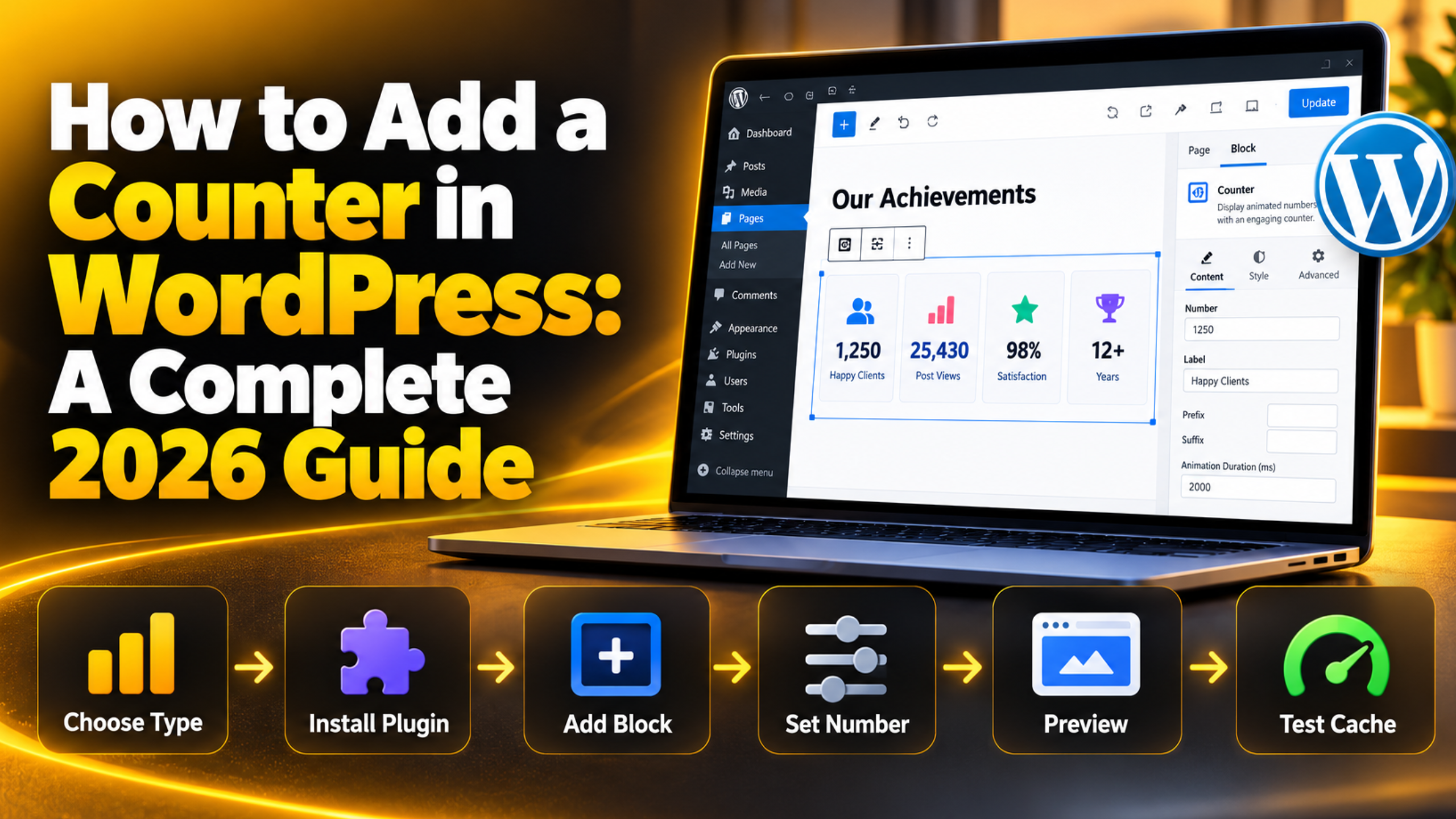
How to Add a Counter in WordPress: A Complete 2026 Guide
A counter is a small number on a page that does a big job. It can show how many clients you have served, how many people read a post, or how many orders your shop has shipped. Numbers like these build trust fast, because a visitor can take them in at a glance. This guide shows you how to add a counter in WordPress in 2026, which type to pick, and how to keep it accurate and fast. Each section gives you the exact screen to open, so you can jump straight to the method that fits your site.
What Is a Counter in WordPress?
In WordPress, a counter is any element that shows a number which either animates or changes over time. WordPress does not ship with a counter block in its core editor. That means you add one with a plugin, a page builder widget, a block from a block library, or a small piece of your own code.
It helps to split counters into two groups. The first group is display counters. You type the number in yourself, such as “1,200 happy clients”, and the counter simply animates from zero up to that value when it scrolls into view. Nothing is tracked. The second group is live counters. These read a real value from your site, such as page views, post count, or sales, and update on their own.
Display counters are simple and light. Live counters need a data source, so they touch the database and can be affected by caching. The setup and the risks differ, so pick your group first.
Which Type of Counter Does Your Site Need?
Before you install anything, decide what the counter should say. Most sites need one of four types. Each one answers a different question for the visitor, and each one is built in a different way.
Animated stat counter. This is the most common choice on business sites. It shows milestones like years in business, projects done, or support tickets solved. The number rolls up from zero when the visitor scrolls to it. It is pure display, so it stays light.
Post view counter. Blogs and news sites use this to show how many times a post has been read. It is a live counter. It stores a total for each post in the database and adds one each time someone opens that post.
Visitor or hit counter. This shows total visits to the whole site. If your goal is to study traffic, a proper analytics setup is a better fit. Our guide on how to track visitors and check website traffic on WordPress explains that route.
Countdown counter. This counts down to a date, such as a sale or a launch. It works on a timer rather than on stored numbers. We cover it in full in our step-by-step guide to adding a countdown timer in WordPress, so this article focuses on the other three.
Method 1: Add a Counter With a Plugin
A plugin is the quickest and safest way for most site owners. You do not touch any code, and the plugin handles the animation, the styling, and in some cases the tracking. The steps below work for both display counters and post view counters. Just pick a plugin built for the type you chose in the section above.
How to Pick and Install a Counter Plugin
Go to Plugins → Add New Plugin in your dashboard. Search for “number counter” for a display counter, or “post views” for a view counter. Before you click Install, check four things on the plugin card. Look for a recent “Last updated” date, a high count of active installs, a “Compatible with your version of WordPress” note, and good reviews. A plugin that has not been updated in over a year is a risk to your security and to future updates.
Click Install Now and then Activate. Most counter plugins add either a new block, a shortcode, or a settings page. Check the plugin’s own settings screen, usually found under Settings or in its own menu item, to set default colours and speed.
How to Place the Counter on a Page
Open the page in the block editor under Pages → All Pages, then click the plus icon to add a block. Search for “counter”. If the plugin gave you a block, add it and fill in the start number, end number, label, and speed in the right-hand sidebar. A good speed is around two seconds. Longer than that and visitors may scroll past before the number finishes.
If the plugin uses a shortcode instead, add a Shortcode block and paste the code from the plugin’s settings page. Our complete guide to shortcodes in WordPress explains how shortcodes work if this is new to you. Click Preview, scroll down to the counter, and check that it animates once and stops on the right number.
Method 2: Use Your Page Builder or Block Library
If your site already uses a page builder or an add-on block library, you may already have a counter. Many popular page builders include a “Counter” or “Number” widget in their free version. Using it means you add no new plugin, which keeps your site lighter and your plugin list shorter.
To check, open a page in your builder and search its widget panel for “counter”, “number”, or “stats”. Drag the widget into place and set the starting value, ending value, prefix, suffix, and duration. A prefix lets you add a symbol such as a currency sign before the number. A suffix lets you add a plus sign or a percent sign after it.
Most builders also let you set a thousands separator, so “12000” shows as “12,000”. Turn this on for any number above 999, as it is far easier to read. If you are still deciding how you want to build pages, our comparison of Gutenberg vs page builders in WordPress covers the trade-offs in detail.
Method 3: Build a Simple Counter Without a Plugin
If you only need one animated stat on one page, you can build it with a Custom HTML block. This avoids a plugin for a single small feature. It is best suited to people who are happy to paste a short snippet and test it. Before you add any custom code, take a full backup of your site or work on a staging copy, so you can roll back if something looks wrong.


In the block editor, click the plus icon and add a Custom HTML block. Paste the snippet below. Change the number in data-target to your own value, and change the label text to suit your page.
<div class="wp-counter" data-target="1250">0</div>
<p>Happy clients</p>
<script>
document.querySelectorAll('.wp-counter').forEach(function (el) {
  var end = parseInt(el.dataset.target, 10), cur = 0;
  var step = Math.max(1, Math.ceil(end / 100));
  var t = setInterval(function () {
    cur = Math.min(cur + step, end);
    el.textContent = cur.toLocaleString();
    if (cur === end) clearInterval(t);
  }, 20);
});
</script>
Click Preview to test it. The number should rise from zero and stop on your value. This simple version starts as soon as the page loads, not when the visitor scrolls to it. If you need many counters across your site, a plugin is easier to manage. Only users with the right role can save a script inside a Custom HTML block, which is a WordPress safety feature, so you may need an Administrator account.
How to Add a Post View Counter That Stays Accurate
Post view counters are the type most likely to show the wrong number. The cause is nearly always caching. A cache saves a ready-made copy of each page so it loads fast. When a visitor gets that saved copy, WordPress does not run its PHP code, so a counter that adds one on the server side never fires. The result is a count that barely moves, even when traffic is good.
The fix is to choose a view counter that records each visit with a small background request from the browser, often called an AJAX request. This request runs every time the page opens, cached or not. When you compare plugins, look for words like “works with caching” or “AJAX counting” on the plugin page. Then test it. Open a post in a private browser window, reload it twice, and check that the count goes up.
You should also think about where the counts are stored. Some counters write a total to each post’s metadata, while others use their own database table. A busy site with thousands of posts can build up a lot of rows over time. Our guide on how to clear WordPress cache helps when you need to refresh pages after changing counter settings.
How to Keep Counters From Slowing Your Site
A counter should never make your page slower. Display counters are light, but some plugins load their scripts and styles on every page, even pages with no counter on them. That adds weight for no gain. After you install a counter plugin, check its settings for an option to load files only where the counter is used.
Run a speed test before and after you add a counter. Our article on page speed scores and why they matter shows how to read the results. If the score drops by more than a few points, the counter plugin may be loading too much. Try a lighter option, or use the Custom HTML method for a single stat.
Live view counters add a small database write for each visit. On a very busy site this can add load during traffic spikes. If it does, look for a counter that groups writes together, or consider tracking views in your analytics tool rather than on the page. Our guide on how to set up a staging site in WordPress lets you test any new counter plugin safely before it reaches your live site.
Common Counter Problems and How to Fix Them
Counters are simple, but a few problems come up again and again. Most have a quick fix you can try from the dashboard. Test after each change so you know which step made the difference.
The counter shows zero and never moves. This usually means its script did not load. Clear your site cache and your browser cache, then reload. If a caching or speed tool delays or combines scripts, exclude the counter’s script from those settings and test again.
The number animates before anyone sees it. The counter is starting on page load rather than on scroll. Check the plugin or widget for a “start on scroll” or “viewport” option and turn it on.
The post view count is stuck or very low. This points to caching, as covered above. Switch to a counter that uses background requests, and test it in a private window.
The counter looks broken after an update. A theme or plugin update may have changed styles. Our guide to common WordPress block editor problems and fixes covers the editor side. If the problem started after a theme change, test with a default theme on a staging copy first.
Conclusion
Adding a counter in WordPress is easy once you know which type you need. Display counters show milestones you set yourself. Post view counters track real reads. Visitor counters show total traffic, and countdowns run to a date. A plugin is the simplest route for most sites, a page builder widget saves a plugin if you already have one, and a Custom HTML block works well for a single stat.
Place counters where visitors decide whether to trust you, such as below the main banner or above a contact form. Keep them honest, keep them to three or four in a row, and update milestone figures every few months so they never look stale. Check that they do not slow your pages. Test view counters with caching in mind, and always back up or use staging before you add custom code. If you would like help adding counters, fixing a count that will not update, or speeding up your site, the team at 24×7 WP Support works on these tasks every day and is happy to take a look.
Related posts:
Do People Still Use WordPress for Blogging in 2026? The Complete Answer
How to Check Your WordPress Site Performance in 2026
How Do Webhooks Work in WordPress? A Beginner’s Guide

How to Post by Email in WordPress and Let Readers Follow in 2026

Is the WordPress Logo Trademarked? What You Can and Cannot Use

Brian is a WordPress support specialist and content contributor at 24×7 WP Support. He writes practical, easy-to-follow guides on WordPress troubleshooting, WooCommerce issues, plugin and theme errors, website security, migrations, performance optimization, and integrations. With a focus on solving real website problems, Brian helps business owners, bloggers, and online store managers keep their WordPress sites running smoothly.
