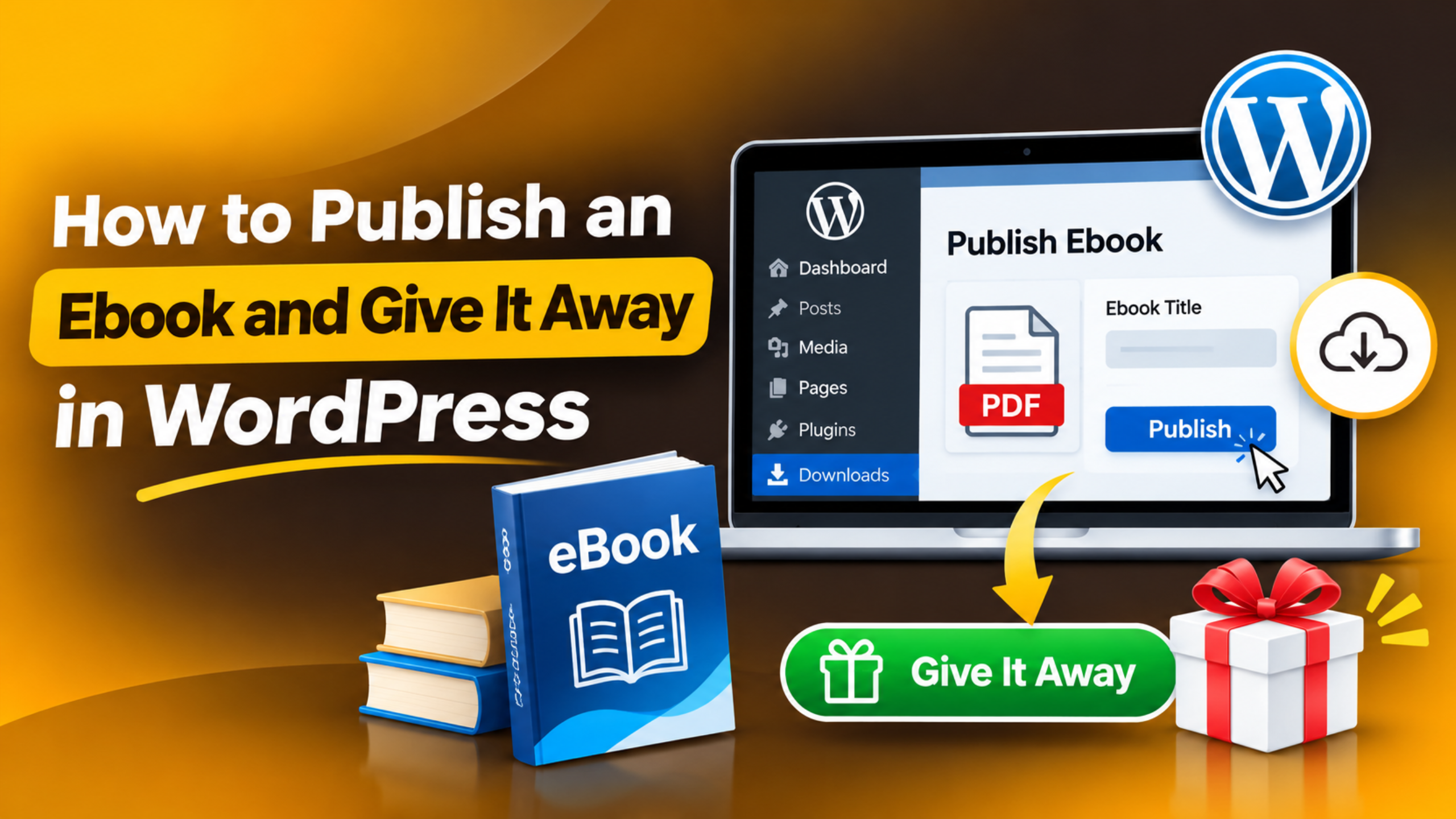
How to Publish an Ebook and Give It Away in WordPress (2026)
You can publish an ebook on a WordPress site in under an hour. Upload the file to the Media Library, add it to a page, and choose how people get it. The file can be open to all, sent by email after a sign-up, or handed out as a free product in WooCommerce.
This guide walks through each route step by step. It covers the file format, the upload, three ways to give the book away, and the checks to run before you share the link. Take a backup or use a staging copy before you add new plugins or change store settings.
Get Your Ebook File Ready Before You Upload
A clean file saves you a lot of support email later. Most readers want a PDF, since it opens on any phone, tablet or laptop with no extra app. WordPress also lets you upload a PDF by default, so you do not have to change a thing on the site.
EPUB is the other common format. It suits e-readers, as the text reflows to fit the screen. WordPress does not allow EPUB uploads out of the box. If you try, you will see the notice “Sorry, you are not allowed to upload this file type.” The simple fix is to put the EPUB in a ZIP file and upload that. Do not edit core files to force it through.
Keep the file small. Aim for under 10 MB so it loads fast on mobile data. Export the PDF with the “reduced size” or “web” option in your writing app, and compress large images first. Give the file a clear, lower-case name with hyphens, such as wordpress-speed-guide-2026.pdf. That name becomes part of the link, so it should look neat. Last, save the cover as a JPG or WebP image at about 800 pixels wide. You will use it on the download page.
Upload the Ebook to the WordPress Media Library
The Media Library is where WordPress keeps your files. In the admin area, go to Media → Add New Media File. Drag the PDF onto the box, or click Select Files and pick it from your computer. When the bar is full, the file is on your server.
Look under the upload box for the line “Maximum upload file size”. This limit is set by your host, not by WordPress. If your ebook is larger than the limit, the upload will fail. Our guide on how to increase the upload size in WordPress shows the safe ways to raise it.
Next, go to Media → Library and click the file. A panel opens with the file details. Add a title, since some themes show it on screen. Then click Copy URL to clipboard. Paste that link in a new browser tab to check that the book opens. If you want to know more about what this screen can store, read our post on Media Library features and file types.
Method 1: Offer an Open Download With the File Block
This is the fastest route. Anyone who lands on the page can get the book with one click. Use it when your goal is reach, not leads. It suits a free guide for clients, a product manual or a report you want shared far and wide.
Step 1. Go to Pages → Add New Page and give it a clear title, such as “Free WordPress Speed Guide”.
Step 2. Click the plus icon and add an Image block. Pick your cover image. Under it, write three or four lines on what the reader will learn.
Step 3. Click the plus icon again and search for the File block. Click Media Library and choose your PDF.
Step 4. Open the block settings in the right sidebar. For a PDF, you will see “Show inline embed”. Turn it on to let people read the book on the page, and set the height in pixels. Turn it off if you only want a button. Leave “Show download button” on.
Step 5. Click the button text and change it to “Download the free ebook”. Then click Publish.
View the page in a private window and click the button. The PDF should save to your device. If it opens in a tab, that is normal for some browsers.
Method 2: Send the Ebook by Email After a Sign-Up
This route trades the book for an email address. It is the most common setup for growing a list. The reader fills in a short form, and the site sends the link to their inbox. You need a form plugin with a notice or auto-reply feature. Most free form plugins have one.
Step 1. Create a form with two fields: first name and email. Add a consent tick box that says you will send the ebook and future tips. Do not pre-tick it.
Step 2. In the form’s email settings, add a notice that goes to the address typed in the form. Write a short message and paste the file URL you copied from the Media Library.
Step 3. Build a thank-you page that says “Check your inbox”. Set the form to send people there once they submit. Do not place the download link on this page, or the email step has no point.
Step 4. Add the form to your landing page with its block or shortcode. Put it near the top, next to the cover image.
Test it with your own address. If no email comes, your site may be sending through the web server, which many inboxes block. Our post on WordPress email and SMTP explains the fix. For form tips, see what a lead form is in WordPress.
Method 3: Give It Away as a Free WooCommerce Product
If you run WooCommerce, you can list the ebook as a product that costs nothing. The shopper checks out as normal, pays zero, and gets a secure link. You gain an order record, a customer account and a neat way to add paid books later.
Step 1. Go to Products → Add New. Type the book title and a short description. Set the cover as the product image.
Step 2. In the Product data box, tick both Virtual and Downloadable. Virtual means there is nothing to ship. Set the Regular price to 0.


Step 3. Under Downloadable files, click Add File. Type a name, then click Choose file and pick the PDF. Leave Download limit and Download expiry blank for no cap, or type a number of days.
Step 4. Click Publish. Then go to WooCommerce → Settings → Products → Downloadable products. Set the File download method to Force downloads. This hides the real file path from the shopper. Tick “Downloads require login” only if you want each reader to make an account.
Place a test order. With a price of zero, no payment step is shown. The order should move to Completed, and the link should show on the order page and in the email. If the order stays on Processing, tick “Grant access to downloadable products after payment” on the same settings screen.
Which Way of Giving Away the Ebook Should You Pick?
Each method fits a different goal, so match the route to what you want from the book. The wrong pick is not a disaster, since you can switch later. Still, it is less work to choose well at the start.
Pick the File block when you want the most readers and the least setup. There is no form to fill in, so more people will take the book. The cost is that you learn nothing about who took it.
Pick the email route when you want to build a list. Fewer people will finish the form, yet each one is a real contact you can write to again. You must look after that data and honour each unsubscribe request.
Pick the WooCommerce route when you have a store or plan to sell books. It adds the most steps for the reader. In return, you get order data, download logs under WooCommerce → Reports or Analytics, and control over how long each link works.
There is a fourth, simple choice for a small group. Edit the page, click Visibility in the sidebar, choose Password protected and set a password. Share it with your class or your clients. Our guide on how to make a page private or hidden in WordPress covers this in full.
Build a Download Page That People Want to Use
The page around the book does much of the work. A bare link with no context gets few clicks. A clear page tells the visitor what the book is, who it is for and what to do next. Keep it short and keep it to one goal.
Lead with the gain. Use a headline that names the result, such as “Cut Your Page Load Time in Half”. Avoid a title that is just the name of the book.
Show the cover. A cover image makes the offer feel real. Place it to the left or above the button.
List what is inside. Add three to five bullet points with the main topics. State the page count and the format, so no one is caught out by a 90-page PDF on a phone.
Use one button. Remove sidebars and extra links if your theme has a full-width or blank template. You will find it under Page → Template in the editor sidebar.
Tell search engines what to index. Let them index the landing page. For the thank-you page, open the Yoast box, go to Advanced, and set “Allow search engines to show this content in search results?” to No.
Test, Track and Look After Your Ebook Download
A quick round of checks will catch most faults before your readers do. Run them each time you change the file, the form or the theme. It takes ten minutes and can save a launch.
Test on a phone. Open the page on mobile data, not Wi-Fi. Time how long the file takes. If it is slow, compress it again.
Test as a guest. Use a private window so you are logged out. Admin users can often see files and pages that guests can not.
Clear the cache. If you swap the PDF for a new one, old copies may be served for a while. Clear your page cache and any CDN cache, or upload the new file with a new name and update the link.
Count the downloads. For the File block, set up an event in your analytics tool that fires on a click of the button. Form plugins keep an entry log. WooCommerce logs each order.
Keep the book fresh. Put the year in the file and review it every 12 months. Old screenshots and dead links make a free book look poor.
If you get stuck on an upload limit, a form that will not send or a WooCommerce download that fails, the team at 24×7 WP Support works on these issues each day. Tell us which method you chose and what you see on screen. We will take a look and talk you through the next step.
Related posts:
How to Duplicate a Page in WordPress: With/Without Plugin & Multiple Pages
How to Fix Largest Contentful Paint (LCP) Issues in WordPress (2026)
Why Is WordPress Emailing You? How to Control Notifications in 2026
Why Is the WordPress Business Plan So Expensive? Is It Worth It?
WordPress Quizlet Explained: Anchor Text, Permalinks, and Key Terms

Brian is a WordPress support specialist and content contributor at 24×7 WP Support. He writes practical, easy-to-follow guides on WordPress troubleshooting, WooCommerce issues, plugin and theme errors, website security, migrations, performance optimization, and integrations. With a focus on solving real website problems, Brian helps business owners, bloggers, and online store managers keep their WordPress sites running smoothly.