
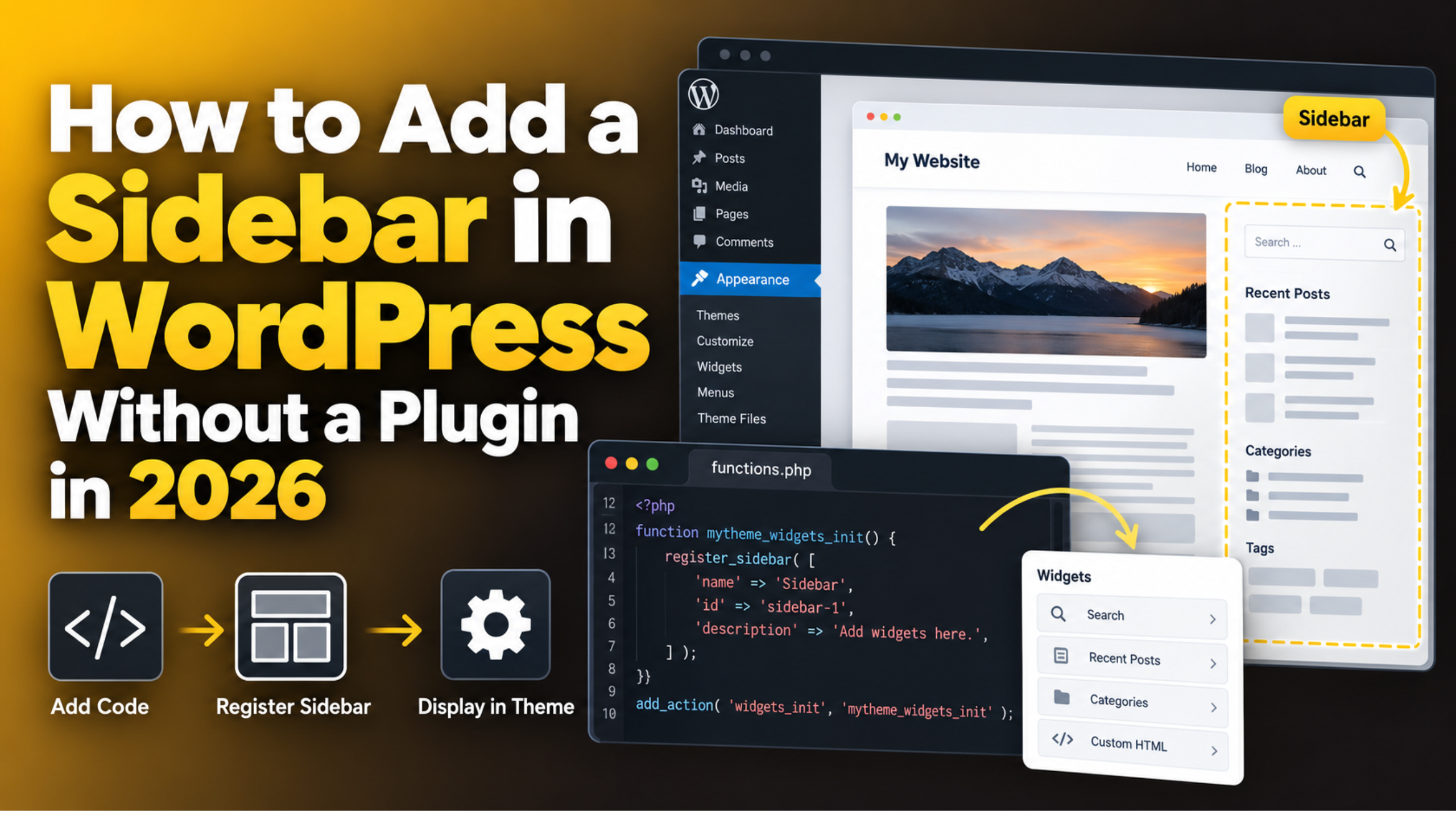
How to Add a Sidebar in WordPress Without a Plugin in 2026
A sidebar is one of the oldest ideas in WordPress, and it is still useful. It gives you a column beside your content for search, recent posts, a contact box or an offer. You do not need a plugin to add one. WordPress already has everything you need. This guide shows you how to do it in both kinds of theme, what to check first, and how to fix it when the sidebar does not appear.
What a Sidebar Really Is in WordPress
The word sidebar is misleading. In WordPress it does not mean a column on the right. It means a named area that can hold widgets or blocks. Your theme decides where that area appears on screen.
That is why some themes have a sidebar under the footer, and some have three of them. They are all sidebars as far as WordPress is concerned. The name is a leftover from the early days of blogging, when the area really was on the side.
This matters because of how you add one. You are doing two separate jobs. First you create the area and give it a name. Then you tell your theme where to print it. Miss the second step and nothing shows up, even though the area exists.
Once that clicks, the rest is easy. You are not hacking anything. You are using the same system your theme already uses for its own widget areas. Our guide to what WordPress widgets are and where to find them covers the basics if this is all new to you.
Check Your Theme Type Before You Start
The method you need depends on which kind of theme you run. There are two, and they work in completely different ways.
Go to Appearance in your dashboard and look at the menu. If you see an item called Editor, you have a block theme. These are the newer ones, built around full site editing. You design the whole layout visually, and there is no widget screen at all.
If you see Widgets and Customize instead, you have a classic theme. Most sites built before the last few years run one. Classic themes use the widget system, and that is where register code still applies. The WordPress Customizer only appears on this kind of theme.
Check this before you write a single line. The two routes do not mix. Adding widget code to a block theme does nothing useful, and hunting for a Widgets screen in a block theme will only waste your time. If you are unsure, open Appearance and note exactly what is listed there.
How to Add a Sidebar in a Block Theme
Block themes make this the easier of the two. There is no code, and no registering. You build the column yourself inside the site editor.
Go to Appearance → Editor. Pick Templates, and open the template you want to change. For blog posts that is usually Single. For normal pages it is Page. Click the template to start editing it.
Find the block that holds your content. Select its parent group, then add a Columns block. Set it to two columns. Drag your existing content block into the wide column. The narrow column is now your sidebar.
Fill it with whatever you need. Search, Latest Posts, Categories, a Paragraph, an Image. These are the same tools the old widgets gave you, just as blocks. Resize the narrow column by dragging the divider, or set a width in the block settings panel.
Click Save when you are done. Your new column now appears on every page that uses that template. If you want the same sidebar in more than one template, select your column, open the block options and choose Create pattern. Tick the synced option. You can then drop that one pattern into other templates, and editing it once updates all of them.
How to Register a Sidebar in a Classic Theme
Classic themes need a small piece of code. It goes in your theme’s functions.php file, and it tells WordPress that a new widget area exists.
Before you touch any theme file, take a backup or work on a staging site. A typo in functions.php can lock you out of your own dashboard. Ten seconds of care here saves a long afternoon.
Put the code in a child theme, not the parent. If you edit the parent theme directly, the next theme update wipes your work. A child theme keeps your changes safe.
Here is the code:
<?php
function my_custom_sidebar() {
    register_sidebar( array(
        'name'          => 'My Custom Sidebar',
        'id'            => 'my-custom-sidebar',
        'description'   => 'Appears beside posts and pages.',
        'before_widget' => '<div class="widget">',
        'after_widget'  => '</div>',
        'before_title'  => '<h3 class="widget-title">',
        'after_title'   => '</h3>',
    ) );
}
add_action( 'widgets_init', 'my_custom_sidebar' );
The name is what you will see in the dashboard. The id is what your template will call, so keep it short and all lowercase. The four markup lines control the HTML wrapped around each widget, which is what lets your CSS style them.
Save the file, then go to Appearance → Widgets. Your new area should now be listed. If it is not, check for a typo in the function name or a missing bracket.
How to Make the Sidebar Appear on the Page
Registering the area is only half the job. Nothing will show on your site until you tell a template to print it. This is the step most people miss.
Open the template file where you want the sidebar. For a blog post that is single.php. For a page it is page.php. For the main blog list it is index.php. Copy it into your child theme first if it is not there already.
Add this where you want the sidebar to appear:
<?php if ( is_active_sidebar( 'my-custom-sidebar' ) ) : ?>
    <aside class="my-sidebar">
        <?php dynamic_sidebar( 'my-custom-sidebar' ); ?>
    </aside>
<?php endif; ?>
The id inside the quotes must match the one you registered. If they differ by even one character, nothing prints.


The check around it matters more than it looks. It asks whether the area has any widgets in it. If it is empty, the whole block is skipped and no stray markup reaches your page. That keeps your HTML clean and stops an empty box appearing in your layout.
Save, then reload a post. If your widgets show up, you are done. If the page looks the same, clear any caching you run and try again in a private window.
Filling and Styling Your New Sidebar
An empty sidebar does nothing, so the next step is putting something in it. Go to Appearance → Widgets. You will see your new area listed by the name you gave it.
Classic themes use the block interface on this screen now. Click the plus button inside your area and pick what you want. Search, Recent Posts, Categories and Custom HTML cover most needs. You can also drop in a plain Paragraph or an Image.
Think about what earns its place. A sidebar that lists everything helps nobody. One clear call to action, a search box and a short list of related posts will do more than ten widgets fighting for attention.
Styling comes from CSS. The class names you set in before_widget and before_title are what you target. Add your rules to your child theme’s stylesheet, or use Appearance → Customize to find the Additional CSS panel.
Keep the layout in mind on small screens. Most themes stack a sidebar underneath the content on a phone, which is usually right. Load your page on a real phone before you call it finished. If you ever need to move these settings to another site, you can export widget settings rather than rebuilding them.
Common Problems and How to Fix Them
Most sidebar trouble comes down to a handful of causes. Work through these before assuming something is broken.
The area does not appear in the dashboard. The register code has not run. Check that the file saved, that the function name is unique, and that the add_action line is present and spelled correctly.
The area exists but the sidebar does not show. The template is not calling it, or the id does not match. Compare the id in your register code with the one in dynamic_sidebar, character by character.
It shows on posts but not on pages. You only edited one template. Single posts and pages use different files, so the code has to go in each one you want it on.
The sidebar drops below the content. This is a CSS width problem, not a WordPress one. We cover it in our guide to fixing a sidebar that falls below the content.
Your theme already has a sidebar you do not want. You do not need new code at all. Removing a sidebar from WordPress is a different job, and usually a quicker one.
The site goes blank after you save. That is almost always a PHP syntax error in functions.php. Restore your backup, or rename the file over SFTP to get back in. Our guide to the WordPress critical error walks through recovery.
You cannot find the file editor. Some sites hide it on purpose for security. Our note on a missing theme editor explains why and what to use instead.
Is Code Really Better Than a Plugin?
For a simple sidebar, yes. The code is short, it runs in a few milliseconds, and it has no settings screen to go stale. You are also not adding another thing to update or another possible conflict.
There is a fair case for a plugin in one situation. If you need many different sidebars shown by rule, such as one per category and another per product, a dedicated tool will manage that logic for you. Building that by hand takes real work.
For everything else, the code route is cleaner. It lives in your child theme, it travels with your theme, and anyone who knows WordPress can read it. The trade-off is that you need to be comfortable editing files, and you need a backup habit. If you are weighing the two approaches up, our comparison of functions.php against a small custom plugin is a useful read.
One habit is worth keeping either way. Put your snippets in a child theme rather than the parent. That single decision prevents the most common cause of lost customisation, which is a theme update overwriting the file.
Getting Help With Your Theme
Adding a sidebar without a plugin comes down to a short checklist. Work out whether your theme is block or classic. In a block theme, add a Columns block in the site editor. In a classic theme, register the area in your child theme, then call it from the template file where you want it to show.
Take a backup before you edit anything, and keep the id consistent between the two pieces of code. Those two habits prevent most of the problems people run into.
Theme files can get awkward, especially on an older site where several people have made changes over the years. If your sidebar will not appear, if an edit has broken the layout, or if you would rather not touch functions.php at all, our team works on WordPress themes every day. Tell us what you are trying to build at 24×7 WP Support and we will take a look.
Related posts:






Brian is a WordPress support specialist and content contributor at 24×7 WP Support. He writes practical, easy-to-follow guides on WordPress troubleshooting, WooCommerce issues, plugin and theme errors, website security, migrations, performance optimization, and integrations. With a focus on solving real website problems, Brian helps business owners, bloggers, and online store managers keep their WordPress sites running smoothly.
