
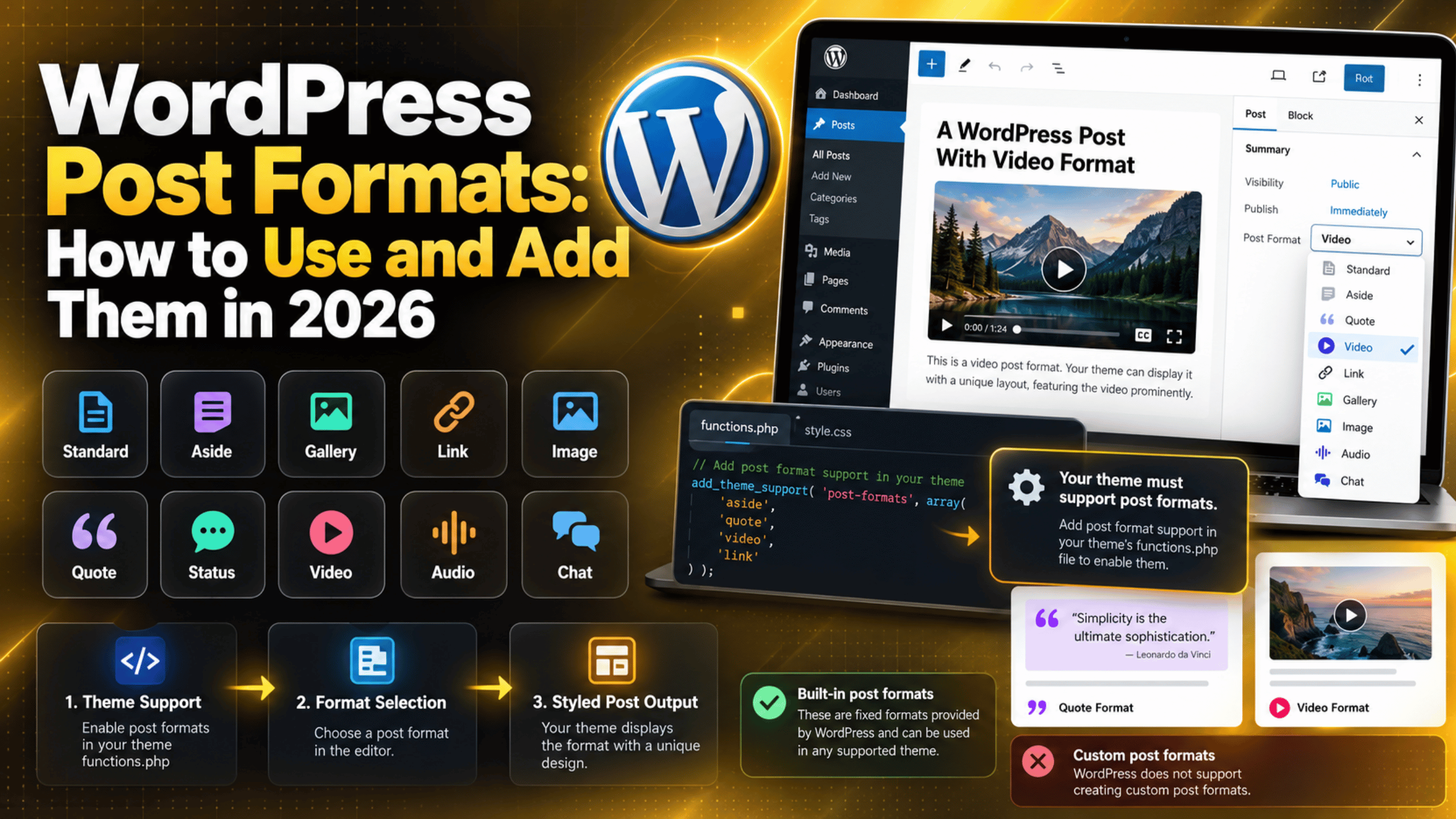
WordPress Post Formats: How to Use and Add Them in 2026
A post format is one of the oldest features in WordPress, and also one of the least understood. It lets you tell your theme what kind of post this is. A short note, a quote, a video, a link to somewhere else. The theme can then style that post differently from a normal article. People often go looking for post formats because they want a new content type of their own. They search for how to create a custom post format, set one up, and find the list will not grow. This guide explains what post formats really are, which ones WordPress ships with, how to switch them on, how to set one on a post, and what to use instead when the built-in list does not fit your site in 2026.
What a Post Format Is, and What It Is Not
A post format is a label you attach to a single post. It carries no content and no settings of its own. Its only job is to tell the theme how that post should look. A post marked as a quote might render in large type with no title. A post marked as an aside might show with no heading at all, like a short note on a timeline.
Two things often get mixed up here. A post format is not a category, and it is not a post type. A category describes what a post is about. A post type describes what kind of record it is, such as a page or a product. A format only describes the shape of the content. You can have a video post in your News category and another video post in your Reviews category. The format stays the same while the subject changes.
Under the hood, WordPress stores formats in a hidden taxonomy called post_format. That is why a format behaves a little like a category even though it is not one. Only one format can be set per post, and a post without a format is simply treated as standard.
The Formats WordPress Ships With
WordPress has nine named formats, plus the default. The list has not changed in many years and is fixed in core. Here is what each one is meant for.
Standard. The default. No format term is stored at all. This is a normal article with a title and body.
Aside. A short note, usually with no title shown. Think of a passing thought rather than a full piece.
Gallery. A post built around a set of images.
Link. A post whose point is a link to another page, with a short comment around it.
Image. A post built around a single image.
Quote. A post built around a quotation, often with the source underneath.
Status. A very short update, similar to a social media post.
Video. A post built around one video.
Audio. A post built around a track, an episode, or a recording.
Chat. A transcript of a conversation between two or more people.
Each format only does something if your theme has been built to style it. On a theme with no format styling, a quote post and a standard post look the same.
How to Tell If Your Theme Supports Post Formats
Support is declared by the theme, not by WordPress. If the theme has not asked for formats, the option never appears anywhere in the admin. That is the single most common reason people cannot find the setting.
The quickest check takes a few seconds. Open any post for editing. In the block editor, look in the right-hand sidebar under the Post tab, inside the Summary panel. In the classic editor, look for a box titled Format in the right-hand column. If there is no Format control in either place, your current theme does not support formats.
There is a pattern worth knowing in 2026. The older default themes, the ones built before block themes arrived, generally did support a handful of formats. The block-based default themes released from 2022 onward do not declare support for them. Block themes lean on patterns and templates instead. So if you recently moved to a block theme and the Format box vanished, nothing is broken. The feature simply was not carried over.
If you are unsure which kind of theme you are running, our guide to WordPress theme files explains how to tell them apart from the file structure.
How to Turn Post Formats On
If your theme does not support formats and you want them, the support has to be declared in code. Never edit a parent theme directly, because the next theme update will wipe the change. Work in a child theme or a small site plugin, and test it on a staging copy of your site before it goes live. Take a backup first.
The declaration is one function call. It names only the formats you actually want, so the editor stays uncluttered:
add_action( 'after_setup_theme', function() {
    add_theme_support( 'post-formats', array( 'aside', 'quote', 'video', 'link' ) );
} );
Save the file and reload a post edit screen. The Format control should now appear with those four options plus Standard. If it does not, the code is probably in a file that is not loading, or the theme is overriding the call later. Our comparison of functions.php versus a custom plugin covers where this kind of snippet is safest to live.


Declaring support is only half the job. The theme also has to style each format, or every post will still look identical. That part is template work, which the next sections cover.
How to Set a Post Format on a Post
Once support is on, setting a format takes two clicks. In the block editor, open the post, go to the Post tab in the sidebar, expand the Summary panel, and choose from the Format dropdown. The change is saved with the post, so remember to update.
In the classic editor the control is a set of radio buttons in the Format box, usually sitting just under the Publish box. Pick one and save. If you are still on the classic editor and want to know why the screens differ, our guide to the WordPress block editor walks through the newer layout.
There is a faster route for bulk work. Go to Posts → All Posts, hover over a row, and click Quick Edit. The Format dropdown appears there too, which saves opening each post in turn. Bulk Edit also offers it when several posts are ticked. That is the practical way to tag a few hundred old posts without losing an afternoon.
Can You Create a Custom Post Format?
This is the question that brings most people here, and the honest answer is no. The list of nine formats is hard-coded in WordPress core. The post_format taxonomy will not accept a term that is not on that list, so a new name is silently dropped rather than saved. Plugins that claim to add formats are nearly always doing something else underneath, such as creating a separate taxonomy and styling it to look like the format box.
That restriction is deliberate. Formats were designed as a shared vocabulary. A post marked as a quote means the same thing on every theme, so you can change themes without your content losing meaning. If every site could invent its own formats, that portability would disappear.
So if you need a label the core list does not cover, do not try to force it into a post format. Reach for one of the tools below instead. They are better suited, better supported, and they will survive a theme change.
What to Use Instead of a Custom Format
A custom taxonomy. This is the closest match. You define your own set of terms, decide whether a post can have one or many, and query by them in your templates. Our guide on creating custom taxonomies in WordPress covers the registration and the archive pages.
A custom post type. Use this when the content is genuinely a different kind of record, not just a different shape. Case studies, events, recipes, and testimonials all fit here. Our guide to WordPress custom post types explains the trade-offs.
Categories. Sometimes the simple answer is the right one. If you only need a handful of groupings and you want archive pages for free, a category is enough. Our walkthrough on adding categories in WordPress covers the basics.
Block patterns and templates. On a block theme, a reusable pattern often gives you what a format used to give you. You get the layout you want, saved once, and inserted into any post.
A custom single template. If the goal is simply that certain posts look different, a dedicated template can do the job without a new label at all. See our guide to creating a custom single post template.
How Formats Affect Templates, Classes and URLs
Three things change once a format is set, and knowing them helps you style posts without guesswork.
The post class. WordPress adds a class to the post wrapper, such as format-quote or format-video. Standard posts get format-standard. That alone is often enough to style a format with CSS, with no PHP involved.
Template parts. Classic themes commonly call get_template_part( 'content', get_post_format() ) inside the loop. That loads content-quote.php for a quote post and falls back to content.php when no match exists. It is a tidy way to keep each format’s markup in its own file.
Archive URLs. With pretty permalinks on, each format gets an archive at a path built from the format taxonomy, in the shape /type/video/. Those archives are indexable, so decide whether you want them in search results before you link to them. Adding navigation to a format archive is the same job as building any other template in WordPress.
Should You Still Use Post Formats in 2026?
Post formats are still in core and still work, so nothing is going away tomorrow. But the direction of travel is clear. Block themes have not picked the feature up, and the newer layout tools cover much of the same ground. That makes formats a smaller feature than they were when they arrived.
They are still a sensible choice in a few cases. A classic theme that already styles them is one. A microblog or link blog, where short notes and quotes sit alongside full articles, is another. In both cases the labels earn their keep because the theme actually does something with them.
For a new site on a block theme, the fairer answer is usually no. Patterns, templates and a custom taxonomy will take you further with less to maintain. If you are weighing the two approaches, our comparison of tags and keywords in WordPress is a useful reminder that labels only help when something reads them.
Getting Help With Formats and Theme Templates
Post formats look simple from the editor, but the work behind them sits in theme code. Declaring support is one line. Making each format actually look different means template parts, CSS, and sometimes a rethink of the loop. Picking the wrong tool is easy too, and swapping a taxonomy for a post type after a few hundred posts is a slow job rather than a quick one. That is the part worth getting right first time. Theme updates add another wrinkle, since a change made in the wrong file can be undone without warning. A few minutes spent on where the code lives saves that whole problem. If you are not sure whether your site needs formats, a custom taxonomy, or just a better template, our team at 24×7 WP Support can look at how your content is actually structured and talk you through the options. We work on a staging copy and keep a backup, so your live site is never the test bed.
Related posts:
Best Video Format for WordPress in 2026: A Complete Guide
How to Migrate a WordPress Site Without a Plugin (2026 Guide)
Front-End vs Back-End Editing in WordPress: What Is the Difference?
How to Add and Manage Super Admins in WordPress Multisite (2026)
Beaver Builder vs. Elementor WordPress Page Builders Comparison

Brian is a WordPress support specialist and content contributor at 24×7 WP Support. He writes practical, easy-to-follow guides on WordPress troubleshooting, WooCommerce issues, plugin and theme errors, website security, migrations, performance optimization, and integrations. With a focus on solving real website problems, Brian helps business owners, bloggers, and online store managers keep their WordPress sites running smoothly.
