
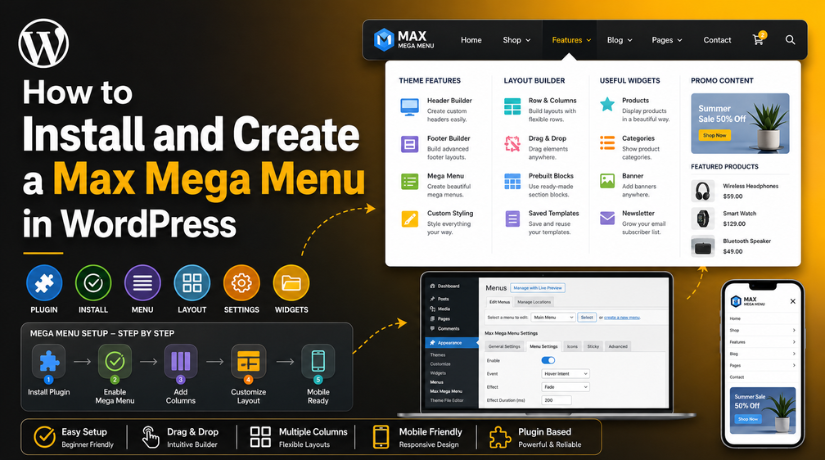
How to Install and Create a Max Mega Menu in WordPress
Introduction
A clear website menu helps visitors move around your website easily. It guides them to pages, services, products, and contact options. A simple menu works well for small websites. But larger websites often need a better menu structure. When a website has many pages, a basic menu may look crowded. It may also make visitors confused during browsing. This is where Max Mega Menu WordPress setup becomes useful.
A mega menu shows many links in a clean layout. It can group pages into columns and sections. This helps visitors find the right page faster. It also makes your header look more professional and organized. A well-planned menu can improve user experience on your website. It can also support better internal linking and page visibility.
The Max Mega Menu plugin helps WordPress users create advanced menus without coding. It works with the normal WordPress menu system. So, you do not need to rebuild everything from scratch. You can use your existing menu and improve its layout. This makes the plugin helpful for beginners and website owners.
In this guide, you will learn the basic meaning of Max Mega Menu. You will also understand why it is better than a default WordPress menu. We will also cover where it works best and what benefits it provides. After that, later parts will explain how to Install Max Mega Menu and Create mega menu in WordPress step by step.
What Is Max Mega Menu in WordPress and How Does It Work?
Max Mega Menu is a popular WordPress mega menu plugin. It helps you create large and organized dropdown menus. These menus can include links, columns, widgets, and custom content. You can use it to build a better navigation system. It is useful when your website has many pages or categories.
A normal WordPress menu usually shows simple dropdown links. This works fine for small websites with fewer pages. But a large website needs more space and better grouping. Mega Menu WordPress layouts solve this problem clearly. They allow you to show more options in one dropdown panel.
The Max Mega Menu plugin works inside the WordPress dashboard. After activation, it adds extra settings to your menu area. You can enable the plugin for your selected menu location. This location is often called Primary Menu, Header Menu, or Main Menu. Once enabled, you can turn normal dropdowns into mega menus.
You can create columns inside the menu dropdown. You can also add headings for each menu section. This helps visitors understand the menu structure quickly. For example, a service website can group services by category. A store can group products by product type. A blog can group topics by main categories.
The plugin also allows widget support inside menu areas. This means you can add text, images, search boxes, or custom HTML. This feature makes the menu more useful and attractive. You can show special offers, featured services, or quick contact details. This makes your menu more than a simple link list.
Max Mega Menu is helpful for many website types. Business websites can use it for service pages. WooCommerce stores can show product categories. Blog websites can show topic groups. Agencies can show services, case studies, and contact links. Education websites can show courses, departments, and resources.
Why Use Max Mega Menu Instead of a Default WordPress Menu?
Max Mega Menu Gives Better Menu Organization
A default WordPress menu works well for small websites. But it can look messy on larger websites. When your site has many pages, services, or categories, users may feel confused. The Max Mega Menu plugin helps organize links into clear sections. You can create columns and group related pages together. This makes the menu easier to scan. Visitors can quickly find the page they need.
Max Mega Menu Improves the User Experience
A simple menu may hide important pages inside small dropdowns. This can make visitors click too many times. Max Mega Menu WordPress layouts show more options in one clean panel. Users can see main pages, subpages, and categories faster. This saves time and improves browsing. A better menu also helps visitors stay longer on your website.
Max Mega Menu Offers More Design Control
The default WordPress menu has limited design options. You may need custom CSS for better styling. A WordPress mega menu plugin gives more built-in design control. You can change colors, fonts, spacing, and dropdown width. You can also adjust hover effects and background styles. This helps your menu match your website branding.
Max Mega Menu Supports Columns and Large Dropdowns
Default WordPress dropdowns usually show links in one vertical list. This can become too long and hard to read. Mega Menu WordPress layouts allow multiple columns inside one dropdown. You can place services, products, or categories in separate sections. This makes large menus clean and balanced. It is helpful for websites with many important pages.
Max Mega Menu Allows Widgets Inside the Menu
A default WordPress menu mainly supports text links. It does not easily support rich content. With Max Mega Menu, you can add widgets inside menu areas. You can add images, text boxes, search forms, or custom HTML. This helps you highlight offers, services, or contact details. It makes your menu more useful and professional.
Max Mega Menu Works Better for Mobile Navigation
Many users visit websites from mobile devices. So, your menu must work well on phones. A default menu depends mostly on your theme settings. Sometimes, it may not look smooth on mobile. The Max Mega Menu plugin gives better mobile menu options. It helps users tap, open, and browse menu items easily.
Max Mega Menu Is Better for Large Websites
Large websites need a strong navigation structure. Default menus may not handle many links clearly. Create mega menu in WordPress if your site has many services, products, or blog categories. A mega menu keeps everything organized in one place. It helps visitors reach key pages without confusion. This makes it useful for business sites, stores, and blogs.
Max Mega Menu Can Help Improve Internal Linking
Good internal linking helps users and search engines understand your website. A default menu may limit how you display important links. Max Mega Menu WordPress setup lets you show key pages clearly. You can link to service pages, product categories, blogs, and contact pages. This supports better page discovery. It also improves the overall website structure.
Things to Check Before Installing Max Mega Menu In WordPress
Check Your Current WordPress Menu Before Starting
Before you Install Max Mega Menu, check your current menu first. Open your WordPress dashboard and review all menu links. Remove old pages, duplicate links, and unused menu items. A clean menu is easier to manage and design. If your menu has too many links, users may feel confused. Keep only important pages in your main menu. This will help you Create mega menu in WordPress in a better way. A clean menu also makes your website look more professional.
Choose the Important Pages for Your Mega Menu
Your mega menu should show only useful pages. Add pages that visitors need most during browsing. You can add service pages, product categories, blog categories, and contact pages. You can also add pricing pages and location pages. Do not add every page from your website. Too many links can make the menu hard to read. The Max Mega Menu plugin gives more space, but planning is still important. Keep your Mega Menu WordPress layout simple and clear.
Check If Your WordPress Theme Supports Mega Menus
Before using any WordPress mega menu plugin, check your theme. Most modern WordPress themes support menu plugins properly. But some themes have their own menu design settings. These settings can sometimes create layout problems. Your menu may look broken or uneven after installation. So, check your theme header and mobile menu first. If your theme already has a mega menu option, review it carefully. A compatible theme helps Max Mega Menu WordPress work smoothly.
Update WordPress, Theme, and Plugins First
Before installing the plugin, update your website. Update WordPress, your active theme, and important plugins. Old versions can create design or script problems. Updated files usually work better with new plugins. This step also improves website safety and performance. After updating, check your website pages and header. Make sure everything works properly before moving ahead. This gives you a clean base for the Max Mega Menu plugin.
Take a Website Backup Before Installing the Plugin
Always take a backup before installing a new plugin. A backup protects your website files and database. If anything goes wrong, you can restore your website. This is very important for live business websites. You can use a hosting backup tool or backup plugin. Make sure your backup includes files and database both. After backup, you can install the plugin safely. This step helps you avoid stress during setup.
Plan Your Mega Menu Layout in Advance
Plan your menu layout before creating it. First, decide your main menu items. These can be Services, Products, Resources, Blog, or Contact. Then decide which links should go under each item. For example, Services can include WordPress Support, SEO, and Maintenance. Products can include categories, offers, and featured products. Resources can include blogs, guides, tutorials, and FAQs. A planned layout makes your Mega Menu WordPress design easier.
Keep Your Mega Menu Simple and Clear
A mega menu should help users, not confuse them. Use short and simple menu labels. Avoid long names that are hard to understand. Add only the most useful links in your menu. Place important pages at the top or first column. Use clear section names for each group. Do not add too many images or widgets. Heavy menus can slow down your website. A simple menu gives users a better browsing experience.
Easy Checklist Before Installing Max Mega Menu


Before you Install Max Mega Menu, check these things carefully. Review your current menu structure. Remove old and duplicate links. Choose only important pages for the menu. Check your theme compatibility. Update WordPress, theme, and plugins. Take a full website backup. Plan your parent menu and child menu links. Keep all labels short and clear. After these steps, you can Create mega menu in WordPress easily.
How to Install and Create a Max Mega Menu in WordPress (Complete Guide)
Creating a mega menu is easy when you follow each step carefully. The Max Mega Menu plugin works with your existing WordPress menu. You only need to install it, enable it, and design your layout. This part will show you how to Install Max Mega Menu and Create mega menu in WordPress in a simple way.
Step 1: Log in to Your WordPress Dashboard With Admin Access
- Open your WordPress website login page.
- Enter your admin username and password.
- Click the Log In button.
- Make sure you are using an admin account.
- Admin access is required to install plugins.
- After login, open your WordPress dashboard.
- Check that your dashboard loads properly.
- Now you can start the plugin setup process.
Step 2: Open the Plugin Installation Page From the Dashboard
- Go to the left-side WordPress dashboard menu.
- Click on Plugins from the menu.
- Now click on Add New.
- This page helps you find new plugins.
- You will see a plugin search box.
- Use this box to search the plugin name.
- This step starts the Max Mega Menu WordPress setup.
- Make sure your internet connection works properly.
Step 3: Search for the Max Mega Menu Plugin Correctly
- Type Max Mega Menu in the plugin search box.
- Wait for WordPress to show plugin results.
- Look for the correct Max Mega Menu plugin.
- Check the plugin name before installing it.
- Do not install a similar plugin by mistake.
- The correct plugin helps create advanced menus.
- It is a useful WordPress mega menu plugin.
- After finding it, move to the install step.
Step 4: Activate the Plugin After Installation Is Complete
- Click the Install Now button.
- Wait until WordPress completes the installation.
- Do not refresh the page during installation.
- After installation, click the Activate button.
- The plugin will now start working.
- It will add extra menu settings.
- These settings help create a Mega Menu WordPress layout.
- Now your website is ready for menu setup.
Step 5: Go to Appearance and Open the WordPress Menus Area
- Go to the WordPress dashboard menu.
- Click on Appearance from the left menu.
- Now click on Menus.
- This section manages your website menus.
- You can add, remove, and arrange menu links.
- Select your existing main menu from this page.
- If needed, create a new menu first.
- Use a simple name like Main Menu.
Step 6: Select the Correct Header Menu for Your Website
- Choose the menu used in your website header.
- Most themes call it Primary Menu.
- Some themes call it Main Menu.
- Some themes use Header Menu or Navigation Menu.
- Select the correct menu from the dropdown.
- Review all menu items carefully.
- Make sure important pages are already added.
- Save the menu after checking all links.
Step 7: Enable Max Mega Menu for the Selected Menu Location
- Find the Max Mega Menu settings box.
- This box appears inside the menu settings area.
- Select the menu location you want to use.
- Enable Max Mega Menu for that location.
- This connects the plugin with your active menu.
- Without this step, the mega menu will not show.
- Click Save after enabling the setting.
- Now your menu can use mega menu features.
Step 8: Choose the Parent Menu Item for Your Mega Menu
- Choose the main item for your mega menu.
- This item works as the parent menu link.
- Common examples are Services, Products, and Resources.
- You can also use Shop, Support, or Blog.
- The parent item should contain related child links.
- For example, Services can hold support pages.
- Products can hold product category pages.
- This helps users browse your menu easily.
Step 9: Open Mega Menu Settings for the Parent Menu Item
- Move your cursor over the parent menu item.
- Look for the Mega Menu settings option.
- Click the option to open menu settings.
- This area controls the dropdown layout.
- You can select menu type from here.
- You can also manage columns and widgets.
- These settings make the menu more flexible.
- This step starts the real menu design work.
Step 10: Select the Mega Menu Display Type Carefully
- Choose the Mega Menu display type.
- Do not use a simple dropdown for many links.
- A simple dropdown works for small menus only.
- A mega menu works better for large sections.
- It shows many links in one clean panel.
- It helps visitors scan menu options faster.
- Select the right display type carefully.
- Save the setting after making your choice.
Step 11: Create Columns to Organize Menu Links Properly
- Add columns inside your mega menu layout.
- Columns help divide links into clear groups.
- For Services, you can create four columns.
- Column one can show WordPress Support links.
- Column two can show WooCommerce Support links.
- Column three can show SEO service links.
- Column four can show Website Maintenance links.
- This layout keeps your menu neat and clear.
Step 12: Add Child Menu Links Under the Parent Menu Item
- Add child links under the parent menu item.
- Drag each link to the correct position.
- Keep similar links in the same group.
- Put support links under one section.
- Put product categories under another section.
- Put blog topics under a resources section.
- Avoid adding random links without planning.
- This improves your Max Mega Menu WordPress structure.
Step 13: Add Widgets Inside the Mega Menu If Needed
- Add widgets only when they are useful.
- You can add text blocks inside the menu.
- You can also add images or search boxes.
- Custom HTML can also be added if needed.
- Stores can add product categories or offers.
- Service websites can add short service messages.
- Do not add too many widgets.
- A lighter menu loads faster and looks cleaner.
Step 14: Customize the Mega Menu Design to Match Your Website
- Open the menu design or theme settings.
- Adjust the font size for better reading.
- Change text colors to match your brand.
- Set a clean dropdown background color.
- Adjust spacing between menu items.
- Set dropdown width based on your layout.
- Add borders or shadows only if needed.
- Keep the design simple, clear, and professional.
Step 15: Set Mobile Menu Options for Small Screen Users
- Open the mobile menu settings.
- Check how the menu works on phones.
- Make sure menu links are easy to tap.
- Keep mobile text clear and readable.
- Avoid very large dropdown sections on mobile.
- Check that menu sections open smoothly.
- Make sure nothing overlaps the screen.
- Mobile testing is important for user experience.
Step 16: Save All Menu Changes and Clear Website Cache
- Save all menu changes carefully.
- Do not leave settings unsaved.
- Clear your WordPress website cache.
- Clear your browser cache too.
- If you use CDN, clear CDN cache.
- Cache may show old menu designs.
- Open your website in a new tab.
- Check if the new menu appears correctly.
Step 17: Test the Mega Menu on Desktop, Tablet, and Mobile
- Open your website on a desktop screen.
- Check if the mega menu opens properly.
- Test the same menu on a tablet.
- Then test it on a mobile phone.
- Click every important menu link.
- Make sure all links open correct pages.
- Check spacing, font size, and alignment.
- Test the menu in Chrome, Firefox, Safari, and Edge.
Now you know how to Install Max Mega Menu and set it up. You also learned how to organize links, add widgets, and style the menu. A good Mega Menu WordPress layout should be simple and easy to use. After setup, always test your menu on all devices. This helps you Create mega menu in WordPress without common design issues.
Common Max Mega Menu Issues and Easy Fixes for WordPress Users
The Max Mega Menu plugin is easy to use for most websites. Still, some users may face small setup issues. These issues often happen because of theme settings, cache, or plugin conflicts. The good news is that most problems are easy to fix. You only need to check the correct menu location, layout settings, and cache files. A proper check can help your Max Mega Menu WordPress setup work smoothly. Below are common issues and simple fixes for beginners.
Max Mega Menu Is Not Showing on the Website
Sometimes, the mega menu does not appear after setup. This usually happens when the plugin is not enabled correctly. You may have selected the wrong menu location in WordPress. Your theme may also use another menu location for the header. First, go to Appearance > Menus in your dashboard. Then check the menu assigned to your header area. Enable Max Mega Menu for the correct menu location. After that, save the menu settings again. Also clear your website cache and browser cache. This can help show the latest menu changes. If the issue continues, your theme may need a small adjustment.
Mega Menu Design Looks Broken or Uneven
A broken menu design can look confusing for visitors. This issue often happens because of theme CSS conflicts. Some themes add their own menu styles by default. These styles may override the WordPress mega menu plugin settings. Your dropdown width, colors, or spacing may look wrong. To fix this, open the Max Mega Menu theme settings. Check font size, background color, spacing, and panel width. Then save the menu theme settings again. Clear all cache after saving your changes. If the design still looks broken, custom CSS may help. Use only small CSS fixes when built-in settings are not enough.
Mobile Menu Is Not Opening Properly
Mobile menu problems are common on many WordPress websites. Sometimes, the menu opens slowly or does not open. This can happen because of a JavaScript conflict. It may also happen when your theme has its own mobile menu. Two mobile menu systems can conflict with each other. First, check the mobile settings in Max Mega Menu WordPress options. Make sure the responsive breakpoint is set correctly. Then test the menu on a real mobile device. If the theme menu also opens, disable one menu system. After changes, clear cache and test again. A working mobile menu helps users browse your site easily.
Dropdown Width Is Too Large or Too Small
Your mega menu dropdown should fit your website layout properly. Sometimes, the dropdown becomes too wide or too narrow. This can happen because of panel width settings. Your theme container width may also affect the menu layout. To fix this, open the mega menu settings panel. Check the dropdown width and panel alignment options. Use a width that matches your website header area. Also test the menu on desktop and tablet screens. If the dropdown still looks wrong, check custom CSS. Some CSS rules may be forcing the wrong width. A balanced dropdown makes your Mega Menu WordPress layout cleaner.
Menu Items Are Not Aligned Correctly
Poor alignment can make your menu look unprofessional. This issue usually happens when columns are not planned properly. Menu items may also appear in the wrong order. First, review your child menu links under each parent item. Drag and place related links in the correct section. Then check the column structure inside mega menu settings. Make sure each column has balanced content. Avoid placing too many links in one column. Also check spacing, padding, and font size settings. These small changes can improve the full menu layout. A clean layout helps visitors scan menu items faster.
Menu Changes Are Not Visible on the Frontend
Sometimes, you may update the menu but see no change. This is usually a cache issue on the website. WordPress cache, browser cache, or CDN cache can show old files. First, save the menu settings again from the dashboard. Then clear your WordPress cache using your cache plugin. After that, clear browser cache and CDN cache if used. Open the website in a private browser window. This helps you check the latest version clearly. If changes still do not appear, check the selected menu location. You may be editing the wrong menu by mistake.
Menu Links Are Going to Wrong Pages
Wrong links can create a poor user experience quickly. This usually happens when old URLs are used in menu items. It can also happen after page updates or URL changes. Go to Appearance > Menus and review every link. Click each menu item and check its URL. Replace outdated links with the correct page URLs. Also test each link from the website frontend. Make sure no link opens a broken page. A correct link structure helps users reach important pages faster. It also makes your Create mega menu in WordPress setup more useful.
Mega Menu Is Slowing Down the Website
A heavy mega menu can affect website speed. This may happen when you add many images or widgets. Large images inside menus can increase loading time. Too many custom scripts can also slow the header. Keep your mega menu simple and light. Use only important links, widgets, and visual items. Compress images before adding them inside the menu. Avoid adding large banners or heavy content blocks. After setup, test your website speed again. A fast menu gives users a better browsing experience. It also keeps your website clean and professional.
Conclusion
A mega menu can improve your website navigation in many ways. It helps visitors find pages, services, and products faster. The Max Mega Menu WordPress setup is useful for large websites. It works well for business sites, blogs, stores, and service websites. A clean menu also makes your website look more professional. But the menu should stay simple, fast, and mobile-friendly. Avoid adding too many links, images, or widgets. Plan the layout before you Install Max Mega Menu on your website. Then test everything carefully after creating the menu. With the right setup, you can Create mega menu in WordPress easily.
Need help setting up a clean mega menu on your website? 24x7wpsupport can help you install, configure, and style Max Mega Menu properly. Our team can also fix broken layouts, mobile menu issues, theme conflicts, and menu errors. We can make your navigation clean, user-friendly, and easy to browse. Visit 24x7wpsupport today and get expert WordPress support for your website.

Brian is a WordPress support specialist and content contributor at 24×7 WP Support. He writes practical, easy-to-follow guides on WordPress troubleshooting, WooCommerce issues, plugin and theme errors, website security, migrations, performance optimization, and integrations. With a focus on solving real website problems, Brian helps business owners, bloggers, and online store managers keep their WordPress sites running smoothly.
