
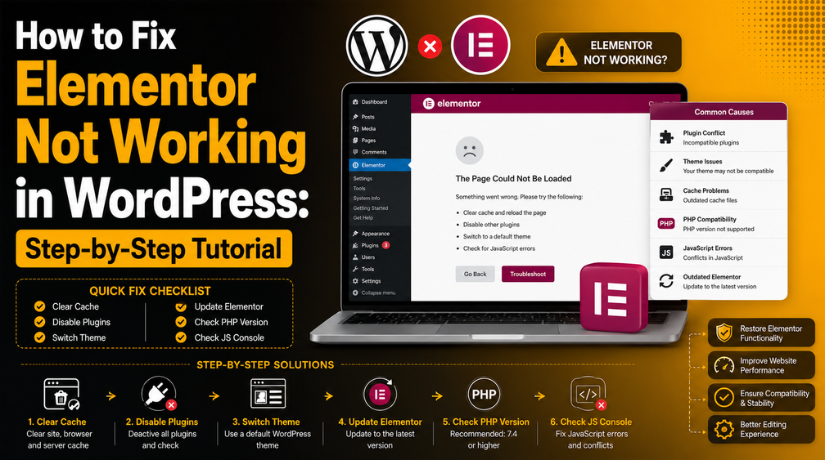
How to Fix Elementor Not Working in WordPress: Step-by-Step Tutorial
Introduction
Elementor is one of the most used WordPress page builders. It helps users create pages without writing custom code. Many website owners use it for landing pages, service pages, blogs, and product layouts. It gives visual control over each design section. Still, sometimes users face the Elementor not working issue without any clear reason. This can feel stressful, especially during urgent website updates. You may open a page and see the editor loading forever.
You may also see a blank screen or broken design. In some cases, Elementor opens but does not save changes. These WordPress Elementor problems can affect your work and slow down updates. The good news is that most Elementor issues are fixable. You only need to find the correct cause first. A proper check helps you avoid random changes. It also protects your website layout from more damage.
Common Signs That Show Elementor Is Not Working Properly
When Elementor fails, it can show different problems. Some users see the Elementor editor not loading after clicking “Edit with Elementor.” Others see the Elementor stuck on loading screen issues for several minutes. Sometimes, the widget panel becomes blank and shows no options. In other cases, the preview page does not load at all. You may also see a white screen while editing a page.
Plugin Conflicts Can Break Elementor Editor and Page Loading
Plugin conflict is a common reason behind Elementor errors. WordPress websites often use many plugins for different features. These plugins may add scripts, styles, security rules, or custom code. Sometimes, one plugin conflicts with Elementor’s editor files. This can cause the Elementor editor not loading problem.
Theme Compatibility Problems Can Create Elementor WordPress Issues
Your active theme also plays an important role in Elementor. A poorly coded theme can stop Elementor from loading correctly. Some themes add scripts that conflict with Elementor editor files. Others may override page templates or break preview loading. This can create a serious Elementor WordPress issue on your site.
Low WordPress Memory Limit Can Make Elementor Stuck on Loading Screen
Elementor needs enough server memory to load the editor. If your WordPress memory limit is low, Elementor may freeze. This often causes the Elementor to be stuck on loading screen issues. Heavy websites need more memory because they load many files. WooCommerce, sliders, forms, and add-ons can increase resource usage.
Outdated WordPress, Elementor, or Plugins Can Cause Elementor Errors
Old files can create many website issues. Elementor works with WordPress core, themes, and many plugins. If one part is outdated, conflicts can appear quickly. An old Elementor Pro version may conflict with Elementor Free. An outdated theme may not support the latest WordPress version.
Reasons Why Elementor Stops Working in WordPress
Cache and Optimization Issues Can Stop Elementor From Loading Correctly
Cache can improve website speed, but it can also cause problems. Sometimes, cache tools store old CSS and JavaScript files. These old files may stop Elementor from loading new changes. This can create the Elementor not working issue on your website. Many users also face broken layouts after speed optimization changes.
Browser Cache or Extensions Can Create Elementor Editor Loading Problems
Sometimes, the problem is not inside your WordPress website. Your browser can also create WordPress Elementor problems. Old browser cache may load outdated editor files. Browser extensions can also block scripts used by Elementor. Ad blockers, security extensions, and script blockers may cause issues.
Server, Firewall, or Security Rules Can Block Elementor Requests
Elementor needs server permission to load, preview, and save pages. Sometimes, hosting firewalls block these normal editor requests. Security plugins may also block Elementor files by mistake. This can create a serious Elementor WordPress issue. You may see preview errors, failed saves, or loading problems.
Broken Permalinks or Redirects Can Cause Elementor Preview Errors
Elementor preview depends on correct page URLs. Broken permalinks can stop preview pages from opening. Redirect loops can also break the editor preview screen. This issue often happens after migration, SSL changes, or plugin updates. You may see “Preview could not be loaded” in Elementor.
Precautions Before Fixing Elementor Not Working
Before fixing the Elementor not working issue, take some basic safety steps. These steps protect your website from data loss, broken layouts, and extra errors. Many users start troubleshooting quickly and change settings randomly. This can create more WordPress Elementor problems instead of solving them. A careful process helps you find the real cause safely.
Create a Full Website Backup First
Always create a complete website backup before making changes. Your backup should include WordPress files, database, media files, plugins, themes, and Elementor templates. This is important because troubleshooting may require plugin testing, theme switching, cache clearing, or server changes. If anything goes wrong, you can restore the website quickly.
Use a Staging Website for Safe Testing
Do not test major fixes directly on a live website. A staging website gives you a safe copy for testing. You can deactivate plugins, change themes, and check errors there. This protects visitors from broken pages or missing designs. If the fix works on staging, you can apply it safely to the live website.
Check Which Page Has the Elementor Issue
Before starting any Elementor error fix, check where the problem appears. See if Elementor fails on one page or all pages. Also check if the issue affects only the editor or the live page. This helps you understand the problem better. It also saves time during troubleshooting.
Note Recent Website Changes
Check what changed before Elementor stopped working. Maybe you updated a plugin, changed the theme, added custom code, or enabled cache settings. These changes often cause Elementor editor not loading problems. Write them down before testing. This helps you find the cause faster.
Avoid Random Settings Changes
Do not change many settings at the same time. Change one setting, then test Elementor again. This makes troubleshooting clear and safe. If you change many things together, you may not know which step fixed or broke the website. A step-by-step method helps you fix Elementor not loading without confusion.
Fix Elementor Not Working In WordPress (Step By Step)
Step 1: Update WordPress, Elementor, and All Important Plugins
Outdated files can create many WordPress Elementor problems. First, update your WordPress core from the dashboard. Then update Elementor and Elementor Pro together. Both versions should work properly with each other. After that, update your active theme and key plugins. Once updates are complete, clear your website cache. Then open the page again with Elementor.
Step 2: Clear Browser, Plugin, Hosting, and CDN Cache
Cache can make Elementor load old or broken files. This can cause the Elementor not working issue on your site. Start by clearing your browser cache and cookies. Then clear your WordPress cache plugin fully. If your hosting provides server cache, clear that too. Also clear the CDN cache if you use Cloudflare. After clearing cache, open Elementor again and test it. This step often fixes broken layouts and loading errors.
Step 3: Regenerate Elementor CSS and Data Files
Elementor creates CSS files for your page designs. Sometimes, these files become outdated or broken. This can stop designs from showing correctly. Go to Elementor > Tools in your WordPress dashboard. Click Regenerate Files & Data from the tools section. After that, clear all cache layers again. Now reload the affected page in Elementor. This can fix missing styles, broken sections, and layout problems.
Step 4: Open Elementor in Incognito Mode
Your browser can also cause the Elementor editor not loading issue. Browser extensions may block Elementor scripts or panels. Open your website in incognito mode first. Then log in to your WordPress dashboard. Open the page using “Edit with Elementor.” If Elementor works there, your browser has the problem. Clear your main browser cache and disable extensions.


Step 5: Enable Elementor Safe Mode
Elementor Safe Mode helps find plugin or theme conflicts. It creates a clean editing area for testing. It does not affect normal visitors on your website. Go to Elementor > Tools from the dashboard. Then enable Safe Mode and open the page again. If Elementor works in Safe Mode, a conflict exists. The issue may come from your theme or another plugin. If Elementor still fails, check memory and server settings.
Step 6: Test Plugin Conflicts One by One
Plugin conflicts are a common Elementor WordPress issue. Keep Elementor active during this test. Also keep Elementor Pro active if your website uses it. Then deactivate all other plugins from your dashboard. Open the affected page with Elementor again. If the editor works, one plugin is causing trouble. Now activate plugins one by one. Test Elementor after activating each plugin. When the issue returns, the last plugin is likely responsible. Update it, change its settings, or replace it.
Step 7: Switch to a Default or Elementor-Friendly Theme
Your theme can also break Elementor editor loading. Some themes add scripts that conflict with Elementor. To test this, switch to a default WordPress theme. You can also use the Hello Elementor theme. Go to Appearance > Themes and activate a clean theme. Then open your page again with Elementor. If Elementor works now, your old theme has a conflict. Update the theme or contact its developer for support.
Step 8: Increase the WordPress Memory Limit
Low memory can cause the Elementor stuck on loading screen issue. Elementor needs enough memory to load editor files. Add this code in your wp-config.php file:
Add it before the final WordPress editing line. If your site is heavy, ask hosting for 512MB memory. Also ask them to check PHP limits and server logs. Low server resources can cause slow loading and failed saves.
Step 9: Enable the Switch Editor Loader Method
Sometimes, Elementor scripts fail because of server loading rules. Elementor includes a setting for this issue. Go to Elementor > Settings > Advanced. Find Switch Editor Loader Method and enable it. Save the changes and clear cache again. Then open Elementor and test the editor. This setting may help when Elementor keeps loading endlessly.
Step 10: Refresh Permalink Settings
Broken permalinks can cause Elementor preview errors. Go to Settings > Permalinks in WordPress. Do not change any permalink structure. Just click the Save Changes button once. This refreshes WordPress URL rules safely. After that, open Elementor again and check the preview. This step can fix “Preview could not be loaded” errors.
Step 11: Check Error Logs and Roll Back Elementor If Needed
If nothing works, check the real error source. Open your browser console and look for red errors. You can also check your WordPress debug log. Ask hosting support to check PHP error logs too. These logs can show plugin, theme, or server problems. If Elementor stopped working after an update, use rollback carefully. Go to Elementor > Tools > Version Control. Roll back to a stable version only when needed. Treat rollback as a temporary Elementor error fix. Update again after the main conflict is solved.
How to Prevent Elementor Not Working Issues in Future
Keep WordPress, Elementor, and Plugins Updated
Regular updates help prevent many WordPress Elementor problems. Updates fix bugs, security issues, and compatibility errors. Always update WordPress core, Elementor, Elementor Pro, your theme, and important plugins. Do not ignore old plugin versions for too long. They can conflict with new Elementor files. Before updating, take a full website backup. This keeps your site safe if anything breaks.
Use a Staging Site Before Major Updates
A staging site helps you test changes safely. It is a copy of your live website. You can update Elementor, plugins, and themes there first. If something breaks, your live website stays safe. This is very useful for business websites, WooCommerce stores, and lead-generation pages. After testing everything, you can apply changes to the live site.
Avoid Using Too Many Elementor Add-ons
Elementor add-ons can add useful widgets and features. However, too many add-ons can create conflicts. They can also slow down the editor. Some add-ons may load extra CSS and JavaScript files. These files can cause the Elementor editor not loading issue. Keep only the add-ons you really need. Remove unused or outdated add-ons from your website.
Choose a Clean and Elementor-Friendly Theme
Your theme should work well with Elementor. A poorly coded theme can break layouts and editor loading. Use a lightweight and trusted theme for better results. Hello Elementor, Astra, GeneratePress, and similar themes work well with page builders. Avoid themes with too many built-in scripts. A clean theme reduces future Elementor WordPress issue risks.
Manage Cache and Speed Settings Carefully
Cache and speed plugins can improve website performance. But wrong settings can break Elementor scripts. Be careful with minifying CSS, defer JavaScript, and delay JavaScript options. Test each speed setting after enabling it. If Elementor stops working, disable the last changed setting. Also clear cache after every design or plugin update.
Take Regular Website Backups
Backups protect your website from sudden issues. You should schedule automatic backups for files and databases. Store backups outside your hosting account when possible. This gives extra safety during server problems. A recent backup helps restore your site quickly. It also reduces stress when fixing Elementor not working issues.
Use Reliable Hosting With Enough Resources
Elementor needs enough server power to work smoothly. Weak hosting can cause slow loading and failed saves. It can also lead to the Elementor stuck on loading screen issues. Choose hosting with good memory, updated PHP, and stable performance. Ask your host to check PHP limits, server logs, and firewall rules when needed.
Remove Unused Plugins and Themes
Unused plugins and themes can still create security risks. They may also add extra files to your website. Remove anything you do not use anymore. This keeps your WordPress setup cleaner and safer. A clean website is easier to manage and troubleshoot. It also reduces future plugin conflict chances.
Conclusion
Elementor issues can stop important website work suddenly. The editor may not load, or pages may break. Sometimes, changes may not appear on the live website. These problems usually happen because of cache, plugins, themes, memory, or server limits. So, always follow a safe troubleshooting process. Start with a full website backup first. Then clear cache, update files, and test plugins carefully. Check your theme, memory limit, and hosting rules too. Avoid making random changes without knowing the real cause. A careful process protects your design, forms, content, and layout. It also helps you fix the problem without creating new errors.
When Elementor still does not work, speaking with a WordPress support expert can help. 24×7 WP Support Provides help for self-hosted WordPress websites. Their team can review Elementor loading issues, plugin conflicts, theme issues, and website errors. You can visit 24x7wpsupport or call +1-888-818-9916 for support in the United States and Canada.

Brian is a WordPress support specialist and content contributor at 24×7 WP Support. He writes practical, easy-to-follow guides on WordPress troubleshooting, WooCommerce issues, plugin and theme errors, website security, migrations, performance optimization, and integrations. With a focus on solving real website problems, Brian helps business owners, bloggers, and online store managers keep their WordPress sites running smoothly.
