
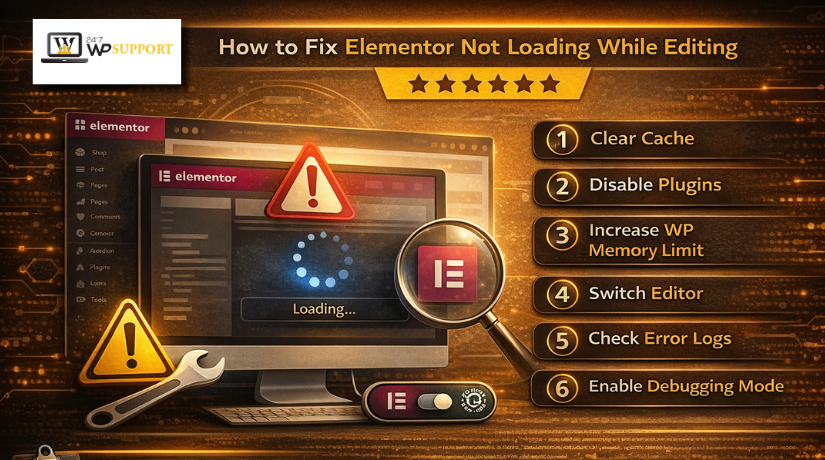
How to Fix Elementor Not Loading While Editing: Troubleshooting Guide
Last updated on April 15th, 2026 at 06:21 am
Introduction
Running into Elementor not loading while editing can feel very frustrating. You open a page, click Edit with Elementor, and wait. Then the editor keeps spinning and never fully opens. This problem can stop your work and waste valuable time. It can also make simple page updates feel much harder than expected.
In many cases, the issue is fixable without rebuilding anything. The problem usually comes from a small conflict or blocked file. It may be related to your browser, plugin setup, theme, or server settings. Sometimes the editor starts but the panel never opens. In other cases, the page stays blank or frozen. If your Elementor editor not loading issue started suddenly, a recent change may be the reason.
This guide focuses only on this one issue. It will help you understand the problem first. Then it will help you move through the right fixes.
What This Elementor Loading Problem Usually Looks Like
This issue can appear in a few common ways. The signs may look different, but the cause is often similar. Many users report Elementor stuck on loading screen when opening a page. Others say the builder loads halfway and then stops.
Here are the most common signs:
- The editor keeps loading and never fully opens.
- The left sidebar stays blank or missing.
- The page preview opens, but editing tools do not load.
- The editor screen freezes after clicking Edit with Elementor.
- The Elementor panel not loading issue appears without warning.
- The page opens, but the controls remain unusable.
Some users also see Elementor editor stuck loading after a plugin update. Others notice the problem only on one page. In some cases, the issue affects the whole site editor.
Why Elementor Fails to Load While Editing
There is no single reason behind this issue. Most cases happen because one important part stops working correctly. Elementor depends on many files, scripts, and settings to load well.
Common causes include:
- Outdated WordPress, Elementor, or Elementor Pro versions
- A plugin conflict blocking Elementor scripts
- A theme conflict affecting the editor layout
- Browser cache or extension problems
- JavaScript errors on the page
- Low PHP memory or weak server resources
- Cache, minify, or CDN settings breaking script loading
When one of these problems appears, the editor may stop opening correctly. That is why the best way to fix Elementor editor not loading is step-by-step testing. You should first confirm the signs, then check the likely cause areas. Once you know where the issue starts, the next fixes become much easier.
Quick Checks Before Trying Bigger Fixes
Before you change deeper settings, start with simple checks first. These steps save time and often reveal the problem fast. In many cases, the issue is smaller than expected. A quick test can show whether the editor problem is local.
Start with these basic checks:
- Refresh the editor page once and wait a few seconds.
- Open the same page in another browser and test again.
- Try incognito mode to bypass old browser session data.
- Temporarily turn off browser extensions during the test.
- Confirm WordPress, Elementor, and Elementor Pro are updated.
This step matters because updates often fix hidden loading bugs. An old version can create file mismatch issues quickly. That mismatch can leave the Elementor editor not loading properly. It can also cause broken scripts inside the editor area. If the problem appears after an update, the update may still matter. One plugin may not be fully matching the new version.
These checks also help narrow the cause area. If incognito mode works, the issue may be browser-related. If another browser works, your main browser needs attention. If nothing changes, move to the next fix carefully.
How to Fix Elementor Not Loading While Editing
If Elementor not loading while editing is stopping your work, do not worry. This issue is usually caused by browser problems, plugin conflicts, theme issues, or server limits. The good part is that you can often fix it by checking each area step by step. Below are the most effective ways to find the cause and get the Elementor editor working again.
Fix 1: Clear Browser Cache and Test the Editor Again
Browsers store old files to speed up page loading. That works well until those saved files become outdated. When that happens, Elementor may load the wrong script version. This can leave the editor frozen or incomplete.
That is why clearing cache should be one early fix. It removes old browser files and forces a fresh load. This is helpful when the Elementor editor stuck loading problem appears suddenly. It is also useful after updates to Elementor or WordPress.
Follow this simple process:
- Clear browser cache and cookies from your settings.
- Close the browser fully after clearing stored files.
- Open it again and log in to WordPress.
- Click Edit with Elementor and test the same page.
You should also test in Chrome, Firefox, or Edge. Sometimes one browser handles scripts better than another. If the builder works in another browser, the issue becomes easier to trace. This also helps confirm whether Elementor stuck on loading screen is browser-based.
Fix 2: Disable Plugin Conflicts One by One
Plugin conflict is one of the most common reasons behind this issue. Elementor depends on many scripts loading in the right order. If another plugin changes those files, the editor may stop working.
This often causes the Elementor panel not loading problem. In other cases, the full editor never finishes loading. To test this, deactivate all plugins except Elementor and Elementor Pro. Then reopen the editor and test the page again.
If the editor loads, reactivate plugins one at a time. Test Elementor after each activation. This method helps you find the exact plugin causing trouble. Common conflict sources include:
- Cache plugins
- Security plugins
- Optimization plugins
- Extra Elementor add-on plugins
This is one of the best ways to fix Elementor editor not loading without guessing. It keeps your testing clean, simple, and focused.
Fix 3: Switch to a Default Theme Temporarily
Your active theme can also affect Elementor editor loading. Some themes add custom scripts, layouts, or settings. Those changes may block Elementor from opening correctly. This can lead to the Elementor editor not loading problem. In some cases, the page preview loads, but editing tools fail.
A quick theme test can help confirm this cause. Temporarily switch to a default option for testing. You can use Hello Elementor or a standard WordPress theme. Then open the same page and test the editor again.
This test helps in two ways:
- It checks whether your current theme causes the issue.
- It shows whether Elementor works in a cleaner setup.
If the editor opens after the theme switch, the theme needs review. It may have a code conflict, broken template, or script issue. This can also explain the Elementor panel not loading on some pages. Once you confirm the cause, you can fix the theme issue safely.
Fix 4: Increase PHP Memory Limit and Check Server Resources


Elementor needs enough server power to load the editor properly. If your hosting resources are too low, loading may stop midway. The editor may freeze, remain blank, or respond very slowly. This is a common reason behind Elementor not loading while editing.
Low PHP memory is one of the biggest causes here. When memory runs out, Elementor cannot complete its editor process. Other server limits can also create the same issue. These settings include execution time, input limits, and PHP version.
Check these important areas:
- PHP memory limit
- PHP max execution time
- PHP max input vars
- Current PHP version
- Overall hosting performance
If your site runs on weak shared hosting, delays may happen. Heavy plugins and large pages can increase the load further. That is why server limits should not be ignored. Even if the frontend works well, the editor may still fail.
A quick server review can help fix Elementor editor not loading faster. If needed, ask your host to increase safe limits. Also confirm that your site uses a supported PHP version.
Fix 5: Turn Off Caching, Minification, and CDN Features
Optimization tools can improve speed, but they also create conflicts. Some tools change how scripts and styles load. Elementor depends on those files loading in the right way. If they are changed too much, the editor may break.
This often happens with:
- Page caching
- JavaScript minification
- File combine settings
- Delayed JavaScript loading
- CDN script changes
- Features like Rocket Loader
When these settings interfere, Elementor may stop at the loading stage. This can look like Elementor editor stuck loading without any clear reason. Sometimes the issue starts after enabling a new performance plugin.
Disable these features one by one and test again. Then reopen the editor and check the same page. If the builder works, one optimization setting caused the problem. This step is simple, but very effective for editor loading issues.
Fix 6: Use Elementor Safe Mode and Regenerate Data
If simple fixes do not work, use Elementor tools next. These tools help isolate conflicts without changing your full setup. They are useful when the Elementor editor not loading problem continues after basic tests.
Start with Elementor Safe Mode. This mode loads Elementor in a cleaner environment. It temporarily ignores theme and plugin interference during the test. That makes it easier to see whether the editor itself works.
Safe Mode is helpful when:
- The editor opens, but stays incomplete
- The page preview loads, but controls do not appear
- The Elementor panel not loading issue happens on every page
- The screen stays frozen after clicking Edit with Elementor
If the editor works in Safe Mode, the issue is likely external. A plugin, theme, or script is probably blocking normal loading. This test gives you a clear direction before deeper changes.
You should also regenerate Elementor data from its tools area. Broken generated files can stop the editor from loading correctly. Regenerating CSS rebuilds those files and refreshes editor resources. Syncing the library can also help repair missing internal data. These steps are small, but often helpful. They are worth trying before advanced server checks.
Fix 7: Check Console Errors, REST API, and Hosting Restrictions
If Elementor still fails, move to technical checks next. These checks help find issues hidden behind the loading screen. They are important when Elementor stuck on loading screen continues after every common fix.
Start with browser console errors. Console messages often reveal blocked scripts or failed file requests. A JavaScript error can stop the editor from finishing its load. This can also cause Elementor editor stuck loading on one or more pages.
Next, check the WordPress REST API. Elementor uses it for important editor requests. If those requests fail, the editor may not open properly. Security tools, login restrictions, or broken site settings can block them.
Hosting settings can also create the same problem. Some servers block needed requests through firewall rules or ModSecurity. In other cases, strict server limits interrupt editor actions. If needed, contact your host and ask them to review blocked requests.
Ask your host to check:
- Firewall blocks
- ModSecurity rules
- Server error logs
- REST API access
- PHP and request limits
Conclusion
The best way to solve Elementor not loading while editing is careful testing. Start with easy checks, then move to deeper fixes. In most cases, the problem comes from a plugin conflict, theme issue, browser trouble, or server limit. Once you test each area clearly, you can often fix Elementor editor not loading without confusion or extra downtime.
If you still cannot solve the issue, professional help can save time. 24×7 WP Support can check your Elementor setup, find the exact cause, and fix the loading problem safely. Our team can help with plugin conflicts, theme issues, server settings, and other WordPress errors so your editor works smoothly again.



Brian is a WordPress support specialist and content contributor at 24×7 WP Support. He writes practical, easy-to-follow guides on WordPress troubleshooting, WooCommerce issues, plugin and theme errors, website security, migrations, performance optimization, and integrations. With a focus on solving real website problems, Brian helps business owners, bloggers, and online store managers keep their WordPress sites running smoothly.
