
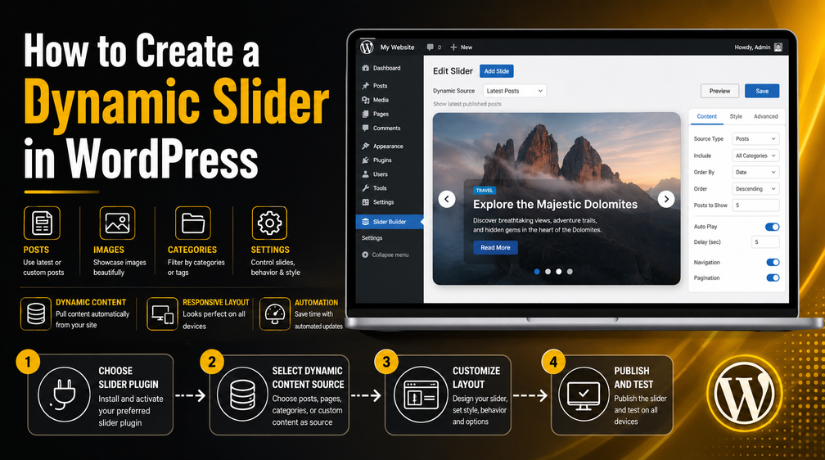
How to Create a Dynamic Slider in WordPress
Introduction
Many WordPress websites need fresh and active homepage sections. A slider can help show important content in one place. It can highlight blog posts, services, offers, products, or updates. However, a normal slider needs manual changes every time. This can take extra time for busy website owners. That is why many users search for How to create a dynamic slider in WordPress.
A dynamic slider works smarter than a simple image slider. It can pull content directly from your WordPress website. When you publish a new post or product, the slider can update automatically. This makes your website look fresh without repeated manual work.
A dynamic slider can help in many useful ways:
- It saves time during regular website updates.
- It keeps the homepage active and fresh.
- It can promote new posts or products.
- It improves user engagement with visual content.
- It helps visitors find important pages faster.
For business websites, this feature can improve content visibility. For blogs, it can show recent posts automatically. For WooCommerce stores, it can display featured or latest products. When used correctly, it supports both design and user experience.
What Is a Dynamic Slider in WordPress?
A dynamic slider is not only a moving image section. It is a slider that connects with your WordPress content. A static slider uses fixed images, titles, and buttons. You must edit each slide manually when content changes.
A WordPress dynamic slider works differently. It can collect content from posts, pages, products, or categories. It can show the featured image, title, short text, and link. This makes content management much easier for website owners.
A WordPress slider with dynamic content is useful for changing content. You can set rules once, and the slider follows them. For example, it can show the latest five blog posts. It can also show posts from one selected category. This keeps the slider relevant, fresh, and easy to manage.
When Should You Use a Dynamic Slider?
A dynamic slider works best when your content changes often. It helps you show fresh updates without editing slides manually. This makes it useful for active websites and growing businesses. You can use it when your homepage needs regular content updates.
A dynamic content slider WordPress setup is helpful for many sections. It can display latest blog posts, featured products, service highlights, or portfolio items. It can also show testimonials, case studies, or special offers. This keeps important content visible to website visitors.
You should use a dynamic slider when:
- You publish blog posts on a regular basis.
- You want to show featured products automatically.
- You need to highlight selected services.
- You want to display recent portfolio work.
- You want testimonials to appear in a better layout.
- You update website content often.
However, use sliders only when they support users. Do not add a slider only for design. A slider should guide visitors toward useful pages. It should also make your message clear and easy.
What You Need Before Creating a Dynamic Slider
Before you Create dynamic slider in WordPress, prepare your website content first. A dynamic slider depends on existing WordPress data. If your content is incomplete, the slider may look weak.
You need a working WordPress website with published content. This content can include posts, pages, products, or custom items. You also need proper featured images for each item. Most sliders use featured images as slide visuals.
Prepare these basic things before starting:
- Published posts, pages, or products.
- Clear featured images for each content item.
- A slider plugin with dynamic content support.
- A selected content source for the slider.
- A simple layout plan for desktop and mobile.
- Clear button text and correct page links.
Good preparation makes the slider easier to build. It also helps visitors understand your content faster.
Step-by-Step Process to Create a Dynamic Slider in WordPress
Creating a dynamic slider becomes simple with the right setup. The main goal is to connect your slider with website content. This helps the slider update automatically when content changes. Follow these steps to build a clean and useful slider.
Step 1: Choose a Slider Tool That Supports Dynamic Content
First, choose a slider plugin or theme feature. Make sure it supports dynamic content settings. Many basic slider tools only allow fixed images. They do not pull posts or products automatically.
Select a tool that can connect with WordPress content sources. It should support posts, pages, products, categories, or custom post types. This is important when you want to Create dynamic slider in WordPress without manual updates.
Step 2: Select the Dynamic Content Source
Next, choose what content your slider should display. This step controls which items appear inside the slider. You can select content based on your website goal.
Common content source options include:
- Latest blog posts
- Posts from selected categories
- Featured WooCommerce products
- Important service pages
- Portfolio items
- Custom post types
For example, a blog website can show recent posts. A service website can show key service pages. An online store can show featured products or new arrivals.
Step 3: Set the Slide Layout
Now decide how each slide should look. A good slide layout keeps content clear and readable. Most dynamic sliders can show a featured image, title, excerpt, button, and link.
Use short titles and clear button text. Do not add too much text on each slide. Visitors should understand the message within a few seconds. A clean layout improves both design and user experience.
Step 4: Add Filters for Better Control


Filters help you control which content appears in the slider. Without filters, the slider may show unrelated posts or pages. This can confuse visitors and reduce engagement.
You can filter content by:
- Category
- Tag
- Post type
- Publish date
- Product status
- Featured item setting
A Dynamic content slider WordPress setup works better with clear filters. It keeps the slider focused on useful content only.
Step 5: Insert the Slider on the Website
After setup, place the slider in the right location. Common places include the homepage, landing page, blog page, product page, or sidebar.
Check the slider after publishing it. Make sure images, titles, buttons, and links work correctly. Also test the slider on mobile devices. A responsive slider gives users a better browsing experience.
How to Create a Dynamic Post Slider in WordPress
A Dynamic post slider WordPress setup is useful for blogs. It helps show your latest posts in a visual format. You can place it on the homepage or blog page. It keeps your content fresh without manual slide changes.
A post slider pulls details from your published blog posts. It can display the featured image, post title, short excerpt, and button. The button can link users to the full blog post. This helps visitors reach useful content faster.
You can also choose posts from one selected category. For example, a support website can show WordPress tips. A business website can show news, updates, or service guides. This keeps the slider focused on relevant content.
A dynamic post slider is helpful when:
- You publish blog posts on a regular schedule.
- You want to highlight important content.
- You need fresh homepage content automatically.
- You want users to read more blog posts.
- You need a better visual section for updates.
This setup saves time and improves content visibility. It also helps users find recent information quickly.
Best Settings for a Clean and User-Friendly Dynamic Slider
A good slider should look clean and load quickly. It should guide visitors without creating confusion. Keep the slider design simple and focused on one goal.
Use clear and compressed images for each slide. Large images can slow down the page. Slow pages can affect user experience and search performance. Keep each slide text short and easy to read.
Use one clear call-to-action button on each slide. Do not add many buttons or long messages. Visitors should understand the next step quickly.
Follow these best settings:
- Use three to five slides only.
- Keep slide speed slow and comfortable.
- Add readable titles and short excerpts.
- Use one strong button per slide.
- Check spacing on mobile screens.
- Avoid heavy animation effects.
A clean slider supports better browsing. It also makes your content easier to understand.
Common Mistakes to Avoid While Creating a Dynamic Slider
A dynamic slider can improve your WordPress website. However, wrong settings can reduce its value. Many users add too many slides, heavy images, or long text. This makes the slider slow and hard to read.
Avoid using unrelated content in your slider. Visitors should see content that matches the page purpose. For example, a service page should not show random blog posts. A product page should show related products or offers.
Also, do not ignore mobile users. Many visitors browse websites from phones. A slider that looks good on desktop may break on mobile.
Avoid these common mistakes:
- Adding too many slides in one slider.
- Using large images without compression.
- Missing featured images in posts or products.
- Showing unrelated posts or pages.
- Adding long text inside each slide.
- Setting auto-slide speed too fast.
- Forgetting to test buttons and links.
Final Checklist Before Publishing the Slider
Before publishing, check every part carefully. Your slider should look clean, load fast, and work properly.
Use this simple checklist:
- Slider pulls the correct content source.
- Images look clear and properly sized.
- Titles are readable on all devices.
- Button text is short and clear.
- Links open the correct pages.
- Slider works well on mobile screens.
- Page speed is not affected badly.
This checklist helps you avoid common display and usability issues.
Conclusion
Learning how to create a dynamic slider in WordPress helps you manage content better. A dynamic slider saves time and keeps your website fresh. It can show posts, products, services, or updates automatically. Keep the design simple, fast, and easy to use. A clean slider improves user experience and supports better content visibility.
A dynamic slider can make your WordPress website look fresh and active. But wrong setup can affect speed, layout, and mobile experience. If you want a clean, fast, and user-friendly slider, 24×7 WP Support can help.
FAQs
1. What is a dynamic slider in WordPress?
A dynamic slider in WordPress shows content automatically from your website. It can pull posts, pages, products, or custom content. You do not need to update every slide manually. This makes your slider easier to manage.
2. How do I create a dynamic slider in WordPress?
You can create a dynamic slider in WordPress using a slider plugin. Choose a plugin that supports dynamic content. Then select your content source, layout, filters, and display location. After setup, test the slider on all devices.
3. Can I create a dynamic post slider in WordPress?
Yes, you can create a dynamic post slider in WordPress. It can show latest posts or category-based posts. The slider can display featured images, titles, excerpts, and read more buttons.
4. Is a dynamic content slider good for SEO?
A dynamic content slider can support SEO when used correctly. It helps show fresh and useful content. However, the slider must load fast and work well on mobile. Large images and heavy effects can hurt performance.
5. Can I show WooCommerce products in a dynamic slider?
Yes, many slider plugins can show WooCommerce products dynamically. You can display featured products, latest products, or selected category products. This helps promote products without manual slide updates.






Brian is a WordPress support specialist and content contributor at 24×7 WP Support. He writes practical, easy-to-follow guides on WordPress troubleshooting, WooCommerce issues, plugin and theme errors, website security, migrations, performance optimization, and integrations. With a focus on solving real website problems, Brian helps business owners, bloggers, and online store managers keep their WordPress sites running smoothly.
