
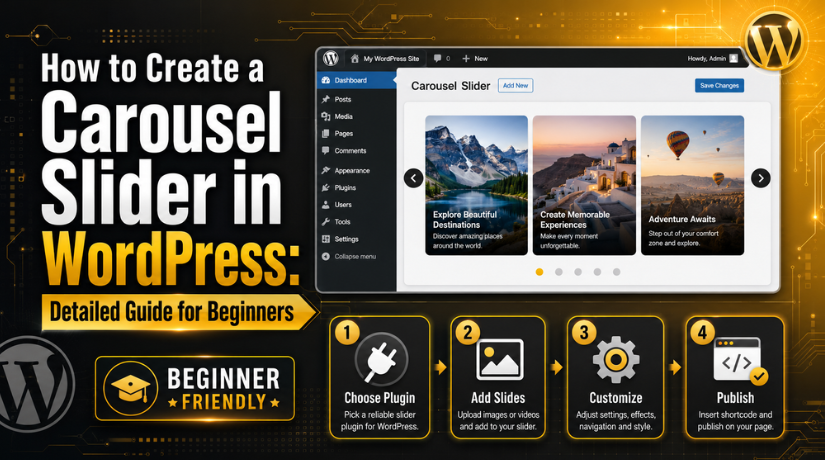
How to Create a Carousel Slider in WordPress: Detailed Guide for Beginners
Introduction
A WordPress carousel slider helps display content in a clean way. It can show images, offers, services, products, reviews, and blog posts. Many website owners use sliders on homepages and landing pages. A slider saves space and keeps the page visually attractive. It also helps visitors notice important content faster.
When used correctly, a carousel can improve user experience. It can guide users toward key pages or services. A Carousel slider WordPress setup is also simple today. You do not need advanced coding skills for it. Most users can create sliders using a WordPress slider plugin. These plugins offer ready-made settings and easy design options. You can add images, text, arrows, dots, and buttons. You can also control slide speed and mobile display.
This guide explains the basic meaning of carousel sliders. It also helps you understand where they are useful. Before you add a carousel in WordPress, know its purpose clearly. A slider should support your website goal, not distract users.
What Is a Carousel Slider in WordPress and How Does It Work?
A carousel slider is a moving content section on a website. It displays multiple items inside one compact area. These items can move automatically or by user action. Visitors can click arrows, dots, or swipe on mobile. A Responsive carousel slider WordPress layout adjusts to every screen size.
It should look good on desktop, tablet, and mobile devices. This makes the slider useful for modern WordPress websites. A carousel can show one item or many items together. For example, a homepage slider may show one large image. A product carousel may show four products in one row.
An Image carousel WordPress section usually displays several website images. It is commonly used for galleries, portfolios, and service highlights. A WordPress image slider can also include captions and buttons. These buttons can send users to important website pages. You can use sliders for business websites, blogs, and stores. The main goal is to present content clearly and neatly.
When Should You Use a Carousel Slider on a WordPress Site?
Use a Carousel Slider to Highlight Important Homepage Content
Use a WordPress carousel slider when you want to highlight key homepage content. It can show services, offers, announcements, or featured pages clearly. This helps visitors notice important details without scrolling too much. Keep each slide simple and focused on one message.
Use a Carousel Slider to Display Multiple Products
A carousel works well for WooCommerce or product-based websites. You can show best sellers, new arrivals, or sell products. This helps customers view many products in limited page space. A Responsive carousel slider WordPress layout also improves mobile shopping.
Use a Carousel Slider to Show Customer Testimonials
You can use a carousel slider to display customer reviews. It helps build trust without making the page too long. Each slide can show one review with a customer name. This format keeps the design neat and professional. A testimonial carousel works well on service pages and homepages.
Use a Carousel Slider to Present Portfolio or Gallery Images
An Image carousel WordPress section is useful for galleries and portfolios. It can show project images, event photos, or service samples. This layout helps visitors review your work in less space. A clean image carousel also improves visual presentation.
Use a Carousel Slider to Show Blog Posts
A blog post carousel helps display recent or popular articles. It can keep visitors engaged with more website content. You can show posts by category, date, or popularity. This helps users find useful articles without searching manually.
Use a Carousel Slider to Display Client or Partner Logos
A logo carousel works well for business and agency websites. It can show client logos, partner logos, or brand names. This builds trust and improves business credibility. The carousel keeps logos arranged in a clean format. It also saves space on service pages and landing pages.
Use a Carousel Slider When You Need to Save Page Space
A Carousel slider WordPress setup is useful for compact layouts. It can show many items inside one small section. This helps keep pages clean and easy to browse. It is useful when you have limited design space. Visitors can view more content without heavy scrolling.
Use a Carousel Slider Only When It Supports User Action
You should add a carousel in WordPress only with a clear goal. The slider should guide users toward services, products, or contact pages. It should not confuse users or slow the website. Add clear buttons like “Read More” or “Contact Us.” This helps visitors take the next step easily.
Complete Guide to Creating Carousel Sliders in WordPress
Using a plugin is the easiest way to create a WordPress carousel slider. You do not need coding skills for this method. A WordPress slider plugin gives ready settings and design options. You can add images, products, posts, logos, or reviews. You can also manage arrows, dots, speed, and mobile view.


Step 1: Choose the Right WordPress Slider Plugin
- First, choose a trusted WordPress slider plugin.
- Check plugin reviews before installing it.
- Check the last update date.
- Choose a plugin with active users.
- Make sure it supports mobile-friendly layouts.
- A Responsive carousel slider WordPress design is very important.
- Check if it supports shortcodes or blocks.
- This helps you add the slider anywhere easily.
Step 2: Install and Activate the Plugin
- Go to your WordPress dashboard.
- Click Plugins > Add New.
- Search for a carousel slider plugin.
- Click Install Now.
- Wait until the installation finishes.
- Click Activate after installation.
- The plugin will appear in your dashboard menu.
- Now you can start creating your slider.
Step 3: Create a New Carousel Slider
- Open the plugin settings from your dashboard.
- Click Add New Slider or Create New Carousel.
- Add a clear name for your slider.
- You can name it Homepage Slider.
- You can also name it Product Carousel.
- Choose the slider type you need.
- Select image, product, post, logo, or testimonial slider.
- You can create an Image carousel WordPress section easily.
Step 4: Add Images or Content
- Add images from the WordPress Media Library.
- You can also upload new images.
- Use clear and high-quality images.
- Keep all images in the same size.
- This keeps the slider clean and balanced.
- Add image alt text for better SEO.
- Alt text also helps screen reader users.
- You can add posts, products, logos, or testimonials.
Step 5: Customize Slider Settings
- Now adjust the slider settings.
- Set the slider width and height.
- Turn arrows on or off.
- Turn dots navigation on or off.
- Set the slide speed carefully.
- Keep the speed slow and readable.
- Turn autoplay on only if needed.
- Avoid too many effects or animations.
- A simple WordPress image slider often works better.
Step 6: Make the Slider Mobile-Friendly
- Check the slider on mobile devices.
- Also test it on tablets and desktops.
- Make sure images look clear.
- Check if text is easy to read.
- Make sure buttons are easy to tap.
- Use one slide per row on small screens.
- Enable swipe control if available.
- A mobile-friendly slider improves user experience.
Step 7: Publish and Copy the Shortcode
- Save the slider after setup.
- Publish it if the plugin asks.
- Most plugins will show a shortcode.
- Copy the shortcode from the plugin screen.
- The shortcode may look like this: [slider id=”123″].
- Some plugins also provide a block option.
- You can use either shortcode or block.
- Choose the option that feels easier.
Step 8: Add Carousel in WordPress Page
- Open the page where you want the slider.
- Click Edit from the dashboard.
- Add a Shortcode block.
- Paste the slider shortcode inside it.
- Preview the page before publishing.
- Check the slider layout carefully.
- If everything looks good, click Update.
- This is the easiest way to add a carousel in WordPress.
Common Carousel Slider Problems and Simple Ways to Fix Them
Slider Is Not Showing on the Page
Sometimes, the slider does not appear after publishing the page. This usually happens because the shortcode is wrong. Recheck the shortcode and paste it again carefully. Also check if the WordPress slider plugin is active.
Images Look Stretched or Blurry
Images may look poor when sizes are different. Use images with the same width and height. This keeps your WordPress image slider clean and balanced. Also upload clear and compressed images for better results.
Slider Is Not Working on Mobile
A slider may look good on desktop but bad on mobile. Check the mobile settings inside your plugin. Enable the Responsive carousel slider WordPress option if available. Also test the slider on different screen sizes.
Arrows or Dots Are Missing
Sometimes, arrows or dots do not appear on sliders. This happens when navigation settings are turned off. Open the slider settings and enable arrows or dots. Then save changes and clear your website cache.
Slider Loads Slowly
Large images can make your slider load very slowly. Compress images before uploading them to WordPress. Also avoid using too many slides or heavy effects. A simple Image carousel WordPress design loads much faster.
Best Practices Before Publishing Carousel Sliders In WordPress
Use Only Important Slides
Do not add too many slides to your carousel. Use three to five slides for better results. This keeps your WordPress carousel slider simple and useful. Visitors can understand your message without feeling confused.
Add Clear Image Alt Text
Always add alt text to every slider image. Alt text helps search engines understand your images. It also helps users using screen readers. This makes your Carousel slider WordPress setup more useful.
Keep Text Short and Easy to Read
Do not add long text inside your slider. Use short headings and clear button text. Visitors should understand each slide very quickly. Simple text makes the slider more user-friendly.
Check Desktop and Mobile View
Always preview the slider before publishing your page. Check desktop, tablet, and mobile views carefully. Make sure images, text, and buttons look clear. This helps you avoid design issues later.
Keep the Plugin Updated
Update your slider plugin when updates are available. Updates fix bugs, security issues, and display problems. An updated plugin keeps your slider safe and smooth.
Conclusion
Creating a WordPress carousel slider is a simple way to display images, posts, products, or testimonials effectively. Using a WordPress slider plugin allows you to manage your sliders easily without coding. Remember to keep your slider responsive, use high-quality images, add alt text, and maintain clear, concise text. Testing your carousel on both desktop and mobile ensures a smooth user experience and better engagement. A well-designed Responsive carousel slider WordPress section improves navigation and makes your website more visually appealing.
If you need guidance on choosing the right plugin, setting up a WordPress image slider, or troubleshooting issues with your carousel, you can contact 24×7 WP Support for expert advice. Their team can provide step-by-step instructions and practical tips to make your WordPress carousel slider work perfectly on your website. You can reach them at 888-818-9916 for support and guidance.

Brian is a WordPress support specialist and content contributor at 24×7 WP Support. He writes practical, easy-to-follow guides on WordPress troubleshooting, WooCommerce issues, plugin and theme errors, website security, migrations, performance optimization, and integrations. With a focus on solving real website problems, Brian helps business owners, bloggers, and online store managers keep their WordPress sites running smoothly.
