
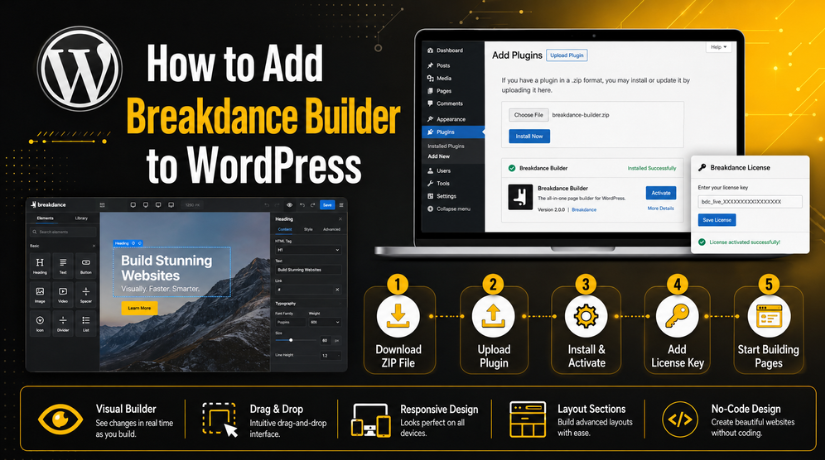
How to Add Breakdance Builder to WordPress
Introduction
Adding a visual builder can make WordPress design much easier. Many website owners want clean pages without writing custom code. This is where Breakdance Builder WordPress tools can help. Breakdance lets you build pages with a visual editor. You can see changes while editing your layout.
This guide explains how to add Breakdance Builder to WordPress. Even if you don’t know how to code, you can follow the instructions. You can follow the steps even without coding knowledge. The primary objective is to assist you in comprehending the builder. Then you can move toward safe installation and setup.
Many WordPress users choose page builders for faster design work. A visual builder helps you create pages with simple controls. Text, pictures, buttons, forms, and sections can all be added. You can also adjust spacing, colors, and layouts visually.
Breakdance is useful when you want more design control. It helps you create custom pages without editing theme files. This makes it helpful for service websites, business pages, and landing pages.
Before using any builder, setup should be done carefully. A wrong setup may affect your layout or website speed. That is why users should understand the tool first. After that, they can install and use it with confidence.
What Is Breakdance Builder in WordPress?
Breakdance Builder is a visual design tool for WordPress. It helps users create pages using drag-and-drop controls. You can build page sections without working inside code files. Because of this, both beginners and website owners can benefit from it.
The Breakdance page builder WordPress tool works inside your WordPress dashboard. Once installed, it gives you a visual editing screen. You can open a page and start designing it directly. You can place elements where they fit best.
Breakdance includes many useful design elements, such as:
- Headings for page titles and section titles
- Text blocks for service or blog content
- Images for visual support and branding
- Buttons for calls to action
- Forms for leads and contact requests
- Layout sections for clean page structure
Breakdance can help you build different website areas. It can be applied to homepages, sales pages, landing pages, and service pages. Compared to the default WordPress editor, it offers greater customization.
The builder is also helpful for creating modern designs. You can manage fonts, colors, spacing, and responsive views. This means your page can look better on desktop and mobile.
In simple words, Breakdance helps you design faster. It gives WordPress users more freedom while keeping editing simple. That makes it a useful choice for many website projects.
Things to Check Before Installing Breakdance Builder
Before you Install Breakdance Builder in WordPress, prepare your website first. This helps you avoid setup errors and layout problems. A small check can save time during installation. It also keeps your live website safer during changes.
Check Your WordPress Admin Access
To install any plugin, you must have admin access to WordPress. Editor or author roles cannot upload new plugins. Before beginning the process, log in using an administrator account. Then check if the Plugins menu appears in your dashboard.
Your function can be restricted if the Plugins menu is absent. In that case, ask the site owner for admin access. You may also need hosting access for upload limit issues. This is useful when WordPress blocks large plugin files.
Download the Correct Breakdance Builder ZIP File
Breakdance Builder is usually uploaded as a ZIP file. Download the correct file from your Breakdance account or source. Before uploading the file to WordPress, do not unzip it. WordPress needs the full ZIP package for installation.
Check these details before uploading the file:
- The file should end with .zip.
- The file should be complete and not damaged.
- You should obtain the material from a reliable source..
- The file should match the current Breakdance version.
A wrong file may show an upload or installation error. So, always confirm the file before moving ahead.
Take a Website Backup Before Installation
Prior to installing a builder, always make a complete backup of your website. A backup protects your website if anything breaks. It should include both website files and the database. This gives you a safe restore point.
You can create a backup using your hosting panel. You can also use a trusted WordPress backup plugin. Store the backup away from the live website. This makes recovery easier if the website has issues.
Check Theme and Plugin Compatibility
A page builder can affect your website design and layout. So, check your active theme before installing Breakdance. Also review other active builders on your website. Using many builders may create design conflicts later.
You should check these areas first:
- Active WordPress theme
- Existing page builder plugins
- Cache and optimization plugins
- Custom CSS added earlier
- Important pages already designed with another builder
This step supports a smoother WordPress Breakdance Builder setup. It also helps you avoid layout conflicts after activation.
How to Install Breakdance Builder in WordPress
Once your website is ready, start the installation process. The steps are simple inside the WordPress dashboard. Follow each step carefully to avoid common upload issues.
Step 1: Log In to Your WordPress Dashboard
Open your WordPress login page and enter admin details. You will see the main dashboard screen after logging in. Verify that the internet connection you are utilizing is secure. This is important when installing plugins or changing settings.
Step 2: Go to Plugins and Click Add New
From the left menu, click Plugins in your dashboard. Next, select the Add New button located at the top. This opens the plugin installation screen in WordPress. You will see options to search or upload plugins.
Step 3: Upload the Breakdance Builder ZIP File
Click the Upload Plugin button on the screen. Select the Breakdance Builder ZIP file from your PC at this point. After selecting the file, WordPress will show the upload option. Before beginning the installation, make sure the file name is correct.
Step 4: Click Install Now
Click Install Now to upload the plugin package. WordPress will process the ZIP file and install it. Wait until the installation message appears on your screen. Avoid shutting off the browser while doing this.
Step 5: Activate the Breakdance Builder Plugin
Click the “Activate Plugin” button after installation. This activates the builder on your WordPress website. Now you can move toward basic settings and setup. At this stage, Breakdance Builder WordPress tools become available for use.
How to Complete the WordPress Breakdance Builder Setup
After activation, complete the basic WordPress Breakdance Builder setup carefully. This helps the builder work better on your website. Do not start designing pages before checking important settings. A clean setup can prevent errors and layout problems later.
Add Your License Key
Breakdance may ask you to add your license key. This key connects your website with your Breakdance account. It also helps you receive updates and premium features. Updated plugins are important for performance and website safety.
Open the Breakdance settings area inside WordPress. Then find the license or account section. Take a copy of your Breakdance account’s license key. After pasting it into the license field, save the modifications.


If the key does not activate, check these points:
- Make sure the license key is copied correctly.
- Check if your plan is still active.
- Confirm your website is allowed under the license.
- Try again after clearing your browser cache.
Review Basic Builder Settings
Once the license is active, review the basic settings. These settings control how Breakdance works across your website. You don’t have to make all the changes at once. Start with only the settings needed for your site.
Check settings related to design, performance, and page editing. You may also review global fonts and colors. These options help keep your website design consistent. A proper setup makes future editing faster and cleaner.
Choose How You Want to Use Breakdance
Before building pages, decide how you want to use Breakdance. Some users only design landing pages with it. Others use it for full website layouts. Your choice should match your website goal.
You can use Breakdance for:
- Homepage design
- Landing page design
- Service page layouts
- Contact page sections
- Sales page layouts
This step helps you avoid mixed design styles. It also keeps your website structure easier to manage.
How to Use Breakdance in WordPress After Setup
Learning how to use Breakdance in WordPress is simple after setup. The builder gives you a visual editing screen. You can create sections, add elements, and style pages easily.
Open a Page With Breakdance
Go to Pages inside your WordPress dashboard. Create a new page or open an existing one. A Breakdance editing option ought to be visible. To launch the visual editor, click that option.
Once the editor opens, you can start designing the page. Use a test page first if you are new. This helps you learn without affecting live content.
Add Sections and Elements
Breakdance works with sections, layouts, and design elements. You can add one section for each page area. Then place elements inside that section as needed.
Common elements include:
- Heading
- Text
- Image
- Button
- Form
- Columns
- Icon box
Each element helps you build a clear page layout. Make sure the design is straightforward and simple to scan.
Edit Design Settings Visually
Click any section or element to edit its settings. You can change text, colors, spacing, and alignment. You can also adjust fonts and background styles. These controls help you create a polished page design.
Save and Preview the Page
After editing, save your changes inside Breakdance. Next, open a new tab in your browser and preview the page. Check the desktop, tablet, and mobile views carefully. Publish the page only when everything looks correct.
Common Issues After Installing Breakdance Builder
After installing Breakdance Builder WordPress, you may face small setup issues. Most issues happen because of settings, cache, or conflicts. You can fix many problems with basic checks.
Breakdance Button Not Showing
Sometimes the Breakdance edit button may not appear. First, check if the plugin is active. Go to Plugins and confirm Breakdance is enabled. Also check your WordPress user role. You need admin access to use builder features.
If the button still does not show, refresh your dashboard. You can also clear browser cache and try again.
ZIP File Upload Error
A ZIP upload error can happen during installation. The file may be wrong, damaged, or too large. Ensure that the original plugin ZIP file is uploaded. Do not upload an extracted folder.
You should also check your hosting upload limit. Some servers block larger plugin files. In that case, increase the upload size from hosting. You can also seek assistance from your hosting company.
Page Design Not Loading Properly
Sometimes the builder page may not load correctly. Cache plugins can cause this issue after activation. Clear your website cache and browser cache first. Next, open a private browser window and reload the page.
Theme or plugin conflicts may also affect loading. Disable other page builders only for testing. Then check if Breakdance starts working properly.
License Key Not Activating
License activation may fail for simple reasons. Check your license key before saving it again. Verify that there are no additional spaces. Verify that there are no additional spaces.
Best Practices Before Building Pages With Breakdance
Use the Breakdance page builder WordPress tool carefully at first. Start with one test page before editing live pages. This helps you understand the builder without risk.
Follow these simple best practices:
- Keep each page layout clean and focused.
- Use global styles for fonts and colors.
- Check mobile layout before publishing pages.
- Avoid using many builders on one page.
- Save changes after every major design update.
These steps help you keep pages clear and stable.
When Should You Get Help With Breakdance Builder Setup?
You may need expert help if setup problems continue. Some issues need deeper WordPress and hosting checks. Get help when you face plugin upload errors, builder conflicts, broken layouts, or theme issues.
Expert assistance can safeguard your website and save time. The 24×7 WP Support team can help with safe setup, error checks, and page builder issues.
Conclusion
You can add Breakdance Builder to WordPress with careful steps. First, prepare your website and backup your data. Then install, activate, and complete the setup correctly. Once ready, use Breakdance to design clean pages easily.
A safe setup gives better results and fewer problems. If you need help, contact 24×7 WP Support for reliable WordPress assistance.
FAQs
1. What is Breakdance Builder in WordPress?
Breakdance Builder is a visual page builder for WordPress. It helps you design pages without writing code. You can add sections, headings, images, buttons, and forms. It is useful for creating landing pages, service pages, and custom website layouts.
2. How do I install Breakdance Builder in WordPress?
You can install Breakdance Builder from your WordPress dashboard. Go to Plugins > Add New > Upload Plugin. Choose the Breakdance ZIP file from your computer. Then click Install Now and activate the plugin after installation.
3. Do I need coding knowledge to use Breakdance Builder?
No, you do not need coding knowledge to use Breakdance Builder. It gives you a visual editing screen. You can drag elements, change layouts, edit text, and style pages using simple design controls
4. Why is my Breakdance Builder button not showing?
The button may not show if the plugin is inactive. It can also happen because of user role limits, cache issues, or plugin conflicts. Check plugin status first. Then clear cache and refresh your WordPress dashboard.
5. Is Breakdance Builder good for beginners?
Yes, Breakdance Builder can be good for beginners. It offers visual editing and simple page design tools. Beginners should start with one test page first. This helps them learn the builder safely before editing live pages.

Brian is a WordPress support specialist and content contributor at 24×7 WP Support. He writes practical, easy-to-follow guides on WordPress troubleshooting, WooCommerce issues, plugin and theme errors, website security, migrations, performance optimization, and integrations. With a focus on solving real website problems, Brian helps business owners, bloggers, and online store managers keep their WordPress sites running smoothly.
