
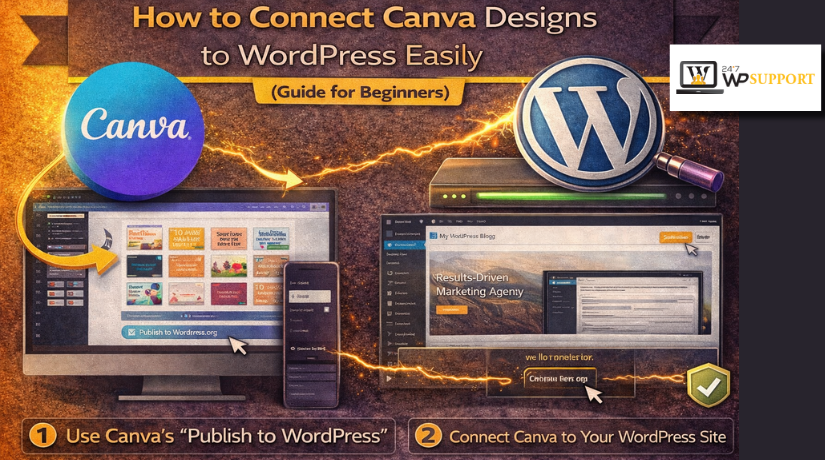
How to Connect Canva Designs to WordPress Easily (Guide for Beginners)
Introduction
Many website owners want fast design without learning hard tools. That is why Canva and WordPress work well together. Canva helps you create clean graphics, banners, slides, and page visuals. WordPress helps you publish and manage website content with more control. So, Canva to WordPress integration usually means bringing Canva-made content into your WordPress site in a simple way. Today, the easiest methods are exporting Canva files, embedding a design, or linking a Canva-published page. Canva officially supports design embeds and website publishing, while WordPress supports adding custom HTML inside the editor.
This setup is useful for beginners, bloggers, store owners, and service websites. It saves design time and helps pages look more polished. It also makes it easier to create visuals without hiring a designer first. If you are learning how to use Canva for website design, this guide will help you understand the right starting point. It will also help you avoid common confusion about what Canva can and cannot do inside WordPress.
What Does It Mean to Connect Canva to WordPress?
When people say they want to connect Canva to WordPress, they usually do not mean a full site sync. Canva is mainly a design platform. WordPress is a content and website management platform. So, the connection is practical, not deeply native. In simple words, you create the design in Canva and then place it inside WordPress in the best format for your page.
Most users do this in three common ways. First, they export a Canva image or PDF and upload it to WordPress. Second, they embed Canva design in WordPress using Canva’s embed code. Third, they publish a Canva page or mini site and link it from their WordPress website. These are the most useful current methods for normal website work. Canva’s help pages clearly support embed sharing and website publishing, and WordPress supports custom HTML blocks for pasted code.
This connection is useful because it gives each platform a clear job. Canva handles visual creation. WordPress handles structure, content, navigation, and publishing. That is why this workflow feels easy for many non-technical users. You get better-looking pages without changing your full website system.
Can You Connect Canva Designs or a Canva Website to WordPress?
Yes, you can add Canva designs to WordPress quite easily today. If your design is a banner, blog image, or graphic, you can download it from Canva and upload it to the WordPress Media Library. If your design is interactive, such as slides or a presentation, you can use Canva’s embed option and place the code into a Custom HTML block in WordPress. This makes Canva to WordPress integration possible without complex development steps.
You can also connect a Canva page or Canva-published website to WordPress, but this works differently. A Canva website to WordPress setup does not turn Canva into your WordPress page builder. Instead, Canva publishes the page on its own web setup, and you can link visitors to that page from your WordPress menu, button, banner, or landing page section. Canva officially offers website publishing to free, new, or existing domains, which makes this method useful for simple campaigns or temporary pages.
Many users also search for a WordPress Canva plugin and expect a one-click bridge. In practice, most site owners do not need that approach for normal content work. Exporting, embedding, and linking are usually faster and easier to manage. Those methods also fit better with how WordPress blocks and Canva sharing tools work today. So, if your goal is to add graphics, presentations, or a Canva page, WordPress already gives you simple ways to do it.
Things You Should Prepare Before Connecting Canva Designs to Your WordPress Website
Before you start, it is smart to prepare a few basic things first. This makes the full Canva to WordPress integration process smoother and faster. It also helps you avoid upload errors, blurry images, and poor page layout. Canva allows you to download designs in different file formats, including PNG, JPG, PDF, and MP4, so choosing the right one matters before you move the file to WordPress. WordPress also lets you upload supported files through the Media Library and directly inside the editor, which makes the setup easy for normal website work.
Finished Canva Design That Is Ready for Website Use
First, make sure your Canva design is fully finished before export. Check the text, colors, spacing, logo placement, and overall look carefully. If the design is still changing, you may need repeated uploads later. That wastes time and creates confusion inside your media files. If you want to connect Canva to WordPress the easy way, start with a final version. This method works best when your design is clear, simple, and ready for web use. Canva gives you different download choices for different design needs, so prepare the final version before picking the file type.
Full Access to Your WordPress Dashboard and Media Area
You also need access to your WordPress dashboard before starting. For this method, you should be able to edit posts or pages and open the Media Library. WordPress lets you upload files directly from your computer into Media, and those files can then be used across pages and posts. You can also add media from blocks inside the editor, which keeps the workflow simple for beginners. This is why many users do not need a separate WordPress Canva plugin for basic design uploads. WordPress already includes the core tools needed for this method.
Clear Goal for Where the Canva Design Will Be Used
Before exporting, decide where the Canva design will appear on your site. This step is very important when learning how to use Canva for website design. Your design may be used as a blog image, featured image, banner, download file, or section graphic. Each use case may need a different size or file format. A banner should fit a wide page space clearly. A blog image should stay readable inside content width. A downloadable guide may work better as a PDF than an image. WordPress supports different blocks for different media uses, including the Image block, Cover block, and File block, so planning the goal first will help you choose the right setup.
Basic File Type and Size Planning Before Export
File planning is another step many beginners skip too quickly. Canva lets you download designs in several formats, and the right file depends on the type of content you want to add. PNG often works well for sharp graphics. JPG is often lighter for normal web images. PDF is useful when the file should be viewed or downloaded as a document. WordPress supports common image and document formats through the Media Library and editor, which helps these files fit into normal website content. Large files can also slow pages down, so keeping the size light is a smart step before upload. WordPress’s image guides also recommend optimizing images so they load quickly and use less storage.
Method 1: How to Connect Canva Designs to WordPress (Step By Step)
Step 1: Finish Your Canva Design Before You Export It
- Open your design in Canva.
- Check the text, colors, spacing, and images.
- Make sure the logo is placed correctly.
- Confirm the design size fits your website section.
- Finalize everything before download.
- This makes Canva to WordPress integration easier and cleaner.
Step 2: Choose the Right File Type for Your WordPress Use
- Click the download option in Canva.
- Choose the file format based on your need.
- Use PNG for sharp graphics and branded visuals.
- Use JPG for lighter website images.
- Use PDF for guides or downloadable files.
- The right file type helps you connect Canva to WordPress properly.
Step 3: Download the Canva Design to Your Computer
- Download the finished design to your device.
- Save it in an easy-to-find folder.
- Use a clear and simple file name.
- Keep the file name related to the design purpose.
- This helps when managing website files later.
- It also improves your how to use Canva for website design workflow.
Step 4: Open Your WordPress Dashboard and Go to the Right Page
- Log in to your WordPress dashboard.
- Open the page or post where the design will appear.
- You can also open the Media Library first.
- Choose the area where you want to place the design.
- This method works without needing a WordPress Canva plugin in most cases.
Step 5: Upload the Canva File Into WordPress
- Add an Image block inside the editor.
- Click the upload option.
- Select the Canva file from your computer.
- You can also upload it into the Media Library first.
- After upload, insert the file into your page or post.
- This is the easiest way to move Canva visuals into WordPress.
Step 6: Place the Design in the Correct Section of the Page
- Put the design where it fits best.
- Add it inside blog content if it supports the topic.
- Use it near a call-to-action if needed.
- Place it in a banner or hero section if the size fits.
- You can also set it as the featured image.
- This makes your Canva to WordPress integration more useful.
Step 7: Check the Design on Desktop and Mobile Before Publishing
- Preview the page before publishing.
- Check the design on the desktop view.
- Check the design on mobile view.
- Make sure the text stays readable.
- Confirm the image is not blurry.
- Fix spacing or size if needed.
Step 8: Publish the Page After Final Checks
- Review the full page one last time.
- Make sure the design looks clean and balanced.
- Check that the placement supports the content.
- Click publish or update.
- Your Canva design is now live on WordPress.
- This is the easiest method to connect Canva to WordPress.
Method 2: How to Connect Canva Designs to WordPress
Step 1: Open the Finished Canva Design
- Log in to Canva and open the design you want to publish.
- Make sure the design is fully ready before embedding.
- Check text, spacing, images, and final layout first.
- This is important when you want to embed Canva design in WordPress smoothly.
Step 2: Open the Share Option in Canva
- Click the Share button at the top of the design.
- Look for the Embed option in the sharing menu.
- Canva’s current help guide says the embed code is copied from Share > Embed.
Step 3: Copy the Canva Embed Code
- Select the embed option inside Canva.
- Copy the full embed code shown by Canva.
- Do not edit or remove parts of the code.
- This code is what helps you connect Canva to WordPress using a live design block.
Step 4: Open the WordPress Page or Post
- Log in to your WordPress dashboard.
- Open the page or post where the Canva design should appear.
- Decide the exact section where you want to place it.
- This helps the design fit the content better.
Step 5: Add a Custom HTML Block in WordPress
- Click the + block inserter in the editor.
- Search for Custom HTML.
- Add the Custom HTML block to the page.
- WordPress says this block is used to add HTML code and preview it while editing.
Step 6: Paste the Canva Embed Code Into the Block
- Click inside the Custom HTML block.
- Paste the Canva embed code there.
- Keep the full code exactly as Canva gave it.
- This is the main step used to embed Canva design in WordPress.
Step 7: Preview the Embedded Design Before Publishing
- Use the preview inside the editor if available.
- Then preview the page on the front end.
- Check whether the design loads correctly.
- Make sure it looks clean on desktop and mobile.
- WordPress says the Custom HTML block lets you preview the code as you edit.
Step 8: Adjust Width and Spacing if Needed


- Check whether the embed looks too narrow or too wide.
- Fix the surrounding spacing so it matches your page layout.
- If needed, place the Custom HTML block inside a Group block.
- WordPress notes that Custom HTML blocks do not have their own width control, and a container block can help manage width.
Step 9: Publish or Update the Page
- Once the embed looks correct, click Publish or Update.
- Test the live page again after publishing.
- Confirm that the Canva design loads without breaking the page.
- This method is useful when Canva to WordPress integration needs a more interactive result than a normal image.
Step 10: Know When This Method Is Better Than Uploading
- Use this method for presentations, reports, slides, or interactive visuals.
- Do not use it for every simple banner or image.
- For static graphics, exporting and uploading is often easier.
- For live showcase content, this method works better because Canva provides a dedicated embed workflow.
Common Problems You May Face When Connecting Canva Designs to WordPress
Even a simple Canva to WordPress integration can create small problems. Most of these issues are not serious, but they can affect how your page looks and works. The good part is that these problems are usually easy to fix once you know the cause. If you plan to connect Canva to WordPress the right way, it helps to understand the most common issues first.
Canva Design Looks Blurry After You Upload It to WordPress
This is one of the most common problems for beginners. A Canva design may look sharp inside Canva but appear soft after upload. This usually happens when the file was exported in low quality or stretched too much inside WordPress. It can also happen when the design size does not match the section where it is placed. If you want better Canva to WordPress integration, always use the right size before upload. A clear file and proper placement usually fix this issue quickly.
Canva Embed Code Does Not Show Properly on the Page
This issue appears when users try to embed Canva design in WordPress but use the wrong block. Sometimes the code is pasted inside a normal text block instead of a Custom HTML block. In other cases, the page builder or theme may affect how the code appears. The design may also fail to load if part of the code was removed by mistake. If the embed does not show, check the block type first. Then preview the page again and test the full code carefully.
Canva Design Looks Bad on Mobile Devices
A design may look nice on desktop and still fail on mobile. Small text, wide layout, and busy design structure are common reasons. This problem often happens when users focus only on desktop view during design work. When learning how to use Canva for website design, mobile readability should always be part of the process. A mobile-friendly layout helps your page look cleaner and easier to use. Simple design choices usually work better across all screen sizes.
The Page Loads Slowly After Adding Canva Content
Heavy image files can slow down your website. Large PNG files, too many graphics, or multiple embeds on one page can all affect speed. This problem becomes more visible on mobile devices and slower internet connections. A slow page can also hurt user experience and reduce trust. That is why a smart Canva to WordPress integration should always include file size control. Clean design is important, but page speed also matters for better performance and easier browsing.
Canva Website Link Feels Separate From the Main WordPress Website
This issue happens when users add a Canva website to WordPress by linking to a Canva-published page. The visitor may feel like they left your main website and entered a different one. This can happen when the design style, font, or colors do not match your WordPress site. It may also happen when the Canva page has a different layout flow. This method can still work for campaigns or short promotions, but it should be used carefully when branding consistency matters.
Best Practices to Use Canva Designs on WordPress the Right Way for Better Results
If you want better results, focus on simple and practical design habits. Good design is not only about looks. It is also about clarity, speed, fit, and ease of use. These best practices can help you connect Canva to WordPress with fewer mistakes and better page quality.
Use the Right Canva Design Size From the Start
Start with the correct design size before creating your visual. Do not make a random size and adjust it later. A banner needs different dimensions than a blog image or content graphic. When the design size matches the WordPress section, the result looks cleaner and more professional. This step also reduces the chance of blur or poor spacing. A strong Canva to WordPress integration begins with proper planning, not just fast exporting.
Keep File Sizes Light for Better Speed and Smoother Performance
Large design files can make your website slow. That is why image weight matters as much as image quality. Choose the right format and avoid exporting files larger than needed. A simple JPG may work better than a heavy PNG in some cases. If the file is too large, compress it before upload. This makes the page load faster and improves the visitor experience. Fast pages often perform better than pages filled with heavy design elements.
Keep Your Branding Style Consistent Across Canva and WordPress
Brand consistency is very important for trust and clarity. Use the same colors, similar fonts, and matching visual style in both places. If your WordPress site feels modern and simple, your Canva design should support that look. If your Canva page uses very different styling, the website may feel broken or uneven. This is especially important when linking a Canva website to WordPress. A matching visual style helps visitors feel they are still on the same brand journey.
Make Every Canva Design Easy to Read and Easy to Scan
Many users try to add too much content inside one design. That makes the image hard to read and harder to use on smaller screens. Keep text short, clear, and easy to scan. Use simple layouts with enough space between elements. Avoid crowded graphics and tiny font sizes. If you want to embed Canva design in WordPress, clear structure becomes even more important because the content is being viewed directly on the page. Easy reading always improves the result.
Always Check Both Desktop and Mobile Views Before Publishing
Never publish a Canva design without checking both screen types first. What looks balanced on desktop may look crowded on mobile. A mobile preview helps you catch text size problems, cut-off images, and weak spacing. This is a key part of how to use Canva for website design the right way. A design should support the website on every screen, not only on large monitors. A quick preview check can prevent many simple publishing mistakes.
Use Canva as a Design Tool and WordPress as the Main Website Tool
Canva is excellent for visual creation, but WordPress is still stronger for full website control. WordPress handles content structure, plugins, blog posts, SEO setup, and page management better. Canva should support your website, not fully replace it in most cases. That is why many site owners do not need a WordPress Canva plugin for normal work. They simply create the design in Canva and place it into WordPress in the best format. This approach keeps the workflow simple and practical.
Conclusion
Canva and WordPress can work together very smoothly when you choose the right setup. You can upload Canva graphics, embed selected designs, or link a Canva page when needed. The best method depends on your content type and your website goal. If you want a clean result, focus on image quality, mobile view, branding, and page speed. A smart Canva to WordPress integration is not about using every method at once. It is about choosing the method that fits your page best.
If you want expert help with design placement, WordPress setup, layout fixes, or custom website support, 24x7wpsupport can help you do it the right way. Whether you need help to connect Canva to WordPress, fix display issues, improve page design, or manage your website better, our team is here to support you. Visit 24x7wpsupport and get professional WordPress help for your website.





Brian is a WordPress support specialist and content contributor at 24×7 WP Support. He writes practical, easy-to-follow guides on WordPress troubleshooting, WooCommerce issues, plugin and theme errors, website security, migrations, performance optimization, and integrations. With a focus on solving real website problems, Brian helps business owners, bloggers, and online store managers keep their WordPress sites running smoothly.
