
Where Is Popup Maker in WordPress? Popup Builder Explained
Introduction
Many website owners want to show important messages quickly. A popup can help with that purpose. It can display offers, newsletter forms, contact forms, alerts, or updates. This is why many users search for a popup maker in WordPress when managing their website.
A common question is, where is popup maker in WordPress? The simple answer is that WordPress does not include a full popup maker by default. A fresh WordPress website has posts, pages, media, themes, plugins, and settings. It does not usually show a popup tool automatically.
To create popups, users often install a plugin. Some themes and page builders also include popup options. These tools help users create, design, and control popup messages without coding.
Popups can be useful when used carefully. They should help visitors, not disturb them. A clear popup can guide users toward one simple action.
What Does Popup Maker Mean in WordPress?
A popup maker is a tool that creates popup boxes on a website. These boxes appear above the main page content. They can show text, images, buttons, forms, or short messages. Website owners use them to share useful information with visitors.
In simple words, a WordPress popup builder helps you design and manage popups. It gives you options to add content and change the design. You can control the popup size, position, color, and close button. You can also decide where and when the popup should appear.
The popup function in WordPress usually works through a plugin or builder tool. It does not work as a default WordPress feature. The plugin adds the popup system to your website. Then you can create popups from its dashboard settings.
A popup maker usually helps with:
- Showing newsletter signup forms.
- Displaying limited-time offers.
- Sharing important website notices.
- Promoting contact forms or service pages.
- Guiding users to a useful page.
A good popup should have a clear purpose. It should not appear too often. It should also be easy to close. This keeps the user experience smooth and helpful.
Where Is Popup Maker in WordPress Dashboard?
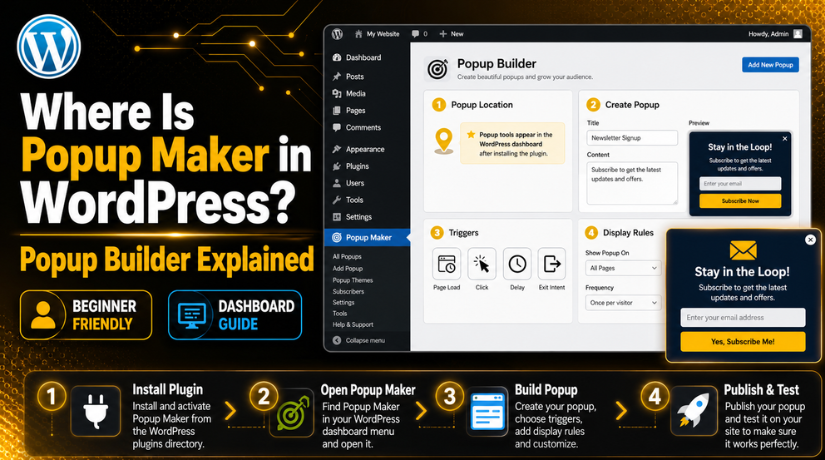
Many users ask, where is popup maker in WordPress after opening their dashboard. This question is common for beginners. The main point is simple. WordPress does not include a default popup maker menu. A fresh WordPress website will not show “Popup Maker” automatically.
You usually see popup options after installing a plugin. The menu name depends on the plugin you use. Some plugins show a menu called “Popup Maker.” Others may show names like “Popups,” “Popup Builder,” “Campaigns,” “Opt-ins,” or “Lead Forms.”
You can check these areas inside your dashboard:
- Left-side WordPress menu: Many popup plugins add a separate menu here.
- Plugins section: Some tools keep popup options under plugin settings.
- Theme options panel: Some premium themes include popup features.
- Page builder settings: Builders may include popup design tools.
- Form or marketing plugin area: Some lead tools include popup forms.
So, the popup maker location is not fixed. It depends on your active plugin, theme, or builder. For example, if you install a WordPress popup plugin, it may add a new menu after activation. You can then open that menu and manage popup designs.
You should also check your WordPress popup settings carefully. These settings control how the popup works. They may include display pages, popup timing, trigger type, user rules, and close button options. If these settings are wrong, the popup may not appear correctly.
Why You May Not See Popup Maker in WordPress
Sometimes users install WordPress and expect a popup option. But they do not see it in the dashboard. This usually happens because no popup tool is installed yet. WordPress needs a plugin or builder to create popups.
Here are the most common reasons:
- No popup plugin is installed: WordPress does not add popups by default.
- The plugin is not activated: Installed plugins must be active first.
- The popup option has another name: Some tools use different menu labels.
- The feature is inside another plugin: Form plugins may include popup options.
- Your user role has limited access: Editors may not see plugin settings.
- A plugin conflict is hiding settings: Conflicts can affect admin menus.
You can start by checking Plugins > Installed Plugins. See whether any popup-related plugin is active. If not, you need to install one from Plugins > Add New. After activation, check the left dashboard menu again.
Also check whether your login role is Administrator. Some popup settings only appear for admin users. If you are using a client account, ask for full access. This helps you manage popup settings without limits.
If the popup menu still does not appear, check for plugin conflicts. Deactivate recently added plugins one by one. Then refresh the dashboard and check again. This simple test can help find the issue quickly.
What Is a WordPress Popup Builder?
A WordPress popup builder is a tool for creating website popups. It helps you design, edit, publish, and control popup boxes. You can use it without writing custom code. Most builders work through a plugin or page builder feature.
A popup builder gives you a simple editing area. You can add text, images, buttons, forms, and links. You can also change colors, spacing, size, and layout. This helps the popup match your website design.
A good popup builder also controls how visitors see popups. You can choose the page, timing, and user action. These options make the popup more useful and less disturbing.


Most WordPress popup builders include these useful controls:
- Design area: You can build the popup layout visually.
- Content options: You can add messages, forms, or buttons.
- Display rules: You can choose where popups should appear.
- Close button settings: Visitors can close the popup easily.
- Mobile view: You can check how popups look on phones.
- Trigger settings: You can decide when the popup opens.
The popup trigger WordPress setting is very important. It decides what action opens the popup. A popup can open when the page loads. It can also open after a delay or button click.
A popup builder should always support a smooth user experience. The popup should be clear, simple, and easy to close. This helps visitors stay comfortable while browsing your website.
How Does the Popup Function Work in WordPress?
The popup function in WordPress usually works through a plugin. WordPress does not include this feature by default. The plugin adds popup tools to your dashboard. Then you can create and control popups from settings.
The process is simple and easy to understand. First, you create a popup design inside the plugin. Next, you add content like text, forms, or buttons. After that, you choose when the popup should appear.
A normal popup process works like this:
- You install and activate a popup plugin.
- You create a new popup design.
- You add the message or form content.
- You select the trigger for the popup.
- You choose display rules for specific pages.
- You publish and test the popup on your website.
The popup trigger WordPress option controls popup timing and behavior. Common triggers include page load, button click, scroll depth, and delay. Some tools also support exit intent. This means the popup appears when a visitor may leave.
Display rules also play an important role. You can show popups on all pages. You can also show them only on selected pages. This makes your popup more relevant to visitors.
Testing is important before using any popup live. Check it on desktop, tablet, and mobile devices. Also check whether the close button works properly. A well-tested popup can support conversions without hurting user experience.
How to Create a Popup in WordPress
Learning how to create popup in WordPress is simple with the right tool. WordPress does not include a built-in popup maker. So, you need a plugin, theme feature, or builder tool. Most beginners use a plugin because it is easier.
First, go to your WordPress dashboard. Then open Plugins > Add New. Search for a popup plugin that matches your need. Choose a plugin with good reviews, recent updates, and clear support details. After that, install and activate the plugin.
Once activated, the plugin may add a new dashboard menu. It may appear as Popup Maker, Popups, Campaigns, or Popup Builder. Open that menu to create your first popup.
Follow these basic steps:
- Create a new popup: Click the add new popup option.
- Add popup content: Add text, form, button, image, or offer details.
- Set the popup design: Adjust width, color, layout, and position.
- Choose a trigger: Select when the popup should appear.
- Add display rules: Choose pages where the popup should show.
- Publish and test: Check the popup on desktop and mobile.
A popup maker in WordPress should always serve one clear purpose. Do not add too many messages inside one popup. Keep the text short and the action clear. For example, ask users to subscribe, contact you, or claim an offer.
Also, avoid showing popups too early. Visitors need time to understand your page first. A delay of a few seconds often feels better. Always test the popup before showing it to real users.
Important WordPress Popup Settings to Check
Before publishing, review your WordPress popup settings carefully. Small setting mistakes can stop the popup from working properly. Some settings can also make the popup appear too often.
Check these important settings:
- Trigger type: Decide how the popup opens.
- Display location: Choose specific pages or posts.
- Popup delay: Avoid showing it immediately.
- Frequency control: Stop repeated popups for same visitors.
- Mobile view: Make sure it fits smaller screens.
- Close button: Keep it easy to find and click.
- Cookie settings: Control when the popup appears again.
These settings improve the user experience. They also help your popup feel more helpful and less disturbing.
Conclusion
WordPress does not include a default popup maker tool. You need a plugin, theme option, or WordPress popup builder. Once installed, the popup menu appears inside your dashboard. From there, you can create, design, set triggers, and publish popups.
A good popup should be simple, useful, and easy to close. Always test the design, timing, and display rules before publishing. If your popup is not showing or settings feel confusing, 24×7 WP Support can help you check the plugin, triggers, and display rules.

Brian is a WordPress support specialist and content contributor at 24×7 WP Support. He writes practical, easy-to-follow guides on WordPress troubleshooting, WooCommerce issues, plugin and theme errors, website security, migrations, performance optimization, and integrations. With a focus on solving real website problems, Brian helps business owners, bloggers, and online store managers keep their WordPress sites running smoothly.
