
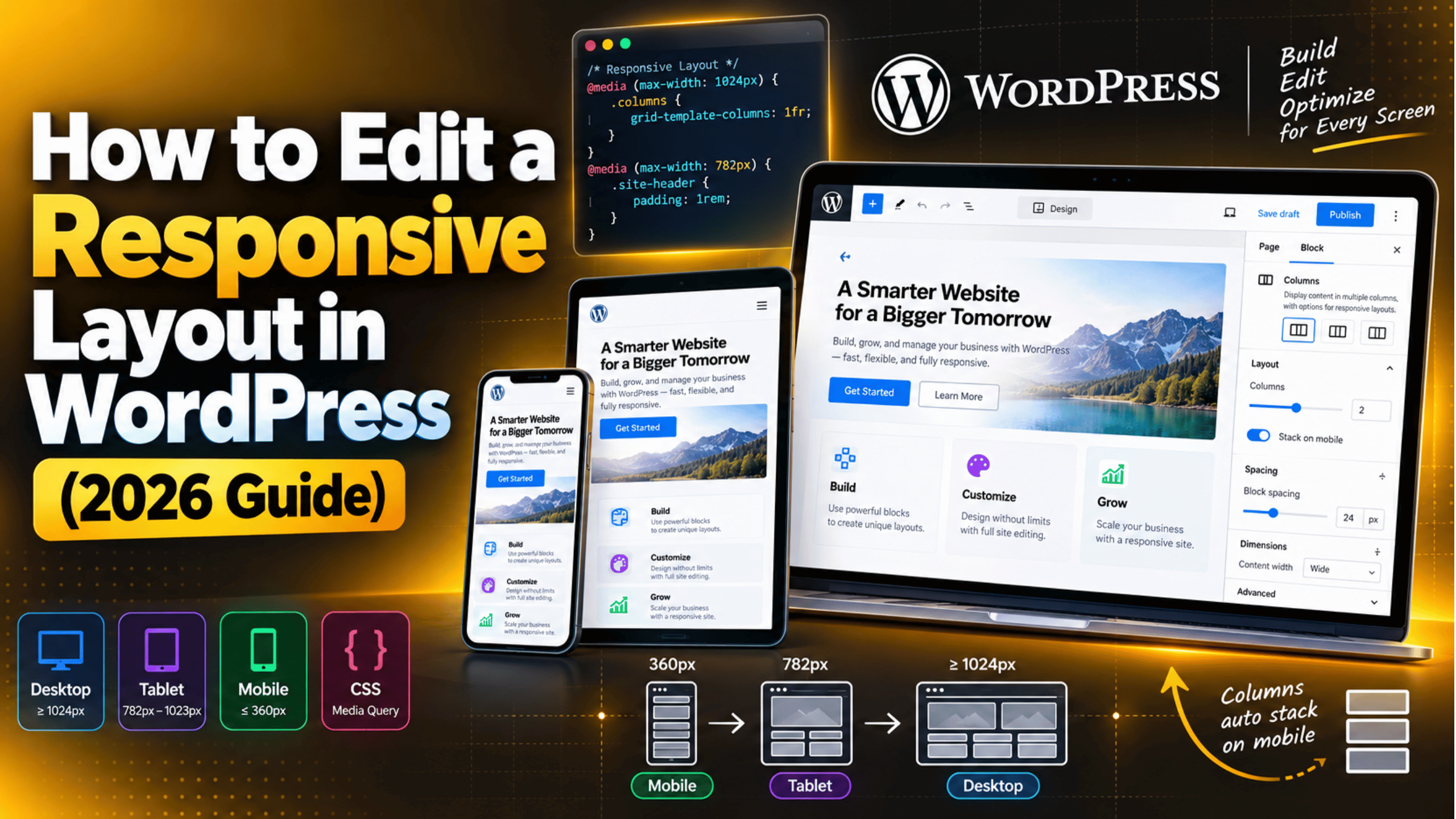
How to Edit a Responsive Layout in WordPress (2026 Guide)
Introduction
Your site looks fine on your laptop. Then you open it on a phone. The menu wraps, an image spills past the edge, and a button sits half off the screen. That is a responsive layout problem, and it is one of the most common things site owners ask us about.
Most of these fixes live inside WordPress itself. You do not need to rebuild the site. You need to know which screen controls the layout and which setting to change.
This guide covers where responsive settings live in 2026, how to edit them in the block editor and the Site Editor, how to add custom CSS when the built-in controls run out, and how to test the result.
What a Responsive Layout Actually Means
A responsive layout is one page that reshapes itself to fit the screen it loads on. There is no separate mobile site. The same HTML goes to every visitor, and CSS decides how it is arranged.
Three things make that work. The first is flexible width: instead of fixing a column at 960 pixels, the theme sets it as a percentage of the screen. The second is flexible media, so images and videos shrink rather than overflow. The third is breakpoints. A breakpoint is a screen width where the rules change, such as a sidebar dropping below the content at 782 pixels.
WordPress themes ship with these rules already written. So when you edit a responsive layout, you are usually doing one of three things. You are changing a block setting the theme exposes. You are changing a value in the theme’s own settings file. Or you are adding a CSS rule that overrides the theme at one screen size.
Knowing which of the three you need saves a lot of time. This guide covers each one, from the safest to the most technical.
Where Responsive Settings Live in WordPress
Responsive control is spread across four places in a modern WordPress install. Check them in this order, because each one is easier and safer than the one after it.
Block settings in the editor. Open any post or page, click a block, then open the Settings panel on the right with the gear icon. Layout, width, spacing and column behaviour live here. These settings only affect the block you selected.
The Site Editor. If you run a block theme, go to Appearance → Editor. This is where headers, footers and templates are built. Changes here apply to every page that uses the template, so they fix problems site-wide in one go.
Theme settings and theme.json. Block themes carry a file named theme.json in the theme folder. It holds the content width, the wide width and the spacing scale. The Styles panel writes the same values through the interface, which is far safer than editing the file by hand.
Additional CSS. Go to Appearance → Customize → Additional CSS. This is where you add media queries the theme did not include. Anything here is stored in the database, not a theme file, so an update will not wipe it.
Work down that list in order. Most layout problems are solved in the first two places.
Edit a Responsive Layout in the Block Editor
The block editor gives you real responsive control, as long as you know which settings do the work. Edit the page, click Preview at the top right, and choose Mobile. The canvas resizes so you can see the fault. Then work through these five steps.
Step 1: Fix the columns first. Select a Columns block and open its Settings panel. Turn on Stack on mobile. Columns then sit side by side on a desktop and stack into one column on a narrow screen. This one toggle solves many mobile complaints.
Step 2: Check the Group alignment. Select the Group wrapping your content. The toolbar alignment control offers None, Wide and Full. Full pushes a section edge to edge. A Full block inside a narrow container is a common cause of sideways scrolling.
Step 3: Replace fixed widths. In the Dimensions panel, a width of 600px stays 600 pixels wide on a 390 pixel phone. Clear it, or set it to 100%. Then set the parent Group to the Constrained layout.
Step 4: Trim the padding. Large padding looks balanced on a desktop and enormous on a phone. Switch the padding unit from px to rem. Relative units scale with the screen, so one value works everywhere.
Step 5: Make images behave. Select an image and open Settings. Clear any fixed width and height, then set the resolution to Full Size. WordPress adds the srcset attribute for you, so the browser picks a smaller file on a small screen.
Edit Responsive Templates in the Site Editor
Page-level fixes stop being useful once the same problem shows up everywhere. If your header breaks on every page, edit the header template instead of each page in turn.
Go to Appearance → Editor → Patterns → Template Parts and open the header. The Navigation block has an Overlay Menu setting: Always, Mobile or Never. Mobile is the one you want. It shows a normal menu on a desktop and a hamburger icon on a phone. Set it to Never and a long menu will overflow on small screens.
Templates are the other half of the job. Open Appearance → Editor → Templates and pick the one covering the broken pages, such as Single or Archive. Select the outer Group, set its layout to Constrained, then set a Content width in the same panel. Between 650 and 800 pixels reads well on every device.
Global spacing is worth a look too. Open the Styles panel, the half-filled circle icon, then choose Layout. The Content and Wide values there apply to every Constrained block on the site.
One warning. Template edits affect the whole site at once. Take a backup first, and test on a staging copy or a child theme if your site is busy.
Use Custom CSS for Control the Editor Does Not Offer
Sometimes the built-in settings do not reach far enough. You may need a heading to shrink on mobile, or a table to scroll instead of squashing. That is when a few lines of CSS earn their place.
Take a backup first, and work on a staging site if you have one. A bad rule can hide content, and you want a clean copy to return to.
Go to Appearance → Customize → Additional CSS. The panel previews changes as you type, so mistakes are easy to spot. A media query is what makes a rule apply at one screen size only.


@media (max-width: 781px) {
  .wp-block-heading {
    font-size: 1.5rem;
  }
  .wp-block-table {
    overflow-x: auto;
  }
}
That rule does two things below 781 pixels. It drops heading size so long titles do not wrap awkwardly, and it lets a wide table scroll inside its own box.
Why 781? WordPress uses 782 pixels as its own mobile breakpoint, and most block themes follow the same line. Matching it keeps your rules in step with the theme.
Two habits keep this tidy. Write one media query per screen size, and group your rules inside it. And target a class, never an inline style. If you prefer CSS in a file, put it in a child theme stylesheet; our guide to WordPress theme files explains which file does what, and our walkthrough of responsive media queries covers the syntax.
Six Things That Break a Responsive Layout
Most responsive faults come from the same short list. Check these first.
A fixed pixel width. Any element wider in pixels than the screen causes horizontal scrolling. Search your custom CSS for width: followed by a number and px, and swap it for a percentage.
An oversized image. A 3000 pixel photo in a 700 pixel column slows the page and can push the layout sideways on older themes. Resize before upload, and keep files under 200 KB. Our post on WebP images in WordPress covers format.
A wide table. Tables do not shrink. A six column price table will always be too wide for a phone. Give it overflow-x: auto, or rebuild it as stacked cards.
An embedded iframe. Videos and maps pasted as raw iframe code carry fixed width and height attributes. Use the matching WordPress embed block, which wraps the iframe in a responsive container.
A very long word or URL. A long unbroken string cannot wrap, so it stretches its container. Add overflow-wrap: anywhere to the containing block.
A stale cache. You change a setting, reload, and nothing moves. Clear your caching layer and browser cache before assuming the edit failed. If the editor itself misbehaves, our list of common block editor problems is the next stop.
Test Your Responsive Layout Properly
Editing without testing is guesswork. Four checks will catch nearly everything, and none takes long.
Use the editor preview for a first pass. The Desktop, Tablet and Mobile options are fast, and good enough to confirm a change landed. Treat them as a rough guide, not proof.
Use the browser device toolbar for the real check. Press F12 on Windows or Linux, or Cmd + Option + I on a Mac. Switch on the device toolbar and set the width to 360 pixels. That is narrower than most phones. If the layout holds at 360, it will hold almost anywhere.
Watch for horizontal scroll. With the device view open, try to drag the page sideways. If it moves, something is wider than the screen. In the Elements panel, click through containers until one highlights wider than the viewport. That is your culprit.
Check speed as well as shape. A layout that looks right but loads slowly still fails on mobile. Run a speed test and read the mobile score, not the desktop one. Our explainer on PageSpeed Insights covers how to read the result.
Finish on real hardware. Borrow a phone that is not yours and scroll the whole page. Real devices catch things no emulator does.
Keep Your Responsive Edits Safe
Layout work tends to accumulate. A rule here, a tweak there, and a year later nobody knows what any of it does. A few habits keep it manageable.
Back up before a structural change. Template edits, theme file edits and bulk CSS changes all deserve a backup first. Restoring one takes minutes. Rebuilding a header from memory takes an afternoon.
Use a child theme for file-level CSS. Edit the parent theme stylesheet directly and the next update erases your work. A child theme survives updates. Our guide to WordPress child themes walks through setting one up.
Comment your CSS. Put a short note above each media query saying what it fixes and when you added it.
Learn the editor properly. Many people write CSS for things the editor already handles. Half an hour with our guide to the WordPress block editor can remove the need for custom code.
Re-test after every update. Core, your theme and your plugins all ship CSS. After a major update, open two or three key pages at mobile width and confirm nothing shifted.
Final Thoughts
Editing a responsive layout in WordPress is mostly a question of working in the right order. Start with block settings, because they are the safest place to experiment. Move to the Site Editor if the problem repeats across pages. Reach for custom CSS only when the interface runs out.
Check the six usual suspects before you hunt through code. A fixed width, an oversized image, a wide table, a raw iframe, a long URL or a stale cache explains most of what you will see. Then test at 360 pixels, and on a real phone.
Take a backup before structural changes, keep file-level CSS in a child theme, and re-test after every major update.
If a layout still will not behave, or you would rather not spend the afternoon in developer tools, our team works on exactly this kind of thing every day. Visit 24×7 WP Support and tell us what your site is doing. We will take a look and tell you what we find.

Brian is a WordPress support specialist and content contributor at 24×7 WP Support. He writes practical, easy-to-follow guides on WordPress troubleshooting, WooCommerce issues, plugin and theme errors, website security, migrations, performance optimization, and integrations. With a focus on solving real website problems, Brian helps business owners, bloggers, and online store managers keep their WordPress sites running smoothly.
