
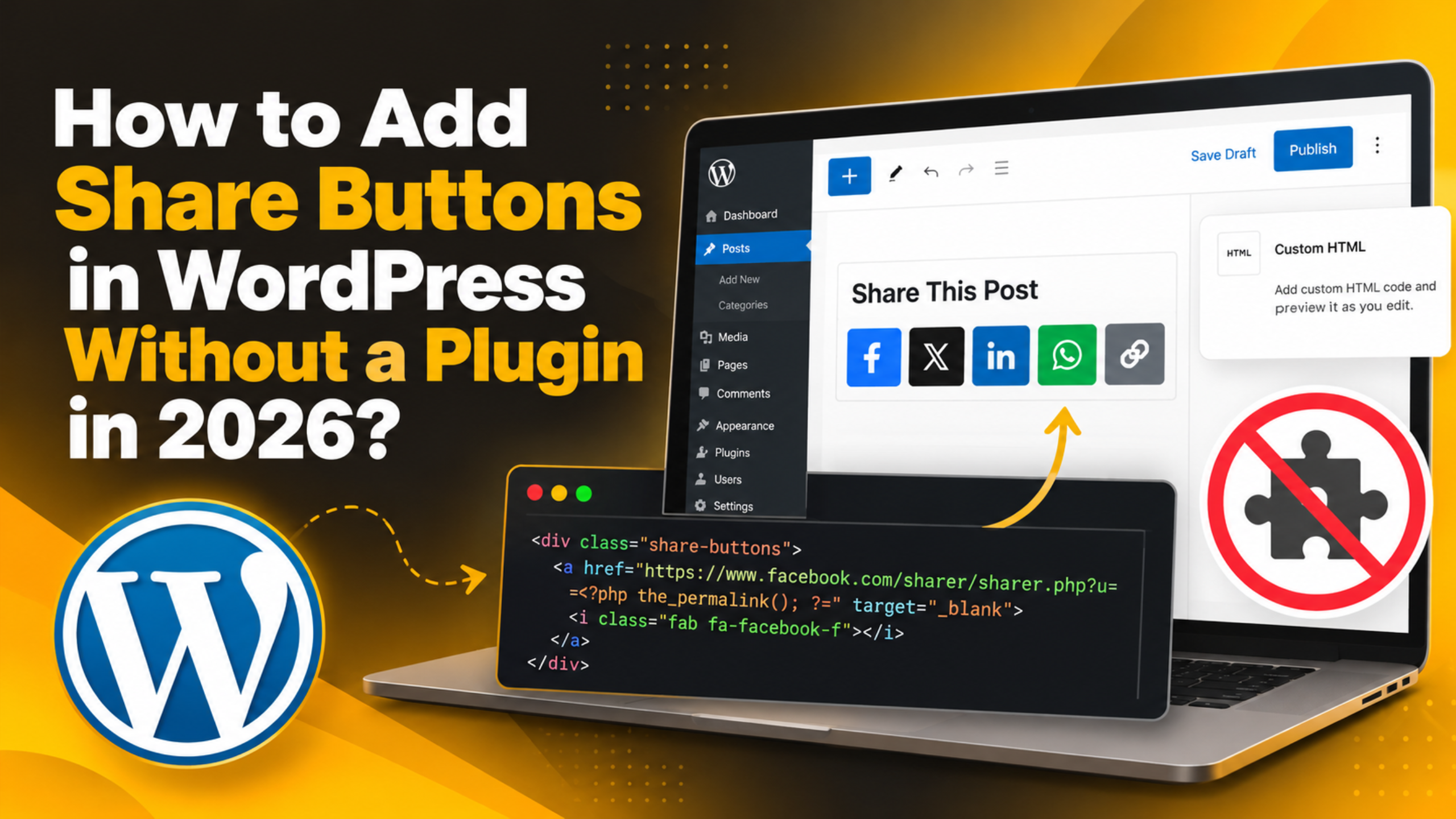
How to Add Share Buttons in WordPress Without a Plugin in 2026
Share buttons help readers pass your post along. Most people add them with a plugin, and that plugin then loads scripts, styles and tracking on every page. You do not need any of that. A share button is only a link with the page address inside it, and you can build one in a few minutes. This guide shows you three ways to add share buttons in WordPress without a plugin, with the exact code and where to put it.
Why Skip the Share Plugin
Share plugins are popular because they are easy. The cost is hidden. A typical sharing plugin loads its own stylesheet, its own script and sometimes an icon font on every page of your site, whether or not the page shows the buttons.
Many of them also call home. They fetch share counts from each network, which adds extra outside requests and slows the page. Some set cookies you then have to mention in your privacy policy.
There is a maintenance cost too. Every plugin is another thing to update, another possible conflict, and another place a security problem can appear. A hand-built button is just HTML. It cannot break on update day, because there is nothing to update.
Doing it yourself also gives you control. You choose which networks appear, in what order, with what label and in what style. You can show different buttons on different post types. None of that needs a settings page.
The honest trade-off is that you lose share counts and one-click analytics. Most small sites do not use those numbers anyway, and you can get the same insight by tagging your links, which is covered further down.
How a Share Link Actually Works
Every network has a share endpoint. You send it the address of the page you want shared, and sometimes a title. It opens its own compose screen with that content already filled in.
The address has to be encoded before you put it in the link. Encoding turns characters such as the colon and the slash into safe equivalents, so the network reads the whole address as one value instead of cutting it short. In PHP the function for this is rawurlencode().
So a share link is made of three parts: the endpoint, the parameter name the network expects, and your encoded page address. Nothing else is required. There is no script, no API key and no account.
Because it is a plain link, it works everywhere. It works with caching, it works when JavaScript is blocked, and screen readers announce it as a link. That is a real advantage over script-driven buttons.
One habit matters here. Always add rel="noopener" when you open a share link in a new tab. Without it, the page you opened can get a reference back to yours, which is a small security risk.
The Share Addresses You Will Need
Below are the endpoints used by the networks most WordPress sites care about. In each one, URL means your encoded page address and TITLE means your encoded post title.
Facebook: https://www.facebook.com/sharer/sharer.php?u=URL. It only takes the address. The image and description come from your Open Graph tags, not from the link.
X: https://twitter.com/intent/tweet?url=URL&text=TITLE. The text parameter pre-fills the post, so readers can edit it before sending.
LinkedIn: https://www.linkedin.com/sharing/share-offsite/?url=URL. Like Facebook, it reads the page itself for the title and image.
WhatsApp: https://api.whatsapp.com/send?text=TITLE%20URL. This one takes a single text value, so join the title and address with an encoded space.
Pinterest: https://pinterest.com/pin/create/button/?url=URL&media=IMAGE&description=TITLE. Pinterest needs an image address, so pass your featured image. Our guide to social media image sizes explains what shape works best.
Reddit: https://www.reddit.com/submit?url=URL&title=TITLE. Email: mailto:?subject=TITLE&body=URL, which opens the reader’s own mail app.
Pick three or four of these, not all seven. A long row of buttons looks cluttered and tends to get ignored. Choose the networks where your readers actually are. For most business blogs that means two public networks plus one messaging app.
Test each endpoint before you commit to it. Paste the finished link into a browser address bar and press Enter. If the compose window opens with your page attached, the link is correct and you can wire it into a button.
Method 1: Add Buttons to One Post With a Block
This is the quickest route and needs no code files at all. Use it when you only want buttons on a few key posts, or when you want to test the idea before rolling it out.
Open the post in the editor. Add a Custom HTML block where you want the buttons to sit, which is usually right after the last paragraph. If blocks are new to you, our guide to the WordPress block editor covers the basics.
Paste in your links and replace the two placeholders with that post’s real address and title. Here is a short version you can copy:
<p class="share-row">
<span>Share this:</span>
<a class="share-btn" href="https://www.facebook.com/sharer/sharer.php?u=PAGE_URL"
target="_blank" rel="noopener" aria-label="Share on Facebook">Facebook</a>
<a class="share-btn" href="https://twitter.com/intent/tweet?url=PAGE_URL&text=PAGE_TITLE"
target="_blank" rel="noopener" aria-label="Share on X">X</a>
<a class="share-btn" href="https://www.linkedin.com/sharing/share-offsite/?url=PAGE_URL"
target="_blank" rel="noopener" aria-label="Share on LinkedIn">LinkedIn</a>
</p>Click Preview and test each button. A correct link opens the network’s compose window with your post already attached. If the compose window is empty, the address was not encoded properly.
The limit of this method is obvious. You are pasting the same block into every post by hand, and you have to edit the address each time. For a whole blog, use the next method instead.
Method 2: Add Buttons to Every Post Automatically
Here WordPress builds the links for you, so the address and title are always right. The code goes in a child theme or, better, a small site plugin. Our comparison of functions.php versus a custom plugin explains why a plugin survives a theme change.
Before you edit any PHP file, take a full backup of your site and database, or do the work on a staging copy. A single typo in PHP can take the site down, and a backup turns that into a two-minute fix.


This snippet builds the row and appends it to the end of every single post:
function wpsupport_share_row( $content ) {
    if ( ! is_singular( 'post' ) || ! in_the_loop() || ! is_main_query() ) {
        return $content;
    }
    $url   = rawurlencode( get_permalink() );
    $title = rawurlencode( get_the_title() );

    $links = array(
        'Facebook' => 'https://www.facebook.com/sharer/sharer.php?u=' . $url,
        'X'        => 'https://twitter.com/intent/tweet?url=' . $url . '&text=' . $title,
        'LinkedIn' => 'https://www.linkedin.com/sharing/share-offsite/?url=' . $url,
        'WhatsApp' => 'https://api.whatsapp.com/send?text=' . $title . '%20' . $url,
    );

    $out = '<p class="share-row"><span>Share this:</span>';
    foreach ( $links as $name => $href ) {
        $out .= '<a class="share-btn" href="' . esc_url( $href ) . '" target="_blank" rel="noopener" aria-label="Share on '
             . esc_attr( $name ) . '">' . esc_html( $name ) . '</a>';
    }
    return $content . $out . '</p>';
}
add_filter( 'the_content', 'wpsupport_share_row' );
Three details are doing the real work. The guard at the top stops the row appearing in archives, feeds and excerpts. rawurlencode() makes the address safe. esc_url() and esc_html() keep the output clean, which is the standard WordPress way to print anything.
Save the file, then load any post. If the buttons do not appear, clear your cache first, because a cached page will still show the old HTML.
Turn It Into a Shortcode for Full Control
Appending to the_content always puts the buttons at the bottom. Sometimes you want them part-way through a long guide, or above the first image. A shortcode lets you drop them exactly where you want.
Register the shortcode with the same markup you built above. Then place [share_row] in any post or page, and the buttons appear at that point:
function wpsupport_share_shortcode() {
    return wpsupport_share_row( '' );
}
add_shortcode( 'share_row', 'wpsupport_share_shortcode' );
Because the function reads the current post, the links stay correct wherever you place the shortcode. You can use it more than once on the same page if you want buttons at the top and the bottom.
Shortcodes are a good habit for anything you reuse. If you have not worked with them before, our guide to using shortcodes in WordPress walks through how they are registered and called.
One warning. If you later remove the code, the shortcode text will show up as plain words in your posts. Leave the registration in place, or do a find and replace across your content before removing it.
Style the Buttons So They Look Deliberate
Plain links work, but they look accidental. A small amount of CSS makes them read as buttons. Add it to Appearance → Customise → Additional CSS, which is the safest place because it survives theme updates.
Keep the rules simple. A background colour, padding, rounded corners and a clear hover state cover most of it:
.share-row { display: flex; flex-wrap: wrap; gap: 8px; align-items: center; margin: 24px 0; }
.share-row span { font-weight: 700; margin-right: 4px; }
.share-btn { display: inline-block; padding: 8px 14px; border-radius: 4px;
    background: #222; color: #fff; text-decoration: none; font-size: 14px; line-height: 1; }
.share-btn:hover, .share-btn:focus { background: #ffba00; color: #000; }
Use flex-wrap so the row stacks neatly on a phone instead of running off the screen. Keep each button at least 44 pixels tall once padding is counted, because that is the size a thumb can hit reliably.
If you want icons rather than words, use inline SVG inside each link. Inline SVG adds no extra file request, unlike an icon font, and you can colour it with CSS. Always keep the aria-label on the link so the button still has a name for screen readers.
Check the result on a real phone, not only a narrow browser window. If the layout looks wrong only in the editor, our notes on common block editor problems may save you some time.
Add the Native Share Sheet on Phones
Phones have a better option built in. The Web Share API opens the device’s own share sheet, so the reader can send your post to any app they have installed, including messaging apps you would never add a button for.
It takes a few lines of JavaScript and one extra button. The button stays hidden unless the browser supports the feature, so desktop visitors never see a dead control:
<button class="share-btn share-native" hidden>Share</button>
<script>
(function () {
  var btn = document.querySelector('.share-native');
  if (!btn || !navigator.share) { return; }
  btn.hidden = false;
  btn.addEventListener('click', function () {
    navigator.share({ title: document.title, url: location.href });
  });
})();
</script>
Two rules apply. The page must be served over HTTPS, and the share can only start from a real tap, which is why the code sits inside a click handler. Browsers block it otherwise.
Keep your normal links as well. The native sheet is a shortcut for mobile visitors, not a replacement, and desktop support is still patchy.
Place the script in the footer so it runs after the button exists in the page. In a child theme you can enqueue it properly, or you can drop it into the same Custom HTML block that holds your buttons. Either works, and the second needs no PHP at all.
Test it on a real phone. Tap the button and the device’s share sheet should slide up with your post title and address ready to send. If nothing happens, check that the page loaded over HTTPS and that the button is not hidden by your own CSS.
Test It, Then Keep an Eye on It
Click every button on a live post before you call the job done. The compose window should show your title, your address and, where the network supports it, your featured image.
If the preview card looks wrong, the problem is almost never the button. It is the Open Graph tags on the page. Check that the post has a title, a description and an image set, then use each network’s own debugging tool to clear its cached copy of your page.
Add tracking if you want to know what sharing is worth. Append a campaign tag to the shared address, such as ?utm_source=share&utm_medium=social, and the visits show up in your analytics. Keep the tag out of the canonical link so search engines still index the clean address.
Review the buttons once or twice a year. Networks change their endpoints occasionally, and a button that quietly stopped working is worse than no button at all. If you also run profile links and feeds, our guide to connecting social accounts to WordPress covers the rest of the setup.
If you would rather not edit PHP on a live site, or a change like this has gone wrong before, our team can set it up for you. 24×7 WP Support works on WordPress customisation, performance and ongoing maintenance.



Brian is a WordPress support specialist and content contributor at 24×7 WP Support. He writes practical, easy-to-follow guides on WordPress troubleshooting, WooCommerce issues, plugin and theme errors, website security, migrations, performance optimization, and integrations. With a focus on solving real website problems, Brian helps business owners, bloggers, and online store managers keep their WordPress sites running smoothly.
