
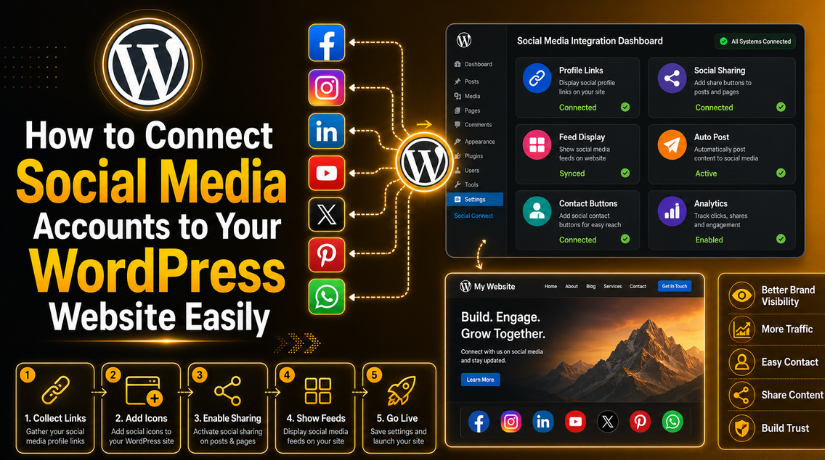
How to Connect Social Media Accounts to Your WordPress Website Easily
Introduction
A website should not work alone in today’s online world. People visit websites, but they also check social profiles. They want to see real updates, reviews, videos, posts, and comments. This is why many website owners now connect social media to WordPress. It helps users move between your website and social platforms easily. It also makes your business look more active and trusted.
Connecting social media accounts can mean many simple things. You can add social media icons to your header or footer. You can add sharing buttons to blog posts and pages. You can show Instagram posts, Facebook feeds, or YouTube videos. You can also use a social media WordPress plugin for easy setup. These small changes help visitors find your brand on different platforms.
Many website owners want to add social media to WordPress because it saves time. They can show social links, share posts, and display feeds. They can also connect Facebook to WordPress for better post sharing. Some websites also connect Instagram to WordPress to show fresh visual content. This gives visitors more reasons to stay connected with the brand.
Social media also supports website marketing. It helps you promote blog posts, services, offers, and products. When your website and social accounts work together, your brand becomes stronger. Visitors can read your content, follow your page, and contact you easily. This creates a smooth path between your website and social channels.
Why Websites Need to Connect Social Media Accounts for Better Growth
Websites need social media connections because users expect easy access. Most visitors want quick ways to check your online presence. They may visit your Facebook page before buying anything. They may check Instagram before trusting your brand style. They may visit LinkedIn to confirm your business details. So, connected social profiles can support trust and user action.
A website with social media links looks more complete and active. It gives users more ways to connect with your business. It also shows that your brand is not hidden. People can see your updates, comments, reviews, and recent posts. This helps them feel more confident before contacting you.
Connected Social Accounts Help Build Better Trust With Visitors
Trust is very important for every website owner. Visitors often check social media before making a decision. They want to know if your business is active. They also want to see real posts and customer activity. When your website shows active social accounts, users feel safer.
For example, a visitor may read your service page first. Then they may click your Facebook or Instagram icon. If they see useful posts and real updates, trust grows. This trust can help them contact your business faster. It can also reduce doubt before they buy or book.
Social Media Connections Help Bring More Traffic to the Website
Social media can send regular visitors to your website. Every post, story, video, or update can include a website link. This helps people visit your blog, service page, or product page. When you connect social media to WordPress, this traffic path becomes clearer.
For example, you can share a new blog post on Facebook. You can add a link to your Instagram bio. You can post service updates on LinkedIn. You can share short videos on YouTube or TikTok. Each platform can bring different users to your website.
Social Sharing Makes Website Content Easier to Promote
Good content becomes more useful when people can share it. Social sharing buttons make this process simple for visitors. They can share your blog post with one quick click. This can help your content reach friends, groups, and communities.
When you add social media to WordPress, sharing becomes smoother. You can add buttons for Facebook, LinkedIn, X, Pinterest, and WhatsApp. These buttons work well on blog posts and guides. They also work for products, offers, and important announcements.
Connected Accounts Improve Brand Visibility Across Platforms
Brand visibility means people can find and remember your business. Connected social accounts make your brand easier to notice. Users may first find your website through Google. Later, they may follow your Instagram or Facebook page. This repeated contact helps them remember your brand better.
A clear social connection also keeps your brand message consistent. Your logo, business name, colors, and tone should match everywhere. When users see the same brand style, they feel more confident. It shows that your business is organized and professional.
Social Media Connections Support Faster Customer Communication
Many users do not want to fill long forms. They prefer fast contact through social media or chat apps. Facebook Messenger, Instagram messages, WhatsApp, and LinkedIn can help. These channels make communication faster and easier for visitors.
When social links are visible, users can contact you quickly. This is useful for service questions, product support, and booking requests. It also helps visitors choose their preferred contact method. Some users may trust social messaging more than email.
Social Connections Help With Marketing and Campaign Tracking
Social media connections also help with marketing results. Website owners can track visitors from different platforms. They can see which posts bring more traffic. They can also understand which campaigns create better leads.
This helps businesses improve their future marketing plans. If Facebook brings more visitors, you can post more there. If Instagram brings more engagement, you can improve visual content. If LinkedIn brings quality leads, you can share more business updates.
Things You Should Prepare Before Connecting Social Media Accounts
Before you connect social media to WordPress, prepare everything carefully. A clear setup helps you avoid broken links and access issues. It also saves time during the complete integration process. Many website owners start without checking basic details first. This can create errors, wrong links, or missing profile access. So, proper preparation is very important before starting setup. It helps your website look clean, active, and professional. Good preparation also supports better WordPress social media integration.
Create a Clear List of All Official Social Media Profile Links
The first step is to collect all official profile links. You should list your Facebook, Instagram, LinkedIn, YouTube, X, TikTok, and Pinterest links. Also include WhatsApp or other chat links when needed. This helps you avoid adding wrong or old profile URLs. Many businesses have duplicate or inactive social media accounts. These old profiles can confuse users and reduce trust. Always use the latest official business profiles only. Check each URL before adding it to your website. This small step helps you add social media to WordPress correctly. It also gives visitors the right path to your brand.
Check Your WordPress Website Admin Access Before Setup
You need proper website access before starting the connection process. WordPress admin access helps you update themes, plugins, menus, and widgets. Without admin access, you may not complete the setup properly. You may need access to Appearance, Plugins, Pages, and Settings. These areas help you place social icons and buttons. They also help you add feeds, widgets, and custom links. If you use a page builder, check that access too. Elementor, Divi, WPBakery, and Gutenberg may need separate edits. Good access makes WordPress social media integration much easier.
Confirm Login Details for Every Social Media Account
Before connecting accounts, check all social media login details. You should confirm the username, email, password, and recovery options. This is important when you connect Facebook to WordPress. It is also important when you connect Instagram to WordPress. Some platforms may ask for verification during connection. They may send a code to email or phone. So, make sure you can access those verification methods. If the account uses two-factor authentication, keep the code ready.
Check Business Page Admin Permission Carefully
Social media business pages often need admin or owner permission. A normal user role may not allow full connection access. This is common for Facebook Pages and Instagram Business accounts. LinkedIn Company Pages and YouTube Channels may also need admin rights. If you do not have permission, the account may not connect. You may also see missing pages during the setup process. Before using any social media WordPress plugin, check your role first. Ask the page owner to give proper access when needed. This helps you connect accounts without errors or confusion.
Make Branding Consistent Across Website and Social Profiles
Your website and social profiles should show the same brand identity. Use the same logo, business name, colors, and contact details. Your profile photo should match your website branding. Your bio should also match your website message. This makes your brand look more professional and trusted. Visitors may compare your website with your social profiles. If details do not match, they may feel confused. Consistent branding helps users know they reached the right business.
Enable Two-Factor Authentication Before Connecting Accounts
Security should come before every social media connection. Two-factor authentication adds an extra safety layer to accounts. It protects your profiles from unknown login attempts. This is very important for business social media pages. A hacked social account can harm your website trust. It can also damage your brand reputation very quickly. Use an authenticator app where possible for better safety. You can also keep backup codes in a safe place. Before using any social media WordPress plugin, secure the accounts first. Decide Where Social Media Links Should Appear on Website
You should choose social link placement before starting setup. Social icons can appear in the header, footer, or sidebar. You can also add them to the contact page. Blog posts can include social sharing buttons for readers. Product pages can include sharing options for better reach. The footer is usually best for general profile links. The header works well when social visibility is important. Contact pages are useful for direct customer communication. This planning helps you create a clean website layout.
Choose the Right Method to Connect Social Media Accounts
There are different ways to connect social accounts with WordPress. You can use theme settings, widgets, menus, or custom HTML. You can also use a social media WordPress plugin. Plugins are helpful when you need feeds or sharing buttons. They also help when you need auto-posting features. For simple profile links, manual setup may be enough. For Instagram feeds, Facebook feeds, or share buttons, plugins work better.
Prepare Social Media Content Before Adding Feeds
If you plan to show feeds, check your content first. Your recent posts should look active, clean, and useful. Old or poor-quality posts may reduce visitor trust. Instagram feeds should have clear images and helpful captions. Facebook posts should show useful updates and real engagement. YouTube videos should match your website topic and audience. When you connect Instagram to WordPress, visual quality matters a lot. When you connect Facebook to WordPress, updates should support your brand.
Check Website Speed Before Adding Social Media Features
Social feeds, videos, and tracking scripts can affect website speed. So, check your website speed before adding new features. A slow website can reduce user experience and conversions. Heavy feeds may increase loading time on mobile devices. Use only the features that add real value. Avoid adding multiple feeds on the same page. Compress images and keep plugins updated for better speed. Choose a lightweight social media WordPress plugin when possible.
Keep a Backup Before Making Website Changes


Always take a website backup before making major changes. Social media setup may involve plugins, widgets, menus, or scripts. A small mistake can affect layout or page design. A backup helps you restore the website quickly. This is very important for live business websites. You can use your hosting backup or WordPress backup plugin. Make sure the backup includes files and databases. After backup, start your social media setup safely. This simple step protects your work and reduces risk.
How to Connect Social Media Accounts (Step By Step Guide)
Connecting social media accounts with your website is simple when you follow the right steps. A proper setup helps visitors find your profiles, share your content, and contact your business faster. When you connect social media to WordPress, your website becomes more active and useful. It also improves trust because users can check your real social updates. You can use theme settings, widgets, menus, custom links, or a social media WordPress plugin.
Step 1: Collect All Official Social Media Profile Links
- Start by collecting your correct social media profile URLs.
- Add Facebook, Instagram, LinkedIn, YouTube, X, and TikTok links.
- Include WhatsApp, Pinterest, or other active business profiles.
- Avoid using old, personal, or duplicate social media profiles.
- Open every link and check the profile carefully.
- Make sure each link opens the correct business account.
- Keep all final links in one simple document.
- This helps you add social media to WordPress correctly.
Step 2: Log In to Your WordPress Dashboard
- Log in to your WordPress website admin dashboard.
- Use an account with full administrator access.
- Admin access helps you update menus, widgets, and plugins.
- Open your dashboard and check the website theme settings.
- Some themes provide built-in social media profile options.
- Check Appearance, Customize, Widgets, Menus, or Site Editor.
- Also check your page builder settings if needed.
- This makes WordPress social media integration easier and faster.
Step 3: Add Social Media Icons to the Website Header
- The header is visible when visitors open your website.
- Header icons help users find social profiles quickly.
- Go to your theme settings or customizer area.
- Find the header or social media settings option.
- Add your official social media profile URLs carefully.
- Save the changes and open your website front end.
- Check if every icon appears clean and clear.
- Keep icons simple, small, and easy to click.
- Avoid adding too many icons in the header area.
Step 4: Add Social Media Links to the Website Footer
- The footer is a common place for social links.
- Many users check the footer for contact details.
- Go to Appearance, Widgets, Menus, or Site Editor.
- Add your social profile links near contact information.
- You can also place icons near quick website links.
- Footer links usually appear across the full website.
- This makes your website look complete and professional.
- Test every footer icon after saving the changes.
- Make sure each link opens in a new tab.
Step 5: Add Social Links to the Contact Page
- Your contact page should show all main contact options.
- Some users prefer social messages instead of email.
- Open your contact page in the WordPress editor.
- Add Facebook, Instagram, LinkedIn, WhatsApp, and YouTube links.
- Use clear text or clean social media icons.
- Add lines like “Follow us on Instagram.”
- Add lines like “Message us on Facebook.”
- When you connect Facebook to WordPress, use your page link.
- When you connect Instagram to WordPress, use your business profile.
- This helps users contact your business faster.
Step 6: Add Social Sharing Buttons to Blog Posts
- Social sharing buttons help users share your website content.
- These buttons are different from social profile links.
- Profile links send users to your social media pages.
- Sharing buttons let users share your blog posts.
- Install a trusted social media WordPress plugin if needed.
- Add buttons for Facebook, LinkedIn, X, Pinterest, and WhatsApp.
- Place buttons before content, after content, or beside posts.
- Keep the button design clean and easy to use.
- Test one blog post after adding sharing buttons.
- Check if the correct image and title appear.
Step 7: Add Social Media Feeds to Your Website
- Social media feeds show your latest posts on WordPress.
- You can show Instagram images or Facebook page updates.
- You can also show YouTube videos on important pages.
- Feeds make your website look fresh and active.
- Use a trusted plugin when your theme lacks feed options.
- When you connect Instagram to WordPress, check image quality.
- When you connect Facebook to WordPress, show useful updates.
- Avoid adding too many feeds on one page.
- Heavy feeds can slow down your website speed.
- Test page speed after adding social media feeds.
Step 8: Connect Facebook and Instagram Properly
- Facebook and Instagram work well when connected correctly.
- First, check your Facebook Page admin access.
- Then check your Instagram business or professional account.
- Connect both accounts through Meta business settings.
- This helps manage posts, comments, messages, and ads.
- Use the correct Facebook Page link on WordPress.
- Use the correct Instagram profile link on WordPress.
- Use a trusted plugin if you want feeds.
- Check plugin permissions before approving account access.
- Test the connection after completing the setup.
Step 9: Connect Your YouTube Channel to WordPress
- YouTube helps you share videos, guides, and tutorials.
- Copy your official YouTube channel link first.
- Add the link to your header, footer, or contact page.
- You can also embed videos inside blog posts.
- Open the WordPress editor and paste the video URL.
- WordPress usually converts the link into an embedded video.
- Use a video gallery plugin for multiple videos.
- Avoid adding too many videos on one page.
- Too many videos can slow down page loading.
- Keep video sections clean, helpful, and easy to view.
Step 10: Connect LinkedIn Company Page to Your Website
- LinkedIn is useful for professional and business websites.
- Copy your official LinkedIn Company Page link.
- Add it to your footer, about page, or team page.
- Add author LinkedIn links only where they are useful.
- Do not confuse personal profiles with company pages.
- LinkedIn helps visitors check your professional identity.
- It also supports trust for service-based websites.
- This is helpful for agencies, consultants, and B2B companies.
- Test the LinkedIn link after adding it to WordPress.
Step 11: Add WhatsApp or Messenger for Faster Contact
- WhatsApp and Messenger help users contact you quickly.
- These options work well for support and booking questions.
- Add a WhatsApp button to important website pages.
- Add a Messenger link near your contact section.
- Keep the button visible but not distracting.
- Do not let the button cover important content.
- Test the button on mobile and desktop devices.
- Make sure it opens the correct number or profile.
- A working chat link can improve customer response.
Step 12: Use a Social Media WordPress Plugin When Needed
- A social media WordPress plugin can make setup easier.
- Use a plugin for feeds, sharing buttons, or auto-posting.
- Do not install plugins for simple profile links only.
- Simple profile links can often be added manually.
- Choose a plugin with good reviews and regular updates.
- Check if the plugin supports your needed platforms.
- Avoid outdated plugins because they can create risks.
- Configure plugin settings carefully after installation.
- Test icons, feeds, and sharing buttons after setup.
Step 13: Test Every Social Link on Mobile and Desktop
- Testing is very important after adding social links.
- Open your website on desktop, mobile, and tablet.
- Click every social icon, feed, and sharing button.
- Make sure each link opens the correct profile.
- Check that links open in a new browser tab.
- Review icon spacing, size, and alignment on mobile.
- Test sharing buttons on one sample blog post.
- Check the shared title, image, and description carefully.
- If previews look wrong, check Open Graph settings.
- Testing helps prevent broken user experiences.
Step 14: Secure Accounts Before and After Connection
- Security is important for every social media connection.
- Use strong passwords for all social media accounts.
- Enable two-factor authentication on important business profiles.
- Do not share main login details with everyone.
- Use proper user roles for team members and agencies.
- Review permissions before allowing plugin or tool access.
- Remove old users and unused connected apps regularly.
- Keep WordPress themes and plugins updated.
- These steps protect your website and social profiles.
Step 15: Review the Setup Regularly
- Review your social media setup from time to time.
- Check if all social links still work correctly.
- Update links when usernames or page URLs change.
- Remove inactive or unused profiles from your website.
- Keep social media feeds fresh, useful, and active.
- Check website speed after adding feeds or videos.
- Update plugins whenever safe updates are available.
- Regular reviews keep your integration clean and effective.
- A clean setup helps visitors trust your website more.
Common Problems When Connecting Social Media Accounts to WordPress
Connecting social media accounts can improve your website experience. But sometimes, small setup mistakes can create different problems. These issues may affect icons, feeds, sharing buttons, previews, or website speed. When you connect social media to WordPress, you should test everything carefully. A small broken link can send visitors to the wrong page. A plugin issue can stop feeds from loading properly.
Social Media Icons Are Not Showing Properly on Website
Sometimes, social media icons do not appear after setup. This can happen because of theme settings or plugin conflicts. It may also happen due to cache or missing icon files. If you use a social media WordPress plugin, check its settings first. Make sure the icons are enabled for the right location. Then clear your website cache and browser cache. Also check whether your theme supports social icons properly. If icons still do not show, test another safe plugin.
Wrong Social Media Link Opens After Clicking the Icon
Wrong social links can reduce user trust quickly. Visitors may click Facebook but reach the wrong account. They may also open an old or personal profile. This happens when the wrong URL is copied during setup. It can also happen after a username or page name change. Always check every social link after adding it. Open each icon and confirm the final profile page. If you add social media to WordPress manually, review each URL carefully. Use only official business profile links on your website.
Facebook or Instagram Account Is Not Connecting Correctly
Facebook and Instagram connection issues are very common. These problems often happen due to missing admin access. They can also happen when the Instagram account is not professional. Sometimes, the account may already be connected elsewhere. Browser cache or expired login sessions can also cause issues. Before you connect Facebook to WordPress, check page admin access. Before you connect Instagram to WordPress, check account type and permission. Log out and log in again if the connection fails. Then reconnect the account with the correct business profile.
Social Media Feed Is Not Loading on Website
A social media feed may stop loading for many reasons. The access token may expire after a password change. The account may become private or blocked by settings. The plugin may also need an update or reconnection. Sometimes, social platforms change their connection rules or API access. If your Instagram feed stops, reconnect the account first. If your Facebook feed fails, check page permission again. Also check whether your social media WordPress plugin is updated.
Website Becomes Slow After Adding Social Media Feeds
Social feeds, videos, and scripts can slow your website. This can affect mobile users more than desktop users. A slow website can reduce leads, sales, and engagement. Do not add too many feeds on one page. Avoid showing large numbers of posts, images, or videos. Use only the social features that support user experience. If you connect social media to WordPress through plugins, choose lightweight options. Test your page speed after adding feeds or scripts. Remove unused widgets or heavy plugin features.
Social Share Preview Shows Wrong Image or Title
A wrong share preview can make content look unprofessional. Sometimes, Facebook or LinkedIn shows an old image. Sometimes, the title or description appears incorrect. This usually happens due to missing Open Graph tags. It can also happen because of old social cache. WordPress SEO plugins can help manage social preview settings. Add a proper featured image, title, and description. Then clear your website cache and social platform cache. Test one blog post after updating the settings. This helps your shared content look clean and clickable.
Best Practices After Connecting Social Media Accounts to WordPress
After setup, you should manage your social connections regularly. A one-time setup is not enough for long-term results. Social links can change, plugins can expire, and feeds can stop. Your website may also need updates as your brand grows. Regular checks keep your WordPress social media integration smooth and useful. They also help visitors reach the right platforms easily. Good maintenance protects your website design, speed, and trust.
Keep All Social Media Links Updated and Active
Social media links should always point to active accounts. Old or broken links can reduce visitor confidence. Update your website when usernames or handles change. Also remove inactive profiles that no longer support your brand. Check your Facebook, Instagram, LinkedIn, YouTube, and WhatsApp links monthly. This is very important after rebranding or page migration. If you connect Facebook to WordPress, keep the page active. If you connect Instagram to WordPress, keep the profile public and updated.
Use the Same Branding Across Website and Social Profiles
Your website and social profiles should look connected. Use the same logo, brand name, colors, and tone. Your bio should also match your main website message. Consistent branding helps users recognize your business quickly. It also makes your online presence look more professional. When users move from your website to social media, details should match. This simple practice builds stronger trust with new visitors. It also supports better brand recall across many platforms.
Place Social Media Icons Only in Useful Website Areas
Social icons should help users, not distract them. Place them where visitors naturally expect to find them. The header, footer, contact page, and blog posts work well. Service pages can also include useful contact social links. Avoid placing icons in too many areas unnecessarily. Too many icons can make your website look crowded. They can also distract users from important call-to-action buttons. Use clean placement when you add social media to WordPress.
Do Not Add Too Many Social Feeds on One Page
Social feeds can make your website look active. But too many feeds can reduce website speed. Heavy feeds can load extra images, scripts, and requests. This can affect mobile users and slow connections. Use feeds only where they add real value. For example, use Instagram feeds on visual brand pages. Use YouTube videos on guide or tutorial pages. Avoid adding every platform feed to the homepage. A balanced setup keeps your website clean and fast.
Track Social Media Traffic and User Actions
Tracking helps you understand what works best. You can check which social platforms bring visitors. You can also track leads, clicks, forms, and purchases. This helps you improve future content and campaigns. If Instagram brings visitors, share more visual updates. If LinkedIn brings leads, post more business content. If Facebook brings engagement, promote useful blog posts there. Tracking makes WordPress social media integration more meaningful. It helps you make better decisions based on real data.
Conclusion
Connecting social media accounts helps your website work better. It builds trust, improves visibility, and supports better communication. It also helps visitors follow, share, and contact your business easily. When you connect social media to WordPress, your website becomes more active. But the setup should be clean, secure, and properly tested. Add correct links, use safe plugins, and check mobile layout. Keep feeds light, previews clear, and account access secure. A good social media setup supports long-term website growth. It also gives visitors a smoother and more trusted experience.
If you want expert help, 24x7wpsupport can assist you. Our team can connect your social media accounts with WordPress properly. We can add social icons, sharing buttons, feeds, and chat links. We can also fix broken links, plugin issues, and preview problems. If your website is slow after social integration, we can check that too. Get professional WordPress help from 24x7wpsupport today.



Brian is a WordPress support specialist and content contributor at 24×7 WP Support. He writes practical, easy-to-follow guides on WordPress troubleshooting, WooCommerce issues, plugin and theme errors, website security, migrations, performance optimization, and integrations. With a focus on solving real website problems, Brian helps business owners, bloggers, and online store managers keep their WordPress sites running smoothly.
