
Can You Use Two Domains on One WordPress Site? (2026 Guide)
Can You Use Two Domains on One WordPress Site? (2026 Guide)
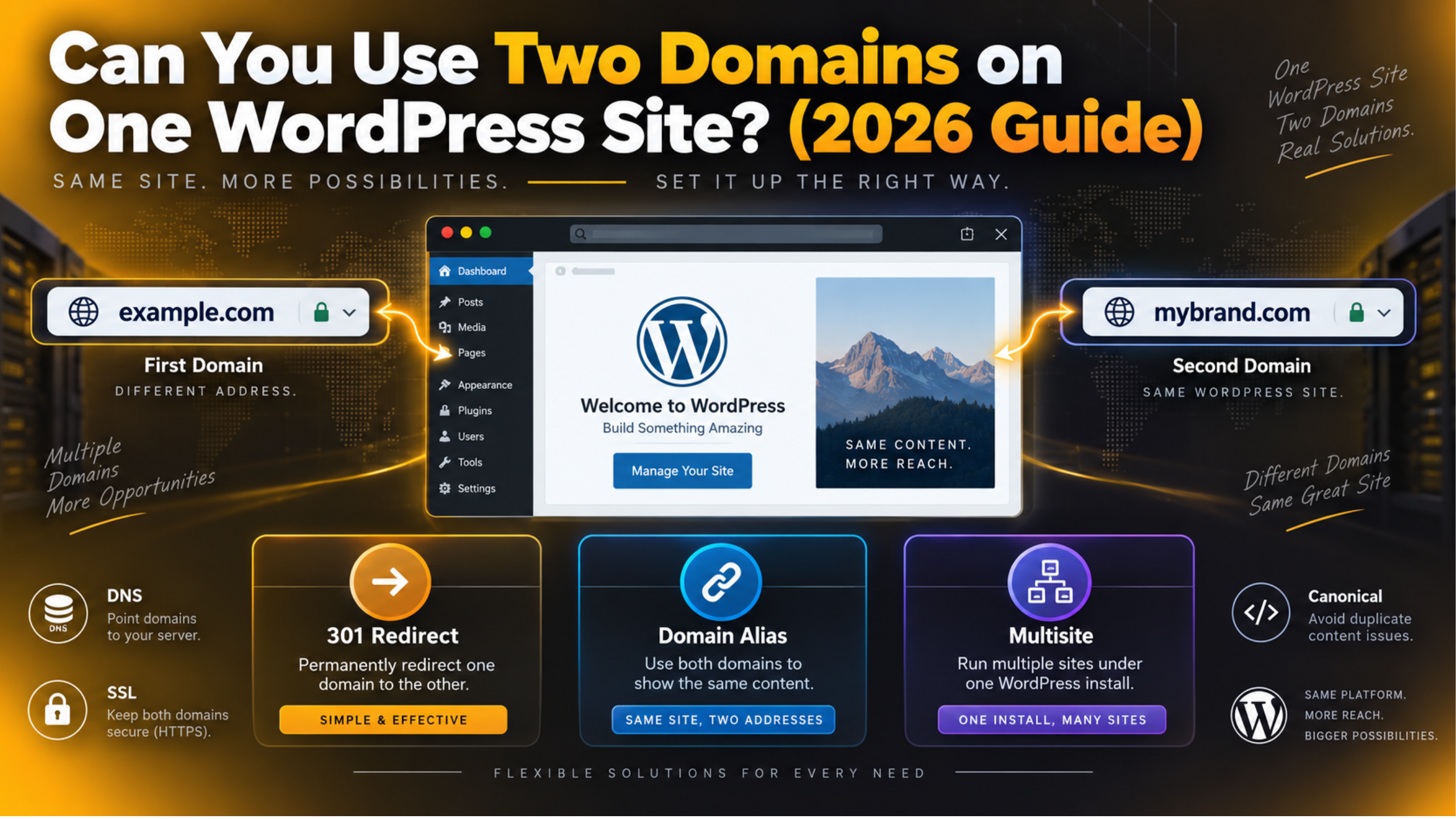
You bought a second domain. Maybe it is a shorter version of your brand. Maybe it is the .net you grabbed so nobody else could. Now you want to know if both names can point at the site you already run. The answer is yes. But what happens next depends on which of three very different things you actually want.
This guide explains how WordPress handles domains, the three real ways to use two of them, and the one mistake that quietly damages search rankings. It reflects how WordPress works in 2026 and assumes no prior knowledge of DNS.
The Short Answer, and Why It Has Three Versions
People ask this question for three different reasons, and each one needs a different setup. Getting clear on which you want saves hours of work.
The first group wants a spare name that leads people home. They own a typo domain or an old brand name, and they want anyone typing it to land on the main site. That is a redirect. It is the simplest option and the right one for most people.
The second group wants the same site to answer on both names at once. Both domains stay visible in the address bar. This is a domain alias. It works, but it carries a real search engine cost that you must handle.
The third group wants two genuinely different websites. Different pages, different content, maybe different branding. They just want one WordPress install and one login to manage both. That is a multisite network.
All three are supported. None of them requires abandoning the site you have. Before changing anything, though, take a full backup. Domain changes touch settings that can make a site unreachable if they go wrong, and a tested backup is your way out.
How WordPress Decides Which Domain to Use
To choose well, you need to know what WordPress is doing underneath. It is simpler than it looks.
A standard WordPress install stores exactly two addresses. You will find both at Settings → General. The first is the WordPress Address, which is where the software files live. The second is the Site Address, which is the address visitors use. On most sites the two are identical.
These two values are saved in the database as the siteurl and home options. WordPress builds every internal link, every image path, and every redirect from them. That is why a single install has one true address by default.
Here is the part that surprises people. If a visitor arrives on a different domain that points at the same server, WordPress notices. It then sends them to the Site Address instead. This is called the canonical redirect, and it is deliberate. It stops the same page existing at several web addresses.
So pointing a second domain’s DNS at your server is never enough on its own. Without more work, visitors just get bounced to the first domain. Every method below is a way of telling WordPress what you actually want to happen instead.
Option 1: Redirect the Second Domain to Your Main Site
This is the right choice roughly nine times out of ten. Your second domain acts as a signpost. Someone types it, and they arrive on your real site immediately.
The easiest route is at your registrar. Most domain registrars offer domain forwarding in the control panel. You enter the destination address and pick a permanent redirect. No hosting changes and no WordPress changes are needed. For a domain you only bought defensively, stop here.
The stronger route is at the server. Point the second domain’s DNS at your hosting account, add it as an extra domain, then redirect it with a rule. A permanent redirect, known as a 301, tells search engines the move is not temporary and passes on most of the link value.
Always use 301, never 302. A 302 is temporary. Search engines keep the old address indexed and split the signals between the two. Our guide to 301 redirects in WordPress covers the rules in detail.
Test both versions of the name. Try the second domain with and without www, over both http and https. All four should land on the same page. If you edit .htaccess, download a copy first, because one bad line there breaks every page.
Watch for redirect loops. If two rules point at each other, browsers show an error instead of the site. We cover the fix in our post on too many redirects in WordPress.
Option 2: Serve the Same Site on Both Domains
Sometimes a redirect is not what you want. A business trading under two names may need both to stay visible in the address bar. This is a domain alias, and it takes more care.
The setup has two halves. First, your host must accept requests for both domains and send them to the same folder. This is usually called adding a parked domain, and it is done in the hosting panel.
Second, WordPress must stop forcing everyone back to one address. You do that by setting the site address dynamically, based on the domain the visitor actually asked for. The values go in wp-config.php and override what is stored in the database.
This is a genuinely risky edit. A single typo in wp-config.php takes the entire site offline, admin included. Do it on a staging copy first, and keep the original file where you can restore it quickly.
Be honest about the cost before you choose this. You now have one set of content living at two addresses. Search engines will see both. Section six explains what you must do about that, and it is not optional.
An alias is right when two brand names genuinely serve the same audience. It is wrong when you just like owning the spare domain.
Option 3: Run Two Separate Sites with Multisite
If you want two real websites with different content, neither of the options above fits. You want WordPress Multisite.
Multisite turns one install into a network. Each site has its own pages, posts, menus, and settings. They share the WordPress files, plugins, and themes. You manage the whole network from one login.


Giving each site its own domain is built into WordPress core and has been since version 4.5. There is no add-on needed. You enable the network, add each site, then set its address in the Network Admin screens. Our guide to WordPress Multisite walks through enabling it.
The upside is shared maintenance. You update core once. You update a plugin once. For an agency or a company running several brands, that saves real hours every month.
The downside is shared risk. One database and one set of files serve every site. A plugin that breaks affects all of them at once. A security problem is a problem everywhere. Multisite also makes moving a single site out later more awkward.
Choose it when the sites are related and you want one place to manage them. If the two sites have nothing in common, two ordinary installs are usually simpler and safer.
The Duplicate Content Problem and How to Avoid It
This is the part that gets skipped, and it is the part that costs money. It applies to the alias option in section four. Redirects and multisite are not affected.
When identical content sits at two addresses, search engines must guess which one to rank. They rarely penalise you for it outright. What they do is split the signals. Links, trust, and history get divided across two addresses instead of building up on one.
Pick a primary domain and mean it. Decide which name is the real one. Every canonical tag on the site should point at that domain, on every page, on both versions of the site.
Check the canonical tag is actually correct. View the page source on the secondary domain and look for the link tag with rel set to canonical. It should show the primary domain, not the one you are currently browsing.
Keep one sitemap, not two. Submit the primary domain’s sitemap only. Two competing sitemaps tell search engines the opposite of what you intend.
Keep internal links on one domain. Every menu item and in-content link should use the primary address. Mixed internal links are the most common cause of the wrong domain ranking. Verify each domain separately in search console so you can see which pages get indexed under which name.
SSL, Email and the Details People Forget
Domains touch more than the website. These are the things that break a week later, once everyone has stopped watching.
Every domain needs its own certificate. A security certificate covers specific names. Your second domain will show a browser warning until it has valid coverage of its own. Most hosts can issue a free certificate for each domain you add. Our guide to installing a free SSL certificate covers the process.
Include the www version too. A certificate for example.com does not automatically cover www.example.com. Issue it for both, or you will get warnings from half your visitors.
Check for mixed content afterwards. If any image or script still loads over plain http, the padlock disappears. The fix is in our post on mixed content warnings.
Email is separate from the website. Web traffic uses one type of DNS record, and email uses another. Pointing a domain at your site does not move its email. If the second domain receives mail, leave its mail records alone.
Decide about old links. If the second domain used to be a live site, it has pages people still link to. Redirect those pages to matching pages rather than dumping everyone on the homepage. Our guide to handling 404 redirects explains how.
How to Pick the Right Option
Work through these questions in order and the answer usually picks itself.
Do you want visitors to see the second domain in the address bar? If no, use a redirect and stop reading. This covers typo domains, old brand names, and defensive purchases.
Will the two domains show the same pages? If yes, and both names must stay visible, use an alias. Then do the canonical work in section six properly, because an alias without it is worse than nothing.
Will the two domains show different content? Then you need two sites. Multisite if you want one dashboard, or two separate installs if you want full independence.
Is the second domain a section rather than a brand? Something like a blog, a shop, or a support area does not need its own domain at all. A subdomain or a subfolder is cheaper and keeps your authority in one place.
Are you unsure? Start with a redirect. It is reversible in minutes, costs nothing, and does no harm. You can always upgrade to an alias or multisite later.
Final Thoughts on Using Two Domains in 2026
Two domains on one WordPress site is a solved problem. The difficulty is not technical. It is deciding what you actually want before you start changing settings.
For most site owners a 301 redirect is the whole answer. It takes ten minutes, protects the search value you have already built, and never causes a duplicate content problem. Reach for an alias only when a second brand name genuinely has to stay visible, and reach for multisite only when you are running two real websites.
Whatever you choose, back up before you touch DNS, wp-config.php, or .htaccess, and test on a staging copy if you have one. Then check the result on both domains, with and without www, before you move on.
If DNS records and redirect rules are not how you want to spend your afternoon, we are happy to take it on. 24×7 WP Support handles domain setup, redirects, certificates, multisite networks, and round-the-clock WordPress maintenance. Tell us what you want the two domains to do, and we will set it up properly the first time.
Related posts:





Brian is a WordPress support specialist and content contributor at 24×7 WP Support. He writes practical, easy-to-follow guides on WordPress troubleshooting, WooCommerce issues, plugin and theme errors, website security, migrations, performance optimization, and integrations. With a focus on solving real website problems, Brian helps business owners, bloggers, and online store managers keep their WordPress sites running smoothly.
