
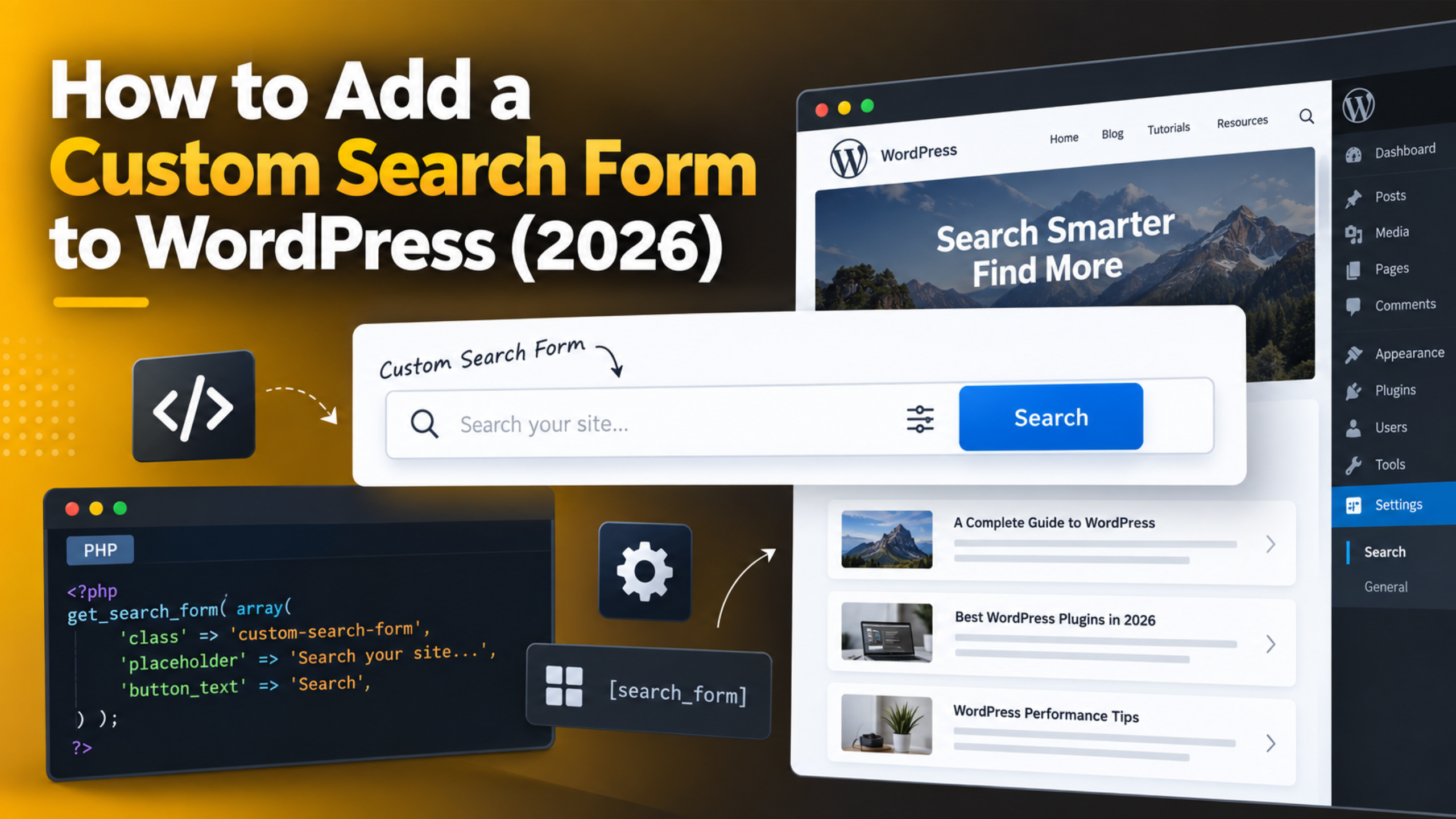
How to Add a Custom Search Form to WordPress (2026)
Introduction
A good search form helps visitors find useful content quickly. It becomes more important as your website grows larger. Visitors using search often already know what they need. They simply need an easy way to reach it.
WordPress already includes its own built-in search system. You do not need another plugin for basic site search. However, the default search box may not appear where needed. Your theme may hide it inside a sidebar or menu.
This guide explains several ways to add a WordPress search form. You will learn the Search block method first. Then, we will create a custom search form and shortcode. We will also control search results and improve their design.
The later sections cover common search problems and prevention steps. By the end, you should understand the complete search process.
How WordPress Search Works by Default
WordPress includes a working search system within its core software. Every standard installation can accept and process search requests.
The search normally works through the s query parameter. For example, a search URL can look like this:
https://example.com/?s=wordpressHere, the word wordpress is the visitor’s search term. WordPress reads that value and looks for matching content.
Core search can check information stored within posts and pages. This commonly includes titles, excerpts, and main content fields. Search behavior can also include public custom post types.
The results normally appear through the theme’s search.php template. If that template does not exist, WordPress uses another fallback. Many themes eventually fall back to index.php.
This explains why some search pages look like normal blog archives. The search engine may work correctly while the design remains basic.
Think of search as two separate website features. First, you need a form that sends the search term. Second, you need a useful page showing the results.
Method 1: Add a Search Form With the WordPress Search Block
The Search block is the easiest option for most websites. It requires no custom PHP and works inside modern WordPress editors.
If you use a block theme, open Appearance > Editor. Select the template or template part you want to edit. A header is often a good location for search.
Click the block inserter and search for the Search block. Add it where visitors can find it without extra effort.
If you are still learning blocks, this guide to the WordPress block editor explains how Gutenberg blocks work.
Customize the WordPress Search Block
The Search block includes useful design and display options. You can change the button text or use an icon.
You can also control the input width and overall alignment. Theme settings may provide colors, borders, and typography controls.
Keep the search field wide enough for useful search terms. Very narrow fields make searching less comfortable on smaller screens.
The search button should also remain easy to identify. A magnifying glass works well when its meaning is clear.
Add Search in a Classic WordPress Theme
Classic themes may still provide widget areas for search. Open Appearance > Widgets if that screen exists.
Add the Search block or search widget to your chosen area. Typical locations include the sidebar, footer, and header widget areas.
The exact locations depend on your active WordPress theme. Some themes provide several areas, while others provide only one.
Why the Search Block Is Usually the Best Starting Point
The Search block requires less maintenance than custom code. WordPress also creates the important form markup for you.
This helps reduce simple mistakes with field names and labels. It is also easier for non-developers to edit later.
Start with this method unless you need special search behavior. Custom code should solve a real requirement, not add complexity.
Method 2: Create a Custom searchform.php
A custom search form gives you much greater design control. It also works well inside custom PHP theme templates.
This method is useful when the default Search block feels limiting. You can control the complete HTML structure and CSS classes.
Where Should the searchform.php File Go?
Create searchform.php inside your active child theme. Avoid changing the same file inside a parent theme.
Parent theme updates can replace files stored inside that theme. Your custom search form could disappear after an update.
A child theme keeps those custom changes separate. Learn more about what a WordPress child theme is before editing theme templates.
Once searchform.php exists, WordPress can use that custom form. Calls to get_search_form() can load your version.
Build the Search Form Correctly
A working form needs several important details. The form method should normally use GET.
The action should point toward the website home URL. Most importantly, the search field must use name="s".
A simple custom search form can look like this:
<form role="search" method="get" class="site-search"
action="<?php echo esc_url( home_url( '/' ) ); ?>">

    <label class="screen-reader-text" for="site-search-field">
        Search this website
    </label>

    <input type="search"
        id="site-search-field"
        name="s"
        value="<?php echo esc_attr( get_search_query() ); ?>"
        placeholder="Search..." />

    <button type="submit">Search</button>

</form>
The name="s" value is especially important. WordPress expects the search term through this parameter.
The label also improves accessibility for people using screen readers. Do not rely on placeholder text as the only label.
Add the Search Form Inside Theme Templates
After creating the file, you can call it using:
<?php get_search_form(); ?>This function can be placed inside many theme templates. Common choices include the header, sidebar, footer, and 404 page.
Keep template changes inside your child theme whenever possible. This makes future WordPress maintenance much easier.
Method 3: Create a WordPress Search Shortcode
A shortcode gives you another flexible way to place search. It works well inside pages, posts, and some page builders.
This is useful when PHP template editing is unnecessary. You can create the function once and reuse it anywhere.
Create the Search Shortcode
Add the shortcode code inside your child theme’s functions.php. A small custom plugin is another good option.
If the feature should remain after changing themes, consider a plugin. The 24×7 WP Support guide to creating a WordPress plugin explains the basic structure.
function my_search_shortcode() {
    return get_search_form( array( 'echo' => false ) );
}

add_shortcode( 'site_search', 'my_search_shortcode' );
The 'echo' => false setting is important here. Shortcodes should return content instead of printing it immediately.
You can now add this shortcode wherever needed:
[site_search]If you already created searchform.php, the shortcode can reuse it. This keeps the search form consistent across your website.
How to Search Only One WordPress Post Type
A large website may contain several types of content. Searching everything can create results that feel messy or unrelated.
For example, a WooCommerce store may prefer product-only search. A knowledge base may want only documentation articles included.
Custom post types are common on more advanced websites. You can learn how they fit into larger builds through this guide to custom WordPress development.
Limit Search Using a Hidden Input
You can pass a post type through the search form. For WooCommerce products, add this hidden field:
<input type="hidden" name="post_type" value="product" />The search request will now include the product post type. Change product when targeting another registered post type.
Search More Than One Post Type
You can also include several selected post types. This works well when visitors need posts and products together.
However, always consider search intent before including everything. More content does not always mean more useful results.
Control Search With pre_get_posts
A query filter provides stronger control over WordPress search results. The pre_get_posts hook can change the main query.
add_action( 'pre_get_posts', function( $query ) {

    if (
        ! is_admin()
        && $query->is_main_query()
        && $query->is_search()
    ) {
        $query->set( 'post_type', array( 'post', 'product' ) );
    }

} );
Each condition protects other WordPress queries from unwanted changes. Without them, dashboard or secondary queries could behave differently.
If you want deeper query knowledge, read the comparison of get_posts() and WP_Query(). It explains how WordPress retrieves different groups of content.
Improve the WordPress Search Results Page
A useful search form is only half the experience. Visitors also need a clear and useful results page.
Create or Customize search.php
Your theme’s search.php file controls search result presentation. Create one inside the child theme when needed.
Show the visitor’s search term near the page heading. This confirms that WordPress understood what they entered.
You can retrieve that value with:
<?php echo esc_html( get_search_query() ); ?>Showing the number of results can also improve clarity. Visitors immediately know whether many matches were found.
Create a Helpful No-Results Experience
A simple “No results found” message creates a dead end. Give visitors another useful action instead.
Show the search form again and suggest another query. You can also show popular posts or important website categories.
A contact link may help when visitors need direct assistance. The goal is keeping them moving rather than losing them.
Remove Unwanted Content From Search
Some websites return pages that offer little search value. Policy pages and basic utility pages can create unnecessary noise.
Use query controls to include only useful content types. Search results should match what visitors are likely seeking.
Prevent Empty Search Queries
An empty search field can produce confusing behavior on some sites. Adding required prevents blank form submissions.
<input type="search" name="s" required />You can also validate the search value before showing results. Keep the response clear when no term was entered.<!–
Style the WordPress Search Form Properly
A technically correct search form can still feel difficult to use. Good styling should support search instead of distracting visitors.
Create a Responsive Search Layout
Flexbox works well for keeping inputs and buttons aligned. Let the input grow while the button keeps enough space.


.site-search {
    display: flex;
    width: 100%;
    gap: 8px;
}

.site-search input[type="search"] {
    flex: 1;
    min-width: 0;
}

.site-search button {
    padding: 10px 16px;
}
Always check the form on smaller mobile screens. Buttons should not unexpectedly drop onto another line.
Keep Your Search Form Accessible
Search fields should have meaningful labels for assistive technology. You may visually hide the label when design requires it.
However, the label should remain available to screen readers. Placeholder text should provide guidance, not replace accessibility markup.
Keep Keyboard Focus Visible
Visitors using keyboards need to see their current position. Never remove focus outlines without adding a clear replacement.
You can style the focus using :focus-visible. Make sure it remains easy to notice against your background.
Clear Cache After Search Design Changes
Caching may keep an older template or stylesheet visible. This can make correct changes appear unsuccessful.
Clear your WordPress, hosting, browser, and CDN caches when needed. The guide on how to clear WordPress cache covers common caching layers.
Common WordPress Search Form Problems and Fixes
Why Does My WordPress Search Form Return Nothing?
Start by checking the search input’s name attribute. WordPress expects the search value under s.
If your field uses search, q, or another name, search may fail.
Also check the form method. A standard WordPress search form should normally use GET.
You can test the search engine without the form. Open a URL such as:
https://example.com/?s=testIf this works, the problem likely sits inside your form. Check its action, method, field name, and template.
Why Do Custom Fields Not Appear in Search Results?
WordPress core search does not automatically treat all metadata equally. Important custom field values may not appear as expected.
This matters on directories, stores, and custom business websites. Important information may exist outside the standard content fields.
You can extend search queries through custom development. Another option is using a search tool designed for metadata.
Choose the approach based on website size and complexity. Test custom database changes on staging before using them live.
Should You Use a WordPress Search Plugin?
You do not always need a search plugin. Basic placement and simple filtering can work using WordPress itself.
A plugin becomes more useful when visitors need advanced behavior. Examples include live suggestions, typo tolerance, and stronger relevance ranking.
Advanced stores may also need faceted filters and instant results. These features require more than a basic search form.
If live suggestions would help visitors, see this guide to adding autocomplete search to WordPress.
How Do You Remove a Search Box?
First, identify how the search box was originally added. Different methods require different removal steps.
A Search block should be removed through the Site Editor. A widget can be removed from its widget area.
A hard-coded search form should be removed from its template. Delete the related get_search_form() call when appropriate.
Avoid simply hiding unwanted search forms with CSS. The element can remain inside the page markup.
For more methods, see how to remove a search bar from WordPress.
Best Practices for WordPress Site Search
Keep Search Easy to Find
Visitors should not need several clicks to find search. Headers are usually the clearest location on content-heavy websites.
Mobile search should remain equally easy to access. Use a familiar icon with a clear interaction.
Keep Search Results Relevant
Search quality matters more than the number of results. Remove post types that rarely help search users.
Clear titles and useful excerpts improve scanning. Visitors should understand each result before opening the page.
Test Search on Real Devices
Do not rely only on the WordPress editor preview. Test your form on desktop, tablet, and mobile screens.
Submit several real searches and review the complete process. Check both successful and unsuccessful search terms.
Track Site Search Behavior
Search terms reveal what visitors expect from your website. Repeated searches can highlight important content needs.
Terms returning no useful results deserve special attention. They may show missing pages, weak navigation, or naming problems.
Popular searches can also guide website navigation decisions. They show what visitors frequently struggle to locate manually.
How to Prevent WordPress Search Problems
Building search correctly is important, but maintenance matters too. Theme, plugin, and template changes can affect search later.
Keep WordPress and Your Theme Updated
Use maintained versions of WordPress, themes, and plugins. Updates can include security, compatibility, and bug fixes.
For important websites, test larger updates before production. A staging site gives you a safer testing environment.
Use a Child Theme for Search Templates
Keep custom search.php and searchform.php files inside a child theme. This protects them during parent theme updates.
A child theme also makes custom changes easier to track. Future developers can see which files were intentionally changed.
Test Custom Search Code on Staging
Query filters can affect much more than search pages. A small condition mistake may change unrelated website content.
Test pre_get_posts changes away from your live website. Check archives, admin screens, and sidebar queries too.
Check Search After Theme Changes
A new theme may use different search templates or layouts. Test the search form immediately after changing themes.
Also review results pages, mobile layouts, and no-results screens. Do not assume the previous search design remains unchanged.
Check Search After Plugin Updates
Plugins can change queries, custom post types, and content visibility. Test search after updates affecting these features.
If results suddenly change, review the most recent website changes. Timing can provide a strong troubleshooting clue.
Clear Cache After Template Changes
Clear relevant caches whenever you edit search templates or styles. Otherwise, visitors may continue seeing an older version.
Test Search After Website Migrations
Migrations can affect theme files, URLs, caching, and configurations. Test search after moving to another host or domain.
Confirm the form action points toward the correct website URL. Also verify search templates moved with the active theme.
Monitor Search Results Regularly
Search should not become a feature you forget after launch. Review search behavior as new website content gets added.
Look for common queries that return weak results. These searches can reveal navigation and content opportunities.
Quick WordPress Search Form Checklist
- Make sure the search form is easy to find.
- Confirm the input field uses
name="s". - Use the
GETmethod for standard search. - Check that the form action uses the correct URL.
- Keep an accessible label for the search field.
- Make sure the search results page loads correctly.
- Confirm only useful post types appear in results.
- Test the search form on mobile devices.
- Create a useful no-results experience for visitors.
- Clear cache after search template changes.
- Review search terms and failed searches regularly.
When WordPress Search Needs Advanced Development
Basic WordPress search works well for many websites. However, larger websites may eventually need more advanced search features.
Custom field search is one common requirement. Directory websites may need search across location, services, or other metadata.
WooCommerce stores may need better product relevance and filters. Large content websites may need faster indexing and search responses.
Live AJAX results can improve speed from the visitor’s perspective. Typo handling can also help when users misspell product names.
Advanced relevance rules may rank important content before weaker matches. This is useful when thousands of pages share similar words.
Performance also matters on very large databases. Complex search queries can become slower as website content grows.
At that point, the solution may involve custom queries. Some websites may benefit from a dedicated search index instead.
The right method depends on your website’s actual search behavior. Avoid adding complex technology unless your visitors genuinely need it.
Conclusion: Build a Better WordPress Search Experience
A useful WordPress search form does more than display an input box. It connects visitors with the content they already want.
For most websites, the WordPress Search block is enough. It is simple, accessible, and requires very little maintenance.
A custom searchform.php gives developers greater control over markup. A search shortcode makes that same form easier to reuse.
Post type filtering can make results much more relevant. It helps stores, directories, and knowledge bases remove unnecessary content.
The results page deserves the same attention as the form. Show useful matches, explain failed searches, and offer another path forward.
Accessibility should remain part of every search design decision. Keep field labels, keyboard focus, and mobile usability working correctly.
Regular testing is also important after website changes. Theme updates, plugins, caching, migrations, and custom queries can affect search.
Finally, review what visitors actually search for on your website. Those searches show what users expect and where navigation needs improvement.
When search is visible, relevant, accessible, and maintained properly, it becomes valuable. Visitors spend less time looking and more time using your content.
For more WordPress troubleshooting, development, and maintenance guides, visit 24×7 WP Support.



Brian is a WordPress support specialist and content contributor at 24×7 WP Support. He writes practical, easy-to-follow guides on WordPress troubleshooting, WooCommerce issues, plugin and theme errors, website security, migrations, performance optimization, and integrations. With a focus on solving real website problems, Brian helps business owners, bloggers, and online store managers keep their WordPress sites running smoothly.
