
How to Export a WordPress Site Without Plugins in 2026
Sometimes you just need your WordPress site out and in your own hands. Maybe you want a safe copy before a big change. Maybe you are handing the site to a developer. Or maybe you are moving to a new home for it. Whatever the reason, you do not always need an add-on tool to do it.
WordPress already ships with the parts you need. In this guide, you will learn how to export your site by hand, step by step. We keep it plain and simple. No jargon, and no extra software. By the end, you will have a full copy of your content, your database, and your files.
What “Exporting” a WordPress Site Really Means
First, let us clear up a common mix-up. A WordPress site is not one single file. It is made of three main parts. Getting a true copy means grabbing all three.
The first part is your content. That is your posts, pages, comments, and menus. The second part is your database. It holds your settings, users, and the text of every post. The third part is your files. These are your themes, your uploads, and your images.
Some people only need the content. Others need the whole thing. We will cover both. That way you can stop at the point that fits your goal.
Why Export Without a Plugin?
Add-on tools are handy, but they are not always the best pick. Doing it by hand has real perks. You stay in full control the whole time.
For one, you avoid extra software on your site. Fewer add-ons means fewer things that can break or clash. You also skip any size limits that free tools often set. Big sites export just fine this way.
There is a learning perk too. Once you know where your site lives, you understand it better. That knowledge helps you fix problems faster down the road. And the built-in tools are always free.
Method 1: Export Your Content With the Built-In Tool
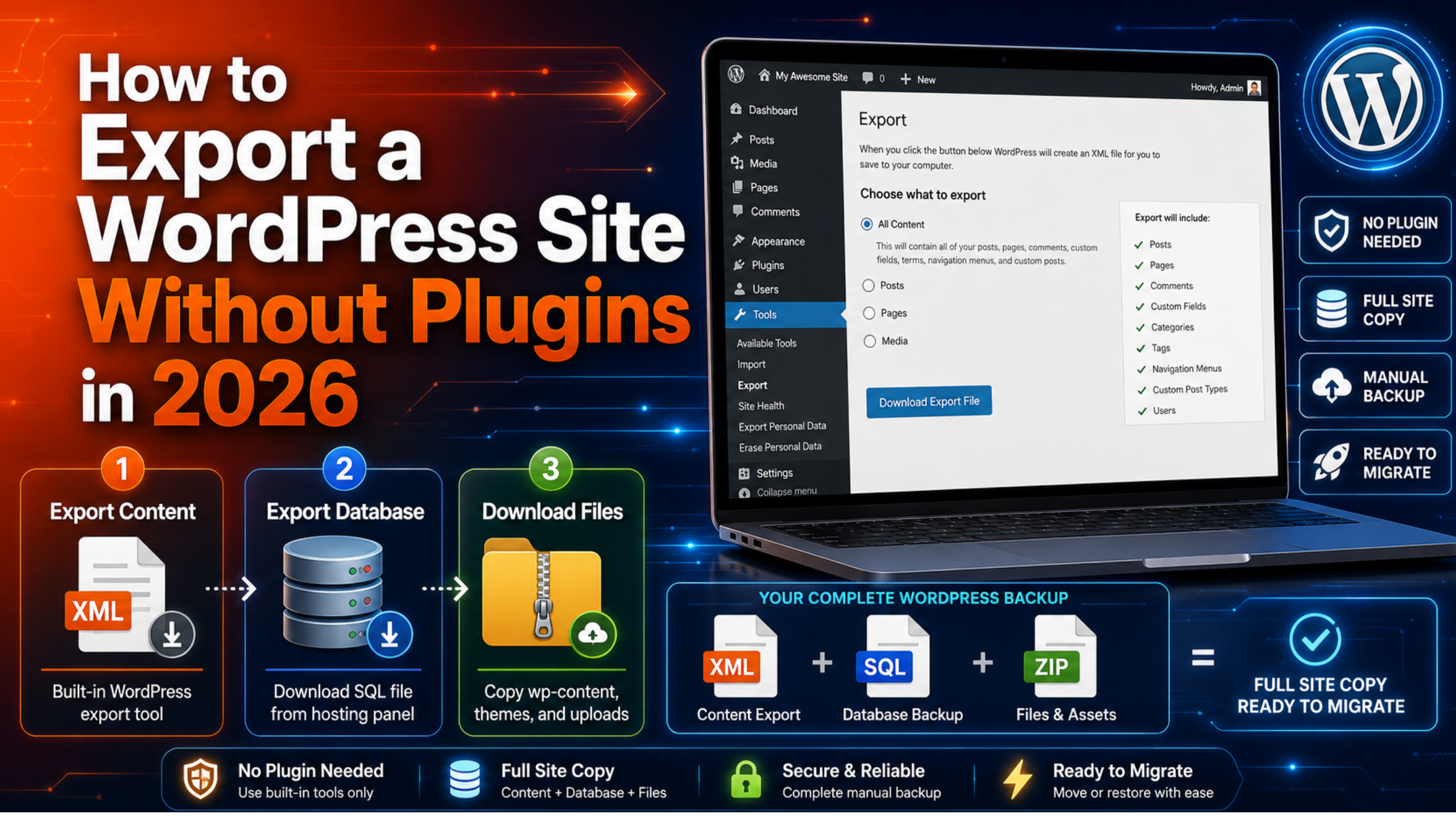
WordPress has a simple export tool baked right in. It creates one file with all your content inside. This is the fastest way to grab your posts and pages.
Start by logging into your dashboard. Look at the left-hand menu. Find the “Tools” section and click it. Then choose “Export” from the list that appears.
Now you get to pick what to save. You can choose “All content” for everything. Or you can pick just posts, just pages, or just media. For a full copy, leave it on “All content.”
Click the download button and wait a moment. Your browser saves a single file to your computer. It ends in “.xml” and is often called a WXR file. Keep it somewhere safe. It holds every post, page, and comment on your site.
This method is quick and clean. It is perfect for moving your writing to a new site. If you also manage user accounts, our guide on exporting and importing WordPress users walks through that piece in detail.
Method 2: Export Your Database by Hand
The content file is great, but it is not everything. Your database holds the deeper settings. To copy those, you go one level down. Do not worry, it is easier than it sounds.
Log into your hosting control panel first. Look for a database tool in the menu. Most hosts include one for managing your data. Open it and pick your WordPress database from the side list.
Once it opens, look for an “Export” tab at the top. Click it to begin. Choose the “Quick” option for a simple, complete copy. Leave the format set to its default, which is a “.sql” file.
Now click the button to run the export. Your browser downloads the whole database as one file. This file is the heart of your site. It carries your settings, your links, and all your post text.
Store this file with your content file. Together they form a strong backup. If you ever need to restore things, our walkthrough on backing up and restoring a WordPress site shows how the pieces fit back together.
Method 3: Download Your Site Files
The last piece is your files. These are your themes, plugins, and uploads. The built-in tool does not include them. So we grab them on their own.
You have two easy ways to do this. The first uses your hosting file manager. The second uses a small program called an FTP client. Both reach the same folders. Pick whichever feels simpler to you.
Using Your Host’s File Manager
Open your hosting control panel again. Find the file manager tool and click it. It shows the folders that make up your site. Look for the main folder, often named “public_html.”
Inside, you will see a folder called “wp-content.” This is the one that matters most. It holds your themes, uploads, and images. Right-click it and choose to compress it into a zip. Then download that zip to your computer.
Using an FTP Client
An FTP client is a free tool that connects to your site. Your host gives you the login details you need. Once connected, you see your site’s folders on screen. Find the “wp-content” folder just like before.
Drag that folder from the site to your computer. The client copies every file across. It may take a while for large media libraries. When it finishes, you have all your uploads and design files.
Widgets and small settings live in the database, not here. If you want to move those on their own, see our tip on exporting widget settings in WordPress.


Putting the Three Parts Together
Now you have three items on your computer. You have the content file, the database file, and the files zip. Together, they are a complete copy of your site.
Think of them as a simple kit. The content file is your writing in a portable form. The database file is your full settings and post data. The files zip is your look and your media.
For a plain content move, the first file is enough. For a true, full copy, you want all three. Keep them in one clearly named folder. Add the date to the name so you know how fresh it is.
How to Store Your Export Safely
An export is only useful if you can find it later. So storage matters as much as the export itself. A lost backup helps no one.
Keep at least two copies in two places. One can sit on your computer. The other can live in cloud storage or on a drive. That way, one failure never wipes out both.
Label each copy with a clear name and date. Check the files open correctly before you trust them. A quick peek now saves a big headache later. This same habit protects your themes too, as we explain in our note on backing up your WordPress theme.
When You Also Need to Import
Exporting gets your site out. Sometimes the goal is to put it back somewhere new. That step is called importing, and it is the natural next move.
To rebuild on a fresh site, you reverse the steps. You bring in the content file through the import tool. You load the database through the same host tool you used before. Then you upload your “wp-content” folder to the new server.
Moving to a whole new host is a slightly bigger job. It is close to what we cover in our full guide on moving a site by hand. Exporting is simply the first half of that trip, and now you have it mastered.
How Often Should You Export Your Site?
An export is a snapshot in time. It only holds what your site looked like that day. So one old copy is not enough on its own. Fresh exports keep you truly protected.
How often you export depends on your site. A busy shop or news site changes every day. For those, a daily or weekly copy makes sense. A small site that rarely changes needs fewer.
A good rule is simple. Export before any big change, every time. That means before a theme swap, a major update, or new code. If something breaks, you can roll right back. You lose nothing and stay calm.
Set a reminder so you never forget. A quick note on your calendar works well. Over time, exporting becomes second nature. And a steady habit beats a perfect plan you never follow.
Content File Versus Full Backup
It helps to know the difference between the two. They are not the same thing, though people mix them up. Each one suits a different need.
The content file is light and quick. It moves your posts and pages to a new site with ease. But it leaves out your design and your files. Think of it as your words, packed for travel.
A full backup is the complete picture. It joins the content, the database, and the files. Use it when you want a true safety net. When in doubt, make the full backup and rest easy.
Common Mistakes to Avoid
A few small slips can spoil an export. Knowing them ahead of time keeps you safe. Most are easy to dodge.
The biggest one is grabbing only the content file. That file skips your files and some settings. On its own, it is not a full backup. Always pair it with the database and the “wp-content” folder.
Another slip is never testing the copy. A backup you cannot open is no backup at all. Open each file once to be sure. Also, avoid exporting during heavy traffic. A quiet hour keeps the process smooth and complete.
Final Thoughts
Exporting a WordPress site by hand is simpler than it looks. You use three built-in steps and nothing more. Grab your content, copy your database, and download your files. That is the whole job.
Do it once and the process sticks with you. You gain a real backup and a deeper feel for your own site. Make it a regular habit, not a one-time rush. Future you will be grateful.
Want a hand with exports, backups, or a full move? The team at 24×7 WP Support is ready around the clock. We handle the technical side so you can relax. Reach out today and keep your WordPress site safe and portable in 2026.
Related posts:
How to Add Autocomplete Search to Your WordPress Website?
How to create a custom single post template in WordPress
How Much Does WordPress Training Cost in 2026? Free & Paid Options
What Is AMP in WordPress? Uses, Setup, and Do You Still Need It?
Why Is the WordPress Business Plan So Expensive? Is It Worth It?

Brian is a WordPress support specialist and content contributor at 24×7 WP Support. He writes practical, easy-to-follow guides on WordPress troubleshooting, WooCommerce issues, plugin and theme errors, website security, migrations, performance optimization, and integrations. With a focus on solving real website problems, Brian helps business owners, bloggers, and online store managers keep their WordPress sites running smoothly.
