
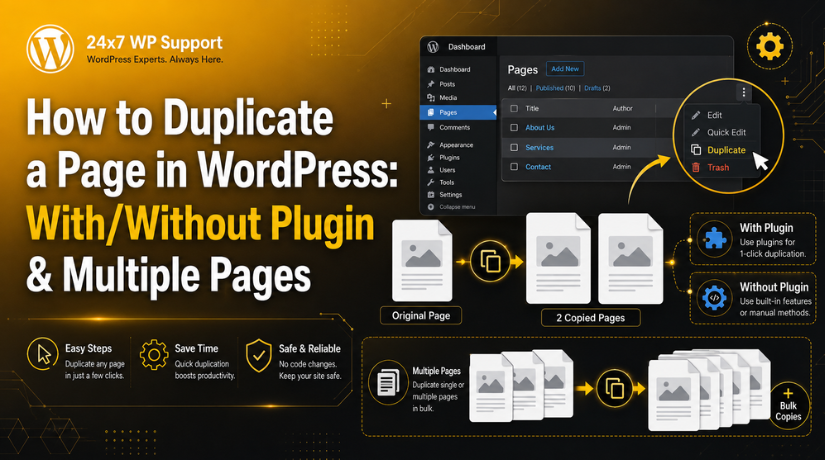
How to Duplicate a Page in WordPress: With/Without Plugin & Multiple Pages
You built a great page. Now you want another one just like it. Copying it by hand is slow and error-prone.
The good news? You can duplicate a page in WordPress in minutes. This guide shows you every method, with and without a plugin, plus how to copy many pages at once.
Why Duplicate a Page in WordPress?
Copying a page saves real time. You reuse a layout instead of building it again.
Here are the most common reasons people do it:
- Reuse a design. Keep the same layout for a new topic.
- Test safely. Edit a copy, not the live page.
- Build templates. Turn one page into a base for many.
- Save drafts. Keep a backup before big changes.
Whatever your reason, the steps below make it simple.
Before You Start
Duplicating a page copies its content and layout. It does not copy the page’s live URL.
The copy becomes a new draft with its own address. So your original page stays safe and untouched. That is exactly what you want.
It is still smart to back up your site first. A backup protects you if anything goes wrong during edits.
Method 1: Duplicate a Page in WordPress With a Plugin
A plugin is the fastest way to copy a page. It adds a one-click button to your dashboard.
Several free duplication plugins exist in the WordPress directory. They all work in a similar way.
How the Plugin Method Works
- Install and activate a page duplication plugin.
- Go to Pages in your dashboard.
- Hover over the page you want to copy.
- Click the new Duplicate or Clone link.
WordPress then creates an exact copy. It appears as a draft in your Pages list.
Open the draft, change the title, and edit the content. Then publish when you are ready.
Why People Like Plugins
Plugins copy everything at once. That includes text, images, and page settings.
They also copy custom fields and templates. This matters for pages built with a page builder. If a plugin ever misbehaves, our guide on fixing common block editor problems can help.
One tip: do not install too many plugins. Each one adds code and can slow your site. Keep only the tools you truly use.
Method 2: Duplicate a Page Without a Plugin
No plugin? No problem. You can still copy a page using built-in tools.
This method uses the block editor’s own copy feature. It takes a few more clicks, but it needs nothing extra.
Copy All Blocks by Hand
- Open the page you want to copy.
- Click the three-dot menu in the top right.
- Choose Copy all blocks.
- Create a new page.
- Click inside it and paste with Ctrl+V or Cmd+V.
All your blocks appear in the new page. Add a title and save it as a draft.
This works well for most standard pages. It is quick once you know where the menu sits.
Use the Code Editor for a Full Copy
Want an exact match? Switch to the code editor instead.
Open the three-dot menu and pick Code editor. Select all the code and copy it. Then paste it into a new page’s code editor.
This copies the raw block markup. If you are comfortable with code, our guide to editing your WordPress source code explains how this markup works.
Method 3: Duplicate a Page Built With a Page Builder
Page builders like Elementor have their own copy tools. You do not always need a separate plugin.
Most builders let you save a page as a template. You then apply that template to a new page in seconds.
You can also copy sections between pages. Just right-click a section and choose copy, then paste it elsewhere. For template workflows, see our guide on importing Elementor templates into WordPress.


This keeps your design consistent across the whole site. It is a favorite trick for busy agencies.
How to Duplicate Multiple Pages at Once
Copying one page is easy. But what if you need to copy many?
Doing them one by one wastes time. A good duplication plugin solves this.
Bulk Duplication Steps
- Go to your Pages list.
- Tick the checkbox next to each page you want.
- Open the Bulk actions menu at the top.
- Choose the duplicate option, then click Apply.
WordPress copies every selected page in one go. Each copy lands as a draft, ready to edit.
Not every plugin offers bulk duplication. Check the plugin’s features before you rely on it.
Duplicating Posts vs Pages
The same methods work for blog posts too. Posts and pages both live in the block editor.
Most duplication plugins add a copy link to both. So you can clone a post the same way you clone a page.
The only real difference is where they appear. Pages sit under Pages, and posts sit under Posts. The copy process stays the same.
Common Mistakes to Avoid
- Forgetting to rename. Give each copy a clear new title.
- Publishing too soon. Edit the draft before it goes live.
- Ignoring SEO. Two identical live pages can confuse search engines.
- Skipping the backup. Always protect your site first.
- Copying broken layouts. Fix issues before you clone them everywhere.
Avoid these, and your copies will stay clean and useful.
A Quick Word on SEO
Duplicate drafts are fine. Duplicate live pages are not.
Two public pages with the same content can hurt your rankings. Search engines struggle to pick which one to show.
So edit each copy to make it unique before publishing. A tool like Yoast helps here. Our complete tutorial on the Yoast SEO plugin shows how to set canonical tags and titles.
Which Method Should You Use?
Match the method to your needs. Here is a quick guide.
- Copy pages often? Use a duplication plugin.
- Just one page? Use Copy all blocks.
- Need an exact match? Use the code editor.
- Built with a page builder? Use its template tool.
- Many pages at once? Use bulk duplication.
There is no single best way. The right choice depends on the job in front of you.
When to Get Help
Most page copies are simple. But some sites are more complex.
Custom templates, tricky plugins, or broken layouts can cause trouble. A copied page might not look right, or a plugin might clash with your theme.
You do not have to sort it out alone. Our team at 24×7 WP Support can duplicate, edit, and manage your WordPress pages around the clock. If you also need to tweak the copy, our complete guide on editing WordPress pages and plugin files is a handy companion.
Duplicate a Page in WordPress: A Quick Recap
You can duplicate a page in WordPress with a plugin, the block editor, or a page builder. Each path gives you a fresh draft to edit.
Once the copy exists, treat it like any other page. You can change the text, swap images, or even adjust the footer. Our guide on how to edit a footer in WordPress shows one common tweak you might make next.
Final Thoughts
Now you know how to duplicate a page in WordPress in several ways. Use a plugin for speed, the block editor for simplicity, or a page builder for design work.
Remember to rename each copy, edit it before publishing, and watch for duplicate content. Do that, and copying pages becomes a quick, safe part of your workflow.
And if a copy ever gives you trouble, our team is here to help you get it right.
Related posts:
How to Optimize Database Performance in WordPress (2026 Guide)

Is WordPress Good for Blogging? Everything You Need to Know
WordPress RSS Feeds Explained: How to Enable and Create a Custom Feed in 2026
How to Activate WordPress Maintenance Mode?
What Is WordPress XML-RPC? Should You Enable or Disable It?

Brian is a WordPress support specialist and content contributor at 24×7 WP Support. He writes practical, easy-to-follow guides on WordPress troubleshooting, WooCommerce issues, plugin and theme errors, website security, migrations, performance optimization, and integrations. With a focus on solving real website problems, Brian helps business owners, bloggers, and online store managers keep their WordPress sites running smoothly.
