
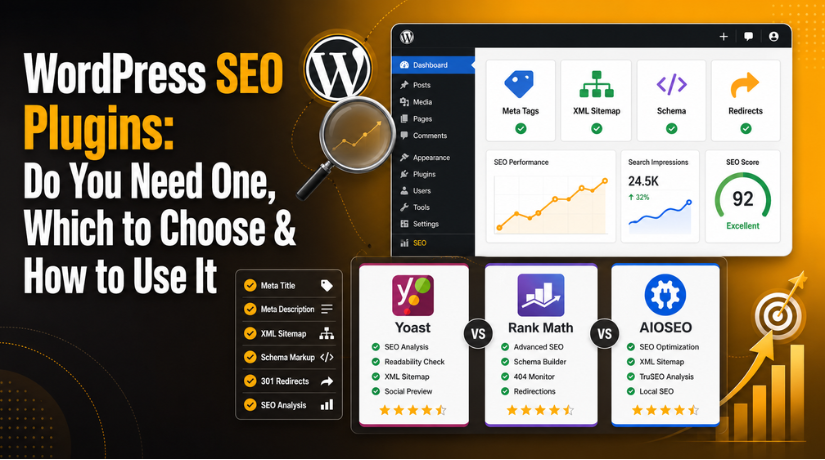
WordPress SEO Plugins: Do You Need One, Which to Choose & How to Use It
Introduction
If you’ve spent any time reading about WordPress, you’ve probably come across the same advice repeated everywhere: install an SEO plugin. But is that advice actually correct? Do you really need one, and if so, which one should you pick from the dozen-plus options now available in 2026? And once you’ve picked one, how do you actually use it without wasting hours in settings menus you don’t fully understand?
This guide answers all three questions honestly — without the hype and without trying to sell you an upgrade you don’t need.
What Is a WordPress SEO Plugin and What Does It Actually Do?
WordPress is a capable content management system, but it doesn’t come with built-in tools for managing how your pages appear in search results. Out of the box, WordPress gives you a title, a text editor, and some basic settings. That’s it.
A WordPress SEO plugin fills in the gaps by adding a layer of controls that make it easier to:
- Write custom meta titles and descriptions for every page and post
- Generate an XML sitemap automatically so search engines can crawl your site
- Add structured data (schema markup) that helps Google understand your content
- Set canonical URLs to avoid duplicate content penalties
- Manage 301 redirects without touching your server configuration
- Check your content for on-page SEO signals like keyword usage and readability
- Connect your site to Google Search Console from your dashboard
None of these things require an SEO plugin in theory — you can handle most of them through code or other plugins. But in practice, a good SEO plugin handles everything in one place and makes it accessible to non-developers. That’s the real value proposition.
Do You Actually Need a WordPress SEO Plugin?
Short answer: almost certainly yes, but with one important caveat — the plugin does not do the SEO for you.
Search engines rank pages based on relevance, authority, page experience, and content quality. No plugin changes any of those things automatically. What a plugin does is remove technical obstacles and give you the controls you need to implement a strategy. The strategy still has to come from you.
That said, there are a few scenarios where you might not need a dedicated SEO plugin:
- You’re running a simple site where all the SEO is handled by a developer at the theme or server level
- Your hosting provider includes a built-in SEO toolkit that handles sitemaps, meta tags, and redirects
- You’re using a page builder with native SEO fields baked in
For most WordPress site owners — bloggers, small businesses, freelancers, WooCommerce store owners — a dedicated SEO plugin is the most practical solution available. The time savings alone justify it.
The Top WordPress SEO Plugins to Consider in 2026
The market has consolidated significantly over the past few years. While there are many SEO plugins available, three dominate real-world usage in 2026: Yoast SEO, Rank Math, and All in One SEO (AIOSEO). A fourth option, SEOPress, has gained a loyal following among developers who prioritize performance and privacy.
We’ve covered the broader plugin landscape in more detail in our post on the 5 Best WordPress SEO Plugins for Better Ranking. Here, we’ll focus on helping you choose the right one for your specific situation.
Yoast SEO: The Reliable Starting Point
Yoast SEO has been around for over a decade and remains the most installed SEO plugin in the WordPress ecosystem. Its longevity isn’t an accident — the plugin is reliable, well-documented, and genuinely beginner-friendly.
What You Get for Free
The free version of Yoast includes meta title and description controls, XML sitemap generation, basic schema markup, Open Graph tags for social sharing, and a content analysis tool that checks for things like keyword density, sentence length, and passive voice. For most small sites, the free version is sufficient.
What’s Behind the Paywall
Yoast Premium at $99 per year unlocks multiple focus keyphrases per post, a redirect manager, internal linking suggestions, AI-powered title and meta description rewrites, and a social preview tool for Facebook and Twitter/X. If you’re managing a content-heavy site, these features are genuinely useful. If you’re just starting out, start with free.
Who It’s Best For
Yoast is the right choice if you’re new to SEO, if you have a team of writers who need clear guidance inside the editor, or if you simply want a plugin that works well without requiring you to learn a complicated interface.
Rank Math: The Feature-Rich Alternative
Rank Math entered the market later than Yoast but quickly built a reputation for offering more features in its free tier than most competitors include in their paid plans.
What Makes Rank Math Stand Out
The free version of Rank Math includes support for unlimited focus keywords per post, a built-in redirect manager, 404 error monitoring, 18+ schema types, Google Search Console integration inside your WordPress dashboard, and a module system that lets you turn features on or off depending on what you actually need. In 2026, Rank Math also launched Content AI v2.0, which offers real-time NLP keyword suggestions directly in the editor.
Performance Considerations
Rank Math is significantly lighter than Yoast in terms of server resources. Its codebase is smaller and memory usage is lower, which matters if you’re running a site on shared hosting or managing site speed carefully.
Who It’s Best For
Rank Math is the better choice if you want maximum features without paying for them, if you’re comfortable with slightly more complex settings, or if technical SEO work like schema markup and redirects is a priority for your site.
AIOSEO: Built for Businesses and Online Stores
All in One SEO (AIOSEO) has evolved into one of the most polished options for business sites and WooCommerce stores in 2026. Its interface is clean, its feature set is comprehensive, and it’s particularly well-suited for sites with e-commerce or local SEO needs.


Standout Features for Business Sites
AIOSEO’s paid tiers include a Link Assistant that automatically suggests internal links across your entire site — a genuinely time-saving feature for large content libraries. Its local SEO module makes it straightforward to set up business hours, address schema, and Google Maps integration. The WooCommerce integration handles product schema, breadcrumb markup, and category SEO out of the box.
Pricing Context
AIOSEO’s Pro plan runs $199.50 per year and covers 10 sites. Compare that to Yoast, where 10 sites would cost roughly $1,188 per year. For agencies managing multiple client sites, AIOSEO’s pricing structure is substantially more favorable.
Who It’s Best For
AIOSEO is the right pick if you’re running a WooCommerce store, a local business site, or an agency managing multiple WordPress installations.
How to Set Up Your WordPress SEO Plugin Correctly
Installing the plugin is the easy part — activating it and clicking through the wizard. The part most people skip is the part that actually matters.
Step 1: Run the Setup Wizard
Every major SEO plugin launches a setup wizard on first activation. Run it. The wizard asks you to confirm your site type (blog, business, portfolio, store), set your homepage SEO title and meta description, and connect Google Search Console. This typically takes under 10 minutes and sets the correct defaults for everything that follows.
Step 2: Configure Your Sitemap
Make sure your XML sitemap is enabled and includes your posts and pages. Exclude media attachment pages — these are low-quality pages that serve no purpose in search results and can dilute your crawl budget. Once your sitemap is active, submit the URL to Google Search Console so Google knows where to find it.
Step 3: Set Up Your Permalink Structure
Before you publish anything, make sure your WordPress permalink structure is set to use the post name (e.g., yoursite.com/your-post-title/). This is a WordPress setting, not an SEO plugin setting, but it matters enormously for SEO. Go to Settings → Permalinks and select “Post name” if it isn’t already selected.
Step 4: Optimize Each Post Before Publishing
This is where the plugin’s editor panel comes in. Before publishing any post, use the SEO plugin to:
- Write a custom SEO title that includes your target keyword and stays under 60 characters
- Write a meta description between 145 and 160 characters that describes the page and includes the keyword naturally
- Set a focus keyphrase (the term you most want the page to rank for)
- Check the content analysis results and address any red or orange flags
Step 5: Add Schema Markup Where It Helps
Schema markup tells search engines what type of content a page contains — an article, a product, a recipe, a FAQ, a how-to guide. Adding the correct schema type can result in rich snippets in search results, which often improve click-through rates. For most blog posts, the Article schema type is applied automatically. For specialty content, check your plugin’s schema settings and apply the appropriate type manually. You can learn more about how this works in our guide to What is Schema Markup & How to Add It in WordPress.
Common SEO Plugin Mistakes That Waste Your Effort
Using an SEO plugin incorrectly is almost as common as not using one at all. Here are the mistakes to avoid:
Installing Multiple SEO Plugins
Never run two full SEO plugins at the same time. Yoast and Rank Math active simultaneously will conflict, double-output your sitemaps, and create schema markup errors. Pick one and stick with it.
Ignoring the Readability Score
Most SEO plugins include a readability analysis alongside the SEO analysis. A lot of site owners focus entirely on the green SEO light and ignore the readability score. But Google evaluates page experience, and content that’s hard to read hurts your engagement metrics. If your readability score is consistently red or orange, your content likely has overly long sentences, too few subheadings, or excessive passive voice — all fixable issues.
Keyword Stuffing to Hit the Plugin’s Targets
SEO plugins flag when a keyword appears too infrequently — or too frequently. Some site owners respond by forcing the keyword into every paragraph to turn the light green. This is exactly backwards. Write naturally first, then check the analysis and make minor adjustments where they improve clarity. The plugin is a guide, not a rule.
Neglecting Redirect Management
Every time you change a post’s URL slug, you create a broken link unless you set up a 301 redirect. Most SEO plugins include a redirect manager for this reason. Get in the habit of creating redirects whenever you update URLs. We cover the full redirect setup process in our detailed guide on Setting Up 301 Redirects in WordPress via .htaccess and Plugins.
One Plugin Is Enough — But the Work Is Still Yours to Do
A WordPress SEO plugin is one of the smartest tools you can add to your site — but only if you use it properly. It handles the technical scaffolding: sitemaps, schema, meta tags, redirects. What it can’t do is write better content for you, build backlinks, or choose keywords worth targeting. Those decisions require strategy, and strategy requires time.
Start simple: pick Yoast if you want something familiar and well-documented, Rank Math if you want more features for free, or AIOSEO if you’re running a store or managing multiple sites. Run the setup wizard on day one, optimize each post before publishing, and don’t overthink the rest.
If your WordPress site needs more than a plugin — faster load times, cleaner code, better uptime, or hands-on SEO support — the team at 24×7 WP Support is here to help. Get in touch with us today and let’s look at what your site actually needs to perform better in search.

Brian is a WordPress support specialist and content contributor at 24×7 WP Support. He writes practical, easy-to-follow guides on WordPress troubleshooting, WooCommerce issues, plugin and theme errors, website security, migrations, performance optimization, and integrations. With a focus on solving real website problems, Brian helps business owners, bloggers, and online store managers keep their WordPress sites running smoothly.
